AI Photo Editing Tools
Each AI photo editing tool below opens the EditPic editor with its prompt ready, so every tool starts you from a working instruction instead of a blank box. The tools are grouped by job and all run on the same AI photo editor, so you can chain several tools on one photo: remove the background, fix the light, then upscale the result.
Background tools
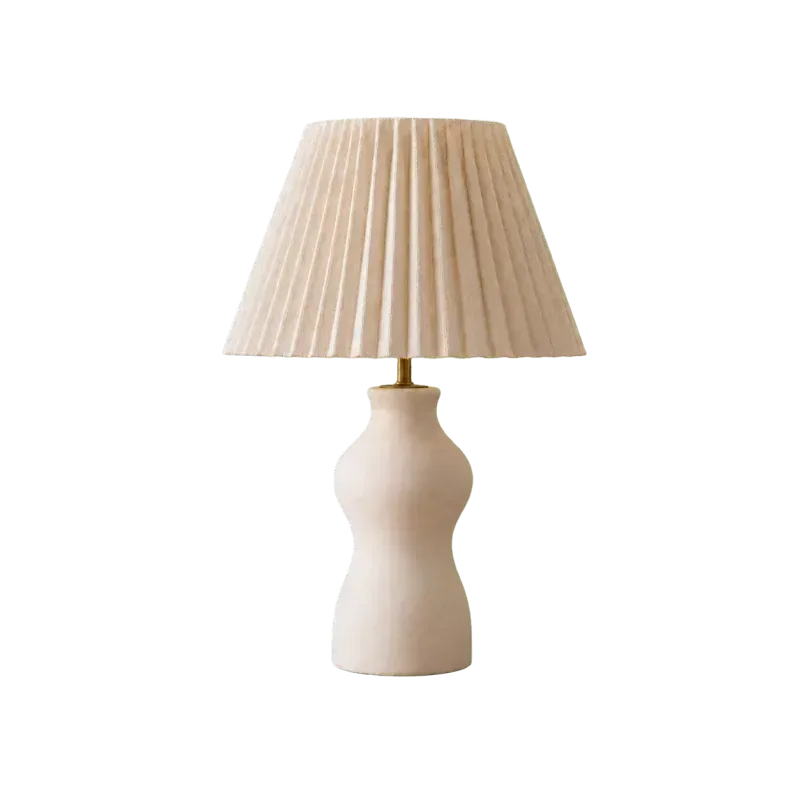
Background Remover
Remove background from photo uploads in a few seconds: EditPic keeps your subject and swaps everything behind it for a clean white or solid color. No lasso, no masks, no layers.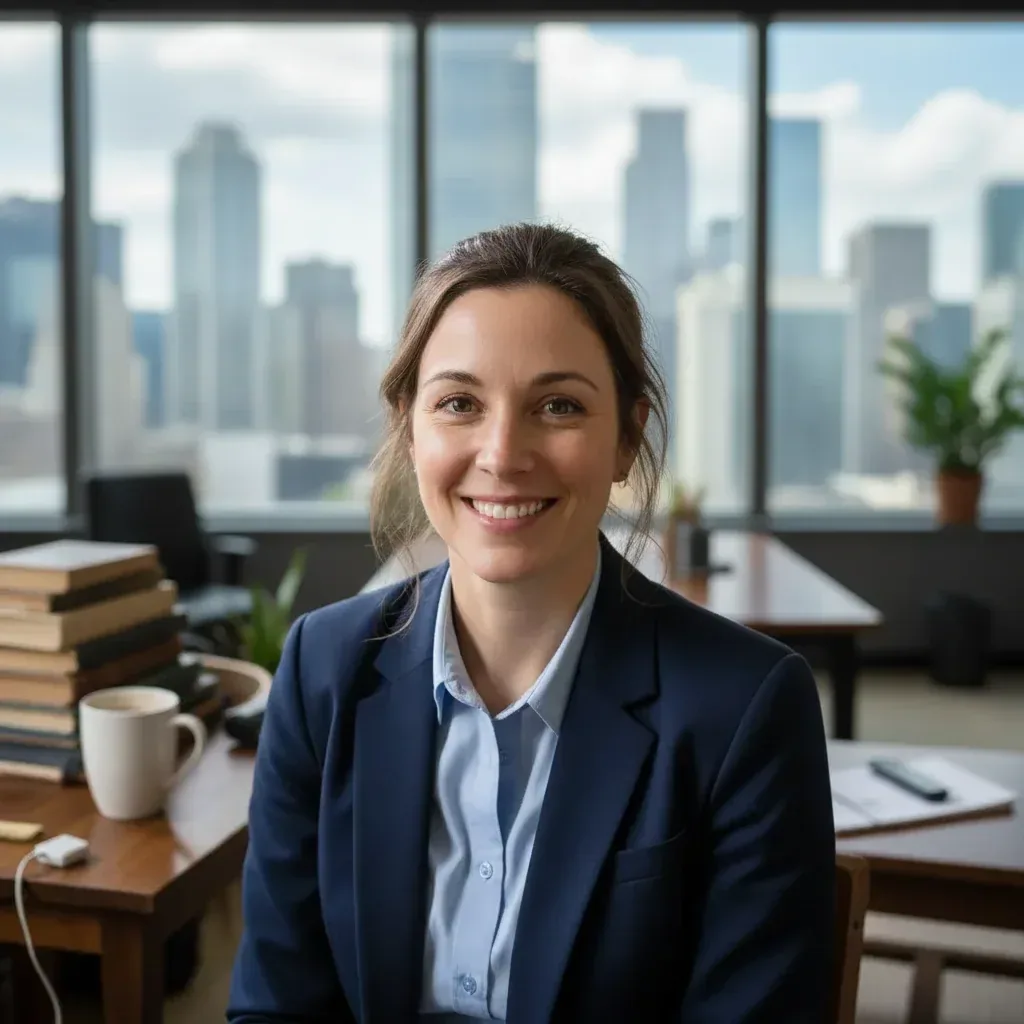
Background Changer
EditPic’s background changer puts your subject in front of a new background: a city office, a beach, a café or a plain studio wall. Describe the background in one sentence and the AI matches light, perspective and shadows so the photo looks shot there.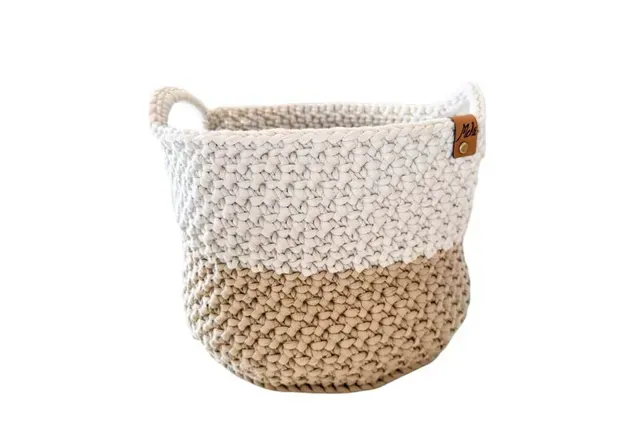
Product Photo Background
Give every listing a clean white background for product photos without a lightbox: shoot on any table, upload the picture and EditPic sets the item on a pure white background with a natural shadow. Want a styled scene behind it instead? Just describe it.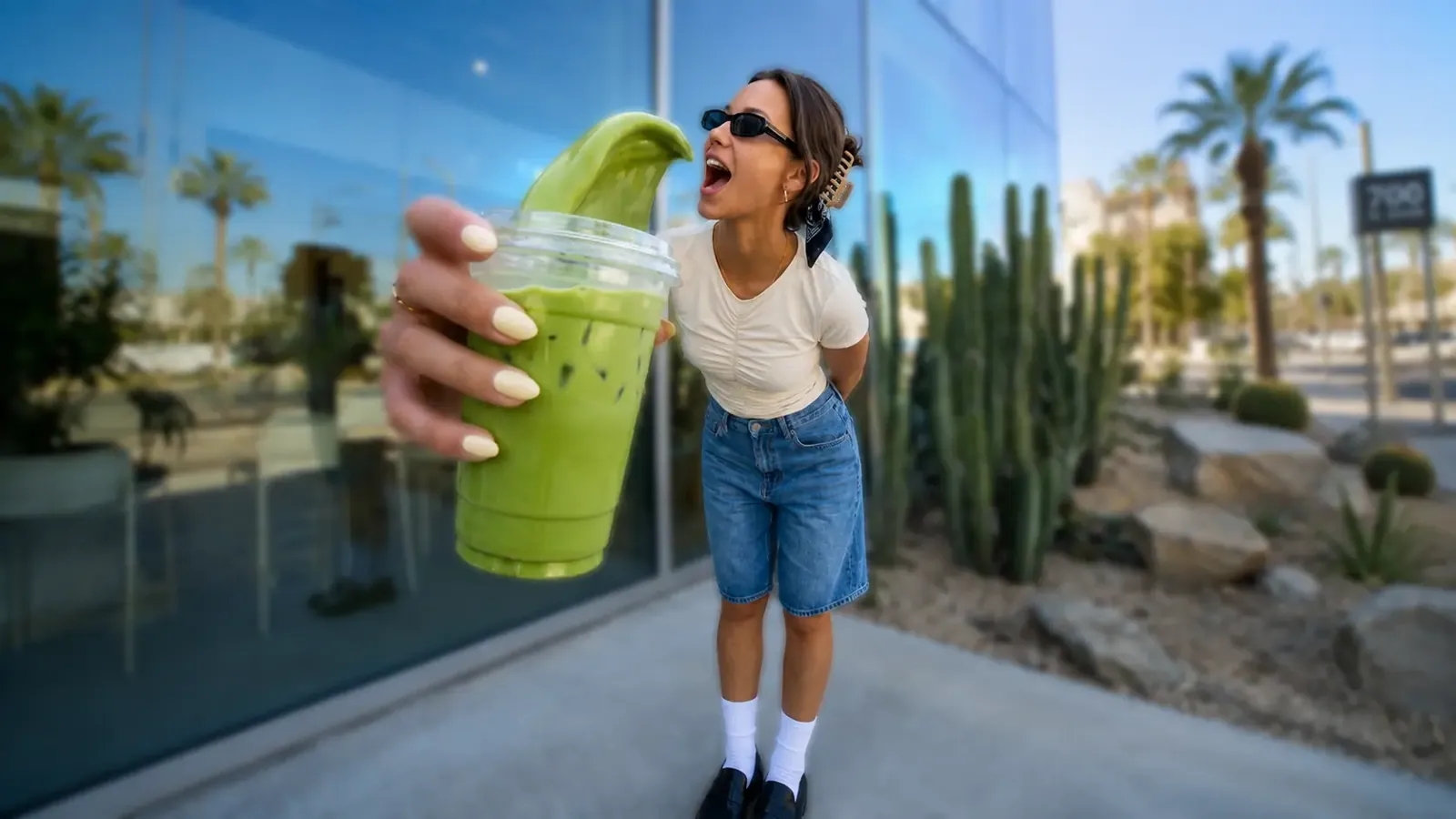
Blur Background
Blur background of photo uploads in one step: EditPic keeps the subject crisp and melts busy streets, crowds and rooms into soft, lens-like bokeh. Choose a gentle softening or a strong portrait-mode look.
Enhance & upscale tools

AI Image Upscaler
Use our AI upscale image tool to turn small, soft or pixelated pictures into larger, crisper versions. Upload a photo, pick 1K or 2K output, and EditPic rebuilds edges, texture and fine detail instead of just stretching pixels.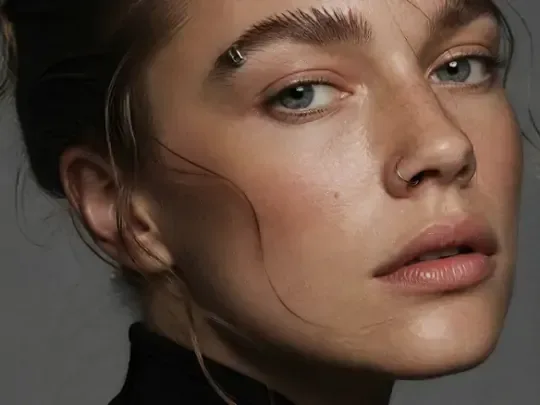
Photo Enhancer
Photo enhancer AI from EditPic takes a dull, grainy or slightly soft picture and gives it back cleaner: crisper detail, less noise, balanced light and truer color. Upload, keep the ready prompt and check the enhanced result against your original.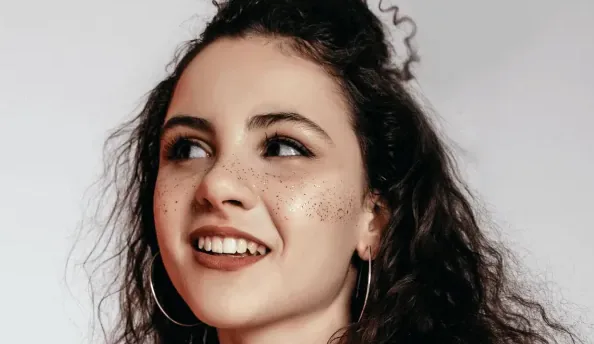
Unblur Image
Unblur image AI for photos that came out soft: missed focus, shaky hands or a subject that moved. EditPic redraws edges and textures so faces, fur and lettering look crisp again, then you compare and download.
Clean-up tools
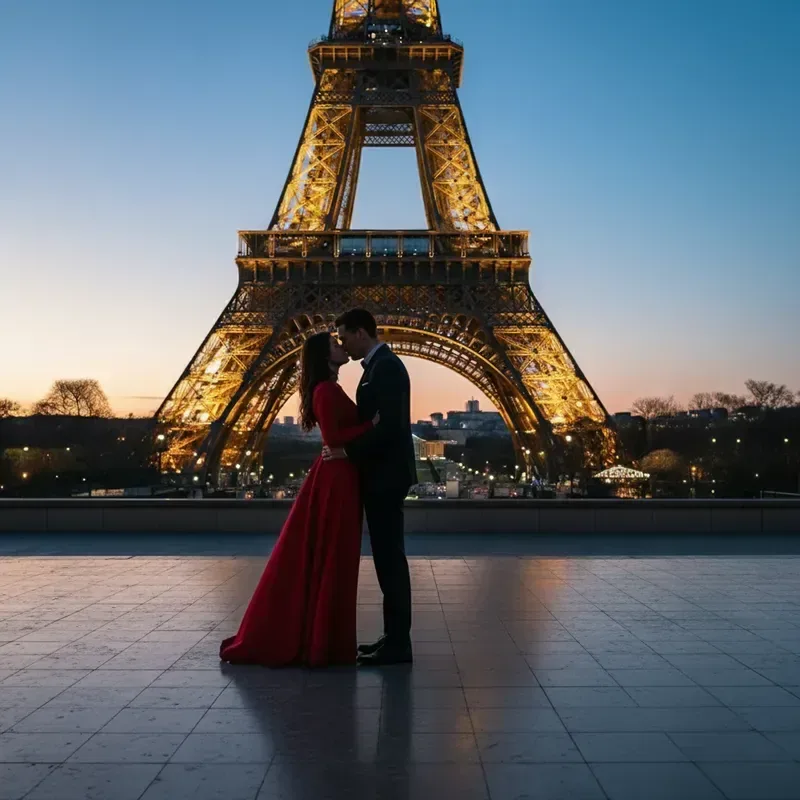
Remove People
Remove person from photo backgrounds without a clone stamp: point to the stranger, tourist or passer-by in plain words and EditPic rebuilds the wall, sand or street behind them. Only edit photos you have the right to change.
Object Remover
This object remover from photo editing works with words instead of brushes: name the object, whether a wire, a bin, a cable or a parked car, and EditPic fills the space with matching background. Your subject stays as it was.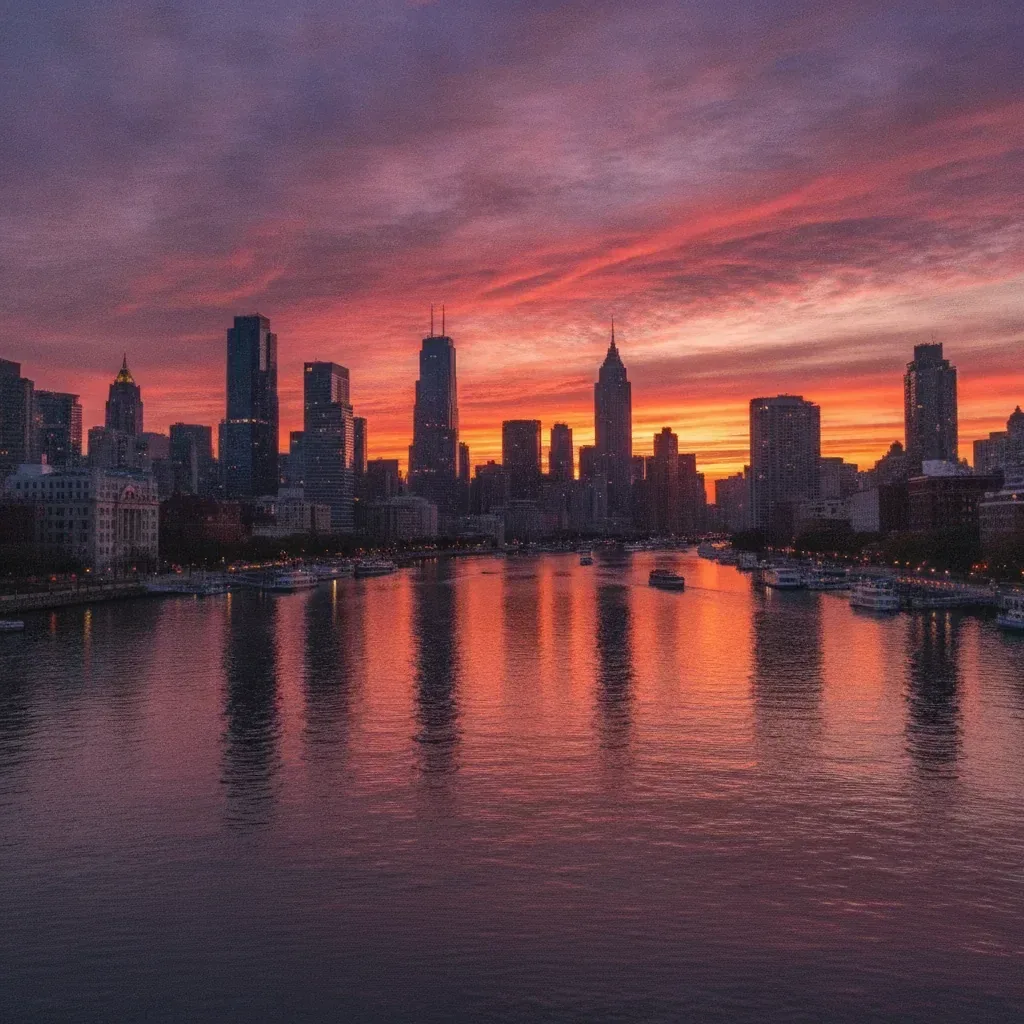
Text Remover
Remove text from image uploads in one step: name the text you want gone, whether a caption, a date stamp or a label, and EditPic erases it and fills the gap with matching background. It is made for your own photos and graphics, not for other people’s watermarks.
Restore & colorize tools
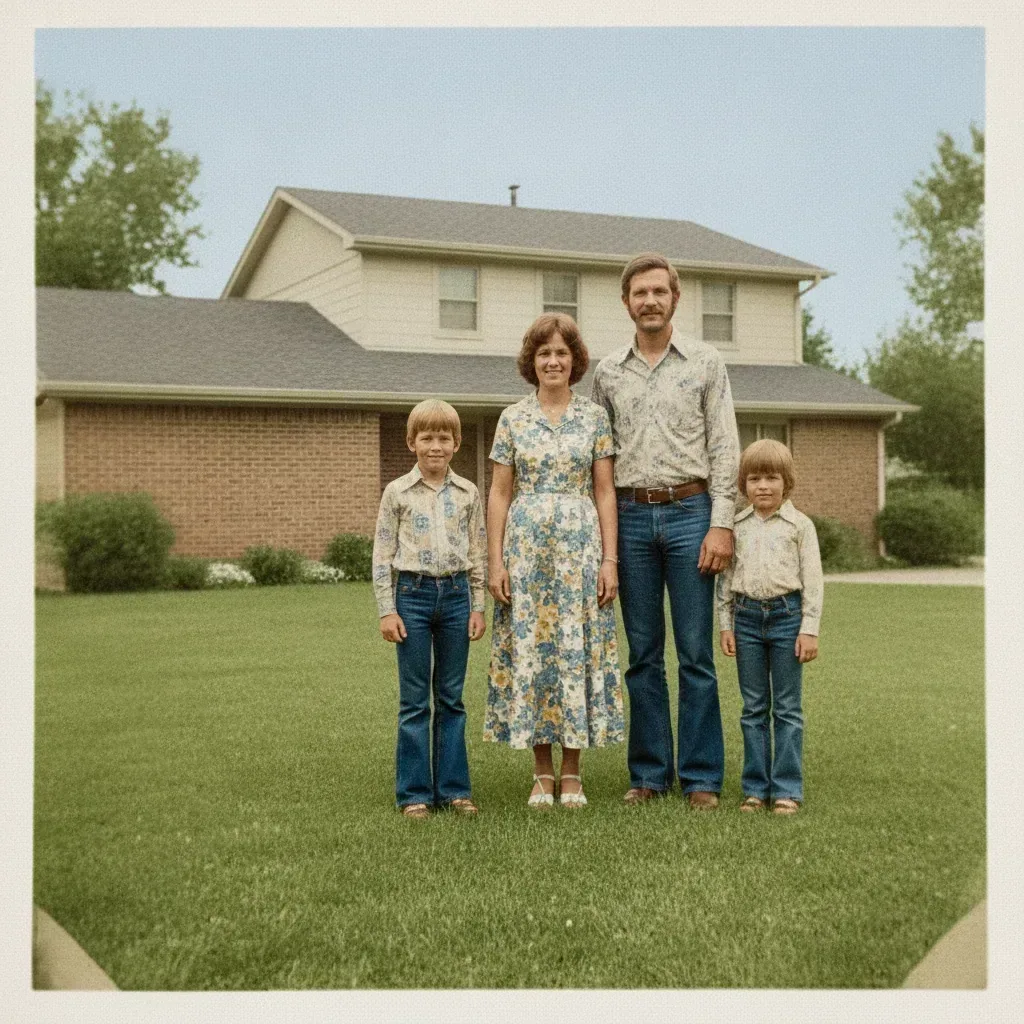
Old Photo Restorer
Old photo restoration online free to start: scan or photograph a damaged print, upload it, and EditPic repairs scratches, creases, stains and fading in one pass. The AI rebuilds lost detail, so always compare faces with the original.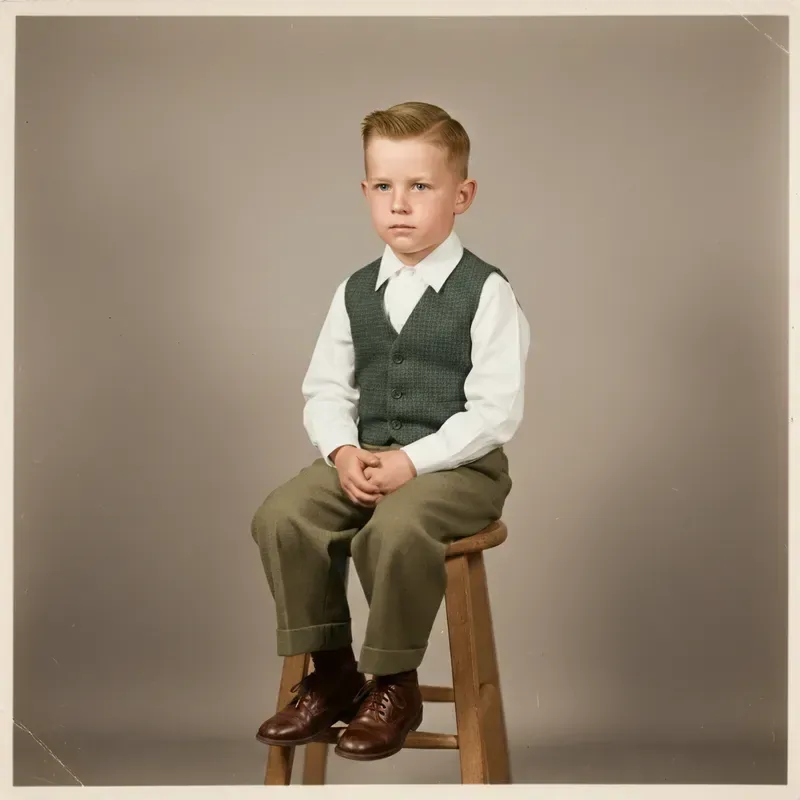
Photo Colorizer
Colorize photo scans online: upload a black and white or sepia picture and EditPic adds natural color to skin, clothes, sky and buildings. The colors are an informed guess, so add any shades you know to the prompt.
Photo-to-art tools
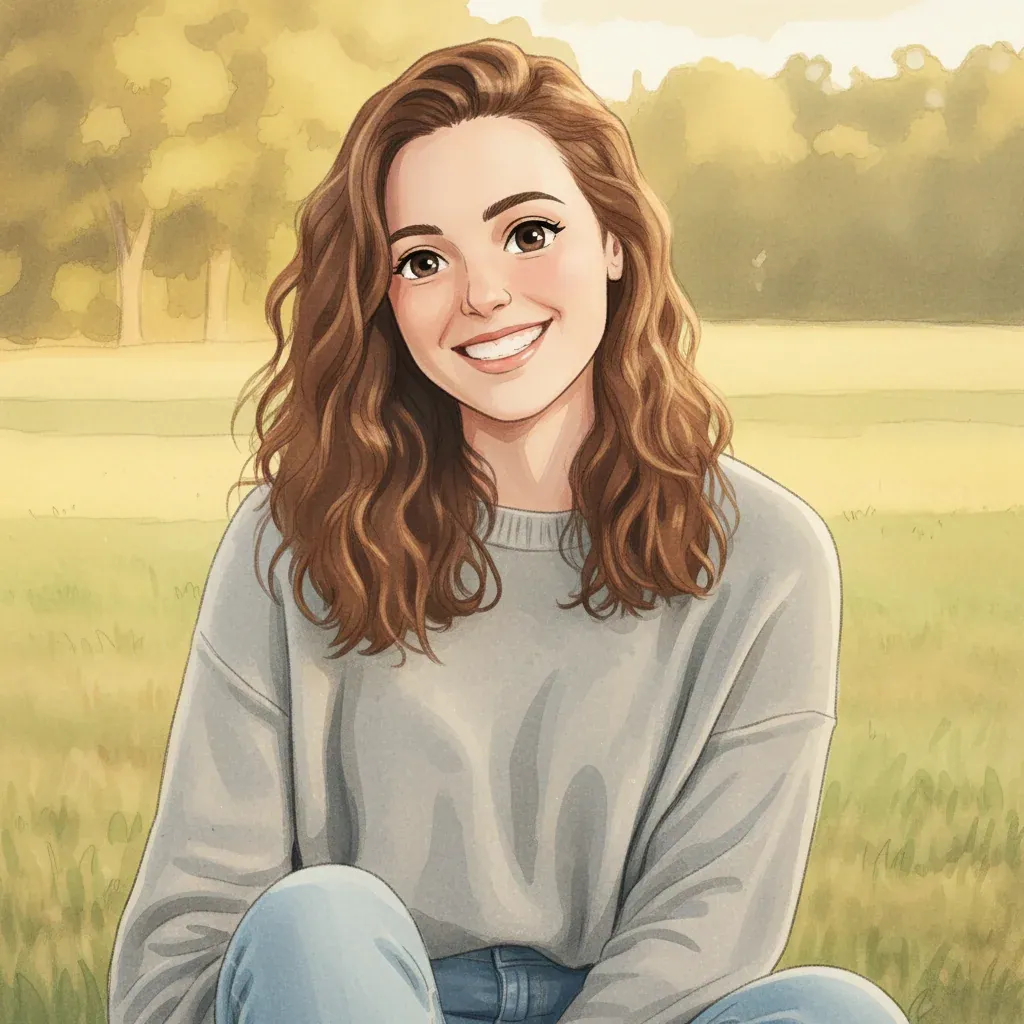
Photo to Anime
This photo to anime converter redraws your picture as an anime illustration with bold outlines, cel-shaded color and bright eyes, while the face, pose and outfit stay recognizable. Upload a selfie, a pet or a travel shot and describe the look you want.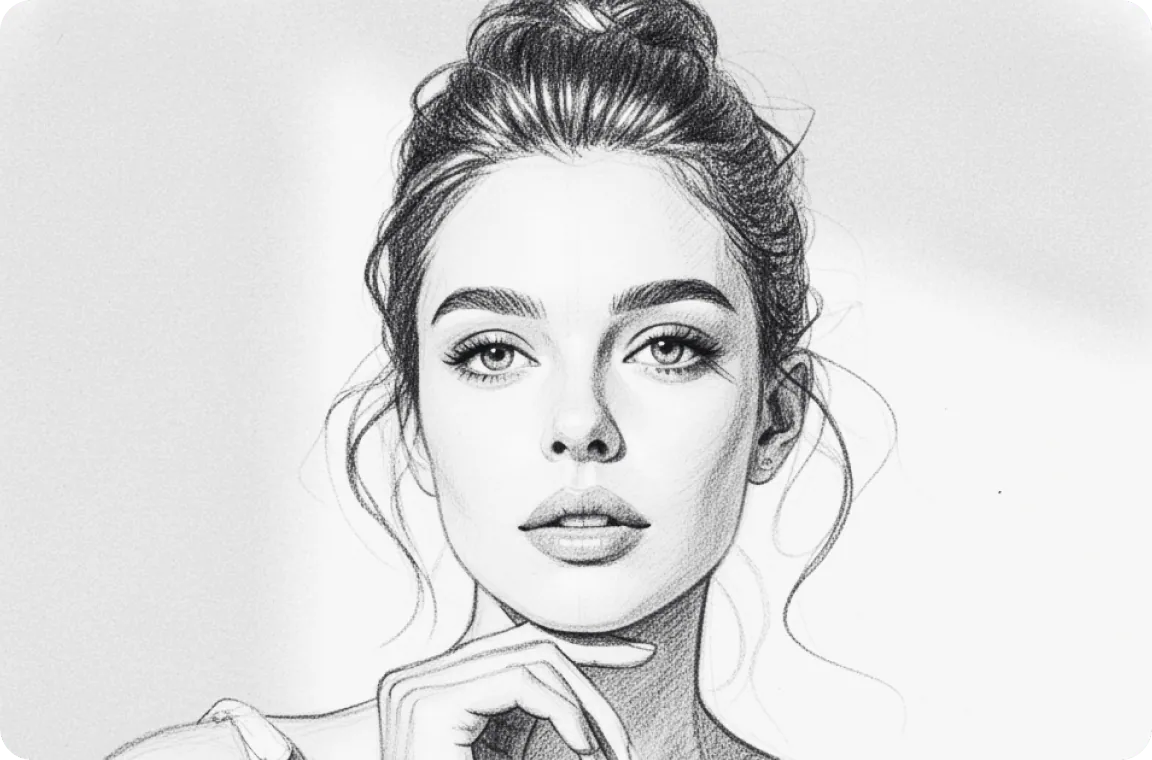
Photo to Sketch
Photo to sketch in one prompt: EditPic redraws your picture as a sketch with graphite shading, cross-hatching or crisp ink lines on paper-white. Portraits, pets, still lifes and street scenes all work, and you decide how light or dark the sketch should be.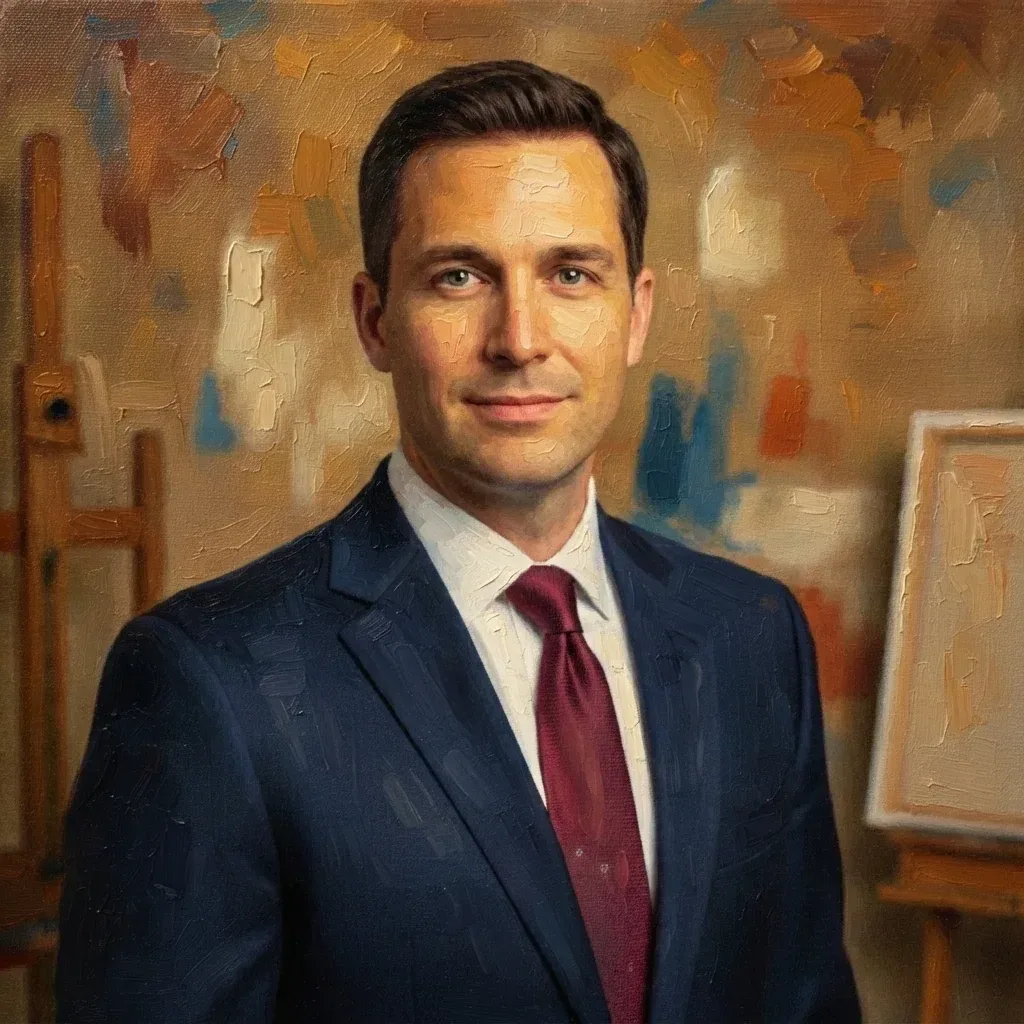
Photo to Painting
Turn a photo to painting in a single step: choose rich oil brushwork with visible impasto, or a light watercolor wash with soft edges and paper grain. EditPic keeps your composition and subject, and changes only the medium and the mood.
Portrait tools

AI Hairstyle Changer
This AI hairstyle changer puts a new hairstyle on your own photo. Upload a clear selfie, describe the cut you want, and see a bob, bangs, curls or a new shade on your face before you sit in the salon chair.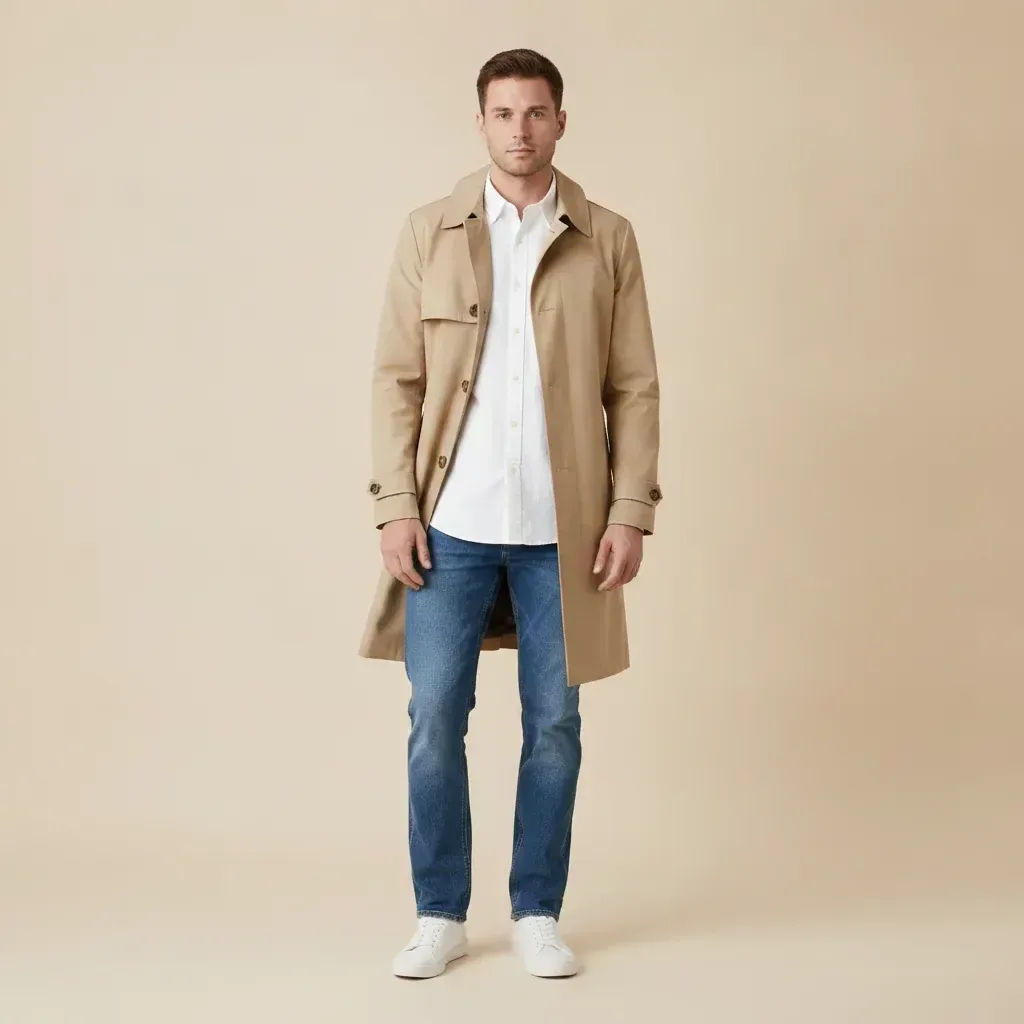
AI Clothes Changer
This clothes changer AI restyles the clothes you are wearing in a photo: describe a suit, a dress or a coat, and EditPic redraws the clothing while your face, pose and background stay put. No fitting room required.
AI Headshot Generator
Our free AI professional headshot generator turns one selfie into a studio-style headshot with a clean backdrop, even light and tidy attire, all edited from your own photo. Signup costs nothing; credits are spent only on edits you run.
Create & combine tools
Add Person to Photo
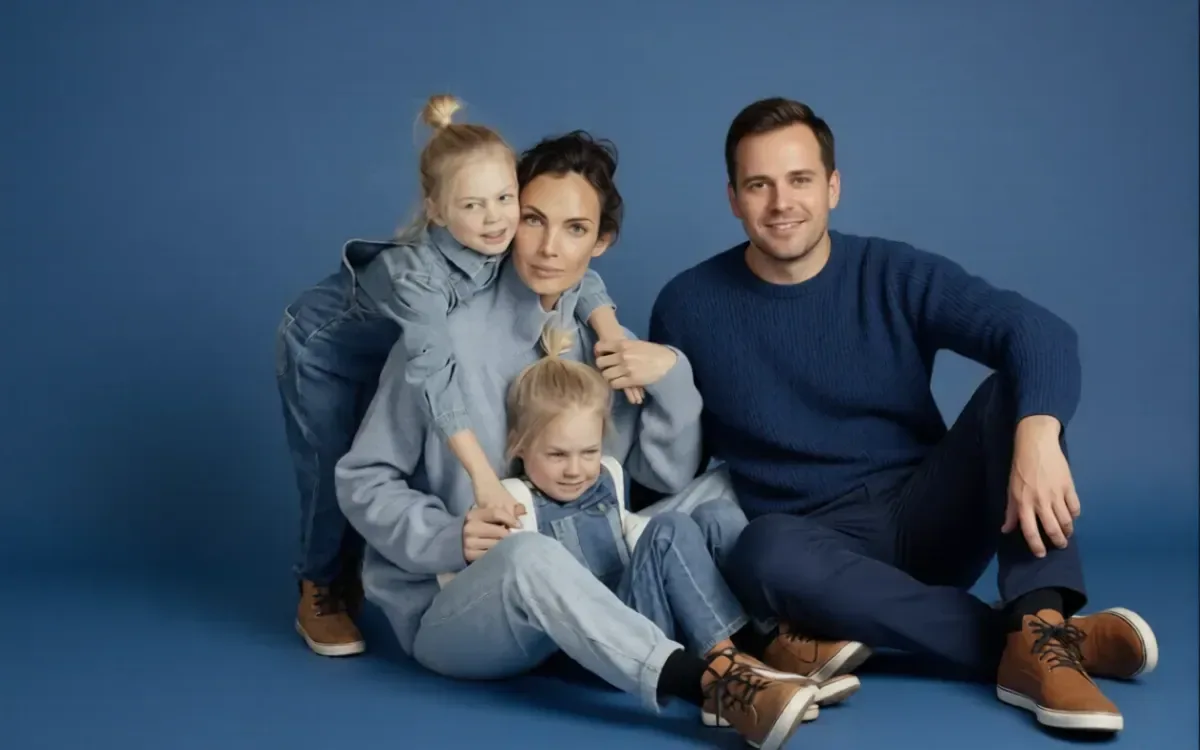
Add person to photo scenes by describing who should join: their age, clothes, pose and where they stand. EditPic places the new person into your upload with matching light and shadows. Each person is generated from your words, not copied from another photo.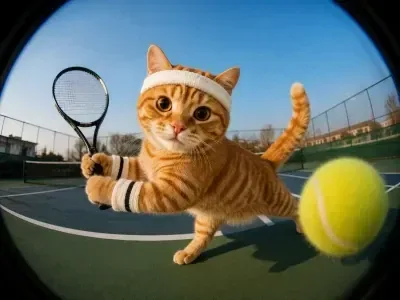
Image to Image
Our image to image AI generator starts from an image you already have and creates the new version you describe: another art style, a new setting, a different season or one changed detail. Your subject and composition carry over.
How to Choose the Right AI Photo Editing Tool
Every photo editing tool on this page is a ready prompt for the same editor, so choosing one is about the job, not about learning new software. Find your situation below, open the tool it points to, and add a second tool on the same photo if the job needs it.
Selling a product online
Start with the Product Photo Background tool to set the item on clean white with a soft shadow. If the original shot was dim, run the Photo Enhancer tool afterwards. Reusing one prompt and one ratio across the range keeps the shop page looking consistent.
Open the Product Photo Background tool →Cleaning up a travel photo
Use the Remove People tool for strangers in the frame and the Object Remover tool for bins, wires or signs. Name one thing per run, check the fill, then run the tool again for the next distraction.
Open the Remove People tool →Saving an old family print
Scan or photograph the print, repair scratches and creases with the Old Photo Restorer tool, then add color with the Photo Colorizer tool as a separate step. Check faces against the original after each pass before you print or share.
Open the Old Photo Restorer tool →Refreshing a profile picture
For a work profile, start with the AI Headshot Generator tool: upload a clear, front-facing selfie and ask for a plain backdrop and neat clothes. For a casual shot you only want to tidy, the Blur Background tool keeps you sharp and softens the scene behind you.
Open the AI Headshot Generator tool →Turning a photo into art
Pick the art tool by the finish you want: the Photo to Anime tool for bold outlines and flat color, Photo to Sketch for pencil or ink, Photo to Painting for oil or watercolor. Each of these tools aims to keep the pose and composition while the medium changes.
Open the Photo to Anime tool →When no photo editing tool fits the job
Open the Image to Image tool, or any other tool, and replace the ready prompt with your own words. Every tool runs on the same editor and models, so a custom instruction runs exactly the way a tool's ready prompt does.
Open the Image to Image tool →