















New: Nano Banana 2 & GPT Image 2

Try it

Updated 2026-11-16

Remove Text from Image with AI

Remove text from image uploads in one step: name the text you want gone, whether a caption, a date stamp or a label, and EditPic erases it and fills the gap with matching background. It is made for your own photos and graphics, not for other people’s watermarks.

Examples: remove text from image areas cleanly

Eight edits that remove text from image areas: a skyline caption, a café quote, a sale banner, a listing price, a date stamp, jacket embroidery, a rewritten banner and a billboard. Drag the slider to compare, then try the prompt on your own picture.

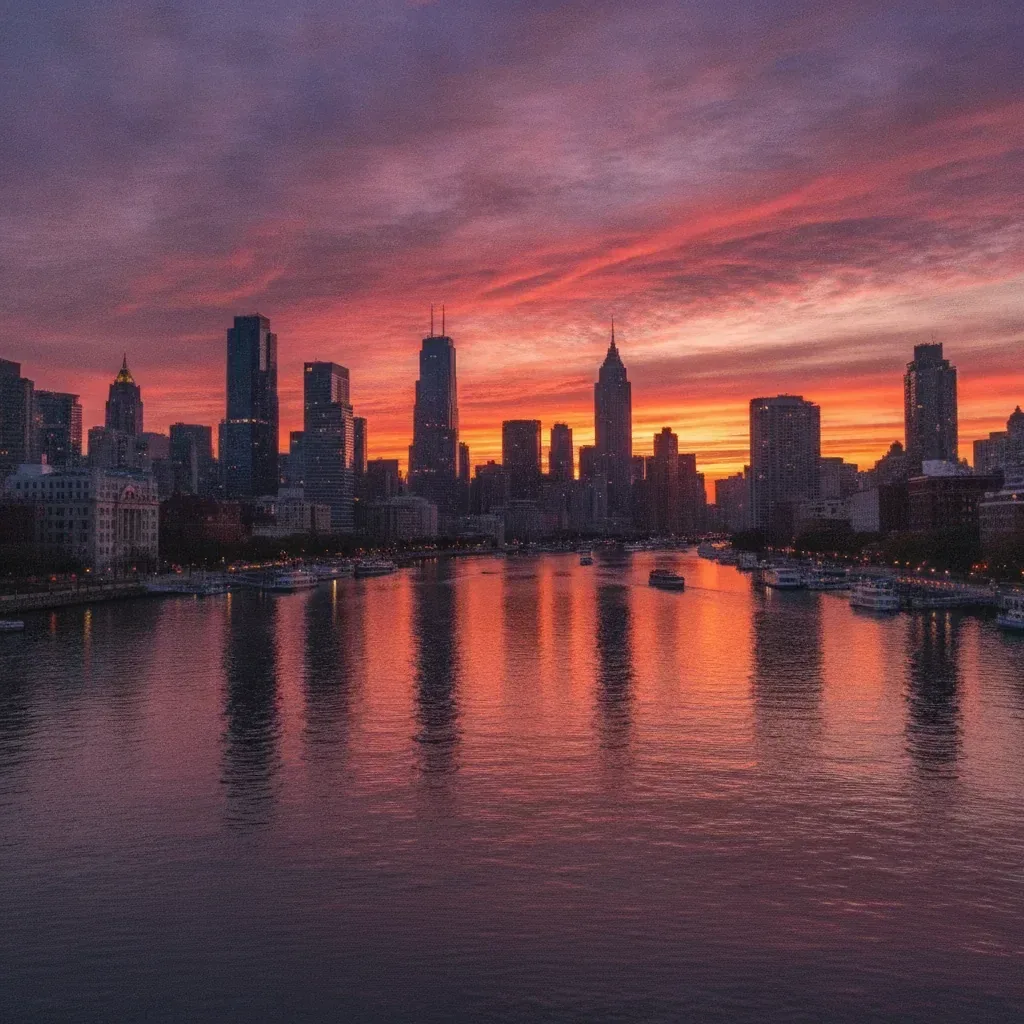
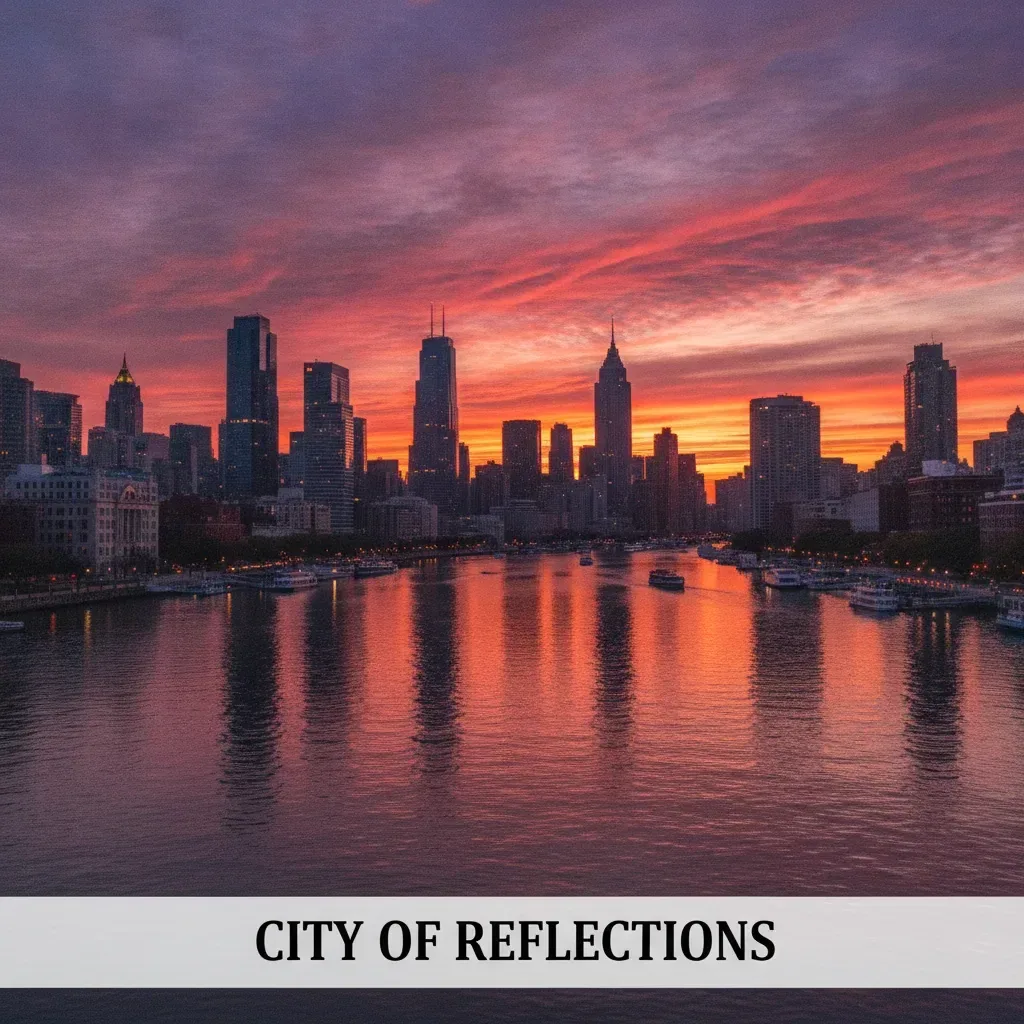
  • City skyline at sunset with the caption bar and its text removed from the bottom — AfterCity skyline at sunset with the caption bar and its text removed from the bottom — Before

    Caption bar removed from a skyline

    “Remove the white caption bar and its text at the bottom. Continue the water reflections and city lights where the bar was.”

  • Woman holding a coffee cup in a café, before and after the large quote text over her is removed — AfterWoman holding a coffee cup in a café, before and after the large quote text over her is removed — Before

    Quote lifted off a café portrait

    “Remove the text "MONDAY MOTIVATION" and "Start Fresh" across the middle. Rebuild her sweater, hands and coffee cup behind the letters, and keep her face unchanged.”

  • Skincare bottle on a stone base with a purple sale banner, before and after the banner text is removed — AfterSkincare bottle on a stone base with a purple sale banner, before and after the banner text is removed — Before

    Sale banner wiped from a product shot

    “Remove the purple spring sale banner and all of its text on the left. Continue the cream wall and leaf shadows, and keep the toner bottle and its own label exactly as they are.”

  • Bright living room with price text in the corner, before and after it is removed — AfterBright living room with price text in the corner, before and after it is removed — Before

    Old price cleared from a listing photo

    “Remove the purple text box with the old price and listing date in the bottom left. Continue the wooden floor and the rug, and keep the sofa and windows unchanged.”

  • Couple on a beach with the orange camera date stamp removed — AfterCouple on a beach with the orange camera date stamp removed — Before

    Date stamp erased from a beach photo

    “Remove the orange date stamp in the bottom right corner and continue the wet sand and sea foam underneath it.”

  • Person in a black jacket seen from behind, with and without the gold embroidered text — AfterPerson in a black jacket seen from behind, with and without the gold embroidered text — Before

    Embroidered words taken off a jacket

    “Remove the gold "Good Luck" embroidered text from the back of the black jacket. Continue the wool texture and the seam, and keep the hair and shoulder line unchanged.”

  • Summer sale banner with a woman in a white dress, before and after the date and discount text is changed — AfterSummer sale banner with a woman in a white dress, before and after the date and discount text is changed — Before

    Dates and discount rewritten on a sale banner

    “Replace the date text "JUNE 10–16" with "JULY 1–7" and "40% OFF" with "50% OFF" in warm orange lettering, without the purple highlights. Keep the woman, the title and the layout unchanged.”

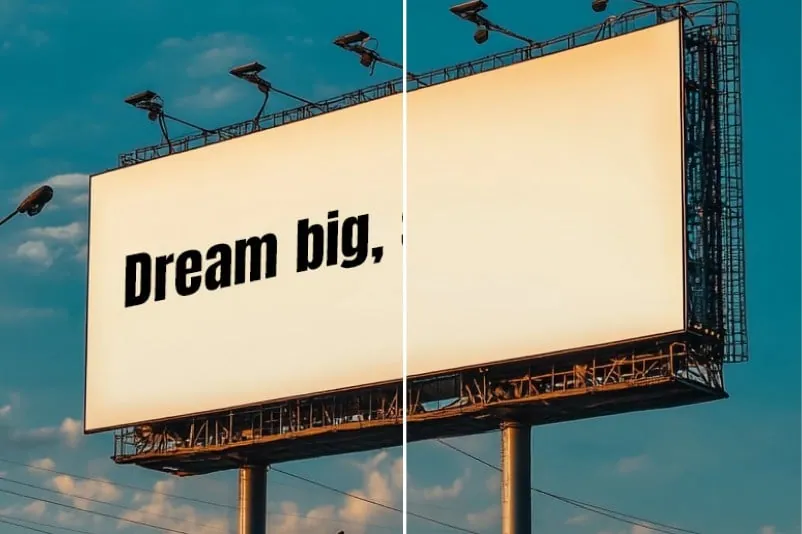
  • Roadside billboard split in two, the slogan text on the left half and the blank panel on the right

    Slogan cleared from a billboard (left: before, right: after)

    “Remove the text "Dream big," from the billboard and leave the whole panel an even cream color. Keep the frame, the lamps and the sky unchanged.”

Example images are for illustration only. Each prompt is a starting point for a similar edit on your own photo.

How to remove text from an image

  1. Step 1

    Upload the picture

    Add a JPG, PNG or WebP of up to 20 MB to the editor above. Screenshots, phone photos, slides and social graphics all work as a starting point.

  2. Step 2

    Point to the text

    Say which text to erase and where it sits, for example “the date in the bottom right corner” or “the caption bar”. Leave out any text you want to keep.

  3. Step 3

    Erase and check

    Press Edit Image to remove the text, then zoom in where it used to be. If a faint trace or a wrong texture is left, run one short follow-up prompt on the result.

Remove text from image prompts for real jobs

Seven prompts that remove text from your own images and two that rewrite it. Replace the text in quotes with the words in your picture.

  1. 01

    Ink caption cleared from a scanned print

    Remove the blue ink handwriting "Lake trip 1987" written across the sky of this scanned print. Continue the faded sky and the film grain, and keep the lake, the boat and the two people unchanged.

  2. 02

    Name and date taken off a child’s drawing

    Remove the pencil name and the date in the bottom corner of my daughter’s crayon drawing. Continue the white paper and its texture, and keep every crayon line and color exactly as drawn.

  3. 03

    Whiteboard wiped clean in a team photo

    Erase all the marker text and diagrams on the whiteboard behind the team, leaving a clean white board with its aluminium frame and pen tray. Keep the people, the chairs and the room light unchanged.

  4. 04

    House number cleared before posting

    Remove the brass house number "27" from the front door and the street name painted on the mailbox. Continue the green painted wood and the black metal, and keep the door handle and the plants unchanged.

  5. 05

    Placeholder copy taken off a box mockup

    Remove the gray placeholder text from the front panel of the blank product box mockup. Keep the matte white cardboard, the folded edges and the soft shadow on the table, ready for my own design.

  6. 06

    Old contact details off a flyer you designed

    Remove the contact text from the bottom strip of this yoga class flyer I designed: the phone number and the email address. Continue the teal background, and keep the headline, the photo and the class times unchanged.

  7. 07

    New prices chalked onto a café board

    On our café chalkboard, change "Latte 4.50" to "Latte 4.80" and "Mocha 5.00" to "Mocha 5.30" in the same white chalk handwriting. Keep the rest of the menu text, the slate texture and the wooden frame unchanged.

  8. 08

    Birthday banner changed from 30 to 40

    Change the paper banner text from "HAPPY 30TH" to "HAPPY 40TH" in the same gold glitter style and spacing. Keep the balloons, the streamers and the guests below the banner unchanged.

  9. 09

    Pencil notes erased from a floor plan

    Remove the pencil measurements and the handwritten notes I added to this printed floor plan. Keep the printed walls, the door arcs and the room names, and continue the white paper underneath.

What people clean up with a text remover

  • Woman in a sun hat walking down a boardwalk to the beach at sunset, with no date or title text on the photo

    Old date stamps

    Film cameras and early digital cameras burned orange date text into the corner. Remove the text from family and holiday shots before you print or frame them.

  • Abstract poster on a gallery wall, left blank after its event text was removed

    Your own graphics

    Reuse a banner, flyer or social post you designed: remove the text of the old headline first, then add the new text in your usual design app.

  • Printed contract page with clean margins and no handwritten notes

    Scans and printed pages

    Remove the text you scribbled on your own printout, from handwritten notes to circles and arrows, so you can share a clean copy without printing and scanning it again.

  • Amber dropper bottle on a stone pedestal with no sale text over it

    Product photos you took

    Remove handwritten price tags, sticky notes and stray stickers from items you photographed yourself, so the listing shows only the product.

Tips for clean text removal

  • Name where the text is (“top left”, “on the sign”, “bottom caption”) so the AI knows exactly which text to erase.
  • Describe what belongs under the text — sky, brick wall, wood grain, plain white. The fill matches better when you say it.
  • On busy images, remove one block of text at a time; a few small edits usually look cleaner than one big one.
  • Text over faces or detailed patterns is the hardest case. Compare closely and add “keep the face unchanged”.
  • To remove text from an image that sits on a busy object, such as a mug or a T-shirt, mention the material so its texture carries on.
  • Want a whole object gone, not just its text? The Object Remover is the better tool for that.

The right model to remove text from an image

Erasing text and writing new text are different jobs, so the best model depends on which one you need.

  • Flux

    Black Forest Labs

    Best when you need to remove the text and nothing else may move. Flux is built for precise control, so it tends to change only the text area you describe, which suits date stamps on family photos and captions on finished designs.

    About Flux
  • GPT Image 2

    OpenAI

    Choose GPT Image 2 when you want new wording rather than a blank space. It is the strongest of the six at readable text in images, such as signs, labels and posters, and it follows several instructions in one prompt.

    About GPT Image 2
  • Nano Banana 2

    Google

    The editor’s default model and a fast choice for everyday jobs: a caption bar, a sticky note, a scribble on a printout. Try it first to remove the text, then switch to Flux if nearby details shift.

    About Nano Banana 2

Remove text from an image: what to know first

How the AI rebuilds what was under the letters, when to rewrite instead, how to use text removal responsibly, when to remove text in a design app instead, and a worked example.

What sits underneath the text

Text is drawn on top of something, and that something was never photographed. When you remove text from an image, the AI rebuilds the hidden strip from what surrounds it. Flat color, sky and smooth paper come back almost perfectly. Wood grain, fabric and brick come close, though the pattern may not line up exactly where the letters were.

The hard cases are text over detail that cannot be guessed: a face, a hand, a printed pattern, another line of text you want to keep. Large lettering across the middle of a photo leaves the most to invent. Thin captions near an edge are the easiest, which is why date stamps usually clean up in one pass.

Erase the text or rewrite it?

If the goal is a clean surface, just ask the AI to remove the text and describe the surface. If you want different words in the same place, you can try it in one prompt: put the new text in quotes, name the color and add "same style and size". Short words, numbers and dates have the best chance of coming out spelled right, and GPT Image 2 is the strongest model for it.

Read every rewritten letter before you use the image. Long sentences, unusual fonts and details that must be right deserve a second look. If they keep coming out wrong, erase the old text here and set the new wording in a design app.

Cleaning up ghost text and smears

A faint outline of the old letters, often called ghosting, means the fill kept too much of what was there. Run a follow-up on the result: "remove the faint remains of the letters and continue the plain wall". A smudged band where a caption bar used to be usually needs the texture named: "continue the ripples on the water", "match the grain of the paper".

Watch the area around the text as well. Text removal can soften nearby edges or shift a color; add "keep everything outside the text area unchanged" or switch to Flux. When the words sit on a sign seen at an angle, mention the angle so the fill follows the perspective.

Using text removal responsibly

Some of the most useful reasons to remove text are about privacy: clearing a house number, a street name, a phone number or a name badge from your own photos before you post them. Others are about reuse, such as taking old text off a flyer you designed.

Keep it to images you own or may edit. Do not change receipts, contracts, certificates, screenshots of conversations or anything else that other people treat as a record. Before printing, remember that the editor returns 1K or 2K images, so compare that with your paper size, and keep the original file in case you ever need the text back.

Text on photos versus text in flat designs

Where the text sits changes how hard the job is. On a photo, a caption or date stamp covers real texture, so the AI has to rebuild sand, skin or brick that it cannot see. On a flat design such as a poster, slide or social tile, the text usually sits on a solid color or a simple gradient, and the fill comes back clean almost every time.

That has a practical side. For your own designs, open the original file in your design app whenever you still have it: deleting a text layer there is exact. Use EditPic to remove text when only the flattened image survives, such as a flyer you exported years ago, a screenshot of your own post or a graphic someone sent back to you without the source file.

A worked example: the date stamp on a holiday print

Say you want to print a beach photo from an old compact camera, and "08 14 2003" glows orange in the corner. Upload the scan and ask the AI to remove the text in the bottom right corner: "Remove the orange date and continue the wet sand and the edge of the towel." Keep the default model for the first try.

Zoom in on the result. If a faint orange haze remains where the text was, send a follow-up on that result: "remove the last orange tint in the corner". If the towel stripes now bend, go back to the original and switch to Flux. Many families keep the dated scan in their archive and print the clean copy; the date is still useful information, just not on the wall.

Remove text from image FAQ

  1. Can I remove text from image files for free?

    Yes. Sign up and you can try it free once. Credits per edit depend on the model you pick and appear before you remove the text; paid plans add more if you clean up images often.

  2. Can I use this to remove watermarks?

    No. This text remover from image tool is meant for your own pictures: captions, date stamps, labels and old wording on your designs. Removing watermarks or credits from other people’s photos can break copyright and license terms, so please don’t.

  3. Will it remove the text and keep the rest of the image?

    It aims to change only the text area and rebuild what was behind it. Generative edits can shift nearby details slightly, so compare the result and add “keep everything else unchanged” to your prompt.

  4. Can I replace the text with new words?

    You can ask for different text in the same prompt, and short words often come out right. For exact fonts or longer copy, remove the text here and add the new text in a design tool.

  5. Does it work on screenshots and scanned pages?

    You can remove text from any JPG, PNG or WebP up to 20 MB, including screenshots and scans. It suits removing a few lines of text or labels; it is not a document editor for rewriting whole pages.

  6. How do I remove text from an image without blurring the background?

    Name the surface under the words, such as "continue the brick wall" or "plain white paper", and remove one block of text per pass. A described texture gives the fill something sharp to follow. If the rest of the image softens, switch to Flux and add "change only the text area".

  7. Can the text remover from image tool clear handwriting?

    Yes, on your own material: notes on a printout, a name on a child’s drawing, pencil marks on a plan. Mention the paper and the ink color. Do not use it to alter signed contracts, receipts, exam papers or other records that someone else relies on.

  8. Can I remove text in Chinese, Arabic or other scripts?

    The AI does not need to read the text to remove it; you can point to it by position and color, such as "the red characters at the top right". Writing new text in another script is less reliable than erasing, so check every character if you ask for a rewrite.

  9. Can I remove text from a photo of a sign or a T-shirt?

    Yes, if the photo is yours. Name the surface the letters sit on, such as "painted wood with peeling edges" or "gray cotton jersey", and mention folds or the angle of the sign so the fill follows them. Printed text on fabric often leaves faint ghosting in the creases, so check those at full size.

  10. Can I remove the text but keep the logo?

    Usually, if you say so plainly: "remove the slogan under the logo and keep the logo mark exactly as it is". Point to the text by position as well, because a logo made of letters can look like ordinary text to the AI. On images that are not yours, leave logos and credits alone.

  11. Can I remove the text in one spot and keep the rest?

    Yes. List only what should go, for example "remove the date in the top line of the poster and keep the title and the venue", then add "keep all other text unchanged". The more precisely you point, by position, color or the words themselves, the less likely the AI is to touch text you wanted to keep.

Remove text from your image now

Upload a photo or graphic you own, keep the ready-made prompt to remove the text and get a clean version back in seconds.