New: Nano Banana 2 & GPT Image 2

Try it

Updated 2026-11-16

Model by Black Forest Labs
Flux AI Image Editor for Precise, Local Changes

Flux is the image model family from Black Forest Labs, and Flux editing is known for changing exactly what you name while the rest of the picture stays put. Use Flux to recolor a single object, take out one detail or keep a series of images in one steady look. Flux is already selected in the EditPic editor below; describe the change and run it.

Flux at a glance

DeveloperBlack Forest Labs
Model familyFLUX.2 (released November 2025), with Pro, Flex, Max, Dev and Klein variants; this page covers the family
Best atPrecise local edits that leave everything else untouched, and one steady style across a set
Reference images (model)Up to 8 per API request (10 in Black Forest Labs’ own playground); EditPic takes one photo per Flux edit
Aspect ratios (model)auto (follows the input image), 1:1, 4:3, 3:4, 16:9, 9:16, 3:2 and 2:3
Size limit (model)FLUX.2 can edit images of up to 4 megapixels
Input in EditPicA single JPG, PNG or WebP image (max 20 MB) and a written instruction
Output in EditPicChoose 1K or 2K and 1:1, 3:4, 4:3, 9:16 or 16:9; saved as a standard image without transparency
CreditsDepends on the model; the editor displays the Flux cost before each run

Rows marked “model” come from Black Forest Labs’ FLUX.2 announcement and documentation and from the API reference, checked in November 2026; EditPic does not name the Flux version behind its editor. Input, output and credits describe EditPic itself. Flux is a trademark of Black Forest Labs; EditPic is not affiliated with Black Forest Labs.

Flux before and after: edits that touch one thing

Six local edits of the kind Flux is chosen for, from a recolored sofa to one person lifted out of an office, plus two Flux showcase sets that hold one look across several images. The office and leaf cards are sliders; the others place original and result side by side. Click a card to load its prompt, with Flux already selected.

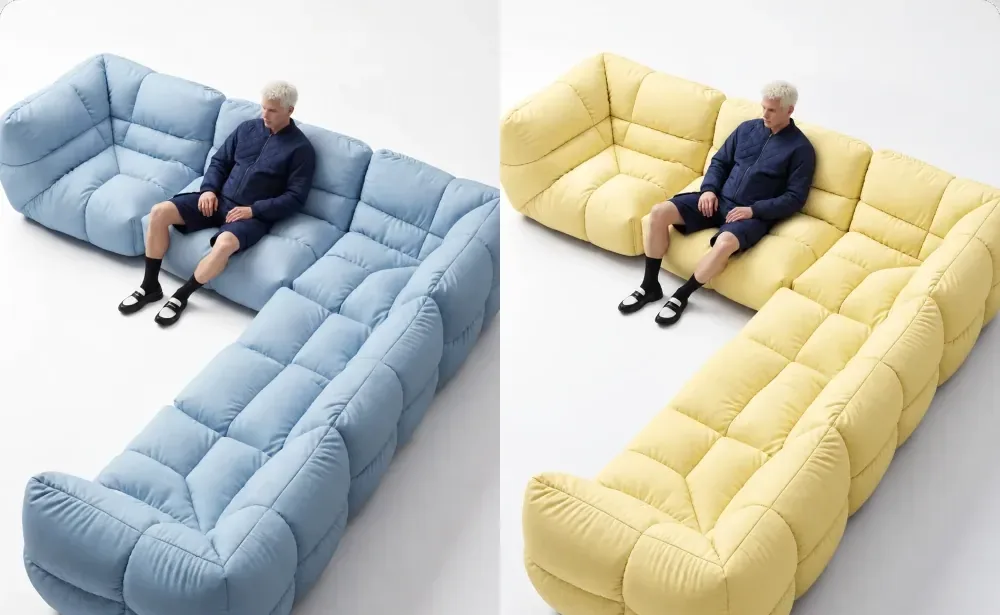
  • Modular sofa with a seated man, shown in light blue and then in pale yellow

    Sofa recolored, nothing else moved

    “Change the light blue sofa to a soft pale yellow. Keep every fold and seam, the man sitting on it, the pure white floor and the lighting exactly as they are.”

  • Bright office with a man standing at a white desk, then the same desk and monitor with nobody there — AfterBright office with a man standing at a white desk, then the same desk and monitor with nobody there — Before

    One person removed, the desk left as it was

    “Remove the man standing at the desk. Rebuild the window, the city view and the wall behind him, and keep the desk, laptop, monitor, pen cup and plants exactly as they are.”

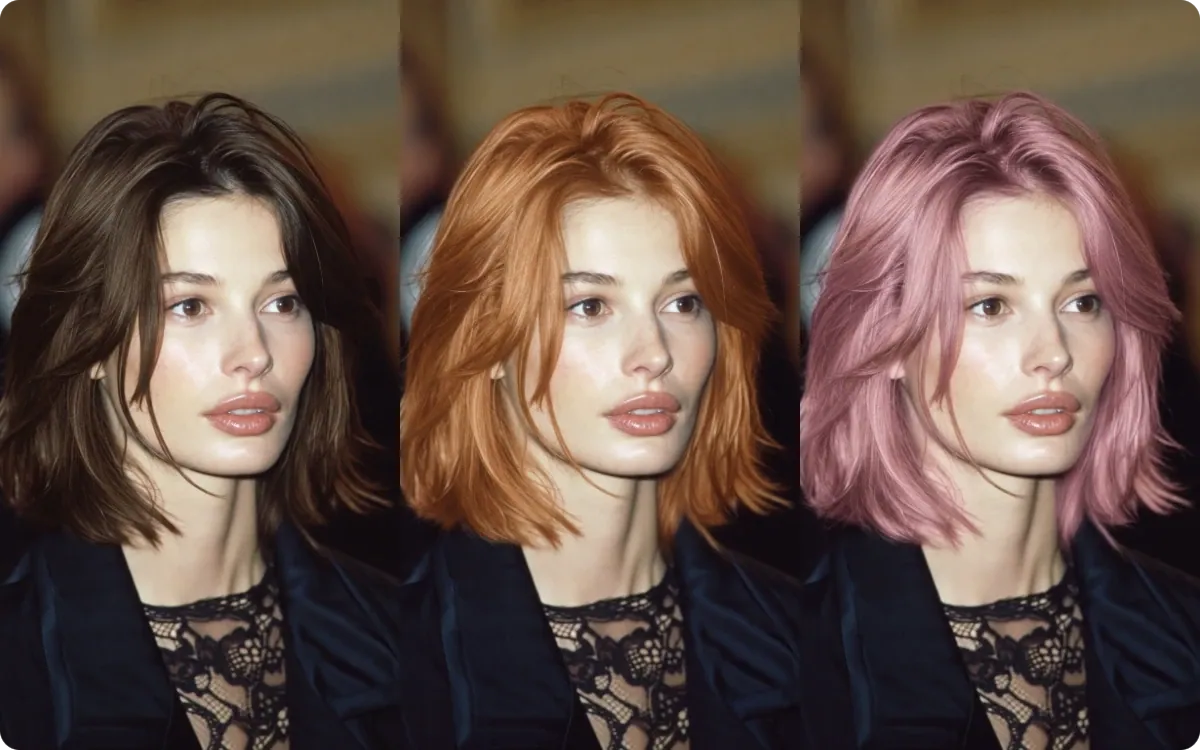
  • Same woman with shoulder-length hair shown in dark brown, copper and pastel pink

    One portrait, three hair colors

    “Change only her hair color to a warm copper. Keep the haircut, face, makeup, black jacket and background unchanged.”

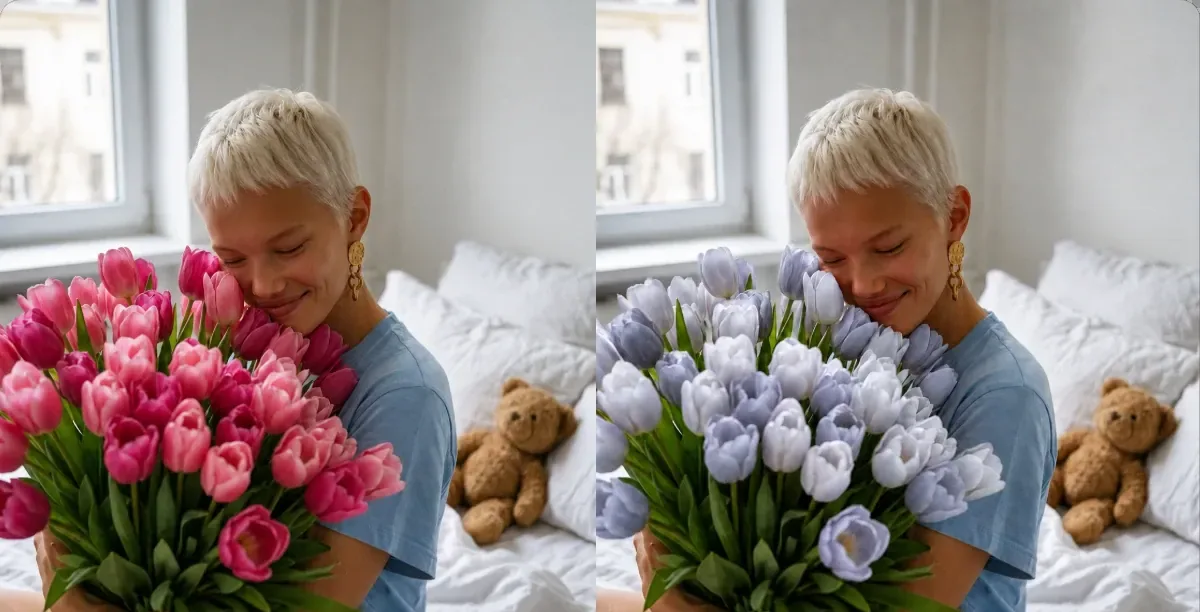
  • Woman hugging a large bouquet of tulips in a bedroom, pink in the original and lilac in the edit

    Pink tulips swapped for lilac and cream

    “Replace the pink tulips with pale lilac and creamy-white tulips. Keep the bouquet shape, the woman, her pose, the teddy bear and the window light exactly as they are.”

  • Freckled young woman in a floral headband against a blue wall and then a mint-green wall

    Background switched to mint, face untouched

    “Change the blue background to a pale mint green. Lock in her face, freckles, pose, headband and lighting so only the wall color changes.”

  • Small figure lying on autumn leaves, a black cat in the original and a white rabbit in the edit — AfterSmall figure lying on autumn leaves, a black cat in the original and a white rabbit in the edit — Before

    One figure replaced among autumn leaves

    “Replace the black cat figure in the center with a white rabbit figure of the same size and angle. Leave every leaf and the tiled ground around it untouched.”

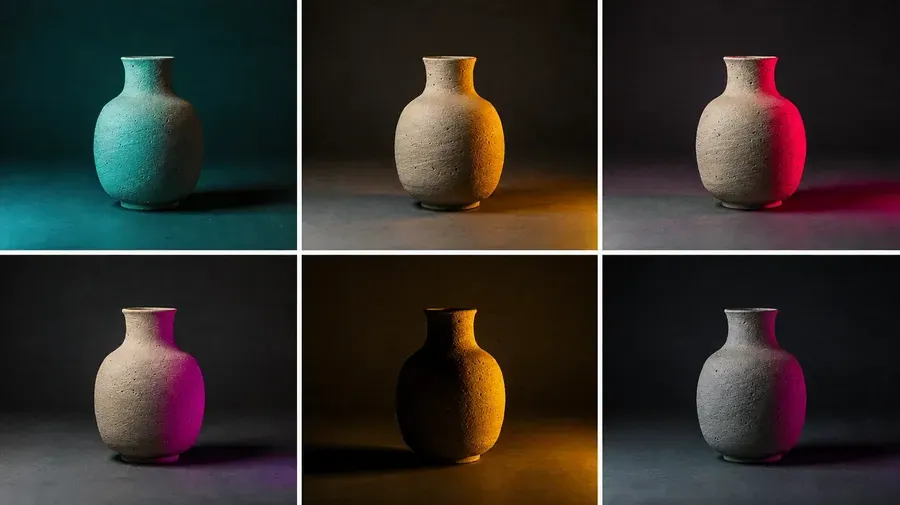
  • Flux showcase grid: six photos of the same speckled vase under teal, amber, magenta and gray lighting

    Same vase, six lighting setups

    “Keep this stone vase, its texture and the camera angle identical and relight it with a teal key light from the left against a dark backdrop. Repeat with amber, magenta and gray light for a matching set.”

  • Flux showcase set: the same woman in a studio, on a city street and on a sofa, in matching warm tones

    One model, three scenes, one look

    “Place the same woman in a beige suit on a plain studio set, keeping her face, hair and the warm neutral color grade. Use the same wording for the street and sofa scenes so the set matches.”

Example images are for illustration only. Each prompt is a starting point for a similar edit on your own photo.

What Flux does well

  • Leaves the rest alone

    Black Forest Labs has framed Flux editing around changing specific parts of an image while everything else stays as it was, which makes Flux a good match for careful, small changes.
  • Exact colors

    The FLUX.2 documentation describes setting brand colors with hex codes, handy when a product, wall or garment must hit one precise shade.

  • Follows structured prompts

    FLUX.2 is described as better at long, multi-part instructions with constraints, so Flux takes a clear list of what to change and what to keep seriously.

  • Holds a look across a set

    The Flux family is built to keep characters, products and style consistent across reference images, which helps with catalog shots and series.

  • Detail kept at full size

    Black Forest Labs says FLUX.2 edits images of up to 4 megapixels while preserving detail; EditPic delivers the result at 1K or 2K.

  • Quoted text swaps

    Black Forest Labs advises putting replacement words in quotes when a Flux edit changes a sign, poster or label, so short text swaps follow a clear pattern. Long or multi-line copy is still better left to GPT Image 2.

Flux prompts for precise edits

Nine prompts for local changes and matching sets. Each names one target, says exactly how it should change and lists what must stay, which is the pattern Flux follows best.

  1. 01

    Recolor a jacket with a hex code

    Change only the jacket to navy #1F4E79. Keep the fabric texture, the buttons, the person and the background unchanged.

  2. 02

    Swap a cushion pattern

    Replace the pattern on the left cushion with thin beige and white stripes. Do not change the sofa, the other cushions or the room.

  3. 03

    Remove one sign

    Remove the small sign on the right-hand wall and fill the spot with the same brick texture. Keep the people, windows and light as they are.

  4. 04

    Match a set to one grade

    Apply a warm, soft film look with lifted shadows and muted greens. Keep the composition and subject unchanged so this photo matches the rest of the series.

  5. 05

    Change one word on a label

    Replace the word "MORNING" on the bag label with "EVENING" in the same font, size and color. Leave the rest of the label untouched.

  6. 06

    Turn day into blue hour

    Change the sky and light to blue hour with warm window lights switched on. Keep every building edge, car and street sign in place.

  7. 07

    Swap a single product

    Replace the white mug on the table with a matte black mug of the same size, in the same spot and at the same angle. Keep the table, the background and the shadow direction unchanged.

  8. 08

    Tidy one corner

    Remove the pile of boxes in the bottom-left corner and continue the wooden floor there. Do not touch anything else in the room.

  9. 09

    Repaint a wall

    Repaint only the back wall in a soft sage green, #A3B18A. Keep the furniture, artwork, floor and window light unchanged.

Jobs that suit Flux

  • Product color variants

    Show a sofa, sneaker or mug in new colors from one photo with Flux, with the folds, stitching and lighting kept exactly as shot.

    Image to Image
  • Removing one small detail

    Take out a single sign, wire, sticker or stray passer-by with Flux and leave the rest of the frame as it was.

    Object Remover
  • Hair color tests

    Try copper, ash or pastel shades on the same haircut with Flux before a salon visit, with face and makeup unchanged.

    AI Hairstyle Changer
  • Background tone swaps

    Switch a wall or backdrop to another shade with Flux for a cleaner portrait while the person and the light are left alone.

    Background Changer
  • Consistent series

    Run the same Flux wording over a set of photos, one at a time, so a shop, portfolio or social feed shares one color grade and mood.

Other EditPic models for jobs beyond Flux

Flux is the careful one. For these jobs a different model in the same editor will usually get you there faster.

  • Nano Banana

    Google

    For a whole new background, an outfit swap or a natural-looking removal in an everyday photo, Nano Banana is the dependable all-rounder.

    About Nano Banana
  • GPT Image 2

    OpenAI

    When the picture needs readable words, such as a poster, sign or label, or a prompt with many separate changes, GPT Image 2 handles it better than Flux.

    About GPT Image 2
  • Nano Banana 2

    Google

    For quick everyday edits, or keeping one person or product the same across a series of shots, start with Nano Banana 2, the editor default.

    About Nano Banana 2
  • Nano Banana Pro

    Google

    For fine texture, accurate lighting and complex scenes, go to Nano Banana Pro; the model supports 4K on its own, while EditPic outputs 1K or 2K.

    About Nano Banana Pro
  • Seedream

    ByteDance

    When you want lots of drafts or many product-shot ideas to compare before committing, Seedream is a good place to explore before you come back to Flux for the exact finish.

    About Seedream

Compare all AI models

Tips for precise Flux edits

  • Give Flux one target and say where it is: “the cushion on the left”, “the sign above the door”. The more exact the location, the less the rest of the picture moves.
  • When a shade has to match a brand or another photo, write it as a hex code in the Flux prompt, for example #A3B18A.
  • End with a keep-list (face, pose, background, lighting, framing) so Flux knows where the edit stops.
  • For a Flux series, write the style part of the prompt once and reuse the same words on every photo, editing one image at a time.
  • Put replacement text in quotes and keep it short; for long or multi-line text, switch to GPT Image 2.
  • If a Flux edit spills beyond the target, run it again with a narrower description instead of adding more instructions.

Getting precise results from Flux

What the Flux family is, how to fence in a Flux edit, and when another model fits the job better.

The Flux family in brief

Black Forest Labs released FLUX.2 in November 2025 as a family rather than a single model. Pro is aimed at production work, Flex exposes settings such as steps and guidance and is noted for small details and typography, Max targets the highest quality, Dev ships open weights, and Klein is the small, fast option. Before FLUX.2, the company’s FLUX.1 Kontext model was built specifically to edit parts of an image while keeping everything else untouched, and that focus carries through the Flux family. EditPic lists the model simply as Flux and does not name the version behind it, so this page describes what the family is designed to do rather than one variant’s limits.

How to fence in a Flux edit

Flux works best when the prompt draws a clear boundary. Start with the target and its position, then the change, then a keep-list. “Change the left cushion to thin beige stripes; keep the sofa, the other cushions, the rug and the light unchanged” leaves little room for drift. If the Flux result changes more than you asked, make the target description narrower rather than longer: name its color, size or neighbor. For colors, a hex code removes guesswork, and Black Forest Labs documents hex values for exact color matching. Small text swaps work best with the new words in quotes.

Keeping a Flux series consistent

For a set of product shots, portraits or social posts, consistency comes from repeating the same instructions. Write the look once (light direction, color grade, background tone, framing) and paste exactly those words into every edit, changing only the part that describes each photo. Run the Flux edits one at a time, compare each new result with the first approved one, and correct drift with a short follow-up rather than starting over. FLUX.2 is designed to keep characters, products and style consistent across reference images, and steady wording on your side gives it the best chance.

Where Flux is not the first choice

Flux is careful, and careful is not always what a job needs. A complete scene change, such as moving a person from an office to a beach in a new outfit, is usually smoother with Nano Banana. Posters and labels with lots of text read better from GPT Image 2. For the richest texture and complex lighting, Nano Banana Pro is the stronger option, and for dozens of rough ideas Seedream is a good place to start. Because all six models sit in the same EditPic editor, you can start a photo with one of them and finish it with Flux for the final, exact touch.

A Flux walkthrough: one sneaker in four colorways

Say a shoe brand has one studio photo of a white sneaker and needs four colorways for a launch post. Upload the photo; the editor on this page already has Flux selected. Write the first prompt with an exact target and a hex code: change only the upper to forest green #2F5D3A, and keep the white sole, the laces, the stitching and the background unchanged. Run it, check that the sole stayed white, then reuse the same sentence with three other hex codes. Each Flux edit starts from the original photo, so the angle and the light match across all four. Choose 1:1 for a feed grid or 4:3 for a product page, and 2K if people will zoom in.

Common Flux mistakes

The first is asking Flux for a broad change, such as a new location plus a new outfit, and then finding it cautious; Flux is built to change little. The second is a vague target like “the chair” in a room with three chairs, so name its position or color. The third is a long list of changes in one prompt, which widens the area that moves. The fourth is describing a brand shade in words such as “nice blue” when a hex code would be clearer. The fifth is expecting several reference images to be read at once: EditPic sends one photo per Flux edit, so combine references into one image first.

Flux FAQ

  1. Is Flux free to use in EditPic?

    Signing up for EditPic is free. Every Flux edit uses credits, and the editor shows the cost before you start. Bonus credits for new accounts depend on the current offer, and paid plans are there if you edit regularly.

  2. Which Flux version does EditPic use?

    The editor lists the model as Flux, and this page does not name a specific version. Black Forest Labs’ current family is FLUX.2, with Pro, Flex, Max, Dev and Klein variants; the facts above describe what the Flux family can do, and EditPic’s own limits are listed separately.

  3. Flux vs Nano Banana: which is better for editing photos?

    They suit different jobs. Flux is the pick when only one object, color or area should change and the rest must stay exactly as shot. Nano Banana is better for broader, natural-looking changes such as a new background or a full outfit swap.

  4. What is the maximum resolution of Flux?

    Black Forest Labs says FLUX.2 can edit images of up to 4 megapixels. In EditPic, Flux results are delivered at 1K or 2K in 1:1, 3:4, 4:3, 9:16 or 16:9.

  5. Can Flux keep the same style across many images?

    Yes, that is one of the strengths of Flux. Reuse identical wording for the look on every photo and edit them one at a time. EditPic has no batch upload, so a Flux set is built image by image, which also lets you check each result.

  6. Can I use hex color codes in Flux prompts?

    Yes. Black Forest Labs documents hex codes for matching brand colors in FLUX.2, so a Flux prompt like “change the wall to #A3B18A” is a dependable way to ask for a precise shade.

  7. Can Flux replace text on a sign or label?

    Short Flux text swaps work: put the new words in quotes and ask to keep the font, size and color. For posters, menus or several lines of copy, GPT Image 2 is the model EditPic recommends.

  8. How do I edit only one part of a photo with Flux online?

    Open the editor on this page with Flux selected and upload a JPG, PNG or WebP of up to 20 MB. Name the object and where it is, describe the change and list what must stay. Choose 1K or 2K and a ratio, run the edit, then download or refine it.

  9. Is Flux the same as FLUX.1 Kontext?

    Not exactly. FLUX.1 Kontext was Black Forest Labs’ earlier model built to edit parts of an image while keeping the rest untouched, and the company now recommends FLUX.2 for new projects. EditPic lists the model simply as Flux and does not name the version, so this page describes the family.

  10. Can Flux change a whole background?

    It can, but a full scene change is not where Flux shines. For a simple color or tone swap on a wall or backdrop, Flux is a good fit. To move a person to a completely new place, Nano Banana or Nano Banana 2 usually gives a smoother result.

  11. Does Flux work well for product photos?

    Yes, especially for color variants and small fixes: one product, several shades, each set with a hex code, while folds, stitching and light stay as shot. EditPic edits one photo per run, so keep the same Flux wording for every product to make the set match.

Make a precise edit with Flux

Upload a photo, name the one thing to change and let Flux leave the rest exactly as it was.