New: Nano Banana 2 & GPT Image 2

Try it

Updated 2026-11-16

Colorize Photo Online with AI

Colorize photo scans online: upload a black and white or sepia picture and EditPic adds natural color to skin, clothes, sky and buildings. The colors are an informed guess, so add any shades you know to the prompt.

Photo colorizer examples

Eight scans taken from gray tones to color: studio portraits, family groups, a garden wedding, a farmhouse kitchen and summer days outdoors. Drag the slider, then colorize photos of your own with the same prompts.

  • Black and white studio portrait of a boy on a stool, colorized — AfterBlack and white studio portrait of a boy on a stool, colorized — Before

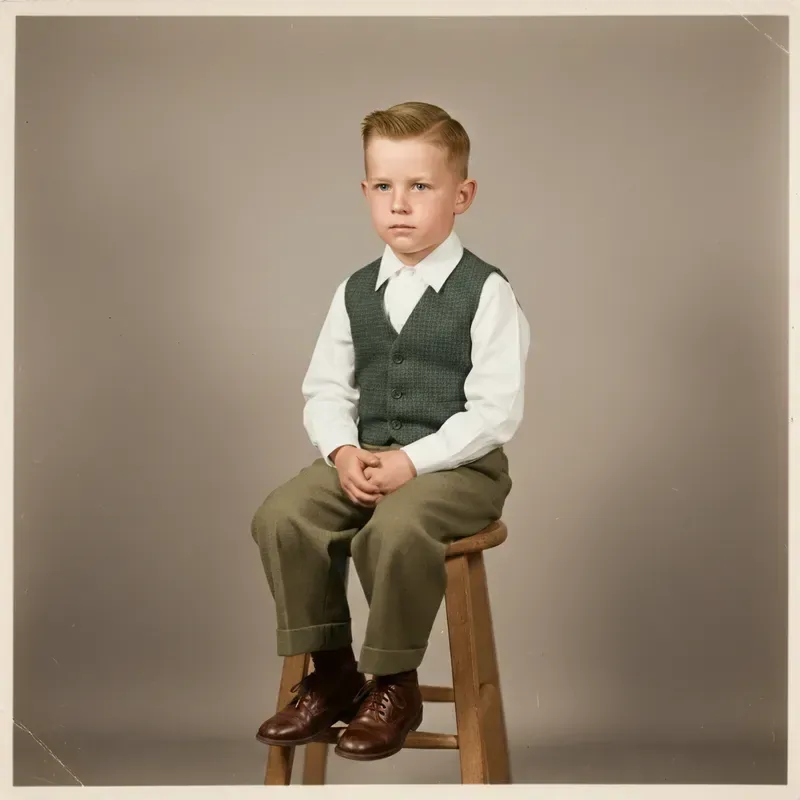
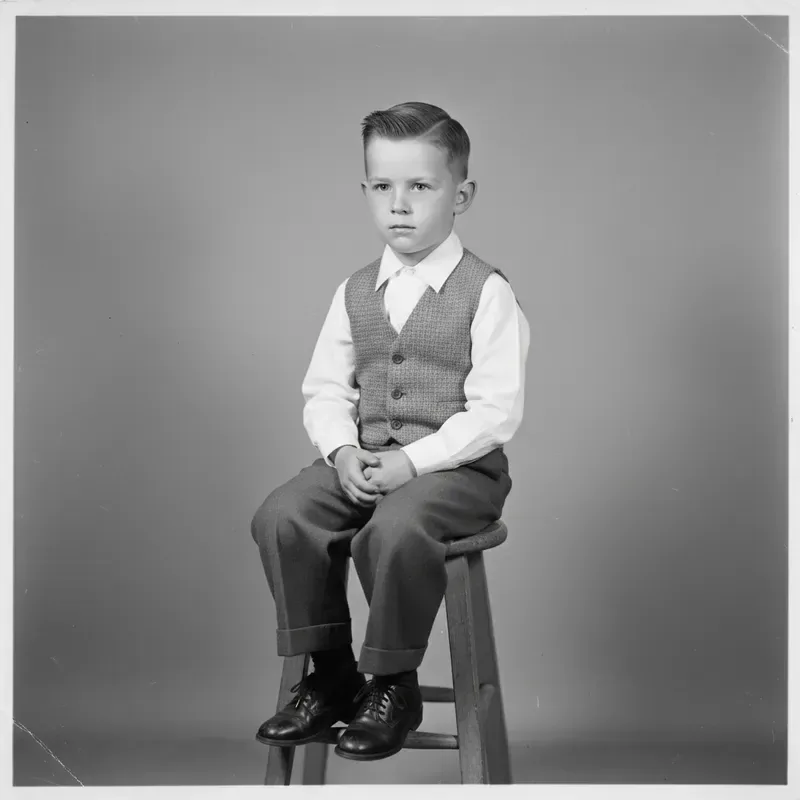
    Boy on a studio stool

    “Colorize this portrait with a warm beige backdrop, a dark green knit vest, olive trousers and brown leather shoes. Keep his fair skin and light auburn hair natural.”

  • Framed black and white family portrait colorized inside the frame — AfterFramed black and white family portrait colorized inside the frame — Before

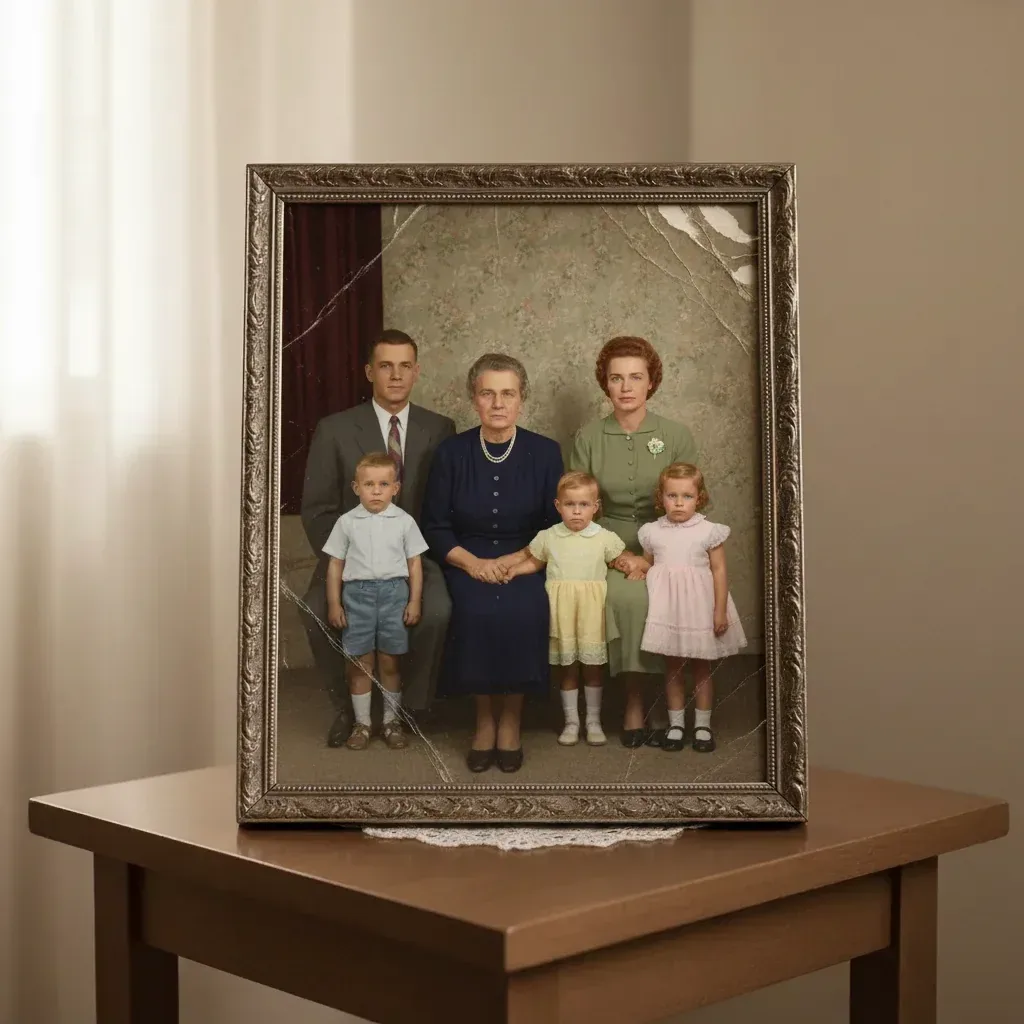
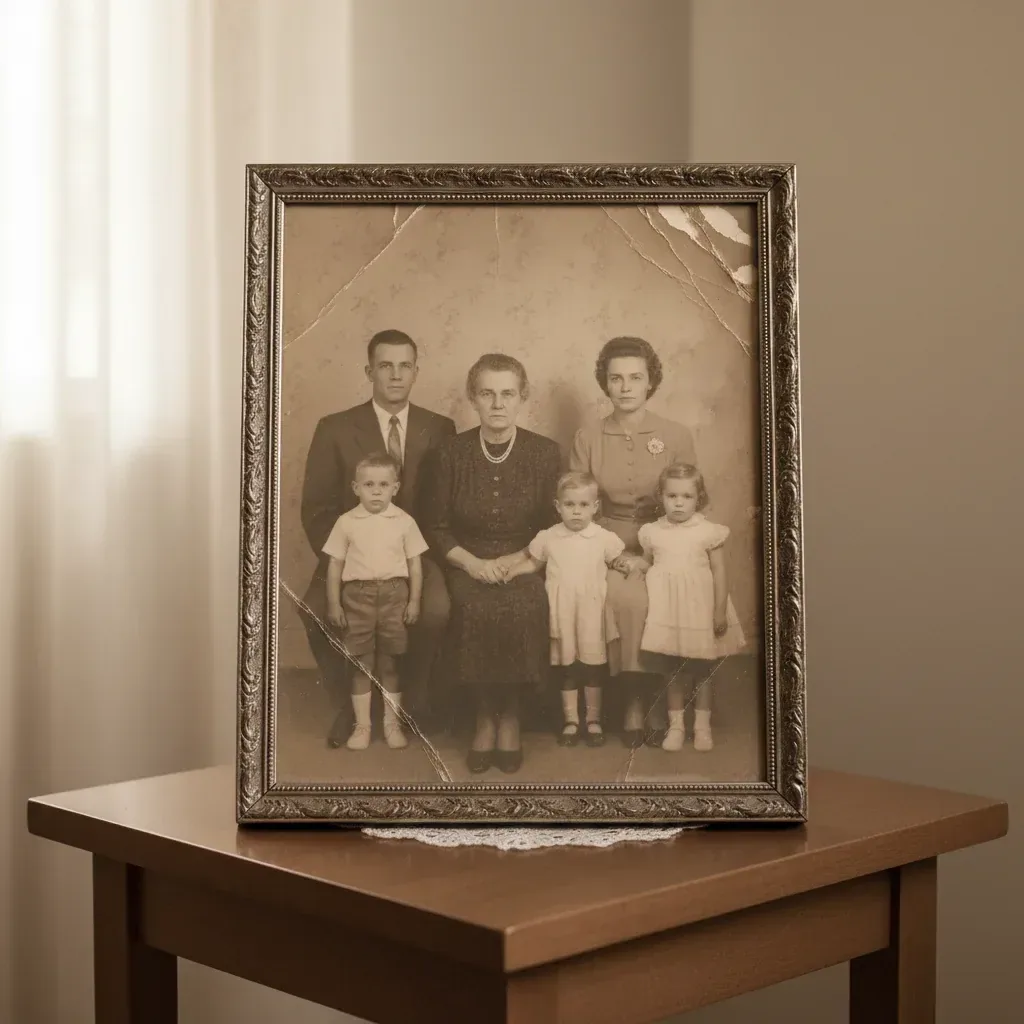
    Framed family portrait on a side table

    “Colorize only the photo inside the frame: a navy dress for the grandmother, soft pastels for the children and a red-brown curtain behind them. Leave the frame and table as they are.”

  • Bride and an older man under a rose arch, colorized from a black and white photo — AfterBride and an older man under a rose arch, colorized from a black and white photo — Before

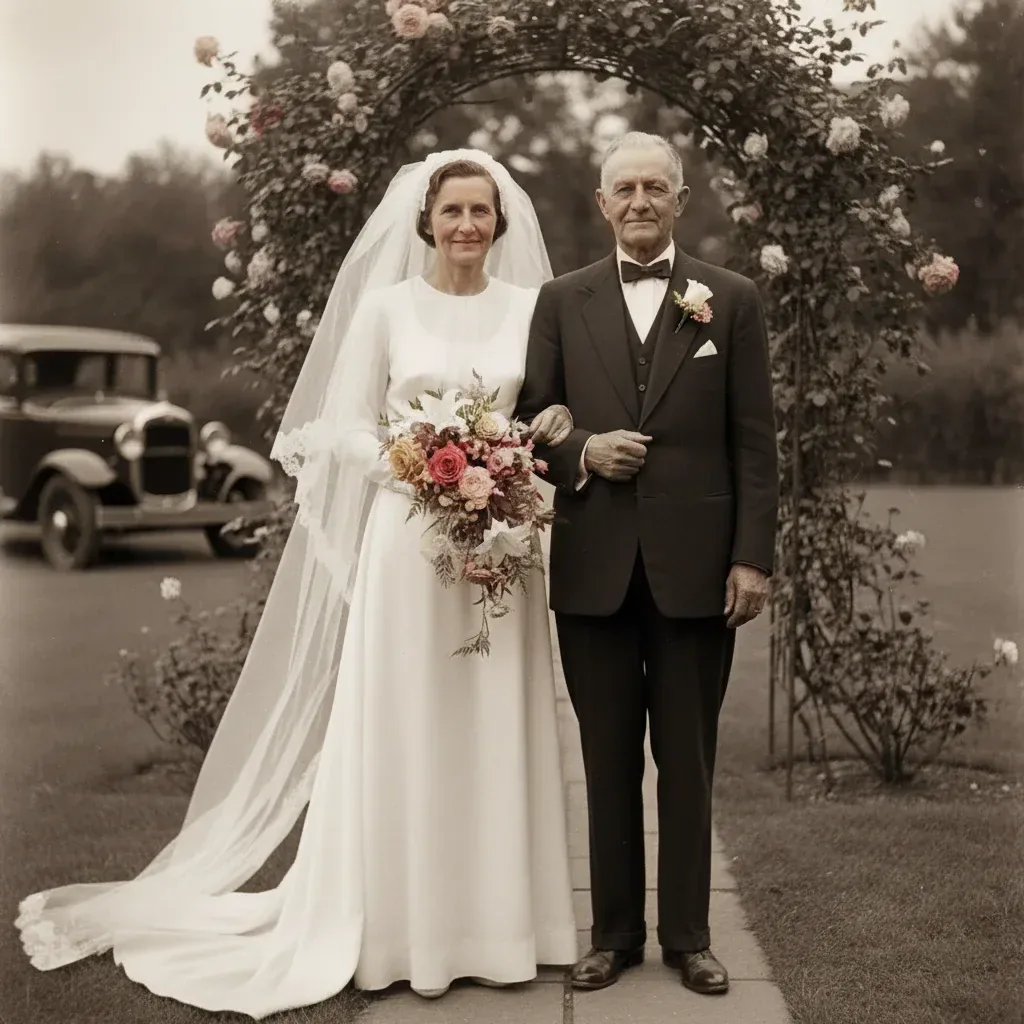
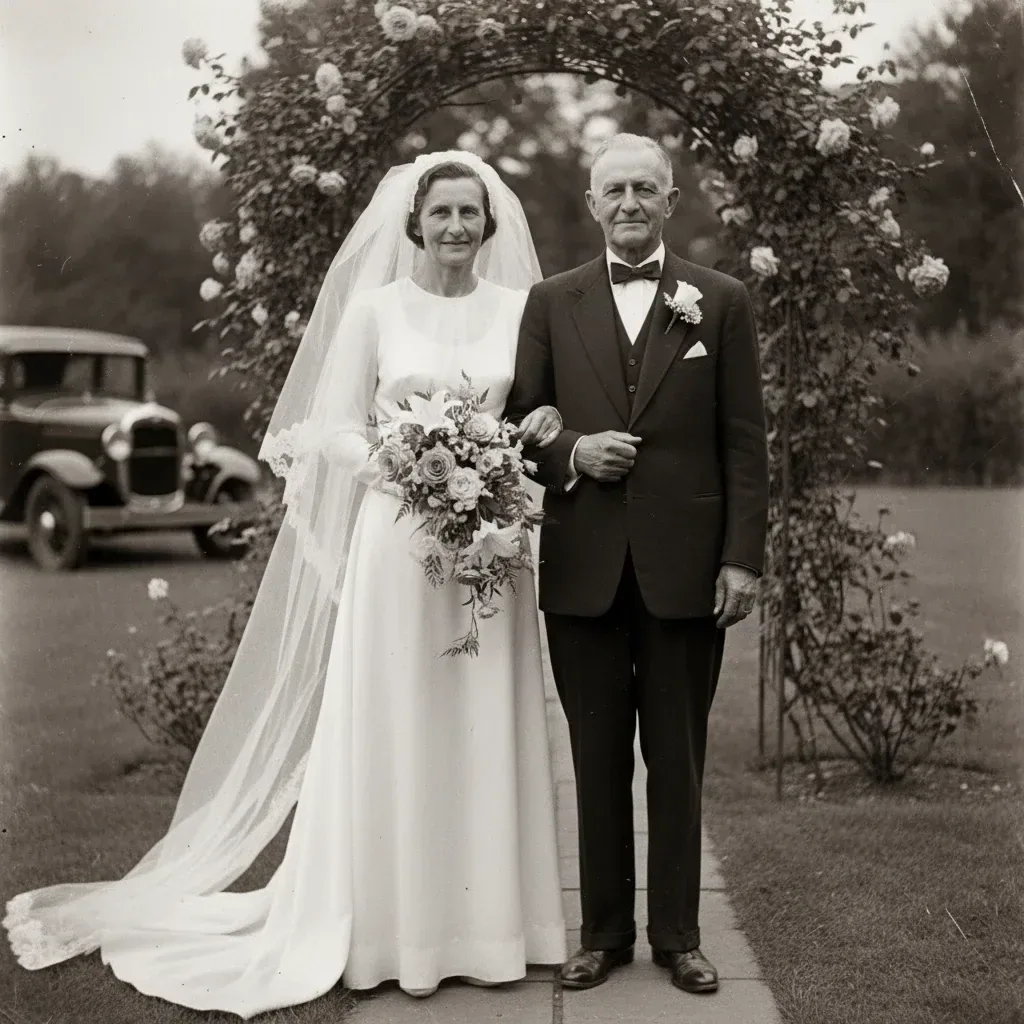
    Garden wedding under a rose arch

    “Add color to this garden wedding: pink and cream roses on the arch, a mixed bouquet, a charcoal suit and a dark vintage car in the background.”

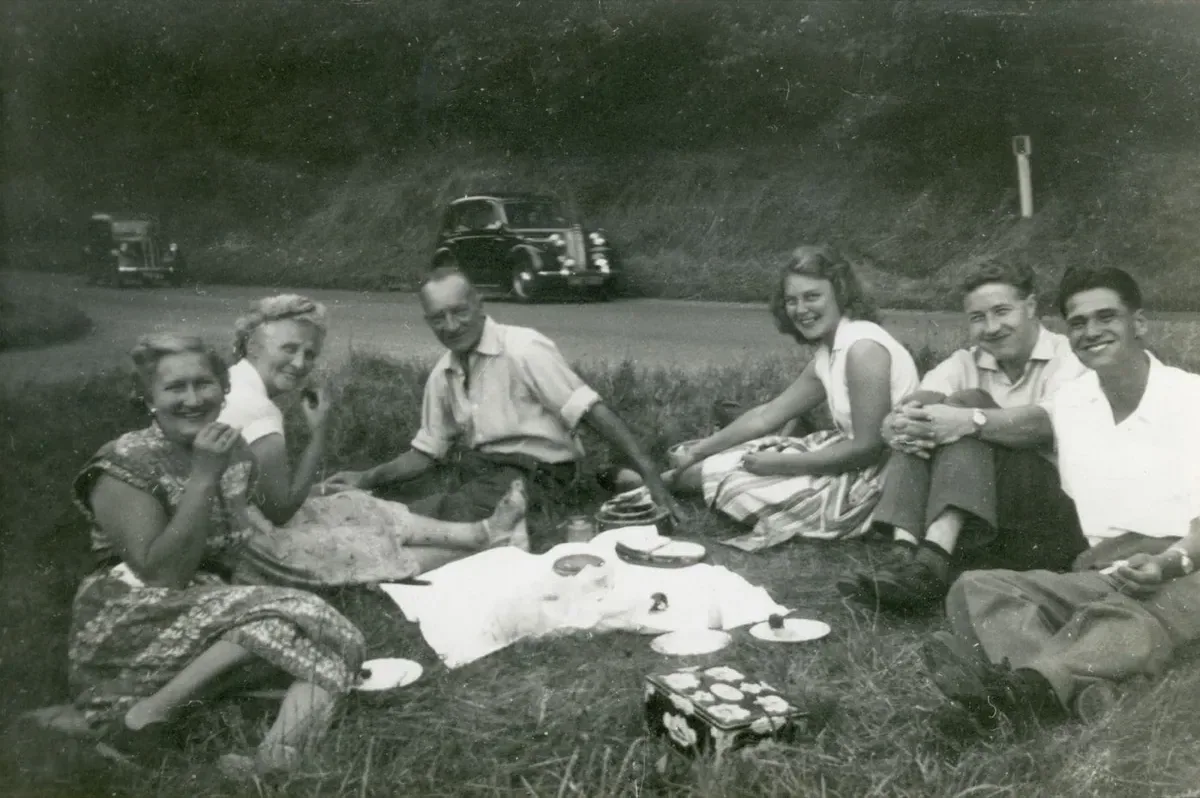
  • Friends picnicking on the grass, colorized from a black and white photo — AfterFriends picnicking on the grass, colorized from a black and white photo — Before

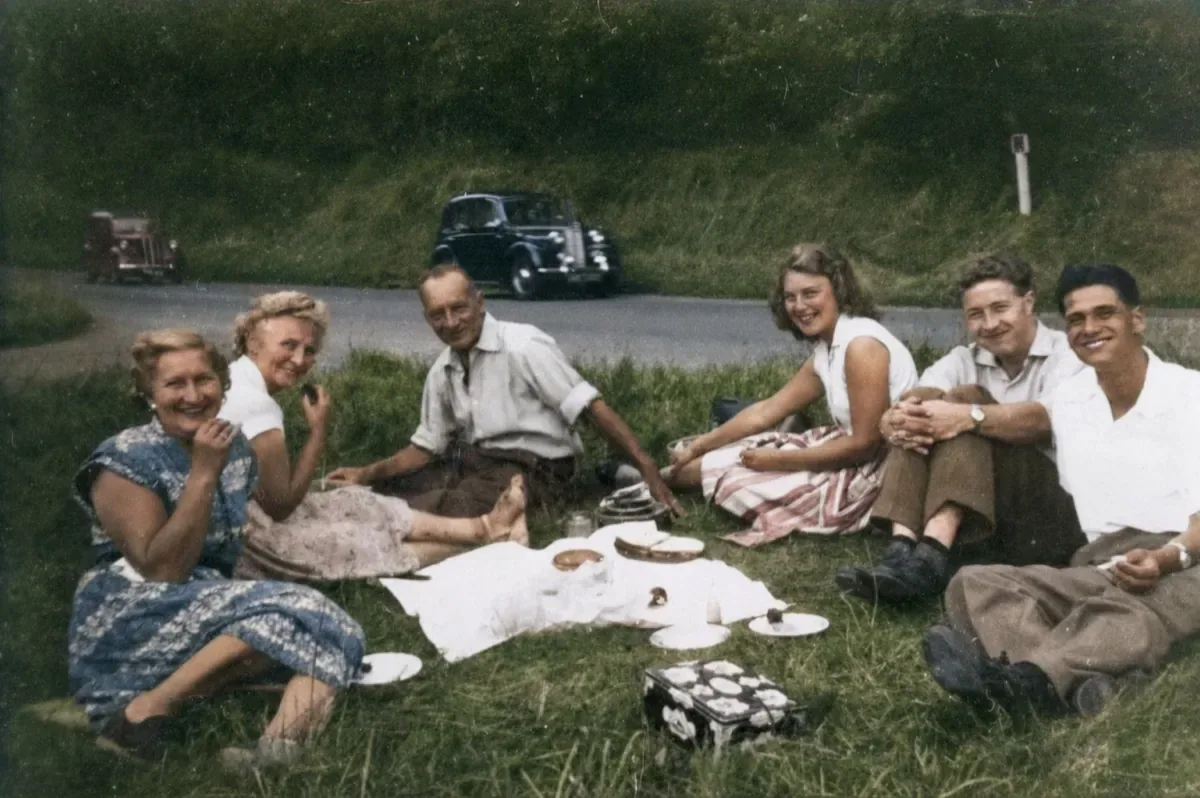
    Picnic on the grass

    “Colorize this 1950s picnic: green grass, patterned summer dresses, white shirts and a dark sedan parked on the road behind the group.”

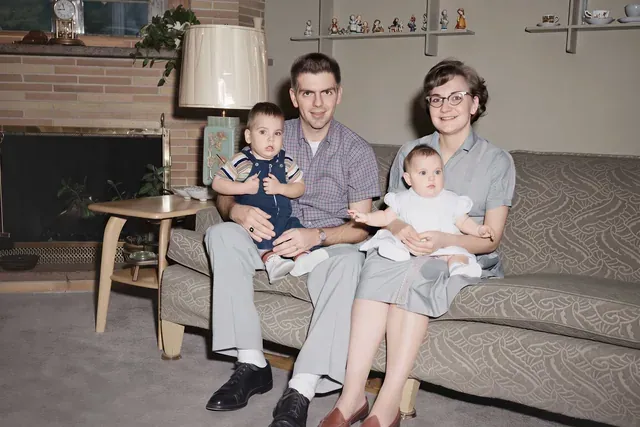
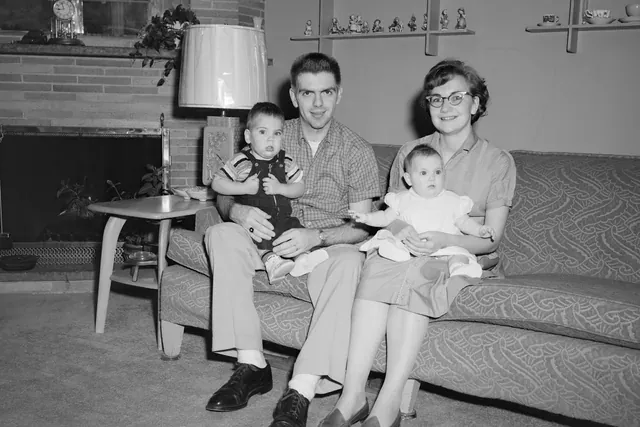
  • Parents holding two babies on a patterned sofa, colorized from a black and white photo — AfterParents holding two babies on a patterned sofa, colorized from a black and white photo — Before

    Young family on a living-room sofa

    “Colorize this 1950s living-room photo: a sage-green patterned sofa, a plaid short-sleeve shirt for the father, a light blue dress for the mother, cream baby clothes and a warm lampshade.”

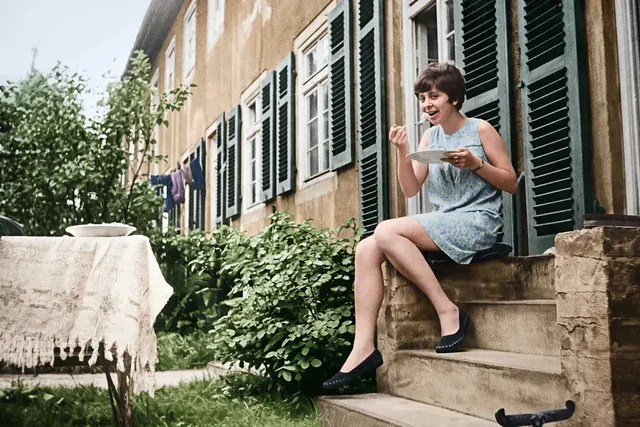
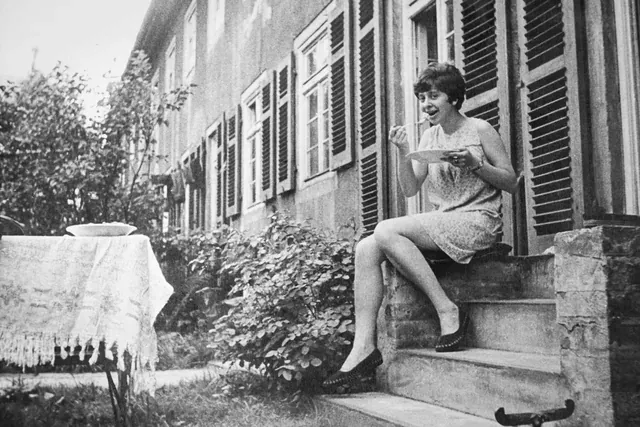
  • Woman eating from a plate on stone steps outside a house, colorized — AfterWoman eating from a plate on stone steps outside a house, colorized — Before

    Afternoon snack on the garden steps

    “Add color to this summer scene: a pale blue patterned dress, ochre plaster walls, dark green shutters, laundry on the line and lush green shrubs beside the stone steps.”

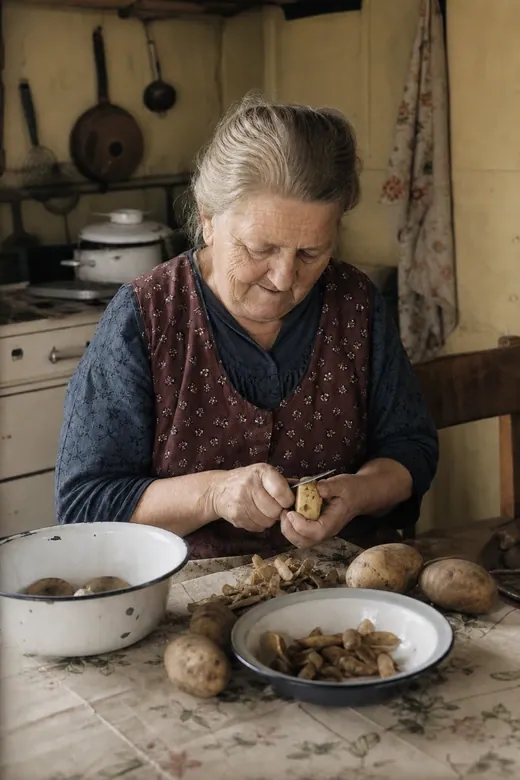
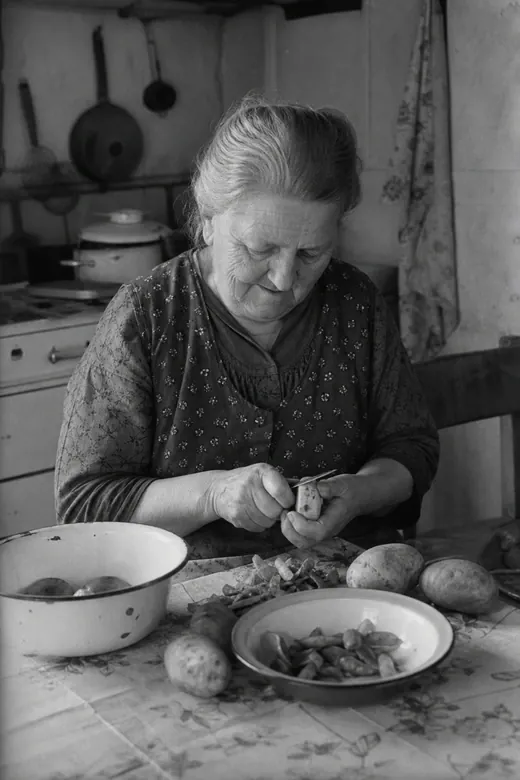
  • Elderly woman peeling potatoes at a kitchen table, colorized from black and white — AfterElderly woman peeling potatoes at a kitchen table, colorized from black and white — Before

    Grandmother peeling potatoes

    “Colorize this farmhouse kitchen: a dark red floral apron over a navy blouse, golden potatoes, white enamel bowls with blue rims and warm yellow walls. Keep her gray hair and wrinkles natural.”

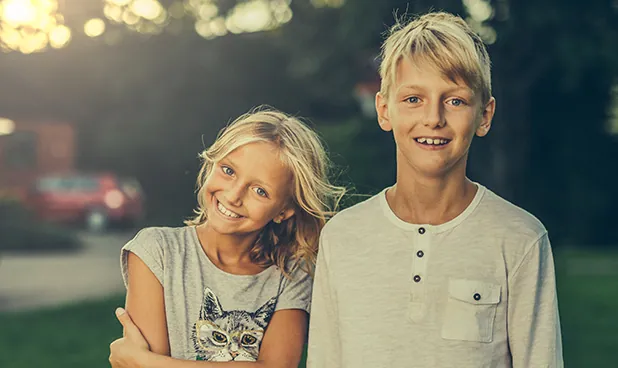
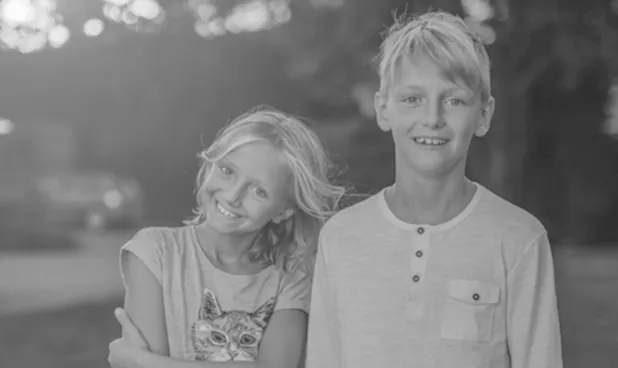
  • Smiling blond brother and sister outdoors, before and after colorizing — AfterSmiling blond brother and sister outdoors, before and after colorizing — Before

    Brother and sister outdoors

    “Colorize this outdoor portrait of a brother and sister: sun-bleached blond hair, a gray T-shirt with a cat print, a cream henley, green trees behind them and a red car softly blurred in the distance.”

Example images are for illustration only. Each prompt is a starting point for a similar edit on your own photo.

How to colorize black and white photos

  1. Step 1

    Upload the black and white photo

    To colorize a photo, add a scan or a camera copy of the print as a JPG, PNG or WebP of up to 20 MB. Sepia and toned prints work too, not only true black and white.

  2. Step 2

    Tell it what you know

    The default prompt picks realistic colors. If you know the real ones, such as “blue uniform” or “red front door”, add them before you colorize the photo so the result matches what you remember.

  3. Step 3

    Colorize and fine-tune

    Press Edit Image to colorize the photo. If a shirt or a car comes out in the wrong shade, ask for that single change in a short follow-up prompt instead of starting over.

Colorize photo prompts for different kinds of pictures

Ten ready prompts, each written for a different kind of black and white picture; use one as it is to colorize your photo, or swap any color you know was different.

  1. 01

    Military portrait

    Colorize this military portrait with an olive-drab wool uniform, brass buttons, a khaki shirt and a plain gray studio backdrop. Keep the medals and insignia exactly as they appear and give the skin a natural, unpolished tone.

  2. 02

    School class photo

    Colorize this school class photo with muted period colors: navy and gray pullovers, white collars, brown wooden desks and a dark green chalkboard. Keep every child's face unchanged and vary the hair between natural shades.

  3. 03

    Old city street

    Add realistic color to this old city street: red-brown brick, gray stone pavements, dark green shopfronts, faded painted signs and an overcast sky. Keep any lettering as it is instead of redrawing it.

  4. 04

    Vintage car in a driveway

    Colorize this vintage car photo: a cream body with chrome bumpers and hubcaps, whitewall tires, a gravel driveway and leafy summer trees. Keep the reflections on the paintwork and the shadow under the car.

  5. 05

    Farm landscape

    Colorize this rural landscape with golden wheat fields, a red timber barn, a dusty farm track, green hedgerows and a pale blue sky with white clouds. Keep the soft haze over the distant hills.

  6. 06

    Baby christening portrait

    Colorize this baby portrait with soft rosy skin, wispy light brown hair, a white lace christening gown and a pale cream blanket. Keep the lighting gentle and avoid any orange cast on the face.

  7. 07

    One red coat, the rest in gray

    Colorize only the girl's coat in deep red and leave the rest of the photo in its original black and white, with the grain and contrast untouched.

  8. 08

    1960s beach holiday

    Add color to this 1960s beach holiday photo: striped deck chairs, a turquoise sea, pale sand, a red and white umbrella and lightly tanned skin. Keep the slight film grain so it still feels like an old snapshot.

  9. 09

    Portrait with remembered details

    Colorize this portrait using what the family remembers: blue-gray eyes, dark auburn hair set in pin curls, a mustard cardigan and a small gold pendant. Choose quiet, natural colors for the background.

  10. 10

    Church interior

    Colorize this church interior with honey-colored oak pews, gray stone columns, warm candlelight and stained-glass windows in deep blue, red and amber. Keep the dim lighting and the depth of the nave.

Ways to use a photo colorizer

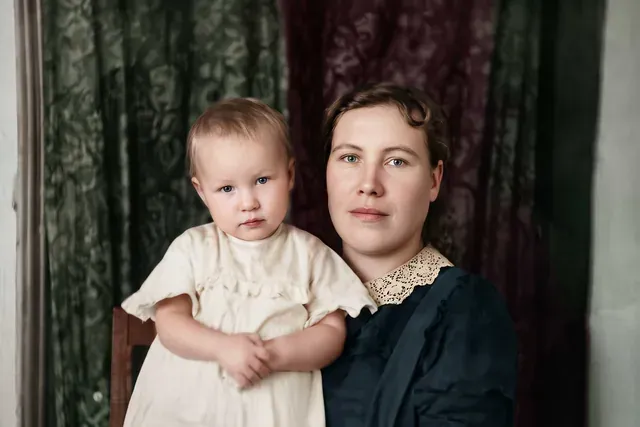
  • Colorized studio portrait of a mother holding her baby in a cream dress

    Family history

    Colorize photos from your grandparents’ wedding or your parents’ childhood, then share them with relatives who never saw those scenes in color.

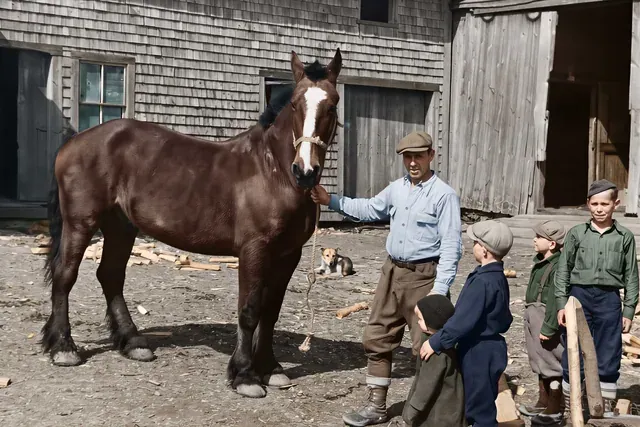
  • Colorized archive photo of a man and three boys beside a draft horse in a farmyard

    Local history talks

    Colorize farmyard, street and school photos from a local archive for a talk or an exhibition — and label every slide as colorized.

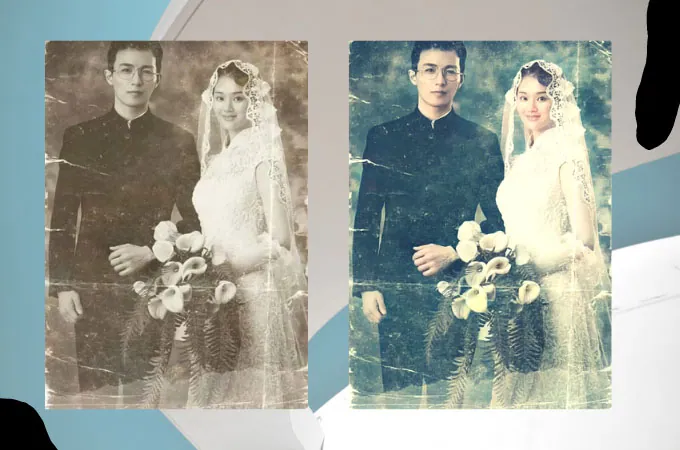
  • Sepia wedding portrait shown next to its colorized version

    Gifts and prints

    Frame a colorized portrait next to the black and white original for an anniversary, a milestone birthday or a family reunion.

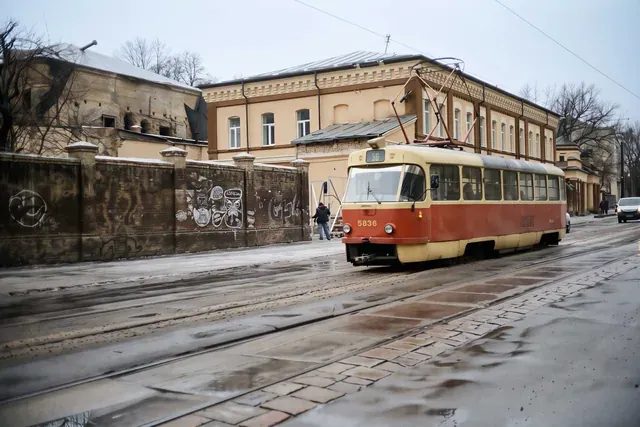
  • Colorized street scene with a red and cream tram on wet paving stones

    Creative reference

    Use colorized stills as a starting point for paintings, set design, period vehicles or costume ideas, where an approximate palette is all you need.

Tips to colorize a photo naturally

  • Name the colors you are sure of — a uniform, a car, a favorite dress — and let the AI colorize the rest.
  • Colorizing does not repair damage. If the print is creased or scratched, use Restore Old Photos first or ask for both in one prompt.
  • Ask for “muted, period-appropriate colors” when bright, modern tones look wrong for an older photo.
  • If faces look too warm after you colorize the photo, add “realistic skin tones, no orange cast” to the prompt.
  • Treat the result as an illustration: the colors are a plausible guess, not historical fact, so caption shared copies as colorized.

Which model to use to colorize a photo

All three colorize photos from the same prompts. Pick by the kind of scan and by the stage you are at.

  • Nano Banana 2

    Google

    The default and the quickest route to a natural result. It keeps the same person consistent across a series, so relatives you colorize photo by photo stay recognizable from one picture of the album to the next.

    About Nano Banana 2
  • Nano Banana Pro

    Google

    To colorize photos packed with detail: large group photos, lace, tweed or a busy street. It handles fine texture and lighting more carefully, which helps skin and fabric look believable. EditPic outputs 1K or 2K.

    About Nano Banana Pro
  • Flux

    Black Forest Labs

    Best for the correction pass. Flux changes only what you describe, so a follow-up like “make the car dark green” recolors the car without redrawing faces or the rest of the scene.

    About Flux

How to colorize a photo with believable color

What the colorizer can and cannot know, how to prepare the scan, how to fix the results that go wrong and how to colorize photos for a family album.

How the colorizer guesses colors

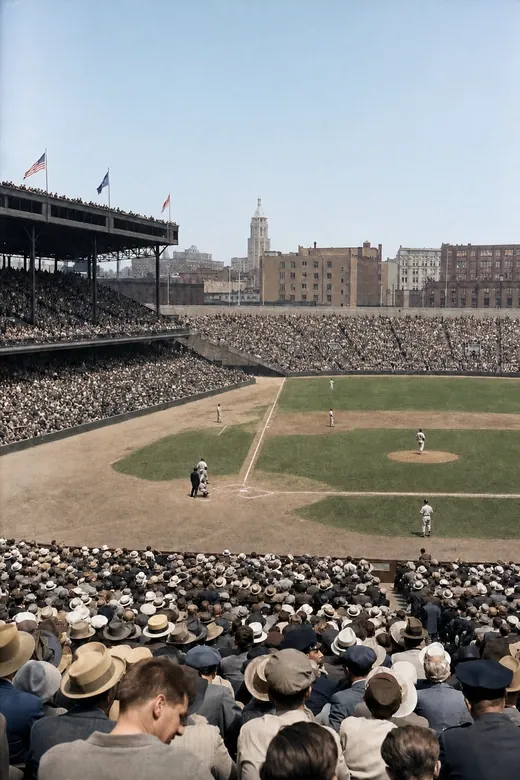
A black and white photo stores brightness only. A red dress and a green dress of the same lightness become the same gray, and nothing in the file says which one it was. The colorizer works from context instead: skies tend to be blue, foliage green, skin within a human range, and clothes or cars get a color that fits their shape, material and era.

So the result is a plausible reconstruction, never a record. Where the scene offers no clue, the model picks something safe, which is why unknown garments often come out brown, navy or cream. The more of those gaps you fill from family memory, letters or a surviving object, the closer the colorized picture gets to what was really there.
Preparing the scan before you colorize the photo

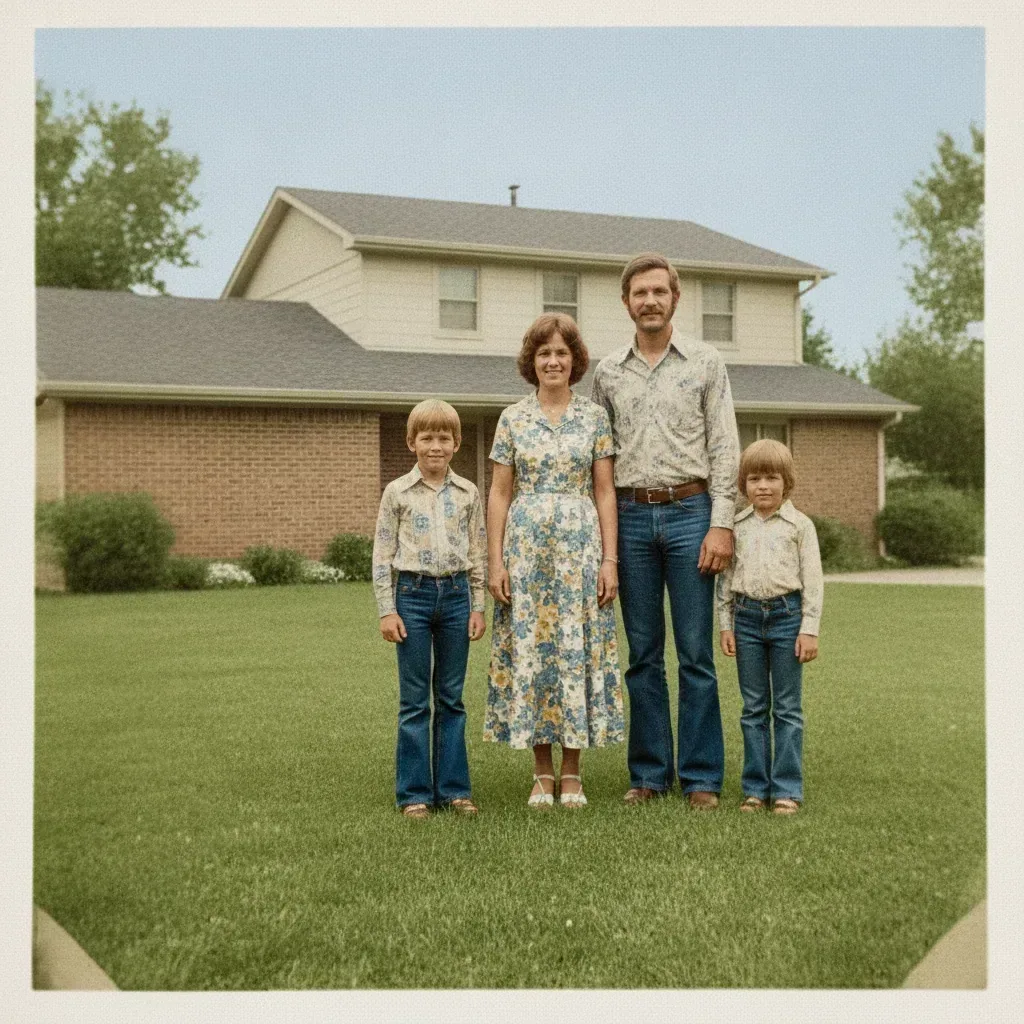
Color can only be as good as the detail underneath it. On a flatbed scanner, scan small snapshots at around 600 dpi and larger prints at 300–400 dpi, then save a high-quality JPG so the file stays under the 20 MB upload limit. A phone copy works too: lay the print flat in even daylight, switch the flash off and hold the phone parallel to the paper to avoid glare and skewed edges.

Crop away the album page and any white border before you colorize the photo, so the model does not tint them. Skip boosting contrast or sharpening first: crushed shadows and bright halos give the colorizer less to read and tend to come back as flat, blotchy patches.

Fixing bleeding, brown casts and drifting details

Three problems come up most. The first is color bleeding: the sky tints a hat brim, or skin tone spills onto a white collar. Fix it with one follow-up that names the edge, such as “keep the collar pure white”.

The second is an overall brown or yellow wash, common with sepia originals. Ask for “a fuller palette with clean whites and neutral grays, no overall tint”.

The third is drift in the details: eyes look slightly different, or the letters on a shop sign turn into new words. Go back to your original upload and colorize the photo again rather than recoloring an edit, adding “keep faces and lettering exactly as in the original”, and try Flux when only one area needs changing.

Where colorizing fits with other EditPic tools

Colorizing works best as one step in a short chain. If the print is torn, spotted or creased, run Restore Old Photos first and colorize the repaired image; color laid over a scratch makes the scratch more visible, not less. For a tiny wallet print or a soft, slightly out-of-focus original, the AI Image Upscaler or Unblur Image can bring back edges before any color goes on.

Afterwards, Photo to Painting can turn the colorized result into a painted keepsake for a frame. Whatever you make, store the untouched black and white scan alongside it and mention that the colors were added when you post or print it, so nobody takes the guessed shades for the original.

Colorize photos for a family album: a walkthrough

Say you want to colorize photos from one album that follows a family across twenty years. Start with the portrait that shows the most people, because the colors you settle on there carry over to every later picture: grandmother’s blue coat, the green front door, the red car. Write them down as a short list.

Then colorize the photos one by one, pasting the same list into each prompt and staying with Nano Banana 2, which keeps people consistent across a series. When a known person looks different from one picture to the next, correct that single detail in a follow-up rather than regenerating everything. At the end, view the whole set side by side; a palette that drifts is easier to spot in a row than one photo at a time.

Colorize a photo with AI or color it by hand?

Before AI, people colorized photos by hand: tinting prints with paint, or laying color over a scan in desktop software, area by area. A skilled colorist can research a uniform or a car model and get it exactly right, but one portrait can take hours, and every hair edge has to be masked.

When you colorize a photo with AI, the whole scene gets color within one edit, including skin, foliage and sky, and you correct single details in words. What you give up is research: the model does not know that your grandfather’s tie was maroon unless you say so. A practical mix is to let the AI do the first pass and spend your own time on the few colors that matter to your family.

Colorize photo FAQ

  1. Can I colorize photo scans for free?

    Sign up and you can try it free once on one of your own scans. After that, every colorization spends credits; the amount depends on the model and is shown before the edit, and a paid plan makes sense when you have a large stack of prints to convert.

  2. Are the colors historically accurate?

    No. When you colorize a photo, the AI predicts plausible colors from shapes, light and context, but a black and white photo does not store color. Clothes, cars and walls may differ from reality, so add what you know to the prompt.

  3. Can I colorize black and white photos that are also damaged?

    Yes, but colorizing on its own leaves scratches and creases in place. Ask to “repair the scratches and add natural color” in one prompt, or restore the photo first and colorize the result.

  4. Will the AI change faces or details?

    It aims to colorize the photo and change nothing else. Generative models can redraw small details such as eyes or lettering on signs, so compare closely and add “keep all details unchanged” when it matters.

  5. Can I colorize photos that are sepia or faded?

    Yes. Sepia, toned and faded color prints all work. For faded color photos, ask it to “restore the original colors” or “remove the yellow cast” rather than colorizing from scratch.

  6. Can I colorize black and white photos from a whole album at once?

    Not in one go: EditPic has no batch upload, so each photo is its own edit. To colorize the photos of one album consistently, reuse the same prompt, repeat the colors you settled on for people who appear more than once, and stay with one model, such as Nano Banana 2.

  7. Can I keep part of the photo black and white?

    Yes. When you colorize the photo, name the one thing that should get color and say the rest stays as it is, for example “color only the umbrella in red, keep everything else black and white”. If other areas pick up a tint, run a follow-up asking for them to go back to gray.

  8. Is a photo colorizer result sharp enough to print?

    For albums, cards and small frames, usually yes. Colorize the photo at 2K in the editor and start from a sharp scan; the result downloads as a regular image file. Large wall prints will look soft, because the output is 1K or 2K whatever size the original was.

  9. How do I colorize a photo of a person with natural skin?

    Ask for “realistic skin tones with natural variation, no orange or pink cast”, and mention the person’s complexion if you know it. Skin is where wrong colors stand out most, so look at the face and hands at full size, and correct only the skin in a follow-up if it still looks painted.

  10. Can I colorize a photo of a street or a building?

    Yes, and architecture often comes out well, because brick, stone, sky and trees give the AI strong clues. Name any colors you know, such as a painted shopfront or a tram livery, and ask to keep the lettering on signs as it is, since small text can be redrawn.

  11. What is the best way to colorize photos for a slideshow or a talk?

    Colorize the photos at 2K, keep one muted palette across the set, and add a small “colorized” note on each slide. Showing the black and white original next to the colorized version for one or two pictures helps the audience see what was added.

  12. Can I undo the color if I don’t like the result?

    Your original file stays as it is, so you can always start again from it. For a different look, colorize the photo again with new colors in the prompt; to reverse only part of it, ask for that area to “go back to the original black and white”.

Colorize a photo now

Upload a black and white picture, keep the prompt or add the colors you remember, and compare the colorized result with the original.