New: Nano Banana 2 & GPT Image 2

Try it

Updated 2026-11-16

Model by OpenAI

GPT Image 2 Photo Editor for Readable Text and Detailed Edits

GPT Image 2 is OpenAI's model for creating and editing pictures, released in its API in April 2026. GPT Image 2 earns its place when an edit needs words people can actually read, or a list of changes that all have to land at once. On this page the EditPic editor already has GPT Image 2 selected: upload a photo, write the instruction and run it.

GPT Image 2 at a glance

DeveloperOpenAI
Model familyGPT Image, OpenAI’s image generation and editing models; GPT Image 2 reached the OpenAI API in April 2026
Best atLegible text in images, prompts with several instructions, posters and other layout-heavy designs
Text rendering (model)OpenAI names better and multilingual text rendering among the GPT Image 2 upgrades
Input in EditPicOne JPG, PNG or WebP photo up to 20 MB, plus your written instruction
Output in EditPicGPT Image 2 results come in 1K or 2K as a regular image (no transparent PNG export)
Aspect ratiosEditPic offers 1:1, 3:4, 4:3, 9:16 and 16:9; the GPT Image 2 API lists more, such as 3:2, 2:3 and 21:9
Reference images GPT Image 2 acceptsUp to 16 per request when GPT Image 2 is called through the API; EditPic sends the one photo you upload
CreditsSet per model; the editor shows what a GPT Image 2 edit costs before you run it

GPT Image 2 facts come from OpenAI’s announcement and model page and from the API documentation we checked in November 2026. EditPic’s own limits (one photo up to 20 MB, 1K or 2K output, five aspect ratios) apply on top of what GPT Image 2 supports. GPT Image 2 is a trademark of OpenAI; EditPic is not affiliated with OpenAI.

GPT Image 2 examples: lettering, layouts and stacked edits

Posters, a newspaper page, product labels, bilingual wall type and two edits where several instructions were applied together. The images are third-party GPT Image 2 showcase examples; every prompt below loads into the editor so you can run it with GPT Image 2 on a photo of your own.

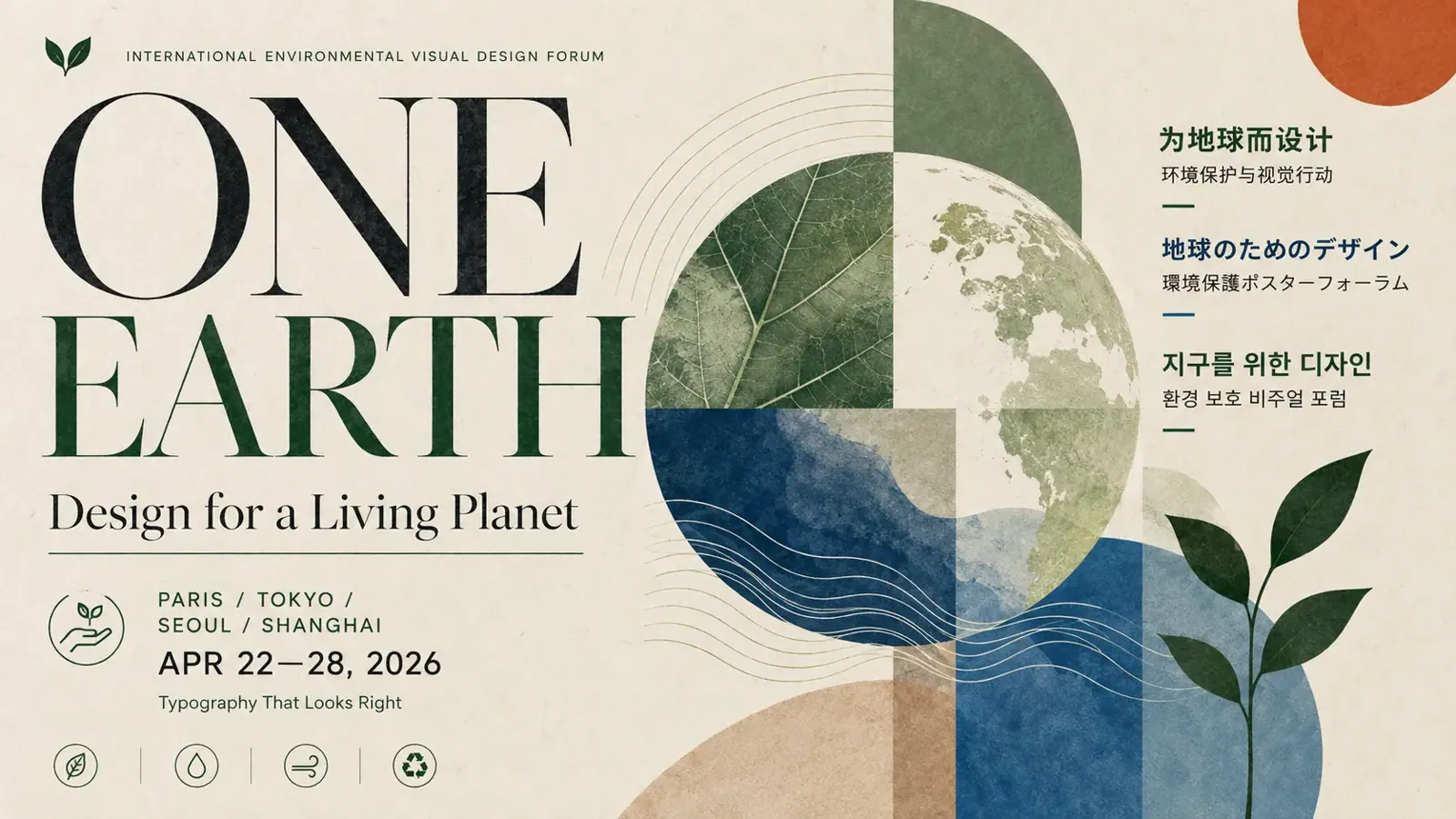
  • GPT Image 2 poster example: environmental design forum headline ONE EARTH with short lines in Chinese, Japanese and Korean

    Event poster in four scripts

    “Turn this leaf-and-globe artwork into an event poster: a large serif headline 'ONE EARTH', the subtitle 'Design for a Living Planet', the line 'Paris / Tokyo / Seoul / Shanghai' and the dates 'Apr 22–28'. Add one short line each in Chinese, Japanese and Korean down the right side.”

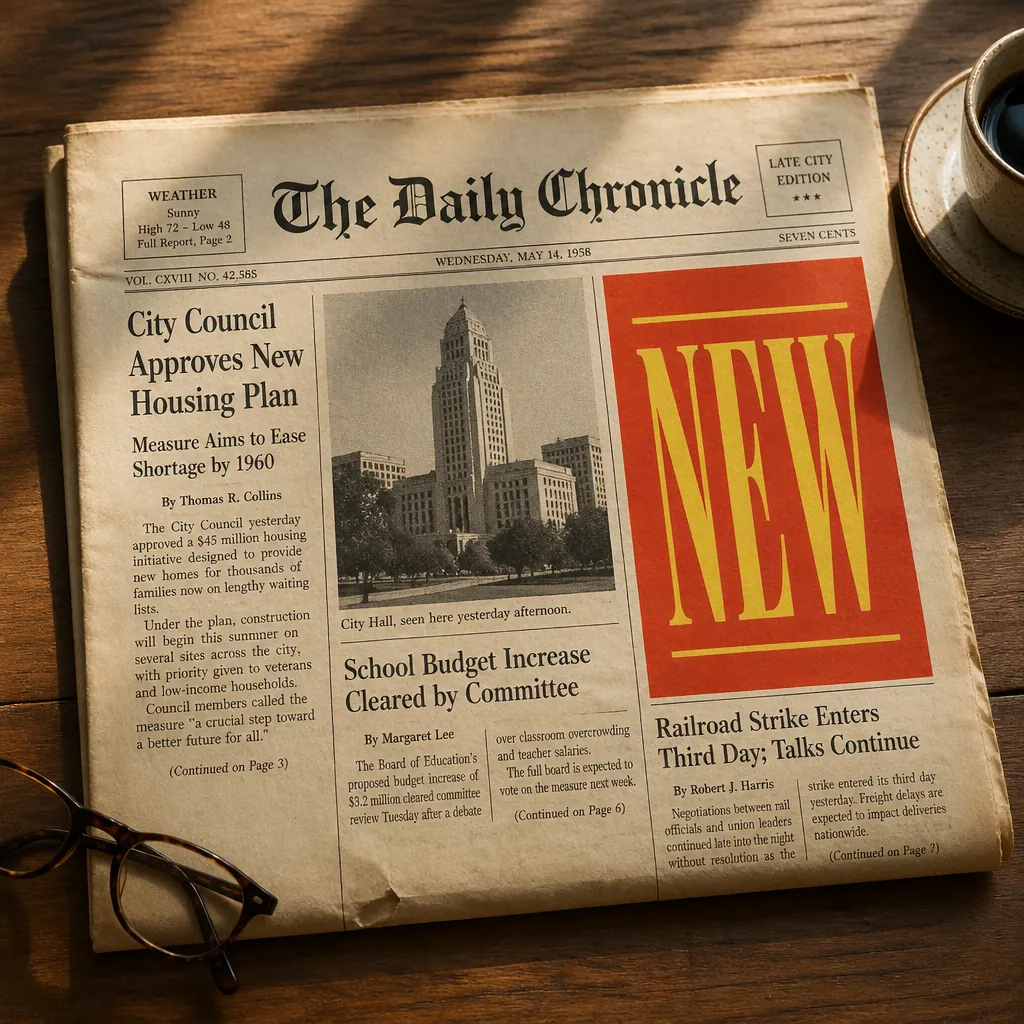
  • GPT Image 2 newspaper example: aged paper titled The Daily Chronicle on a wooden desk beside reading glasses and coffee

    Vintage newspaper front page

    “Place a folded 1950s newspaper on this desk. Masthead 'The Daily Chronicle', lead headline 'City Council Approves New Housing Plan', a red block printed with 'NEW' on the right and narrow columns of body text. Leave the coffee cup and the glasses where they are.”

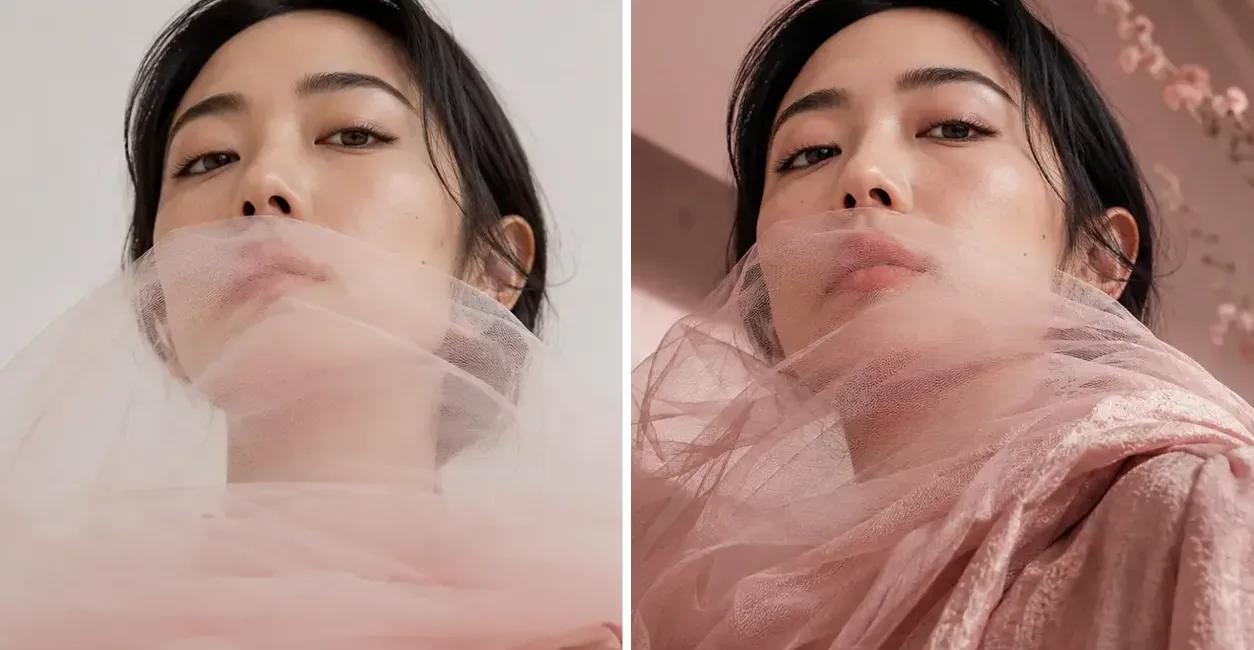
  • GPT Image 2 multi-edit sample: portrait with white tulle next to the version with blush-pink tulle and a pink set with blossoms

    Three changes in one prompt

    “Restyle this portrait in one pass: tint the tulle a soft blush pink, replace the plain wall with a pink studio set and blossom branches, and keep her face, the low camera angle and her gaze exactly as they are.”

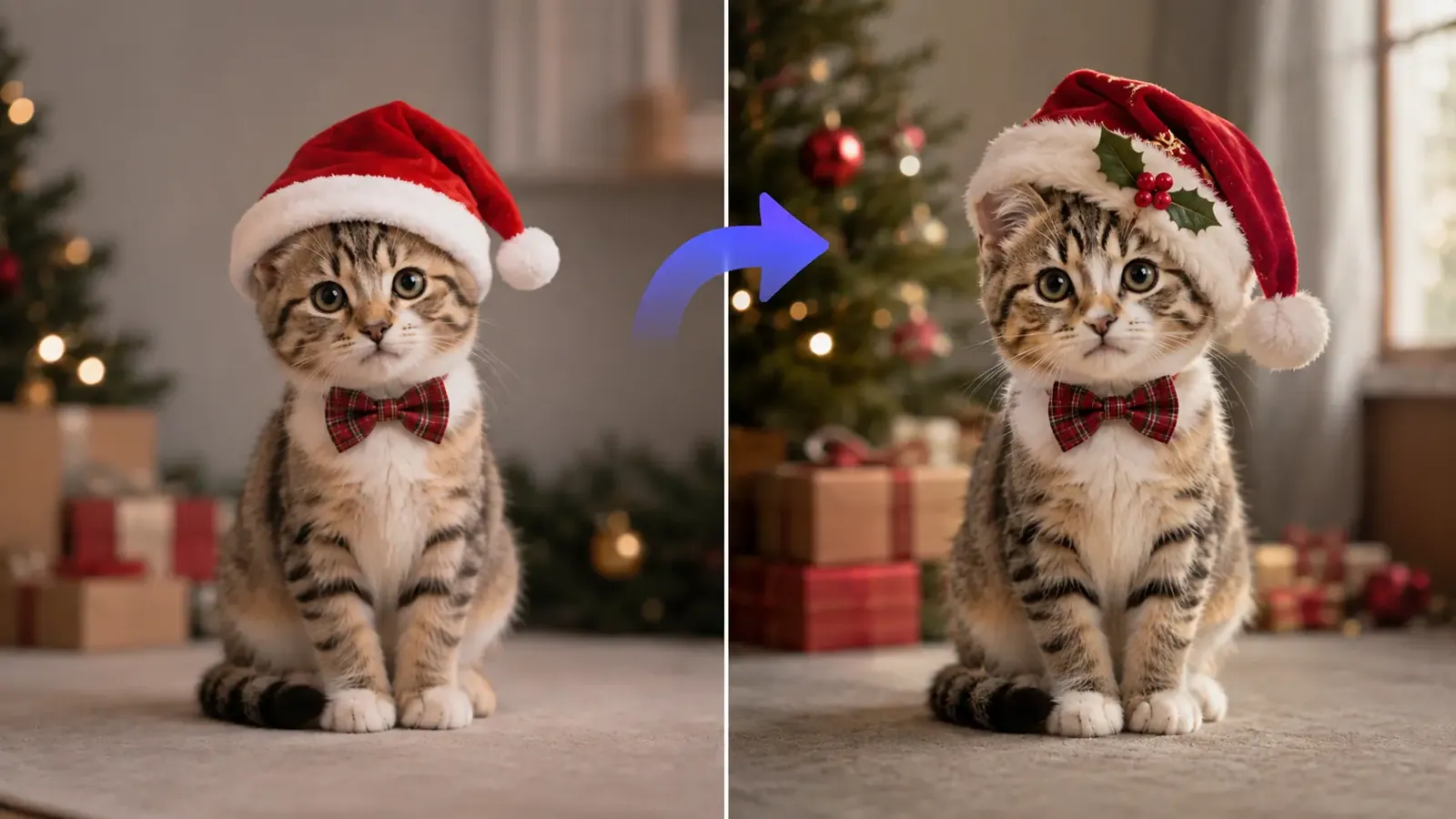
  • Small GPT Image 2 addition: kitten in a Santa hat before and after a holly sprig was added to the hat

    One small addition, nothing else touched

    “Add a sprig of holly with red berries to the front of the kitten's Santa hat. Do not change the kitten, the plaid bow tie, the Christmas tree or the warm lighting.”

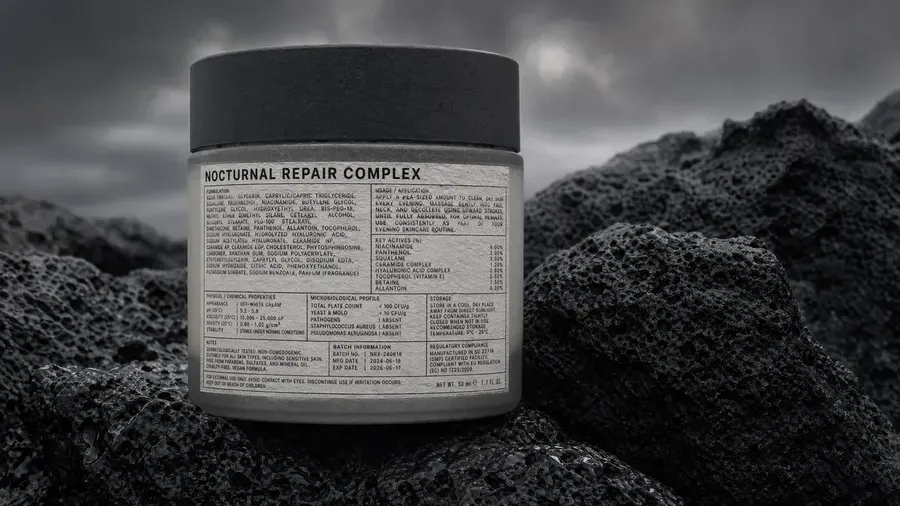
  • GPT Image 2 label example: skincare jar with a detailed printed label on dark volcanic rock under a gray sky

    Dense product label

    “Wrap this jar in a matte gray label: the title 'NOCTURNAL REPAIR COMPLEX', an ingredients panel in small print, a usage box and a net-weight line at the bottom. Keep the volcanic rocks and the stormy sky.”

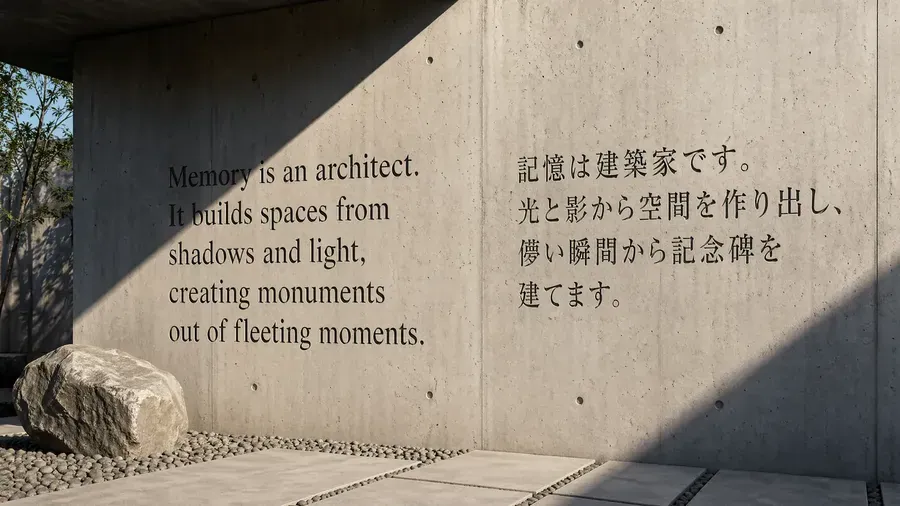
  • Bilingual GPT Image 2 lettering: concrete wall with an engraved English quote and its Japanese translation

    Bilingual lettering on concrete

    “Engrave a short quote on this concrete wall in two languages: English on the left, starting 'Memory is an architect', and a Japanese translation on the right, in matching serif lettering lit by low afternoon sun.”

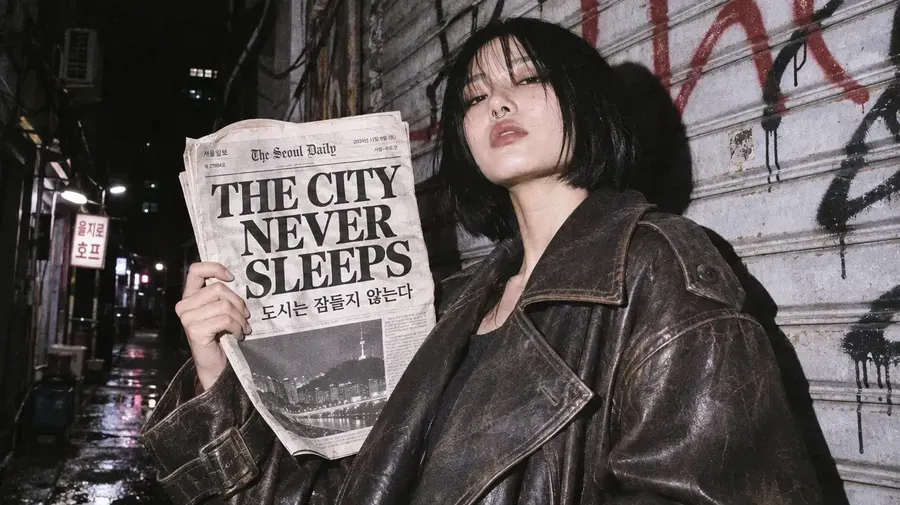
  • GPT Image 2 headline sample: woman in a leather jacket at night holding a newspaper reading THE CITY NEVER SLEEPS

    A headline she holds up

    “Have her hold up a newspaper with the headline 'THE CITY NEVER SLEEPS' and a one-line Korean subtitle beneath it. Keep the direct flash, the worn leather jacket and the graffiti shutter behind her.”

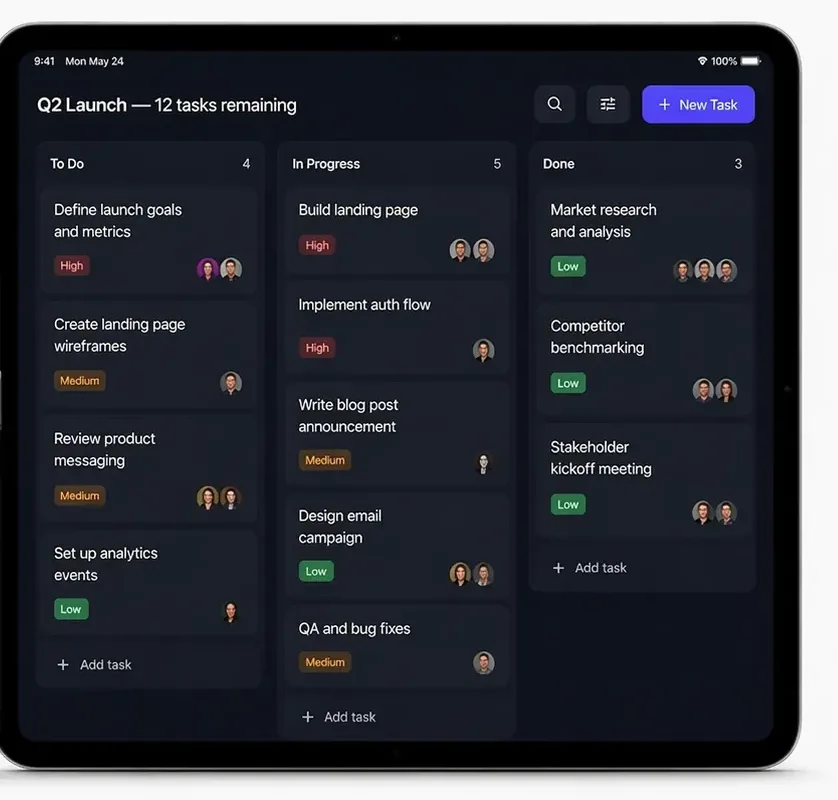
  • GPT Image 2 interface mockup: tablet with a dark kanban board showing To Do, In Progress and Done columns

    App screen on a tablet

    “Show this project board on a dark tablet screen: columns 'To Do', 'In Progress' and 'Done', task cards tagged High, Medium or Low, and a purple 'New Task' button in the top right corner.”

Example images are for illustration only. Each prompt is a starting point for a similar edit on your own photo.

What GPT Image 2 does well

  • Words you can read

    OpenAI lists improved text rendering as a headline change in GPT Image 2. Put the exact wording in quotes and it usually comes out spelled the way you wrote it, on signs, labels, covers and packaging, in the lettering style you describe.

  • Several instructions, one pass

    Recolor one item, add another, swap the background and say what must stay put, all in a single prompt. OpenAI describes GPT Image 2 as following instructions more reliably than its earlier image models, so a numbered list of changes is a sensible way to brief it.

  • Layouts with structure

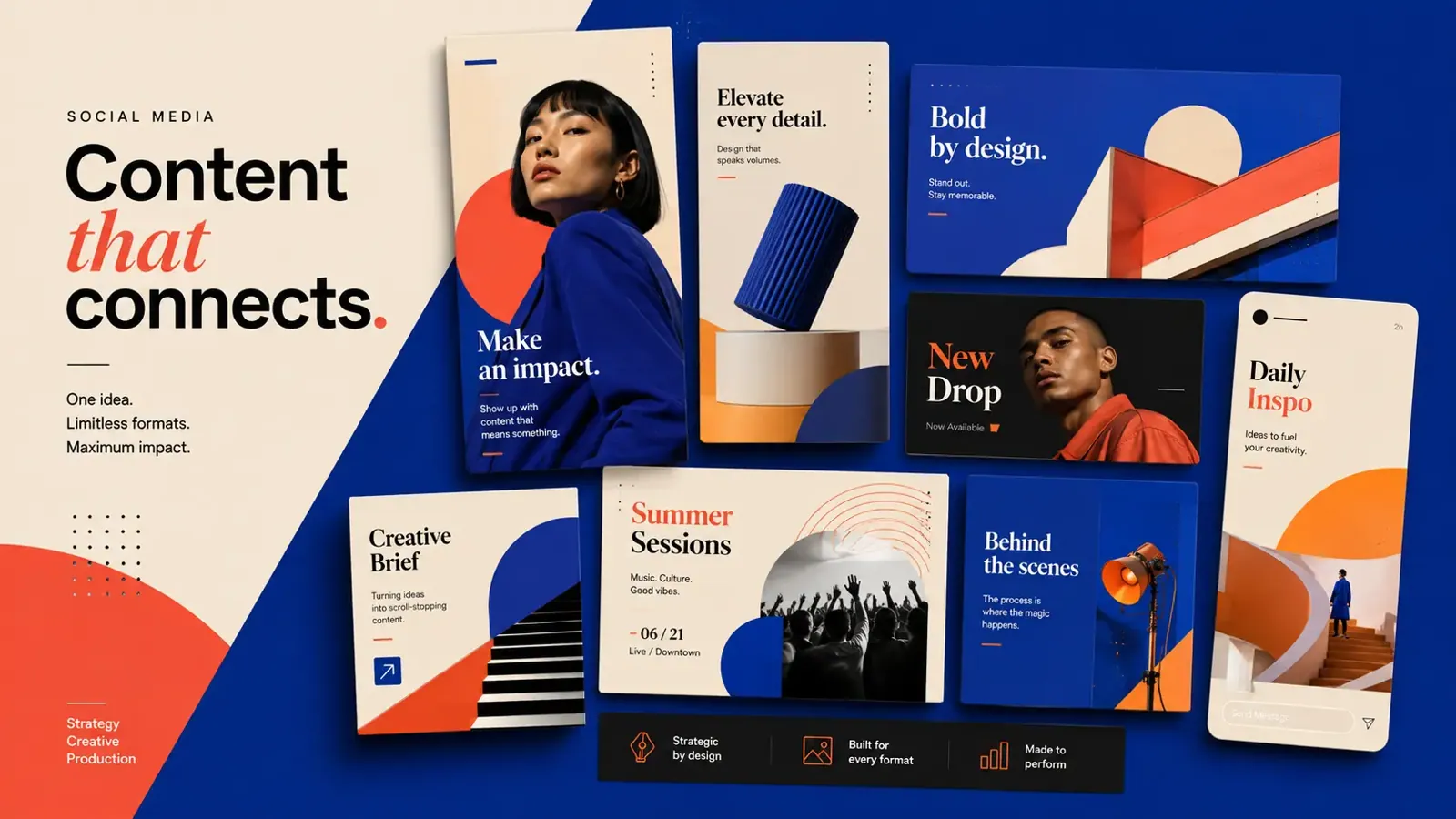
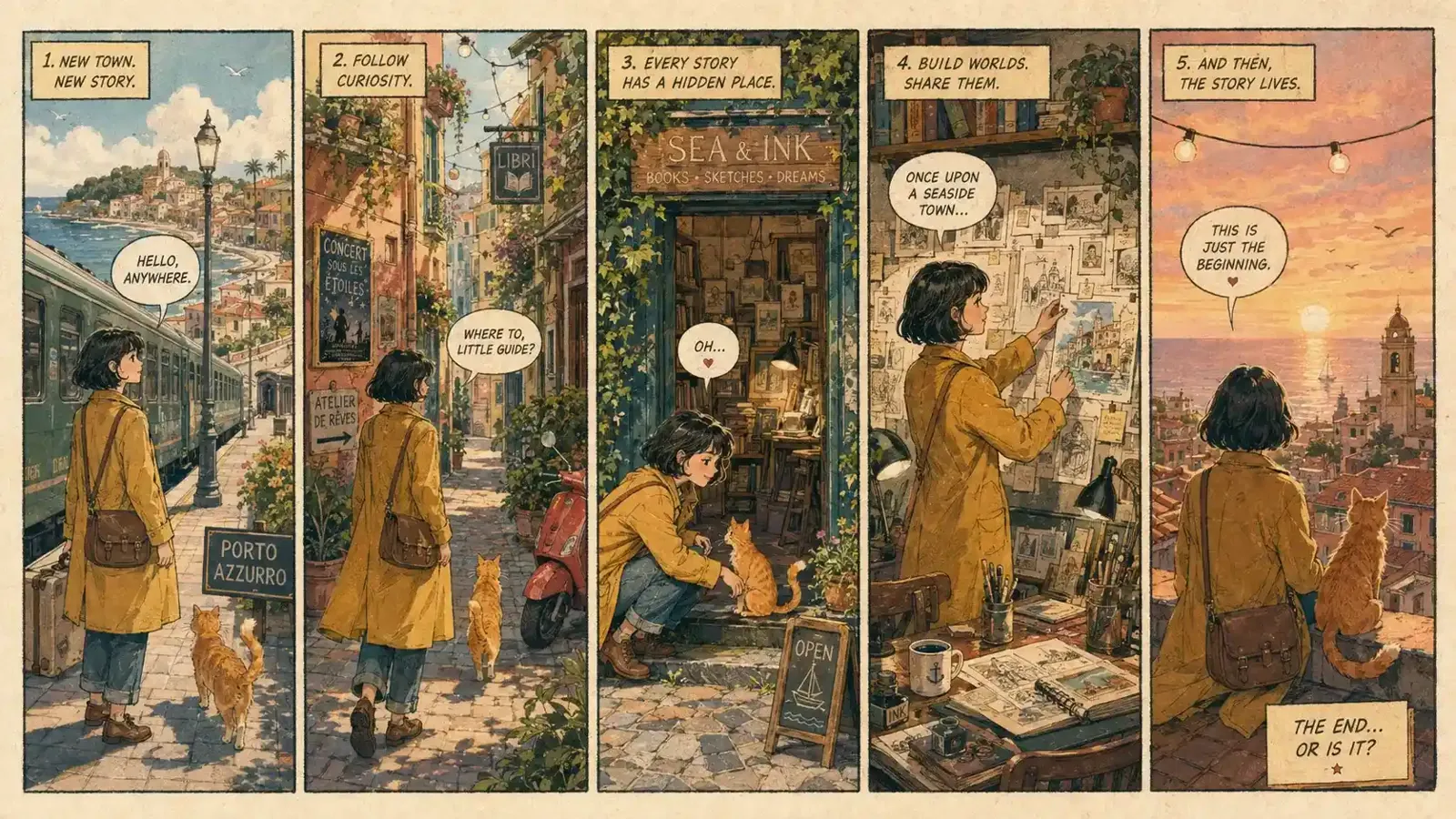
    OpenAI points to stronger structured output from GPT Image 2: posters, infographics, charts, diagrams and comic pages, where headings, columns and panels need to sit in a sensible order rather than float around the frame.

  • Text beyond English

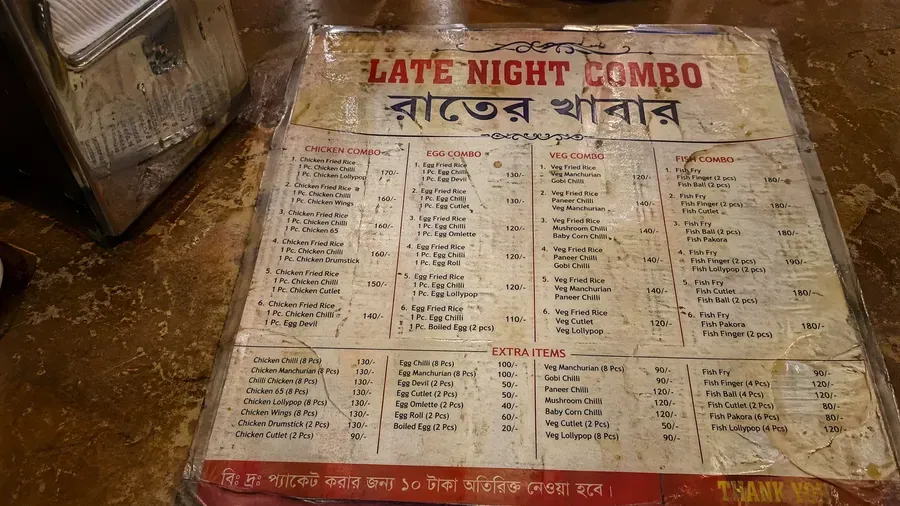
    Multilingual lettering was named among the GPT Image 2 improvements at launch. Mixed-language posters and menus are a reasonable job for GPT Image 2, as long as you proofread scripts you cannot read yourself.

  • Edits that respect the photo

    When you ask GPT Image 2 for one change, the light, perspective and untouched parts of the scene tend to carry over, which makes it useful for corrections rather than full redraws.

  • Made for editing, not only generating

    OpenAI’s model page lists image editing, inpainting and high-fidelity image inputs for GPT Image 2, so the photo you upload is treated as the base to work on instead of loose inspiration.

GPT Image 2 prompts to copy

Each prompt is a different job built around lettering or multi-part instructions, the two areas GPT Image 2 is picked for. Change the words inside the quotes to your own copy before you run them with GPT Image 2.

  1. 01

    Bakery window lettering

    Paint 'FRESH BREAD DAILY' in gold serif letters across the shop window, slightly curved, with a thin black outline. Keep the reflections on the glass and the loaves on display.

  2. 02

    Price tags on a market stall

    Add small handwritten cardboard tags to the fruit crates: 'Apples 2 for 1', 'Pears' and 'Plums', clipped to the front edge of each crate, in black marker.

  3. 03

    Book cover title

    Turn this landscape photo into a paperback cover: title 'THE QUIET HARBOR' in tall white capitals at the top, author line 'A Novel' at the bottom, and a slightly darker sky behind the title for contrast.

  4. 04

    Birthday banner

    Hang a paper banner across the back wall that reads 'HAPPY 30TH, SAM' with one letter per pennant, in pastel colors. Keep the balloons and the table as they are.

  5. 05

    Translate a menu board

    Replace the English dish names on this café menu board with Spanish translations, keeping the same chalk style, line order, prices and layout.

  6. 06

    Three-step infographic

    Make a clean infographic from this desk photo: three numbered circles labeled 'Plan', 'Shoot' and 'Edit', joined by arrows, with a short caption under each, on a light gray background.

  7. 07

    Event flyer from a venue photo

    Turn this venue photo into a flyer: headline 'SUMMER JAZZ NIGHTS', the line 'Fridays · 8 pm' under it and a narrow dark band at the bottom for the address. Keep the stage lights visible.

  8. 08

    Wedding table cards

    Place small folded cards on each table setting with names in calligraphy: 'Anna', 'Leo', 'Mia' and 'Tom'. Keep the glassware, the flowers and the candlelight unchanged.

  9. 09

    Fix a typo on a sign

    The sign says 'RESTAURNAT'. Correct it to 'RESTAURANT' using the same red neon tubing, letter spacing and glow, and change nothing else in the street scene.

  10. 10

    Comic speech bubbles

    Redraw this photo as a two-panel comic strip. Panel one: the dog looks at the ball, bubble 'Is that for me?'. Panel two: the dog runs, bubble 'IT IS!'. Use clean ink lines and flat colors.

Jobs GPT Image 2 suits

  • Shop signs, menus and flyers

    Add an opening-hours sign, rewrite a chalkboard menu or mock up a flyer with a headline, a date and a short call to action. Name the lettering style as well, and GPT Image 2 has a clear target to match.

  • Replacing words already in a photo

    Swap the wording on a banner or a label for new copy with GPT Image 2. To clear text without adding any, the text remover page has a ready-made prompt.

    Text Remover
  • Social graphics and thumbnails

    Build a cover image with GPT Image 2: a big title, a subtitle and a clear focal point, already cropped to 16:9 or 9:16 for the platform you post on.

  • Briefs with many conditions

    A new background, a different jacket color and a calmer sky in one GPT Image 2 request, with a note on what must not change. GPT Image 2 also handles style changes, such as turning a photo into anime art.

    Photo to Anime
  • Background swaps with signage

    Move a subject in front of a café, a station or a market stall where the signs need believable, legible words, which is exactly where GPT Image 2 is strongest.

    Background Changer

When to switch from GPT Image 2 to another model

GPT Image 2 is the specialist for text and long instructions. For other jobs, one of these may serve you better than GPT Image 2, and you can switch models in the editor at any time.

  • Nano Banana 2

    Google

    Quick everyday retouches, and a series where the same person or product has to stay consistent from shot to shot.

    About Nano Banana 2
  • Nano Banana Pro

    Google

    Hero images that rely on fine texture, accurate light and busy scenes more than on the lettering GPT Image 2 is known for.

    About Nano Banana Pro
  • Flux

    Black Forest Labs

    Changes confined strictly to what you describe, or a set of images that must share one steady style.

    About Flux
  • Seedream

    ByteDance

    Rough drafts and many variations while you are still exploring ideas, before you finish the lettering with GPT Image 2.

    About Seedream

Compare all AI models

Tips for GPT Image 2

  • Put every word you want GPT Image 2 to write inside quotes, and say where it goes: 'top center', 'on the left crate', 'under the headline'.
  • GPT Image 2 renders short lines more reliably than paragraphs. Keep body text brief, or ask for a block of small text without spelling out every word.
  • Number your instructions or separate them with semicolons so GPT Image 2 can take them one by one, then finish with what must stay the same.
  • Tell GPT Image 2 the lettering style you want: bold sans, condensed serif, handwritten marker, neon tubing or embossed metal.
  • Proofread every GPT Image 2 result, especially small print and scripts you do not read. If one word is off, a short follow-up such as "change Cafe to Café" fixes it faster than a full rerun.
  • Pick the aspect ratio before you start, for example 9:16 for a story or 16:9 for a video thumbnail, so GPT Image 2 plans the layout for that frame.

Getting the most out of GPT Image 2

A few habits make the difference between GPT Image 2 lettering that needs one fix and lettering that needs five.

Write GPT Image 2 text prompts like a print brief

Treat a GPT Image 2 prompt as a short brief for a designer: the exact words in quotes, where each line goes, how big it is relative to the rest and what style it uses. 'Headline 'SPRING SALE' in heavy white sans, top third, centered' leaves far less to chance than 'add a sale sign'. If the copy is long, decide which lines matter; a headline and two short lines render more cleanly than a full paragraph squeezed into a small area.

Stack GPT Image 2 edits without losing the photo

A GPT Image 2 prompt with several changes works best when every change is a separate clause and the last clause lists what stays fixed. For example: recolor the jacket navy; replace the sky with dusk; add a street lamp on the right; keep the face, pose and framing. Naming the fixed parts matters as much as naming the changes, because it tells GPT Image 2 where its freedom ends.

Where GPT Image 2 still needs a second pass

OpenAI’s own guide notes that edits steered by a mask are prompt-based and may not follow the exact shape of the area. In practice that means a tiny region, very small print or a long passage in another script can come back slightly off. Check the GPT Image 2 result at full size, then send a short correction about the single detail that is wrong rather than repeating the whole prompt.

GPT Image 2 in EditPic versus the OpenAI API

OpenAI's API gives GPT Image 2 more room than the EditPic editor does. Through the API the model can take up to 16 reference images in one request and offers extra shapes such as 3:2, 2:3 and 21:9, and OpenAI's launch note describes resolutions up to 2K. EditPic keeps things simpler: one JPG, PNG or WebP photo up to 20 MB, 1K or 2K output and five aspect ratios, delivered as a regular image. If an idea needs a logo and a product shot together, place both in one picture before you upload it and tell GPT Image 2 which part is which. Choose 2K when the lettering is small, since the extra pixels make fine print easier to check.

A GPT Image 2 walkthrough: updating a café menu board

Say a café changes two prices and adds a seasonal drink. Photograph the board straight on in even light, then open the editor with GPT Image 2 selected. List the changes in the order they appear on the board: the new flat white price, a 'Pumpkin Latte' line under the coffee section, and a closing note to keep the chalk style, the drawings and the layout. GPT Image 2 can work through those lines in one pass. Read every price in the GPT Image 2 result, because one wrong digit matters more on a menu than anywhere else, and send a short follow-up about that single line if it is off. Download at 2K for a screen or a printed table card.

Common mistakes with GPT Image 2 lettering

The most common problem is a vague request such as 'add some text about the sale', which leaves GPT Image 2 to invent the wording; quote the exact words instead. The second is asking for too much copy in a small area, since a full paragraph on a coffee cup will not stay readable at any resolution. The third is a missing keep-list, so the GPT Image 2 edit drifts into faces or products you wanted untouched. The fourth is skipping the proofread of GPT Image 2 lettering in scripts you cannot read. And if a job needs no lettering at all, a quick retouch is usually better served by Nano Banana 2, leaving GPT Image 2 for the work where words matter.

GPT Image 2 FAQ

  1. Is GPT Image 2 free to use in EditPic?

    Creating an account is free. Each GPT Image 2 edit spends credits, and the editor shows the cost before you run it. New accounts may or may not get bonus credits, depending on the current offer; paid plans add more.

  2. Can GPT Image 2 edit text in a photo?

    Yes, that is the main strength of GPT Image 2. You can add new lettering, replace the words on a sign or label, translate a menu or fix a typo. Quote the exact wording and say where it belongs, then check the spelling in the result.

  3. What is the maximum resolution of GPT Image 2?

    OpenAI’s launch note describes resolutions up to 2K for GPT Image 2 in the API. In EditPic you choose 1K or 2K output for every GPT Image 2 edit, in one of five aspect ratios.

  4. GPT Image 2 vs Nano Banana 2: which should I use?

    Pick GPT Image 2 when the image needs readable words or a long list of changes. Pick Nano Banana 2 for quick everyday edits and for keeping one person or product consistent across a series of pictures.

  5. How do I use GPT Image 2 online?

    Open the editor on this page, where GPT Image 2 is already chosen in the model menu. Upload a JPG, PNG or WebP photo up to 20 MB, pick 1K or 2K and a ratio, write your instruction and press Edit Image to run it with GPT Image 2.

  6. Which languages can GPT Image 2 write?

    OpenAI cites improved multilingual text rendering for GPT Image 2, and the examples here include Chinese, Japanese and Korean lines. Results still vary by script and font size, so proofread any language you cannot read yourself.

  7. Will GPT Image 2 keep the rest of my photo the same?

    Usually the parts you do not mention carry over, especially when your prompt tells GPT Image 2 what must stay fixed. Small or oddly shaped regions can shift slightly, so compare the GPT Image 2 result with your original before you download it.

  8. Can GPT Image 2 make posters and infographics from a photo?

    Yes. OpenAI points to stronger structured output for GPT Image 2, including posters, infographics, charts and comic pages. Give each heading and label in quotes, say how many panels or steps you want, and choose the aspect ratio before you run the edit.

  9. Can I give GPT Image 2 more than one reference image in EditPic?

    The API version of GPT Image 2 accepts up to 16 reference images, but the EditPic editor takes one photo per edit. To combine a logo, a product and a backdrop, arrange them in one image first and describe each part in the prompt.

  10. Does GPT Image 2 export transparent PNG files in EditPic?

    No. EditPic delivers every GPT Image 2 result as a regular image, so there is no transparent PNG export. If you want a clean cut-out look, ask for a plain white or solid-color background instead.

  11. GPT Image 2 or Nano Banana Pro for product photos?

    Choose GPT Image 2 when the product label, price card or packaging copy has to be readable or rewritten. Choose Nano Banana Pro when the photo depends on texture, reflections and lighting, and the text on the pack can stay as it is.

Try GPT Image 2 on your own photo

Upload a picture, quote the words you want to see and list the changes. The editor above is set to GPT Image 2 and ready to run them.