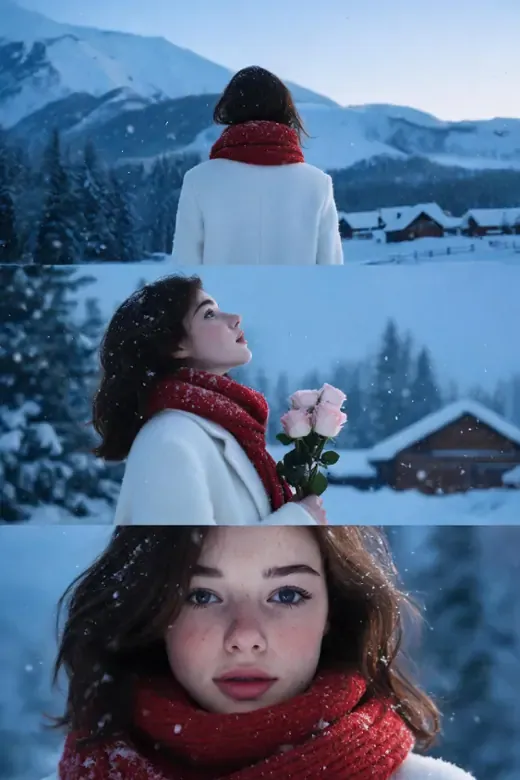
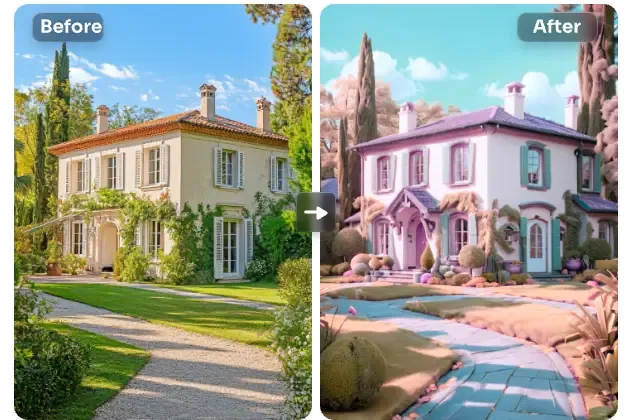
New: Nano Banana 2 & GPT Image 2

Try it

Updated 2026-11-16

Image to Image AI Generator

Our image to image AI generator starts from an image you already have and creates the new version you describe: another art style, a new setting, a different season or one changed detail. Your subject and composition carry over.

AI image to image examples

One starting image, one sentence, one new image: new scenes, a new backdrop color, a swapped material, a tiny figurine, a rainstorm and a single changed detail. Copy a prompt, upload your own image and see what image to image AI changes.

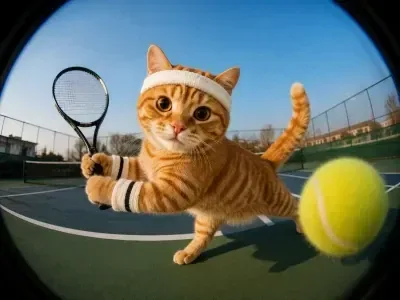
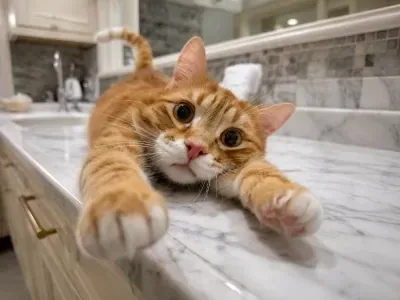
  • Ginger cat on a marble counter reimagined as a tennis player on a court — AfterGinger cat on a marble counter reimagined as a tennis player on a court — Before

    Kitchen cat becomes a tennis player

    “Use the cat in this image as the character and place it on a sunny tennis court, wearing a headband and wristbands, swinging a racket at the ball, shot with a fisheye lens.”

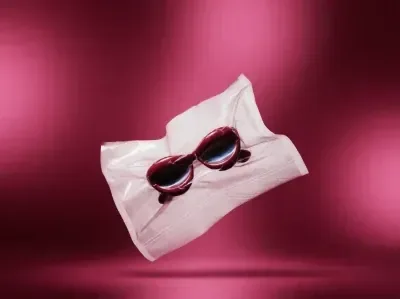
  • Pillow with heart-shaped sunglasses moved from a gray studio to a magenta backdrop — AfterPillow with heart-shaped sunglasses moved from a gray studio to a magenta backdrop — Before

    New backdrop color for a product shot

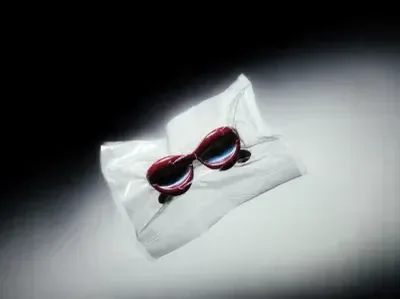
    “Keep the pillow and the sunglasses exactly as they are and replace the gray studio backdrop with a deep magenta gradient and soft pink light.”

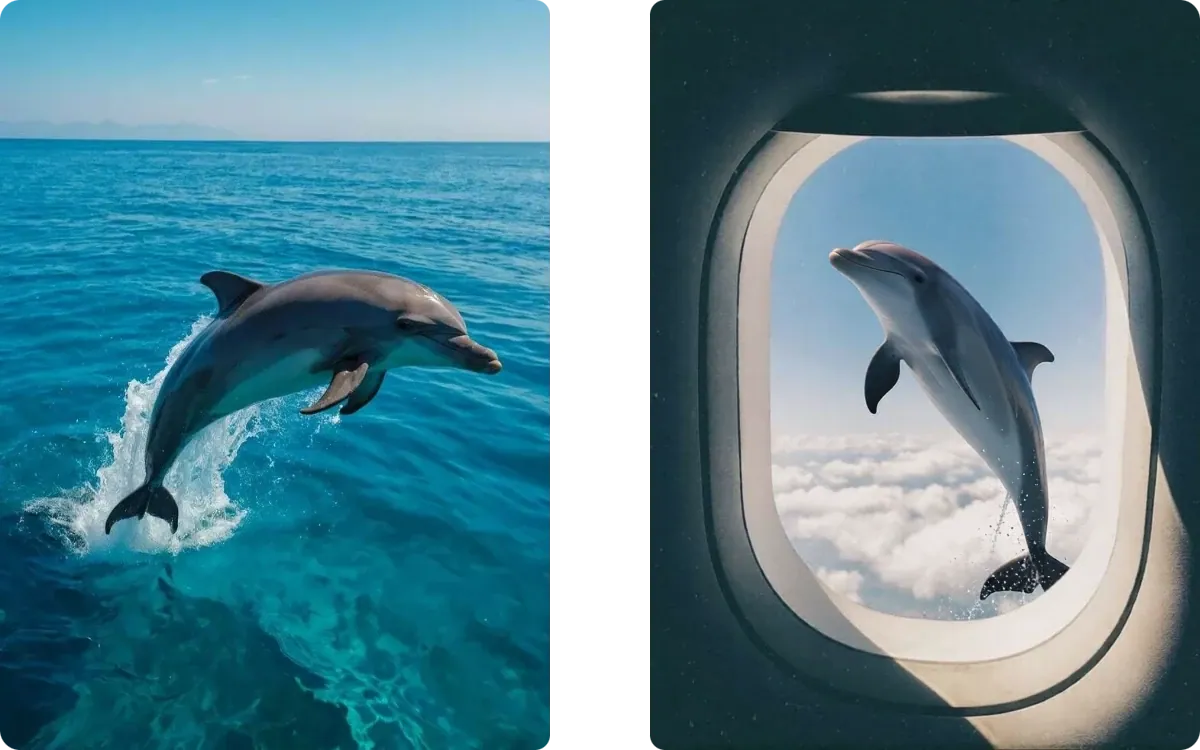
  • Dolphin jumping out of the ocean, then seen through an airplane window above the clouds

    Dolphin moved from the sea to the sky

    “Keep the leaping dolphin and place it outside an airplane window, flying above a sea of white clouds and framed by the window's rounded edges.”

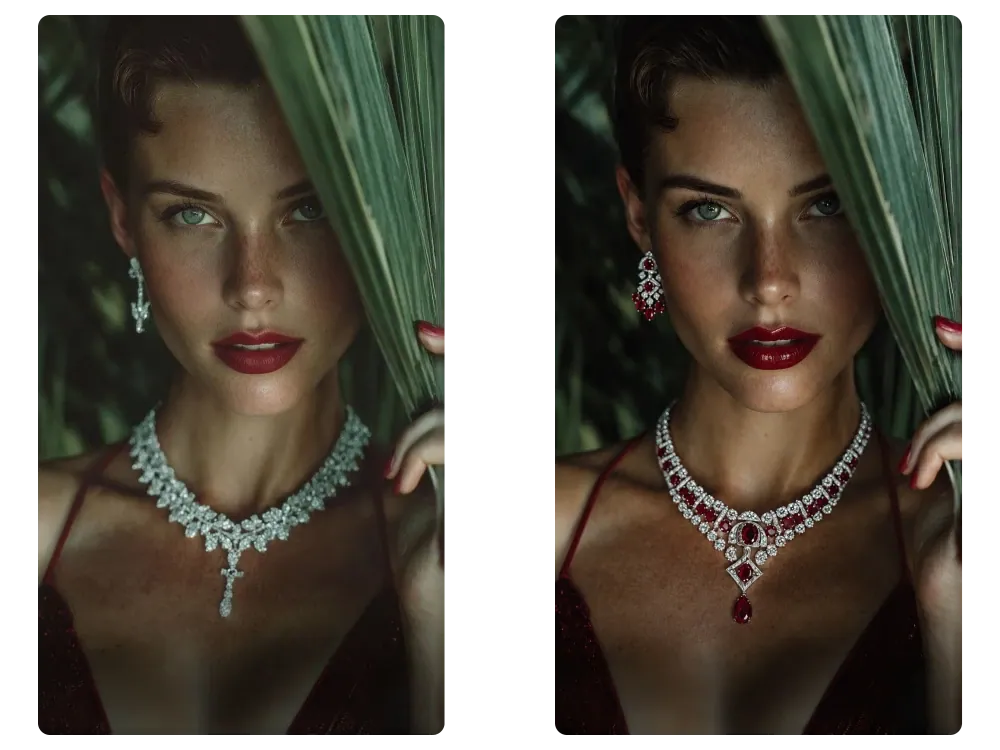
  • Woman behind a palm leaf whose diamond necklace is changed to rubies

    One detail swapped, everything else kept

    “Change the diamonds in her necklace and earrings to deep red rubies and match her lipstick to them. Keep her face, the leaf and the lighting of the image unchanged.”

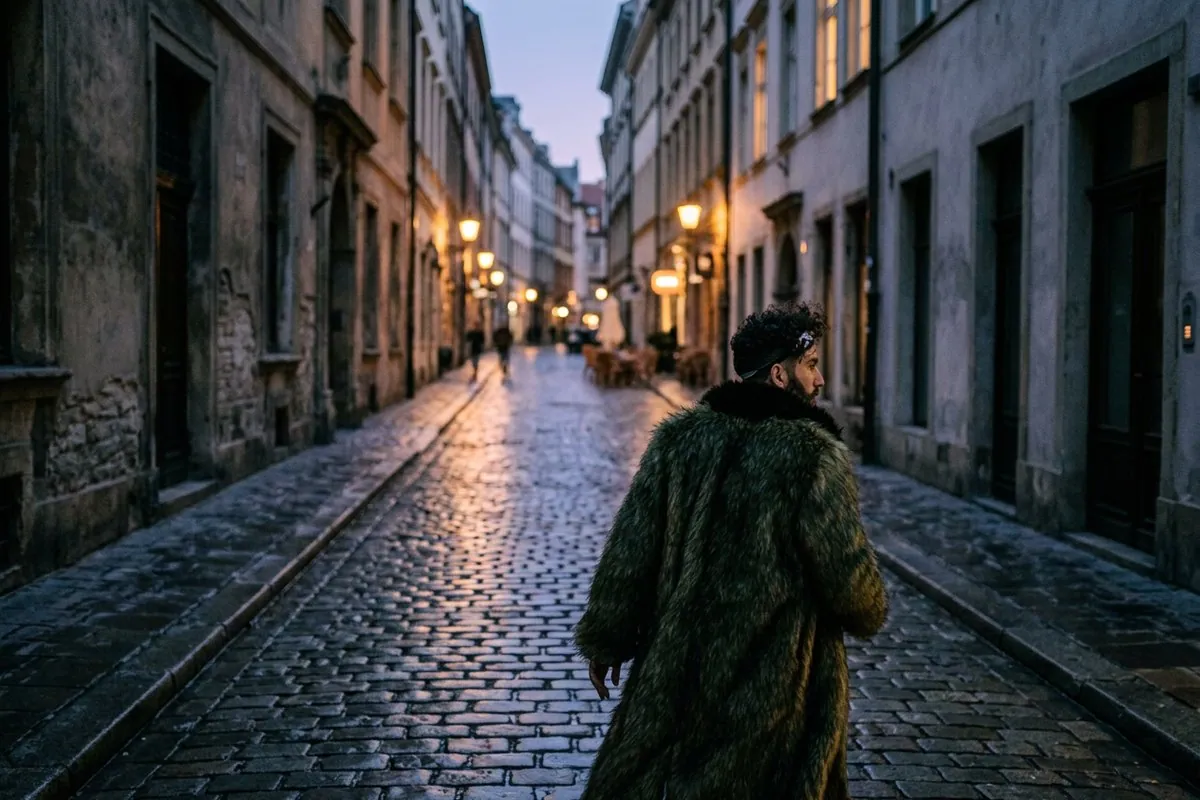
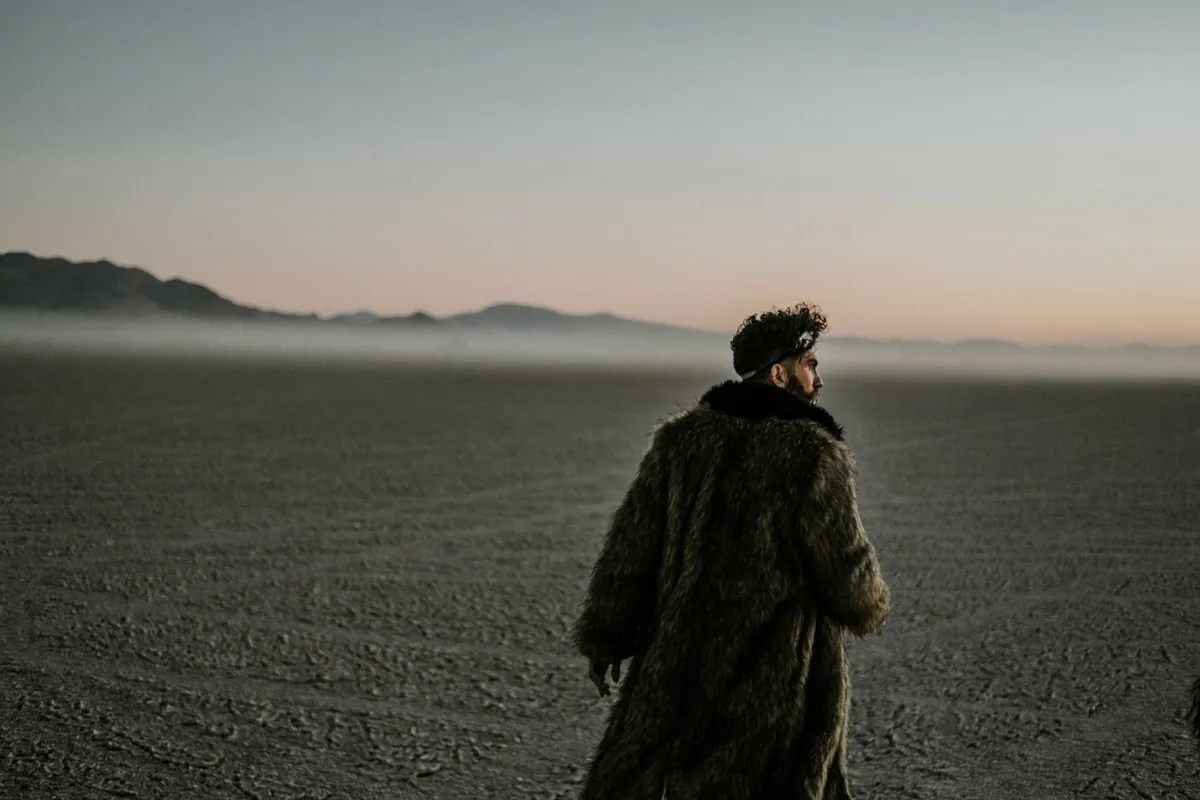
  • Man in a long coat walking on an empty shore at dusk, then down a wet cobbled street at night — AfterMan in a long coat walking on an empty shore at dusk, then down a wet cobbled street at night — Before

    Lone walker moved from a dusk shore to a lamplit old town

    “Keep the man in the long olive coat walking away from the camera, and move him into a narrow cobbled old-town street at night, the wet stones reflecting warm street lamps.”

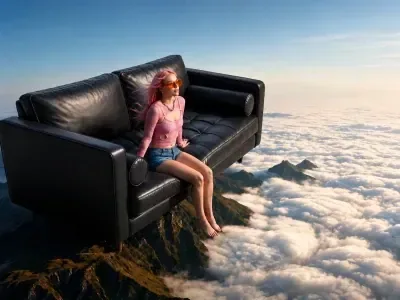
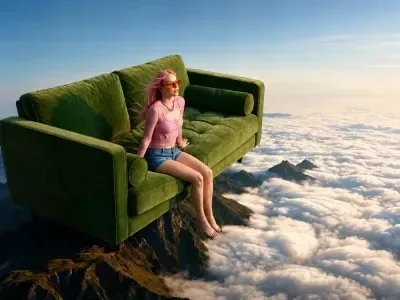
  • Woman sitting on a green velvet sofa above the clouds, then on the same sofa in black leather — AfterWoman sitting on a green velvet sofa above the clouds, then on the same sofa in black leather — Before

    Green velvet sofa remade in black leather

    “Change the green velvet sofa into a glossy black leather sofa with the same shape. Keep the woman sitting on it, her pose, the sea of clouds and the rocky peak exactly as they are.”

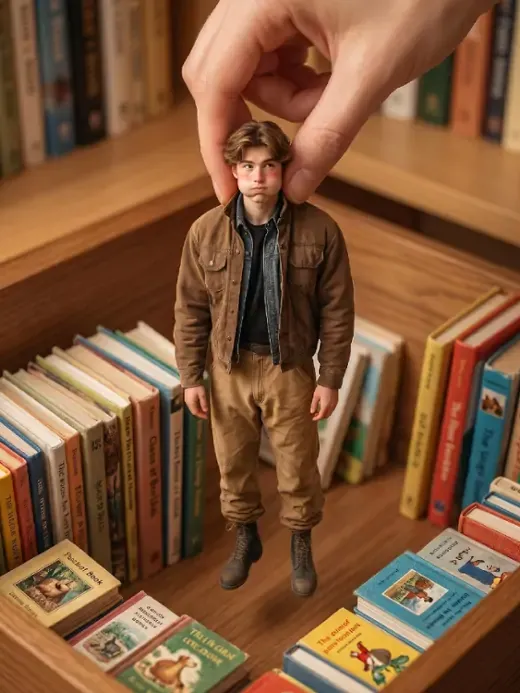
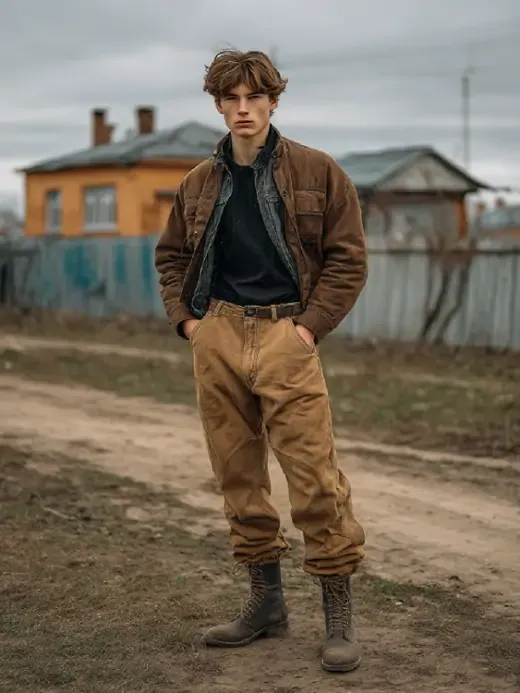
  • Young man in a brown jacket on a muddy village road, then as a tiny figurine on a bookshelf — AfterYoung man in a brown jacket on a muddy village road, then as a tiny figurine on a bookshelf — Before

    Village photo turned into a collectible figurine

    “Turn the man in this image into a small painted collectible figurine standing on a bookshelf between old books, with a hand reaching in to pick it up. Keep his brown jacket, khaki trousers and boots.”

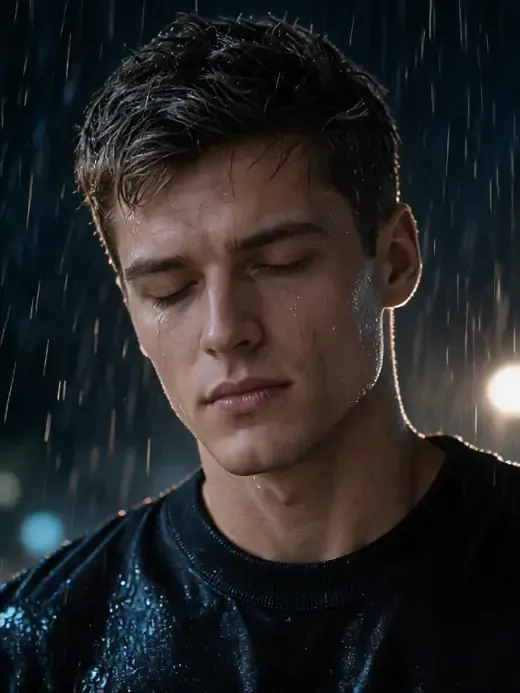
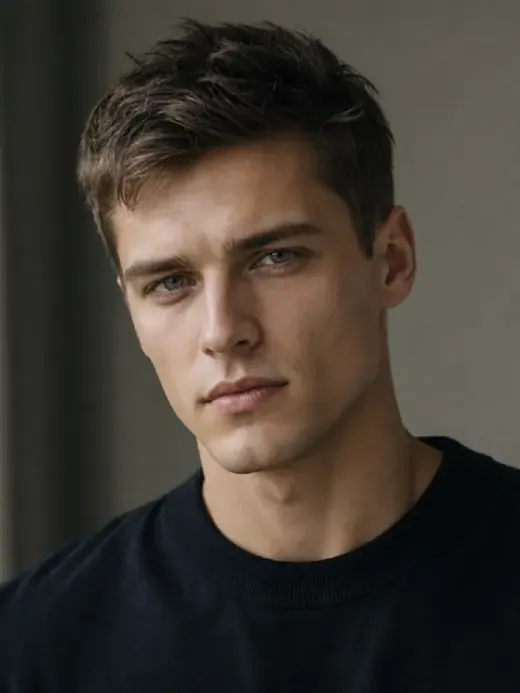
  • Young man in a black T-shirt in a calm indoor portrait, then soaked by rain at night with his eyes closed — AfterYoung man in a black T-shirt in a calm indoor portrait, then soaked by rain at night with his eyes closed — Before

    Calm portrait caught in a night rainstorm

    “Keep his face and black T-shirt, but place him outdoors at night in heavy rain: wet hair, raindrops on his skin and shirt, eyes closed, a dark background with soft back light.”

Example images are for illustration only. Each prompt is a starting point for a similar edit on your own photo.

How to use image to image AI

  1. Step 1

    Upload a starting image

    Any photo, render or drawing can serve as the base image for image to image AI, as long as it is a JPG, PNG or WebP of 20 MB or less. It sets the subject, the pose and the layout.

  2. Step 2

    Describe the new version

    Write what should change in the image and what must stay: “same cat, now on a tennis court”, “same street in autumn”, “keep the face, switch to watercolor”. One clear sentence beats a list of keywords.

  3. Step 3

    Pick a model and generate

    Choose one of the six models in the menu, hit Edit Image and check the new image against your upload. Keep the version you like or iterate with one more instruction.

Image to image AI prompt library

Ten image to image starting points for scene, season, material, lighting and design changes. Each one says what to keep, so the new image still lines up with your original.

  1. 01

    Street at blue hour

    Keep the street, buildings and parked cars exactly where they are, and change the time to blue hour just after sunset: lit shop windows, glowing street lamps and a deep blue sky.

  2. 02

    Backyard in spring blossom

    Show this same backyard in early spring: the bare trees covered in pale pink blossom, fresh green grass, a few petals on the patio and soft morning light. Keep the house, fence and furniture unchanged.

  3. 03

    Ceramic mug remade in copper

    Change the white ceramic mug into brushed copper with a warm metallic sheen and realistic reflections of the room. Keep its shape, the handle, the coffee inside and the wooden table exactly as they are.

  4. 04

    Bedroom repainted in forest green

    Redesign this bedroom: paint the walls deep forest green, change the bedding to natural oatmeal linen and add a brass reading lamp on the nightstand. Keep the room layout, window, bed frame and floor.

  5. 05

    New paint and wheels for a car

    Repaint the car in matte sage green and give it black five-spoke wheels, keeping its shape, the reflections on the glass, the driveway and the house behind it the same.

  6. 06

    Morning fog over a lake

    Add a thin layer of morning fog drifting over the lake, with soft diffused light and the far shore fading into mist. Keep the dock, the boat and the trees in the foreground sharp and unchanged.

  7. 07

    Wooden chair rebuilt in rattan

    Turn the wooden dining chair into a woven natural rattan chair with the same outline, legs and height, casting a matching shadow on the floor. Keep the table, the plant and the wall unchanged.

  8. 08

    New facade for a house

    Show this house with a new facade: smooth white render, black-framed windows and vertical cedar cladding around the front door. Keep the roof shape, the garden, the driveway and the camera angle the same.

  9. 09

    Shop front dressed for the holidays

    Decorate this shop front for the winter holidays: pine garlands with warm fairy lights around the door and windows and two small lit trees on the step. Keep the building, sign and pavement unchanged.

  10. 10

    Sneakers moved onto a mossy rock

    Take the pair of sneakers from the floor and place them on a mossy rock beside a forest stream, lit by soft green-tinted daylight, with a matching shadow underneath. Keep their exact shape, color and laces.

What you can do with AI image to image

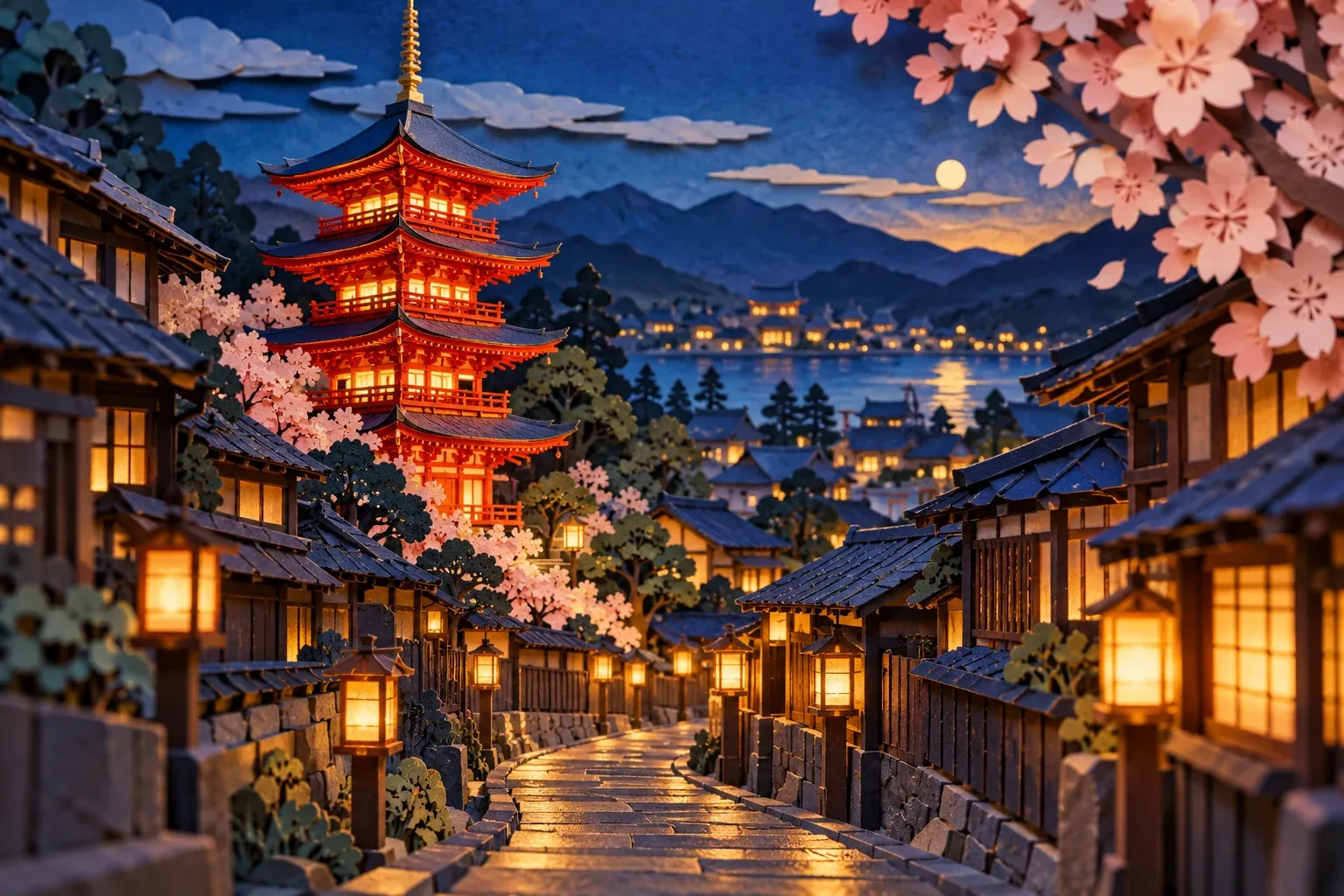
  • Layered paper-cut street at night with glowing lanterns, cherry blossom and a red pagoda

    Restyle a photo

    Image to image AI can turn a snapshot into a 3D render, a layered paper-cut scene, a clay model or a vintage film still while the people and objects stay where they are in the image.

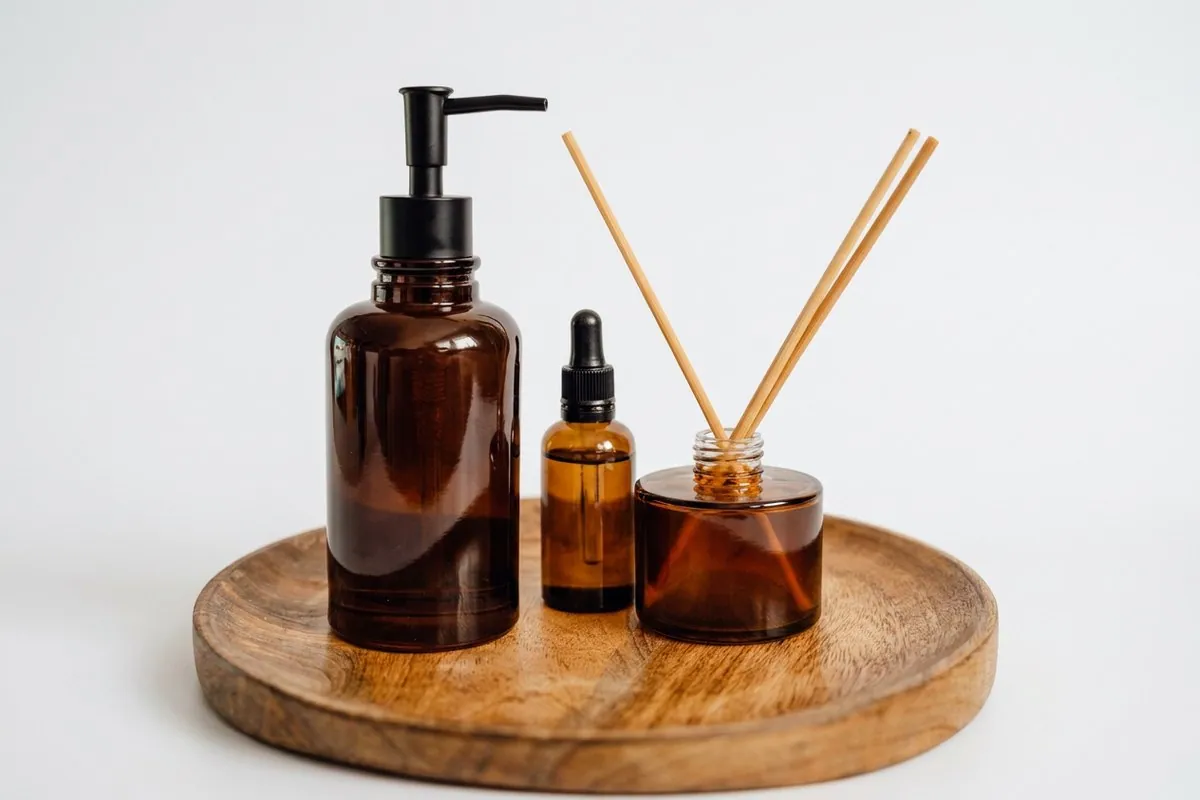
  • Amber glass bottles and a reed diffuser on a round wooden tray, restaged on a clean white studio backdrop

    Change the scene

    Move a product, a pet or a person to a beach, a studio, a city rooftop or somewhere impossible; image to image AI adjusts the light to match.

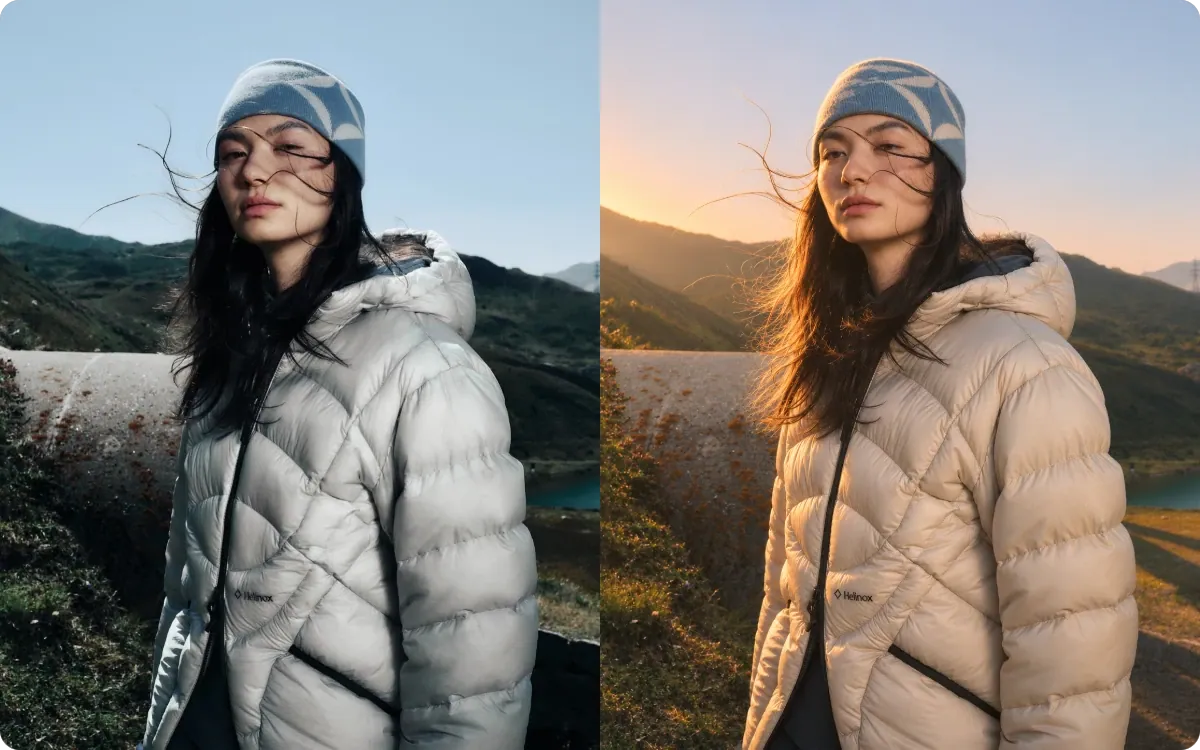
  • Woman in a white puffer jacket on a mountainside, shown in cool daylight and again in golden-hour sun

    Change the season or time of day

    See the same house, street or garden in snow, autumn colors, spring blossom or golden-hour light, for mockup images, seasonal campaigns and social posts.

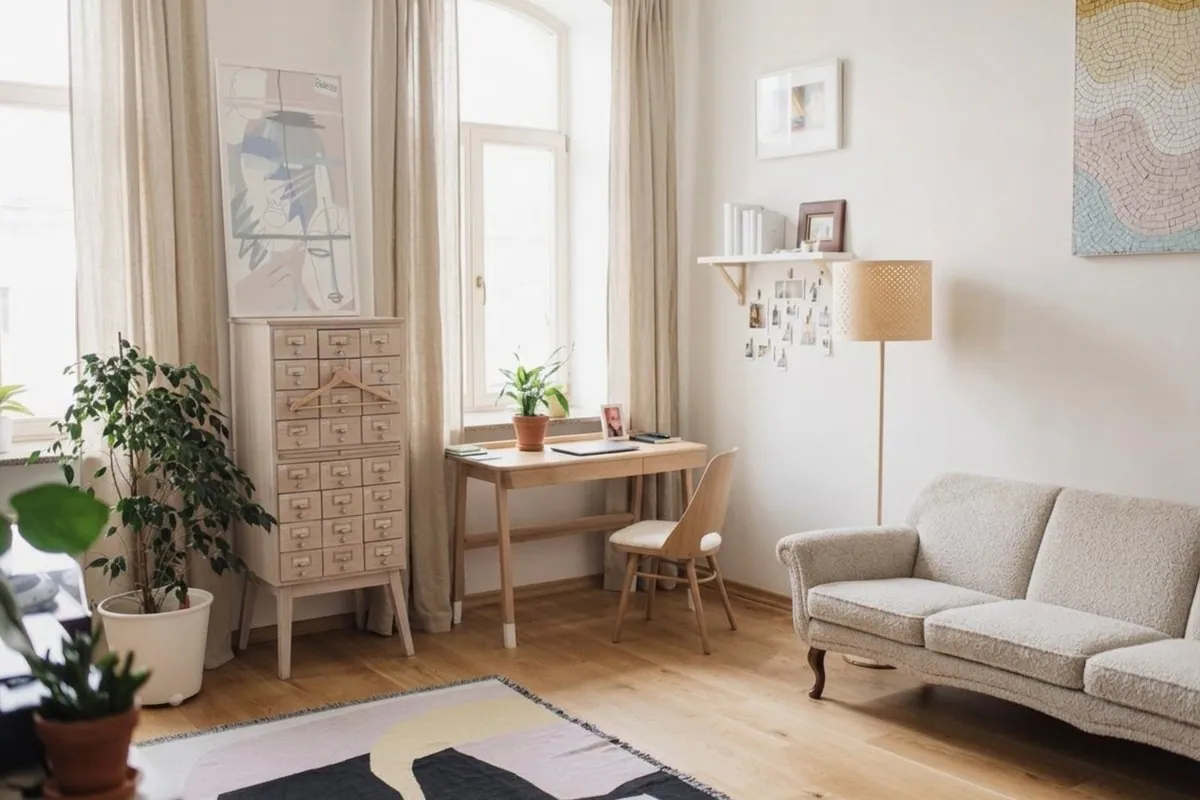
  • Bright living room with a cream sofa, pale curtains and a wooden cabinet

    Explore design variations

    Use image to image to try new colors, materials or furniture on a product image, a room or a poster, and compare several directions side by side before you commit to one.

Tips for better image to image results

  • Say what to keep before what to change, for example “keep the cat’s face and fur pattern, change the setting”.
  • Make one main change per image to image run and stack further edits in follow-up prompts instead of one long request.
  • Pick the aspect ratio for where the image will end up: square for feeds, wide for banners.
  • For words on signs or packaging, try GPT Image 2; for a series of images that must look consistent, try Nano Banana 2 or Flux.
  • Starting from someone else’s image? Make sure you have the right to edit it, and never create misleading images of real people.

Which model to use for AI image to image

All six models can do image to image; these three cover most scene, light and design changes.

  • Nano Banana 2

    Google

    The editor default and a quick, reliable start for everyday image to image changes such as a new season, scene or color. It keeps the subject consistent across several versions, so a series of variations still reads as one set of images.

    About Nano Banana 2
  • Nano Banana Pro

    Google

    Choose Pro for demanding scenes: complex interiors, fog, night light, reflections and fine material texture such as copper, rattan or linen. It handles accurate lighting best; EditPic outputs its images at 1K or 2K.

    About Nano Banana Pro
  • GPT Image 2

    OpenAI

    GPT Image 2 suits design and layout changes described in detail, where several instructions must all land in one run, and images with signs or labels that need readable text.

    About GPT Image 2

How to get more out of image to image AI

How the starting image shapes an image to image result, and how to plan scene, light and design changes that hold together.

What the starting image decides

In AI image to image, your upload sets the framework: camera angle, composition, the shape and position of the subject, and often the overall color balance. The prompt then decides how far the new image moves away from it. A small change, such as one material or one color, leaves almost everything in place. Stacking several changes at once, say a new scene, a new season and a new material, gives the model more freedom and lets more of the original image drift.

So decide what must stay identical and say it first, with words like "exactly" and "unchanged". If a detail that should stay keeps changing, split the edit into two smaller runs instead of one large one.
Making light and weather changes believable

Time of day and weather touch every surface in an image, not just the sky. A believable switch to evening needs warm windows, lit lamps, longer shadows and cooler shade. Rain needs wet, reflective ground and darker fabrics; fog softens and lightens the distance while the foreground stays crisp; snow settles on the tops of things, not their sides.

Name these knock-on effects in your image to image prompt rather than hoping the model adds them. Keep the light direction plausible too: if the sun in your photo comes from the left, a golden-hour version should as well. Check the shadows under objects and people against the new light, since a subject floating without a contact shadow gives an edit away.

Testing materials, colors and designs with image to image

Image to image AI is a fast way to compare options before anything is bought, painted or built: a sofa in three fabrics, a facade in render or timber, a product in matte or gloss. Hold the shape fixed in every prompt ("same outline, same proportions") and change one property at a time, so the images make a fair comparison.

Use the same aspect ratio throughout and download each version under a clear name. Seedream is handy for trying many rough directions before you commit; once you have a favorite, run it again on Nano Banana Pro for finer texture. Remember that these are visual mockups: real colors, finishes and dimensions still need checking against samples.

When a dedicated EditPic tool fits better than image to image

Image to image is the open-ended option, and sometimes a narrower tool gives a cleaner result. If only the backdrop should change and the subject must stay untouched, use the Background Changer, or Product Photo Background for a plain white product shot. To take something out of the image, the Object Remover is more precise; to put a new person in, try Add Person to Photo.

For stylized looks, EditPic has separate tools: Photo to Anime, Photo to Sketch and Photo to Painting are each tuned for their own style. Keep this page for realistic changes to scene, season, light, material and design, where the new image should still look like a photograph.

Common image to image mistakes and how to avoid them

The most frequent mistake is a vague request. “Make it better” or “more aesthetic” gives the model nothing to aim at, so it changes things at random; name the scene, the light or the material instead. The second is forgetting the keep-list. Without “keep the face and the logo unchanged”, the model treats every part of the image as editable.

A weak starting image causes the third group of problems. A tiny, heavily compressed or tightly cropped file gives the model little to hold on to, so fine details get reinvented. Choosing an aspect ratio very different from the upload is another trap, since the composition has to shift to fill the new frame. Finally, don’t expect long passages of text to come out word-perfect; keep lettering short and check it.

Image to image results for shops, social feeds and print

For an online shop, the useful trick is variation without drift: the same product image in a summer and a winter setting, or on oak and on marble, with the shape, label and color held fixed in every prompt. Compare the new image with the real item before you publish, since a generated finish can look slightly warmer or glossier than it is.

For social feeds, plan a set rather than single posts. Start every image from the same original with the same model, so a week of posts shares one look. For print, check resolution first: EditPic delivers 1K or 2K, so posters are out of reach, while cards, flyers and small framed prints work. Nano Banana is limited to 1K, so pick another model when you want the 2K option.

Image to image AI generator FAQ

  1. What is an image to image AI generator?

    It creates a new image from an existing one plus a text instruction. Unlike text-to-image, your upload anchors the subject, pose and layout, so the result is recognizably the same scene in a new style, setting or detail.

  2. Which of the six models should I choose?

    Nano Banana 2 is fast and keeps people consistent; Nano Banana Pro handles fine texture and larger outputs; Nano Banana suits natural, realistic changes; GPT Image 2 follows multi-part instructions and text; Seedream suits drafts and variations; Flux changes only what you describe.

  3. Is AI image to image free on EditPic?

    You can try it free once after signing up, with no card needed. Later generations are paid with credits that depend on the model, and the editor shows the amount before each run; a paid plan tops up your balance if you create images often.

  4. Can I change the season or the weather in a photo?

    Yes. Ask for “the same scene in winter with fresh snow” or “autumn leaves and soft overcast light”. Buildings, people and layout carry over while foliage, sky and light change.

  5. What can I upload, and what do I get back?

    JPG, PNG or WebP images up to 20 MB. You get a regular image back (no transparent background) that you can download, edit again or use as the starting image for the next version.

  6. How is image to image AI different from a photo filter?

    A filter adjusts the pixels you already have: color, contrast, grain. Image to image AI redraws the image, so it can add snow, swap a material or move a subject to a new place. The trade-off is that small details may change, so compare the result with your original.

  7. How much of my original does AI image to image keep?

    As much as you ask for and the change allows. A color or material swap keeps nearly everything; a new scene plus a new season keeps the subject but redraws much of the rest. List what must stay, and for very targeted edits try Flux, which changes only what you describe.

  8. Can I make several versions of the same image?

    Yes. Each image to image run returns one image, so run the prompt again for another take, or change one detail per run. There is no batch upload; for a series, start every version from the same original and keep the model and aspect ratio the same.

  9. Can I use image to image AI on a sketch or a 3D render?

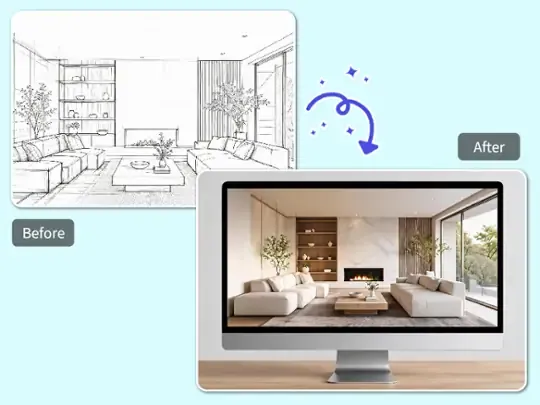
    Yes. A line drawing, a floor-plan sketch or a rough render works as the starting image; describe the materials, light and mood you want and the AI turns it into a finished-looking image while keeping your layout. Clean, high-contrast lines give the best result.

  10. Does image to image work on photos of people?

    It does, as long as you have the right to edit the photo. Write “keep her face and expression unchanged” and compare closely, because faces are where small shifts show most. Never use it to create misleading images of real people; for hair or outfit changes, the dedicated tools give tighter control.

  11. What aspect ratio does an image to image result come out in?

    You choose from 1:1, 3:4, 4:3, 9:16 and 16:9 before you generate. Matching the ratio of your upload keeps the composition closest to the original; picking a very different one means the scene has to be rearranged to fit the new frame.

Start from your image

Upload an image, describe the new version and pick a model. Your first image to image result arrives in seconds.