New: Nano Banana 2 & GPT Image 2

Try it

Updated 2026-11-16

AI Photo to Anime Converter

This photo to anime converter redraws your picture as an anime illustration with bold outlines, cel-shaded color and bright eyes, while the face, pose and outfit stay recognizable. Upload a selfie, a pet or a travel shot and describe the look you want.

Photo to anime converter examples

Portraits, pets, a street outfit, a coastal hike and an old-town tram. The first card is a slider; the others put the original photo on the left and the anime version on the right. Each prompt loads into the photo to anime converter with one click, ready for a picture of yours.

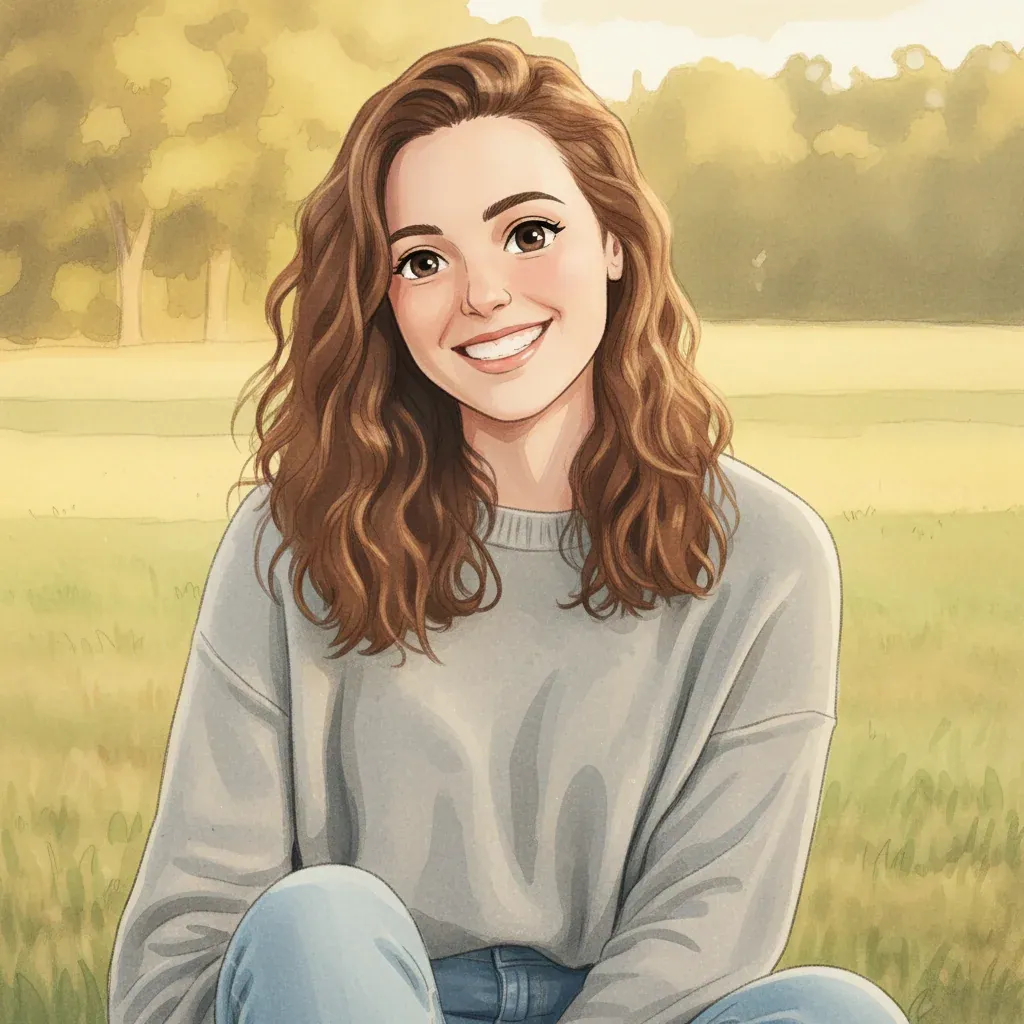
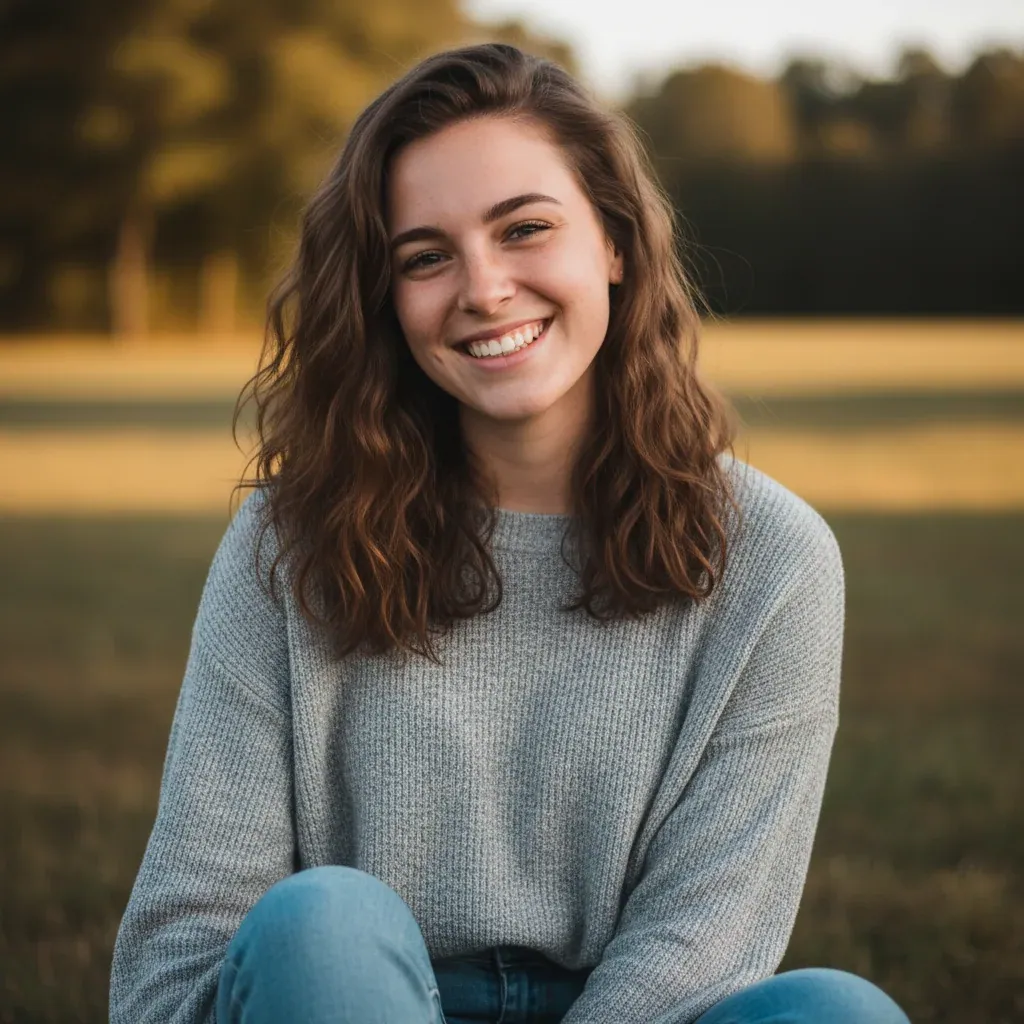
  • Smiling woman in a gray sweater sitting in a field, photo to anime in a soft hand-drawn look — AfterSmiling woman in a gray sweater sitting in a field, photo to anime in a soft hand-drawn look — Before

    Sunlit field portrait, soft anime look

    “Redraw this portrait in a soft hand-drawn anime look with clean outlines, large warm brown eyes and flat pastel shading. Keep her wavy auburn hair, gray sweater and the golden field behind her.”

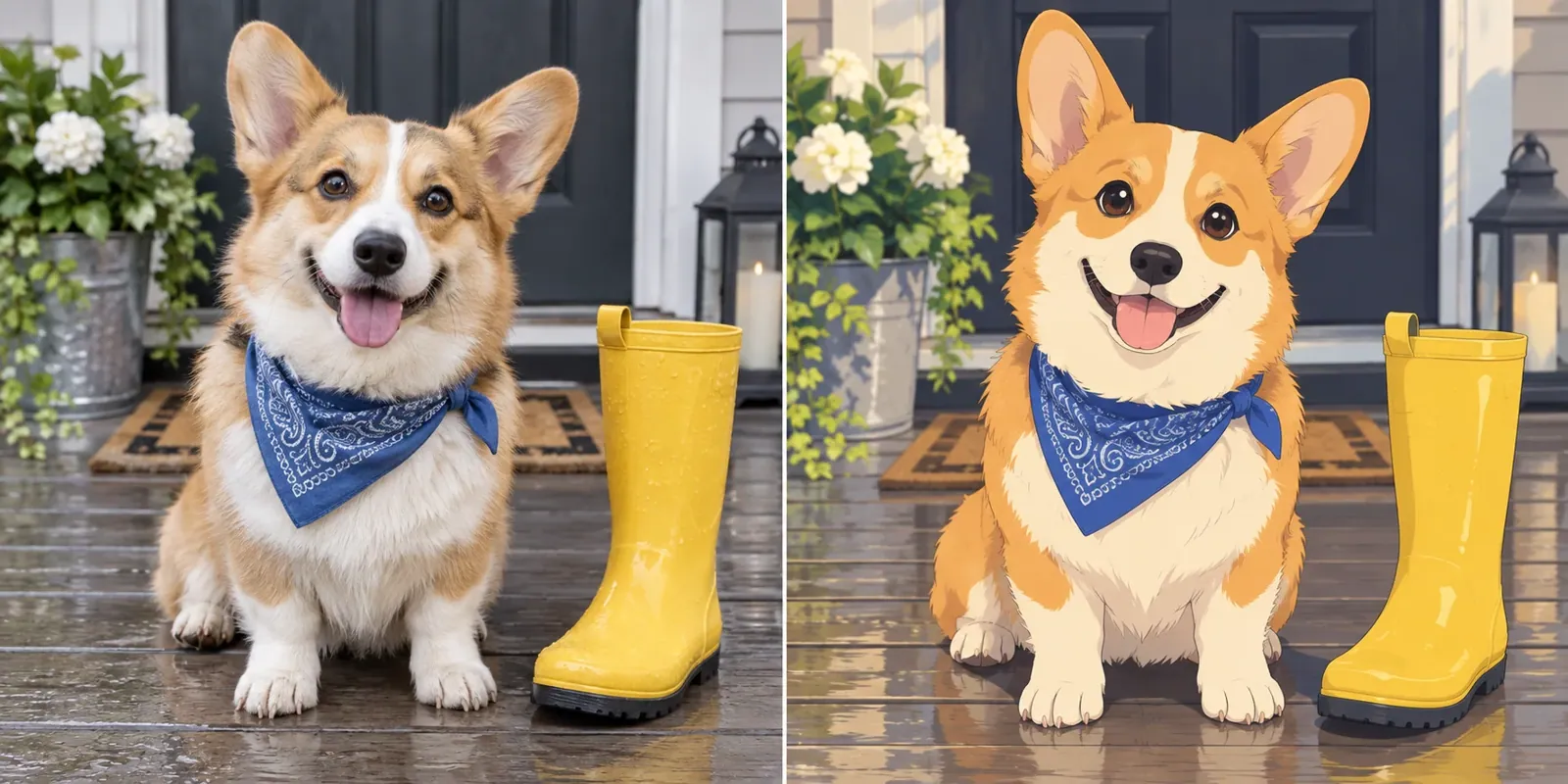
  • Corgi in a blue bandana turned into a 2D anime drawing

    Corgi on a rainy porch, 2D anime

    “Redraw the corgi as a 2D anime character with big shiny eyes and simple shading. Keep the blue bandana, the yellow rain boot and the wet porch boards.”

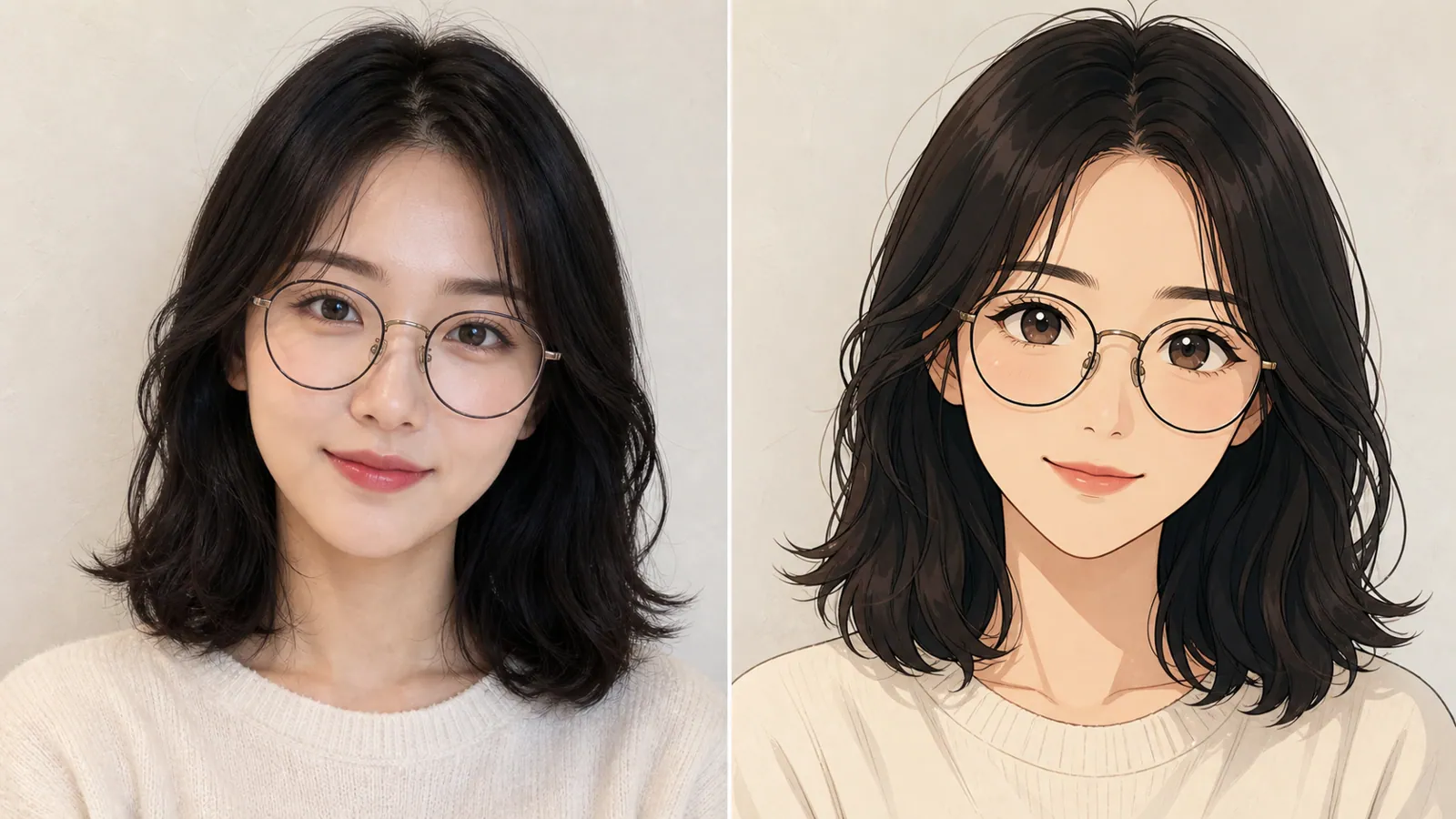
  • Woman with round glasses shown as a photo and as a soft anime portrait

    Portrait with glasses, soft anime style

    “Convert this portrait to a soft anime style. Keep her round glasses, shoulder-length dark hair and gentle smile, with thin line art and warm, flat skin tones.”

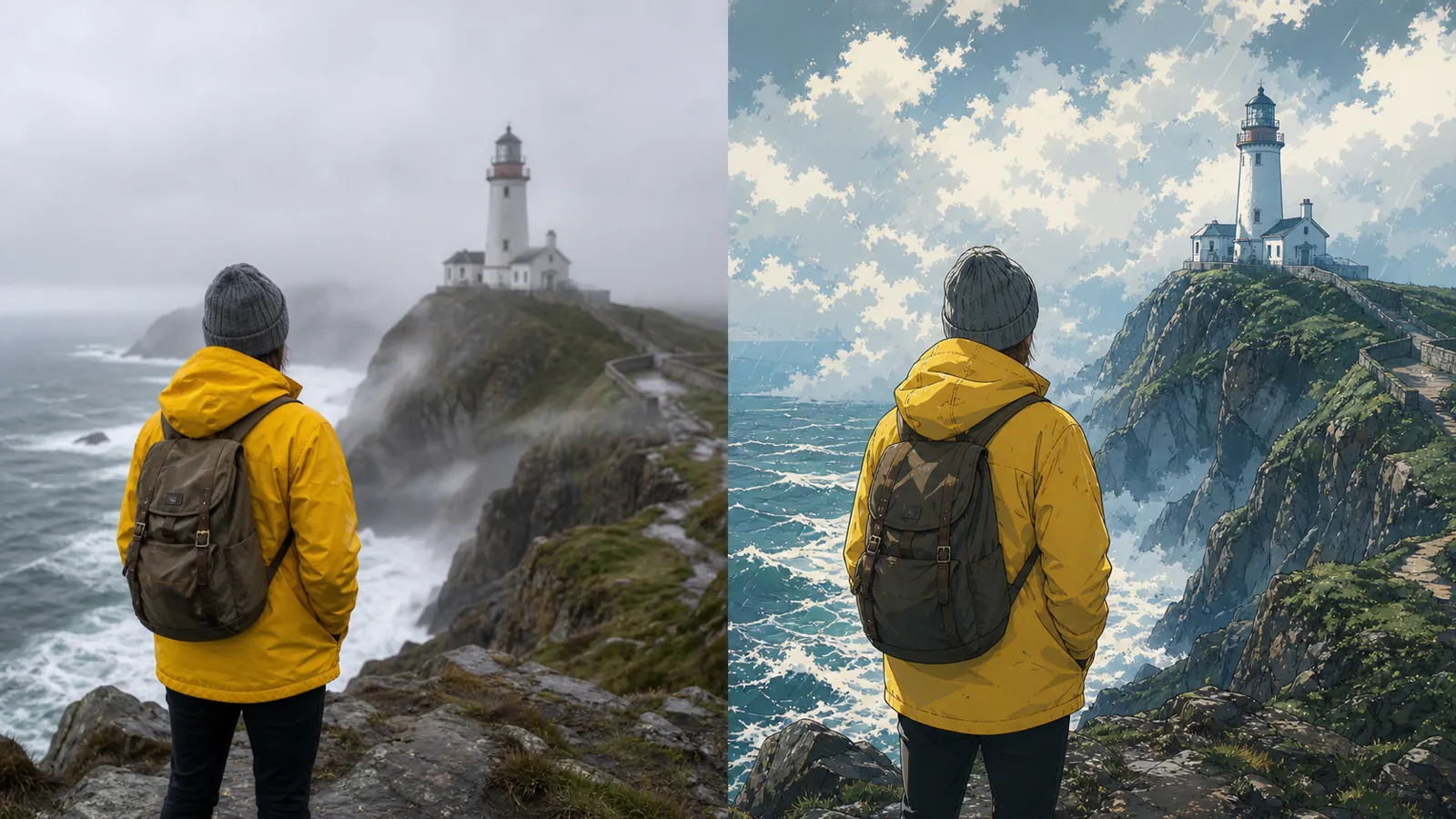
  • Hiker in a yellow jacket facing a lighthouse, before and after the anime conversion

    Hiker at a lighthouse, painted anime sky

    “Turn the hiker on the cliff into an anime scene. Keep the yellow jacket and backpack, and repaint the stormy sky with bright, puffy anime clouds over a deep blue sea.”

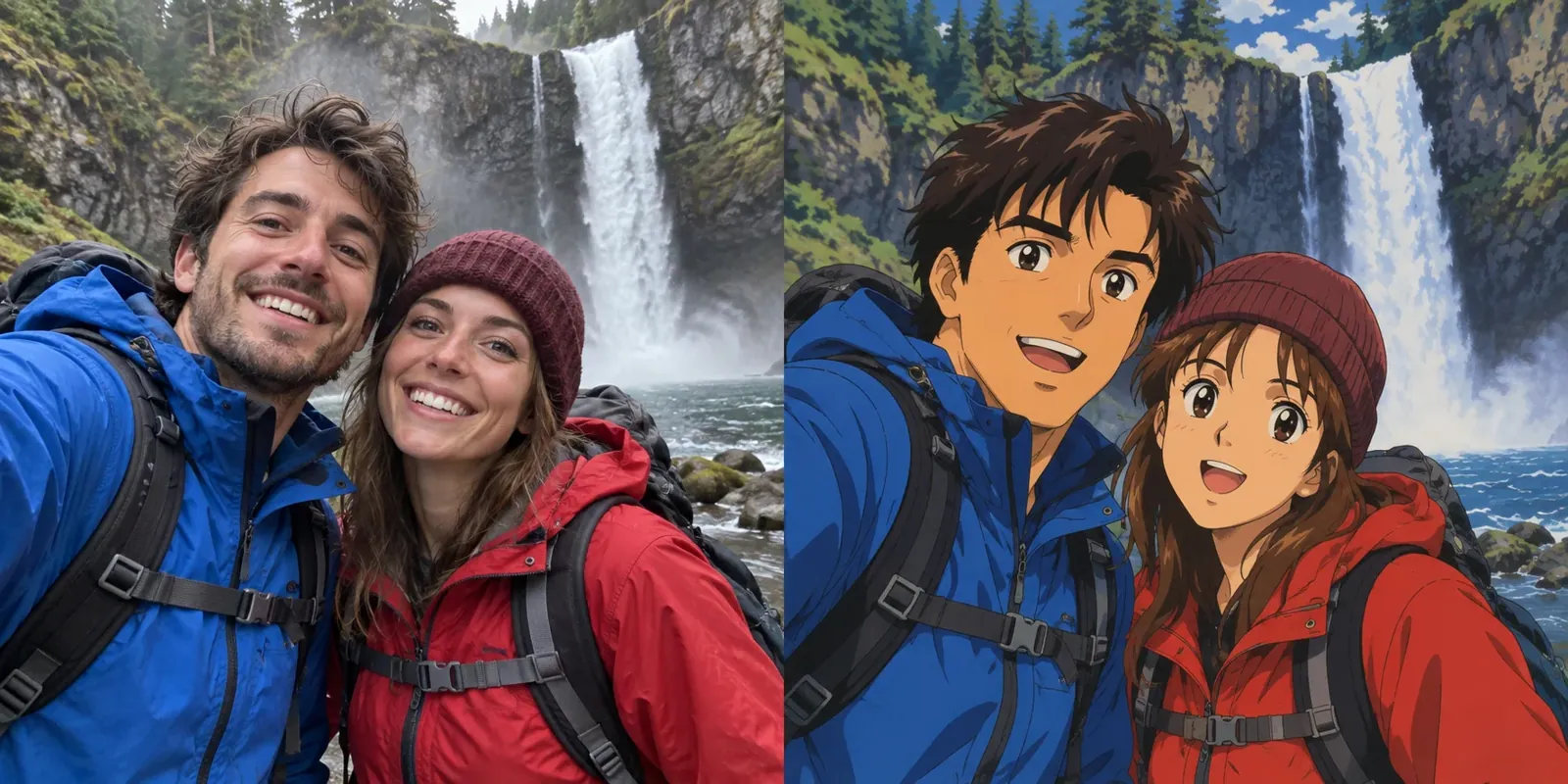
  • Two hikers taking a selfie at a waterfall, redrawn in a retro 90s anime style

    Waterfall selfie, retro 90s anime

    “Convert this selfie of two friends to a retro 90s anime look with thick outlines, flat color and expressive eyes. Keep their rain jackets, the beanie and the waterfall behind them.”

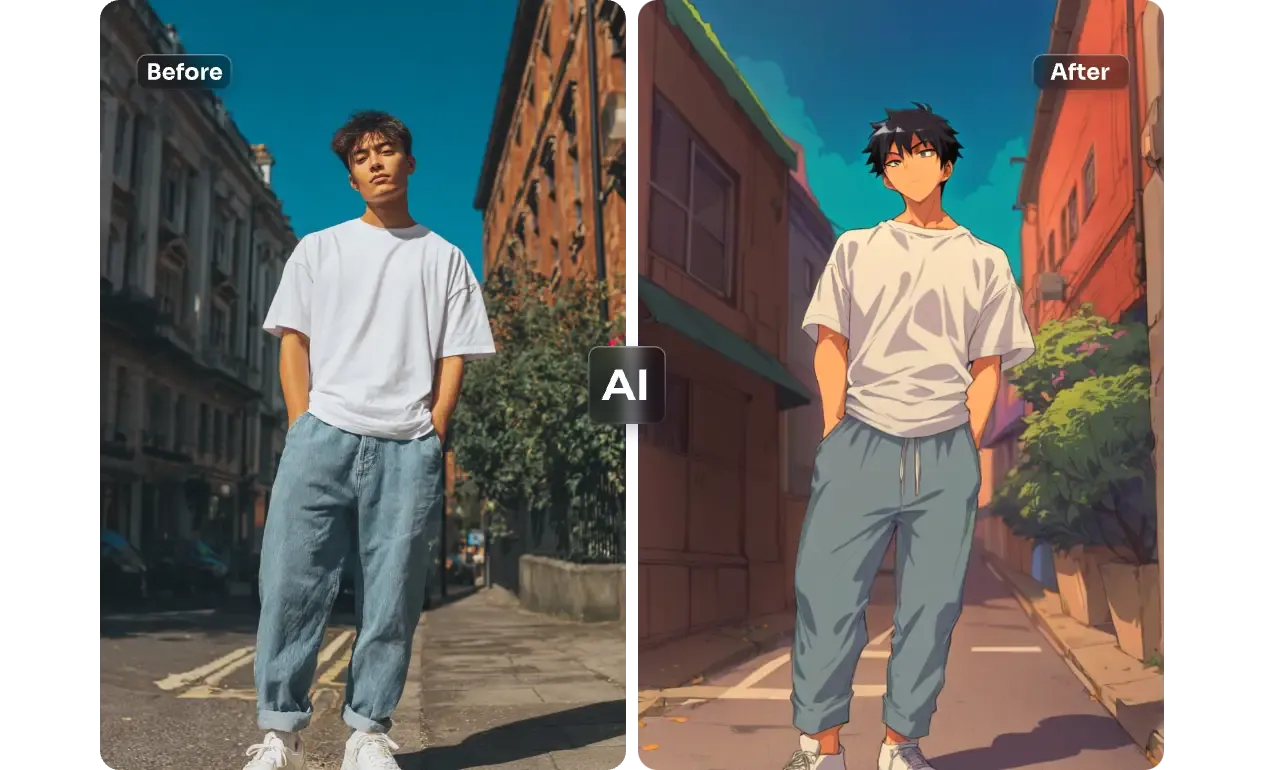
  • Young man in a white T-shirt and jeans on a brick street, before and after the anime conversion

    Street outfit, full-body anime character

    “Turn this full-body street photo into an anime character drawing. Keep the white oversized tee, light-wash jeans and hands in pockets, and redraw the brick alley under a saturated blue sky.”

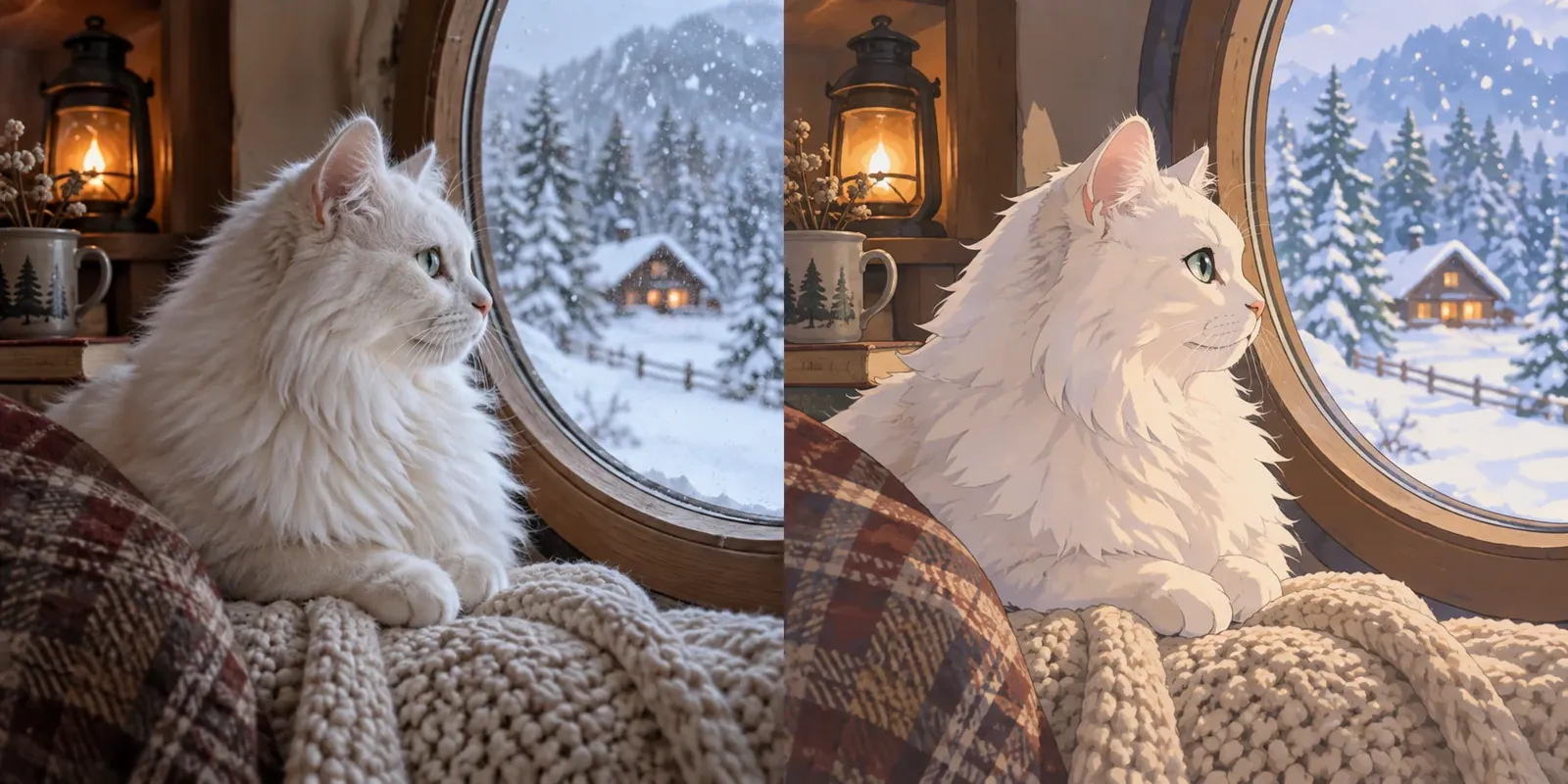
  • Fluffy white cat on a knitted blanket by a round window, photo and anime painting

    White cat by a snowy window, hand-painted anime

    “Repaint the white cat in a hand-painted anime style with soft fur strands and bright green eyes. Keep the knitted blanket, the oil lamp and the snowy cabins outside the round window.”

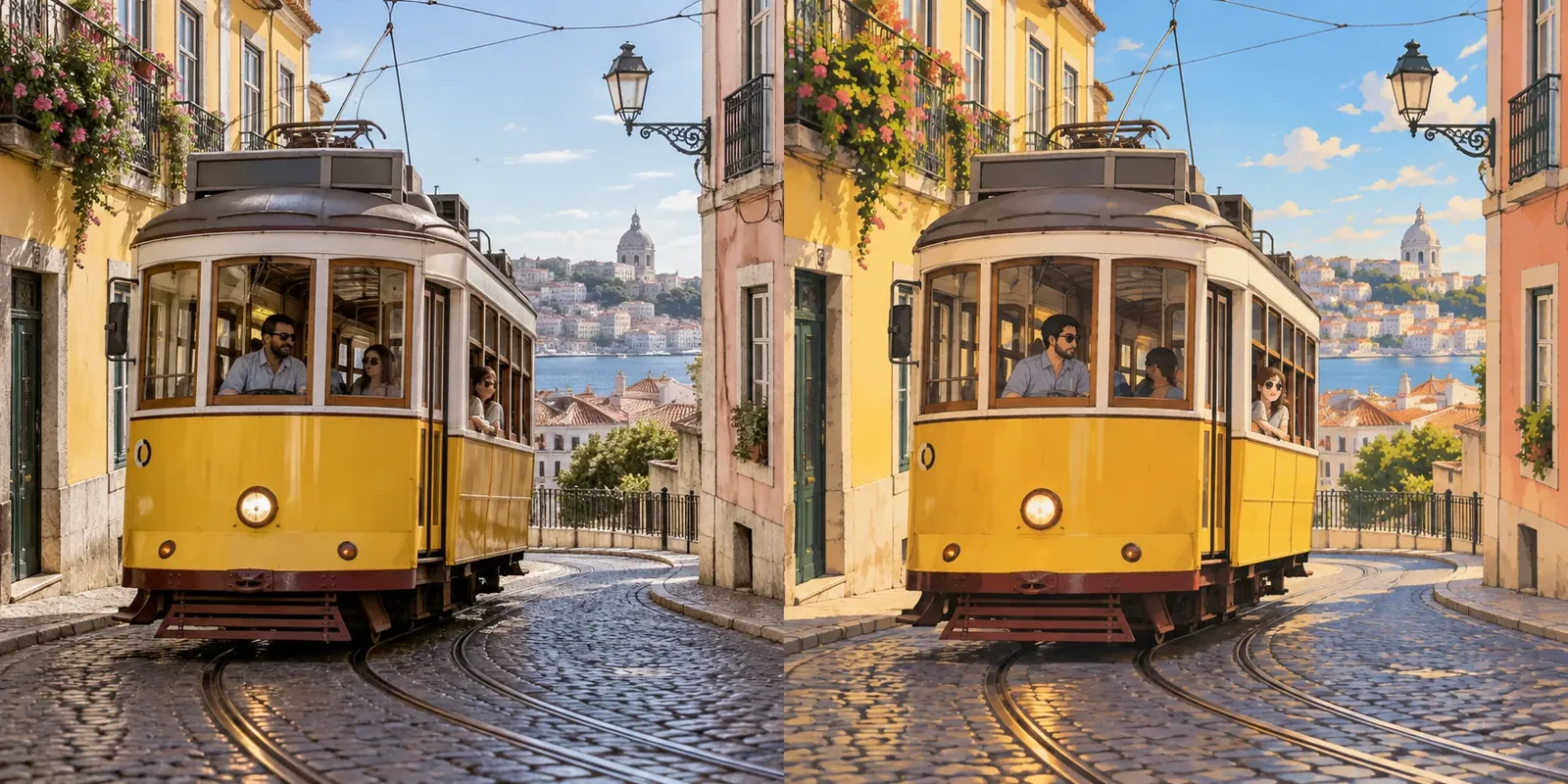
  • Yellow tram on a cobbled hillside street, photo beside a hand-painted anime version

    Old-town tram as an anime background

    “Convert this street scene into a hand-painted anime background: a bright yellow tram on cobblestones, pastel façades with flower boxes and a clear blue sky, with no extra people added.”

Example images are for illustration only. Each prompt is a starting point for a similar edit on your own photo.

How to convert photo to anime in three steps

  1. Step 1

    Choose a clear photo

    Pick a picture where faces and outlines are easy to see, then drag it into the editor. The photo to anime converter accepts JPG, PNG and WebP files of up to 20 MB.

  2. Step 2

    Describe the anime style

    The photo to anime prompt already asks for clean line art and cel shading. Add your own direction, for example 90s retro, pastel colors, sparkling eyes or a starry night sky behind you.

  3. Step 3

    Generate and fine-tune

    Press Edit Image and compare the drawing with your photo. If a feature drifts, follow up with a short note such as “make her eyes closer to the original”.

Photo to anime prompts to copy

Ten photo to anime prompts, each matched to a different kind of picture and a different anime look; paste one in, upload your photo and adjust the details you want kept.

  1. 01

    Chibi sticker

    Turn this person into a chibi anime sticker: oversized head, small body, big sparkling eyes and a happy expression. Keep the hairstyle and outfit colors, add a thick white outline and set the character on a plain light gray background.

  2. 02

    Wedding couple

    Redraw this wedding photo as a romantic anime illustration with soft pastel shading, cherry blossom petals drifting past and warm evening light. Keep the dress, the suit, both faces and the way they hold hands.

  3. 03

    Neon night street

    Convert this night street photo into an anime scene with neon reflections on wet pavement, glowing shop signs in pink and cyan and light rain. Keep the person in the foreground and their jacket recognizable.

  4. 04

    Family at home

    Turn this family photo into a warm slice-of-life anime illustration. Keep each person's hairstyle, glasses and clothing, give the children soft round features, and redraw the living room in cozy afternoon light.

  5. 05

    Black and white manga panel

    Redraw this photo as a black and white manga panel with crisp ink lines, screentone shading and speed lines behind the subject. Keep the pose and facial expression, and leave empty space at the top for a speech bubble.

  6. 06

    Sports action shot

    Turn this sports photo into a dynamic anime action frame with motion lines, bold shadows and a glowing sunset sky behind the player. Keep the team jersey colors, the number and the position of the ball.

  7. 07

    Anime food illustration

    Redraw this plate of food as an appetizing anime illustration with glossy highlights, steam drawn as soft curls and saturated colors. Keep the dish, the bowl and the chopsticks exactly where they are on the table.

  8. 08

    Fantasy traveler

    Turn this portrait into a fantasy anime character: keep the face and hair color, change the outfit into a hooded traveler's cloak with leather straps, and paint a misty forest with floating lights behind them.

  9. 09

    Winter greeting card

    Convert this photo of friends into an anime-style winter greeting card with falling snow, knitted scarves, rosy cheeks, soft blue shadows and a warm café window glowing behind them. Keep every face distinct.

  10. 10

    Grandparents in nostalgic anime

    Redraw this black and white photo of an older couple as a gentle anime illustration in muted, nostalgic colors. Keep their faces, hairstyles and clothing recognizable and add a faint film-like grain.

What people make with a photo to anime converter

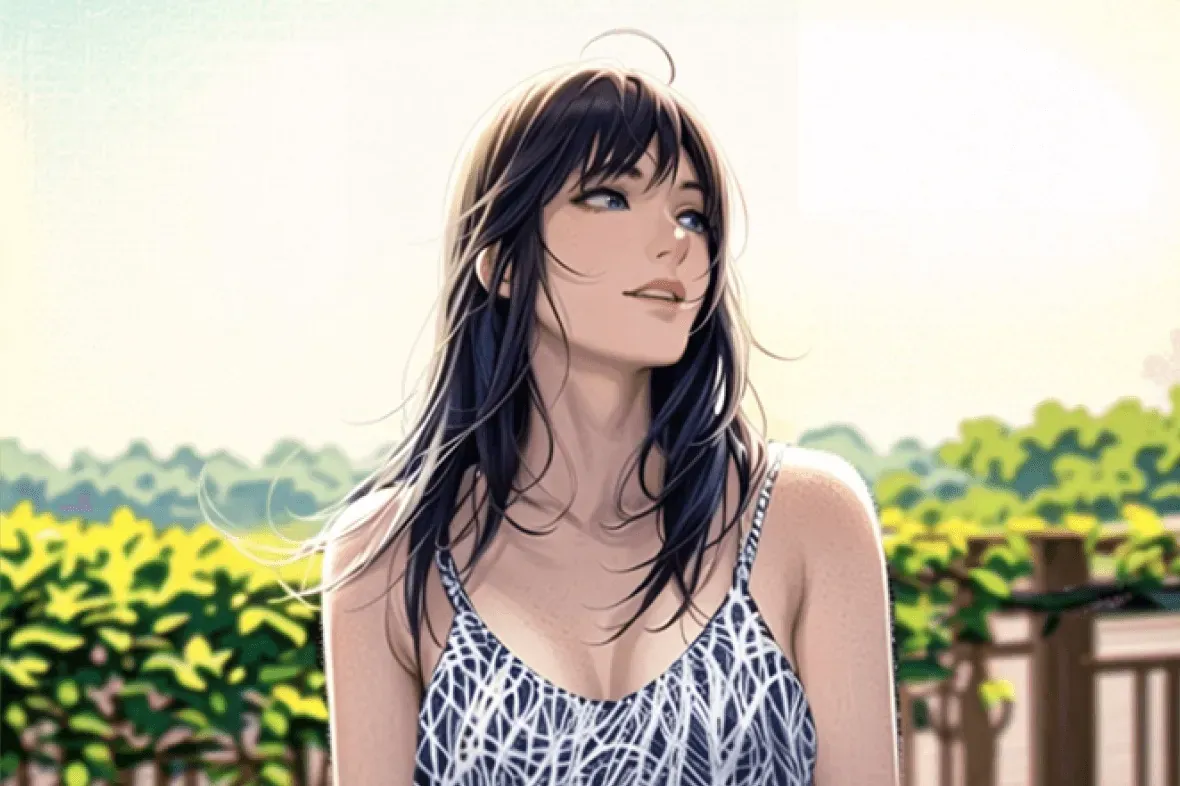
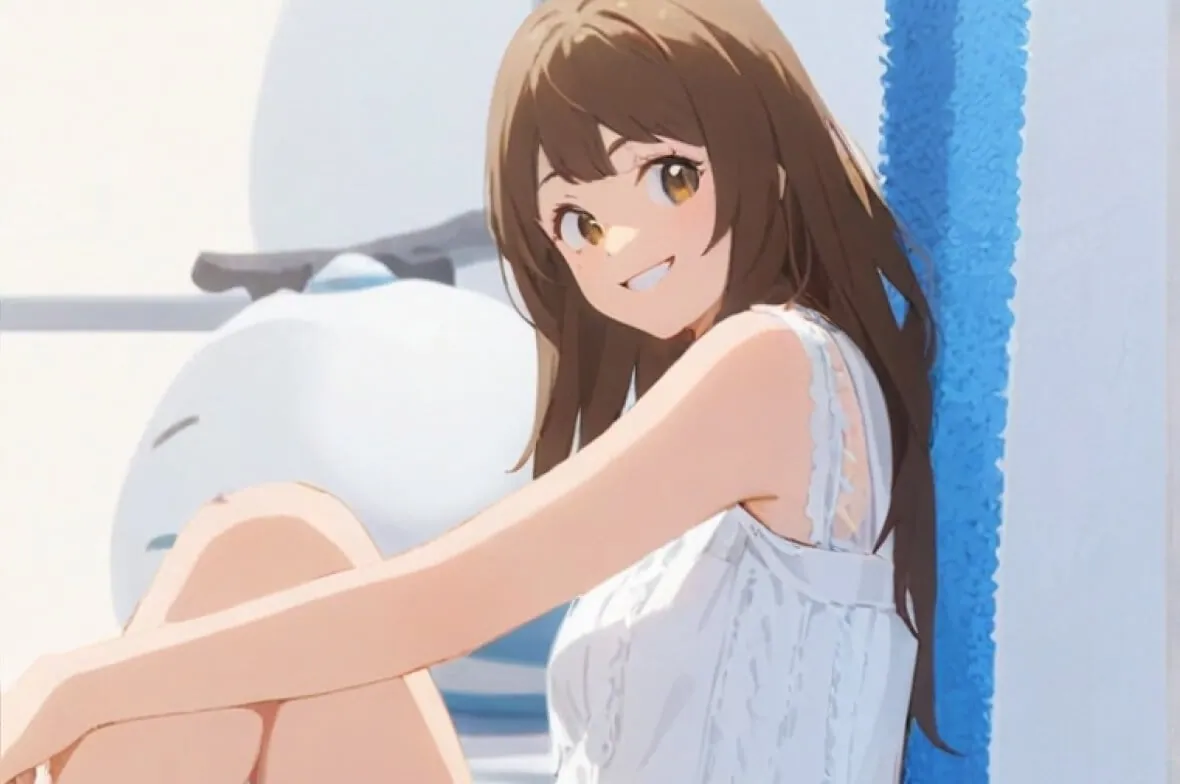
  • Anime portrait of a woman with long dark hair in front of a sunny green hedge

    Avatars and profile pictures

    An anime avatar stands out on Discord, gaming profiles and social bios, yet it still looks enough like you that friends recognize it straight away.

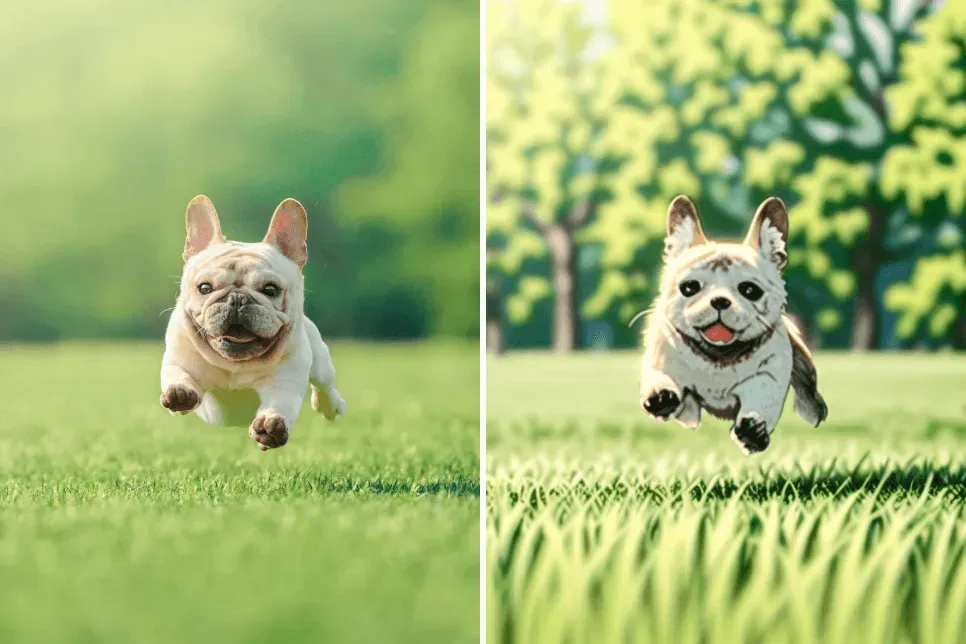
  • French bulldog running across a lawn, photo and anime drawing side by side

    Pet characters

    Turn a dog or cat snapshot into a cheerful anime character for stickers, phone wallpapers or a birthday card for a fellow pet lover.

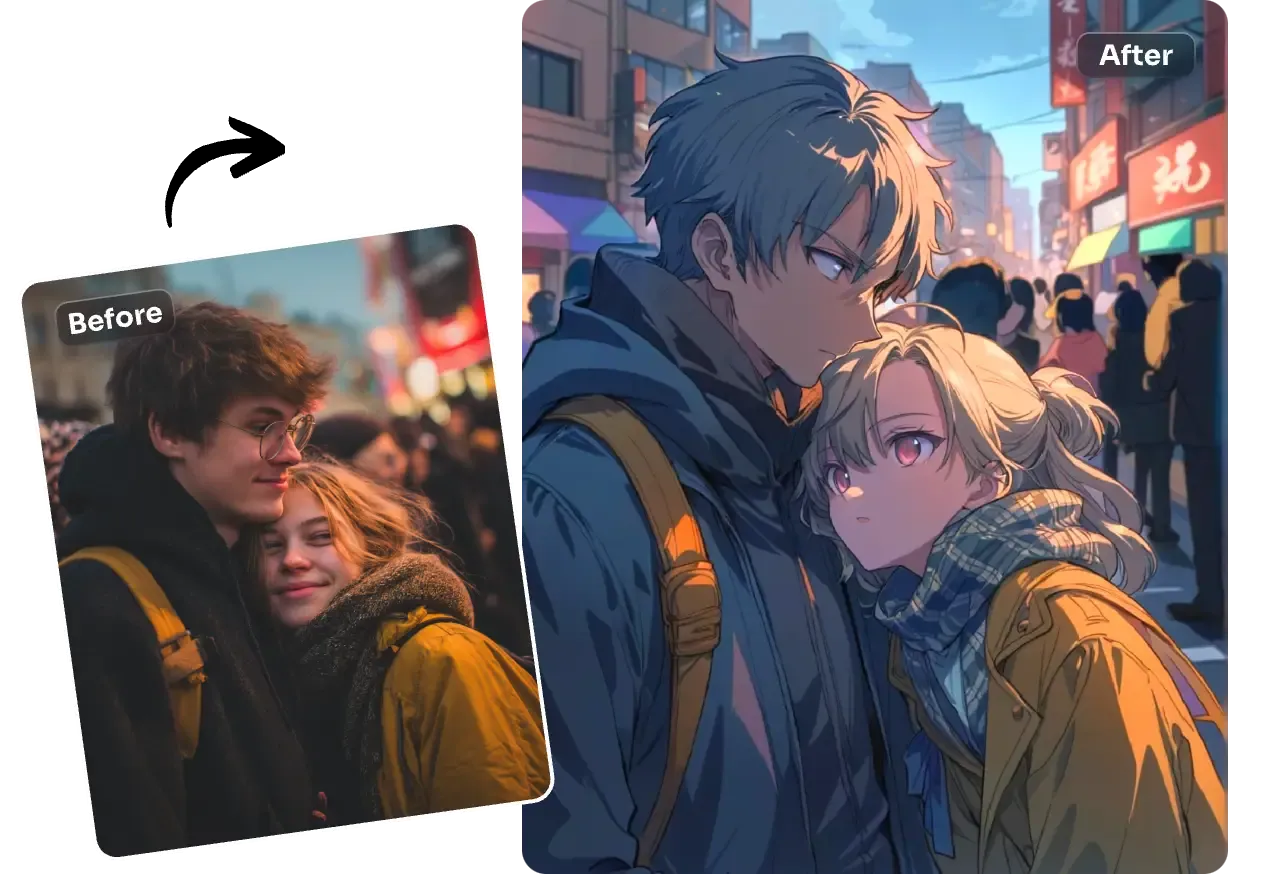
  • Couple hugging on a busy evening street, the small original photo beside the anime illustration

    Gifts for couples and friends

    Redraw a shared trip or an anniversary picture as one anime scene, then print it on a card, a mug or a small framed poster.

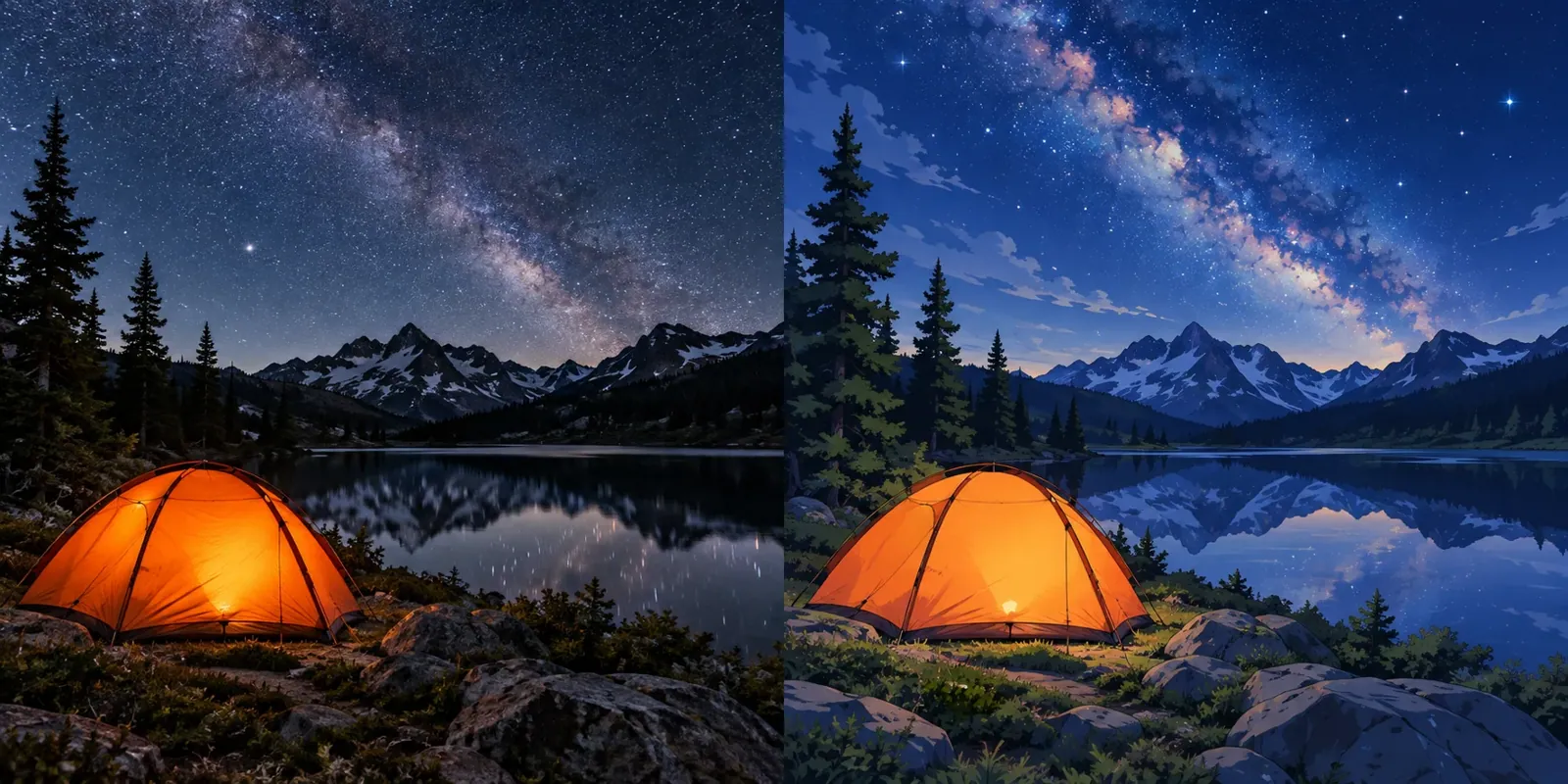
  • Orange tent by a mountain lake under the Milky Way, photo and anime background

    Storyboards and comic drafts

    Writers and creators can run location photos through the photo to anime converter to get anime-style backgrounds and test the mood of a comic, a video thumbnail or a story pitch.

Photo to anime tips for a closer likeness

  • Faces convert best when they are lit from the front and fill a good part of the frame; tiny faces in a crowd lose detail.
  • Name the look you have in mind: cel-shaded, hand-drawn, 90s retro, chibi or soft pastel each give a different result.
  • List what must stay the same, such as glasses, freckles, hair color or a favorite jacket, so the redraw does not drift.
  • Ask for a simpler background when you are making an avatar, for example “plain sky-blue background behind the character”.
  • Describe styles in generic words instead of naming copyrighted characters or studios, and only upload photos you have the right to edit.
  • Prefer pencil lines or brushstrokes? The Photo to Sketch and Photo to Painting tools are set up for those looks.

Best models to turn photo to anime

Any of the six can draw anime. These three cover most photo to anime jobs, listed in the order we would try them.

  • GPT Image 2

    OpenAI

    Strongest when one photo to anime prompt carries several instructions: the style, a list of features to keep and a new background. It is also the pick when the picture needs readable text, like a name on a sticker or a line in a speech bubble.

    About GPT Image 2
  • Nano Banana 2

    Google

    Fast and dependable for single portraits and pets. It keeps the same person consistent across a series, so it suits a set of matching avatars or several comic panels that star one friend.

    About Nano Banana 2
  • Seedream

    ByteDance

    A good model for exploring directions. Run the same photo as chibi, 90s retro and soft pastel to see which look fits, then finish your favorite with GPT Image 2 if it needs more care.

    About Seedream

Inside a photo to anime conversion

Why some pictures make a better photo to anime conversion than others, and what to change when the anime drawing stops looking like you.

What anime simplifies, and what keeps the likeness

Anime is a deliberate simplification. A photo to anime converter enlarges the eyes, reduces the nose to a small line or shadow, flattens skin into two or three tones and groups loose hair into a few clean locks with highlight bands. Backgrounds get the same treatment: clutter disappears, skies become painted gradients and edges turn crisp.

Likeness survives through the features that are not simplified away: face shape, hairline and parting, hair color, glasses, earrings, a beard, a favorite jacket. Name these anchors in your prompt. The model then knows which details to protect while it redraws everything else, and the result reads as you rather than as a generic character.
Choosing a source photo that converts well

Eyes carry an anime face, so pick a shot where both are visible and open; dark sunglasses or a low hat brim leave the model guessing. A front or three-quarter view in soft, even light works better than a hard profile or strong backlight. Skip photos already run through beauty or cartoon filters, because their smoothed skin and odd colors get copied into the drawing.

Crop before you upload to the photo to anime converter. For an avatar, frame head and shoulders and pick 1:1 output; for a phone wallpaper choose 9:16, and for a channel banner or desktop background 16:9. Hands close to the face are the hardest part to redraw, so a pose with them lower down gives cleaner results.

When the character stops looking like you

If the drawing no longer resembles the person, lower the stylization instead of piling on details: ask for “semi-realistic anime, realistic proportions, anime shading and line art only”. Anime looks also tend to lighten skin and widen eyes, so if that happens, write “keep my natural skin tone and eye shape” into the next run.

Hands are the other weak spot. Extra or merged fingers usually clear up with “relaxed hands, five fingers each”, or by cropping the hands out. If the character looks drawn but the background still looks photographic, or the other way round, ask for “the background in the same line weight and shading as the character”. Start each photo to anime retry from your original photo, not from the previous drawing.

Reusing your anime character in other edits

A finished photo to anime result can be edited again like any other image. Upload it to Background Changer and describe a new anime-style setting, such as a rooftop at dusk, to place the same character in several scenes. Image to Image suits bigger reinventions, like turning the character into a poster layout or a different illustration genre.

For stickers and printed merch, ask for a flat white or single-color background from the first run. EditPic downloads regular images without transparency, so a plain backdrop is the easiest thing to cut around later. If you plan to print, choose 2K output and zoom in on the line edges before you order anything.

From travel snapshot to anime phone wallpaper

Here is one photo to anime project from start to finish. You have a vertical holiday shot of a harbor at sunset, with a few strangers on the quay. Choose 9:16 so it fills a phone screen, then write a prompt that does three jobs: the style (“hand-painted anime background, warm sunset gradient, soft clouds”), the clean-up (“remove the people on the quay”) and the layout (“keep the top third mostly sky so the clock covers nothing important”).

Check the result on your actual phone before you settle. Anime backgrounds look busier at small sizes, so if the app icons get lost, ask for “fewer small details, larger simple shapes”. Pick 2K for a sharp lock screen and keep the original photo, because the same harbor can become a night-time anime scene later.

Sharing photo to anime results responsibly

An anime portrait still shows a real person, so the usual photo rules apply: convert pictures you took or have permission to use, and ask before you post a friend's anime avatar or a child's portrait in public. When a drawing goes into a contest, a portfolio or an online shop listing, say that it was made from a photo with AI; some communities and print services ask for exactly that.

Keep your prompts generic as well. Describe the look you want, such as “soft hand-painted anime, warm afternoon light”, rather than naming a show, a studio or a character. That avoids copying protected designs and usually gives a cleaner, more personal anime result. Franchise outfits, logos and fan characters are best left out of your prompts altogether.

Photo to anime FAQ

  1. Is this photo to anime converter free?

    Yes, to start: sign up and you can try it free once. Further conversions use credits; the number depends on the model you pick, and the editor shows it before you press Edit Image. Paid plans add credits if you convert photos often.

  2. Will the photo to anime version still look like me?

    It keeps the main features, such as face shape, hairstyle, glasses, clothing and pose, but anime simplifies faces by design. If a detail matters, name it in the prompt and run a short follow-up edit to bring it back.

  3. Can I turn photo to anime for pets and landscapes too?

    Yes. Dogs, cats, birds, city streets and nature scenes all convert well. For pets, mention markings and accessories like a collar or a bandana so they survive the redraw.

  4. Which anime styles can I ask for?

    Describe the look in plain words: cel-shaded, hand-drawn, 90s retro, chibi, pastel or a moody night scene. Generic descriptions work more reliably than the name of a show, and they keep you clear of copyrighted characters.

  5. Does photo to anime work on group photos?

    Yes, two to four people usually convert well when every face is clearly visible. With larger groups the faces get smaller and less distinct, so crop closer or convert people in smaller sets.

  6. Can I turn photo to anime with a transparent background for stickers?

    Not directly. Results download as regular images without a transparent layer. Ask for a plain white or single-color background and a thick outline around the character; that gives a sticker printer or a design app a clean edge to cut along.

  7. Can I add a name or a caption to the anime picture?

    Yes. Put the exact words in quotes, keep them short and say where they go, for example a name under the character. GPT Image 2 is the most reliable model for readable lettering. Check the spelling before you share or print it.

  8. How do I convert photo to anime in the same style across several pictures?

    Write one style sentence you like, such as “cel-shaded anime, thin brown line art, pastel sky”, and paste it unchanged into every prompt. Use the same model for the whole set; Nano Banana 2 keeps a recurring person consistent, which helps with comic panels or matching avatars.

  9. Can I turn photo to anime in a black and white manga style?

    Yes. Ask for “black and white manga, crisp ink lines, screentone shading” and say whether you want space for speech bubbles. Grayscale photos work too, and color photos simply lose their color in the redraw. For a printed zine, choose 2K and check that the thin lines stay sharp.

  10. Why does my photo to anime result look like a filter, not a drawing?

    Usually because the prompt only named a style. Add the parts that make an anime drawing: “clean line art around every shape, two-tone cel shading, hair grouped into locks, background redrawn in the same style”. If the face still looks photographic, ask for “fully illustrated, no photo texture on the skin”.

  11. Can I convert photo to anime for a couple or a wedding portrait?

    Yes. Two faces convert well when both are sharp and roughly the same size. Name one detail for each person, such as “her red scarf, his round glasses”, so the anime drawing keeps them distinct, and ask for “the same line weight on both” so neither looks drawn by a different hand.

Convert photo to anime now

Upload a picture to the photo to anime converter, keep the ready-made prompt or add a style, and see your anime version in moments.