



New: Nano Banana 2 & GPT Image 2

Try it

Updated 2026-11-16

AI White Background for Product Photos

Give every listing a clean white background for product photos without a lightbox: shoot on any table, upload the picture and EditPic sets the item on a pure white background with a natural shadow. Want a styled scene behind it instead? Just describe it.

Product photo background examples

Baskets, mugs, candles, bags, glasses and furniture moved onto a pure white background or into styled scenes. Compare each result, then send its prompt to the editor and try it on your own item.

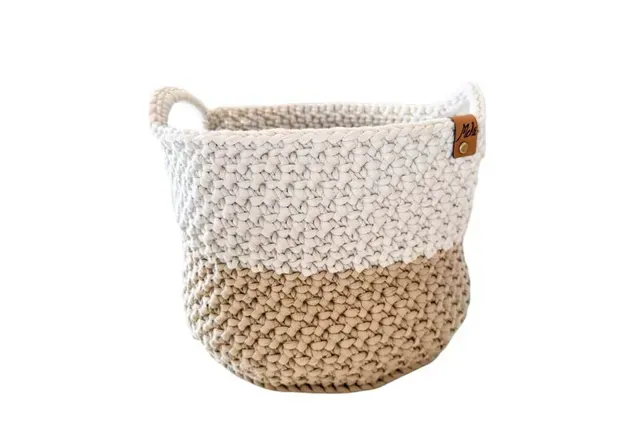
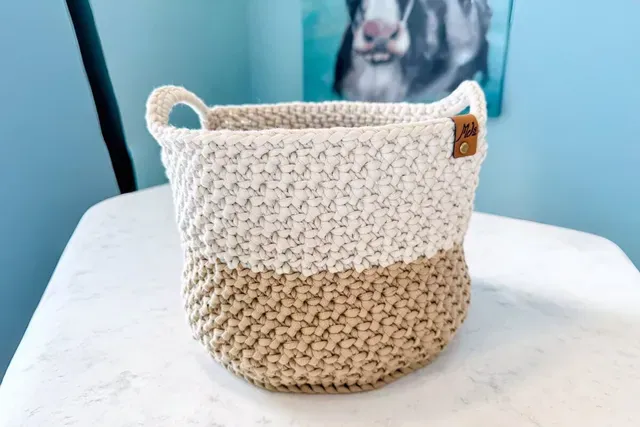
  • Cream and tan knitted basket on a bench in a blue room, then on a white background — AfterCream and tan knitted basket on a bench in a blue room, then on a white background — Before

    Knitted basket from a cozy room to a pure white background

    “Remove the blue room, bench and picture frame around the knitted basket and center it on a pure white background with a soft shadow. Keep the two-tone weave and the small leather tag.”

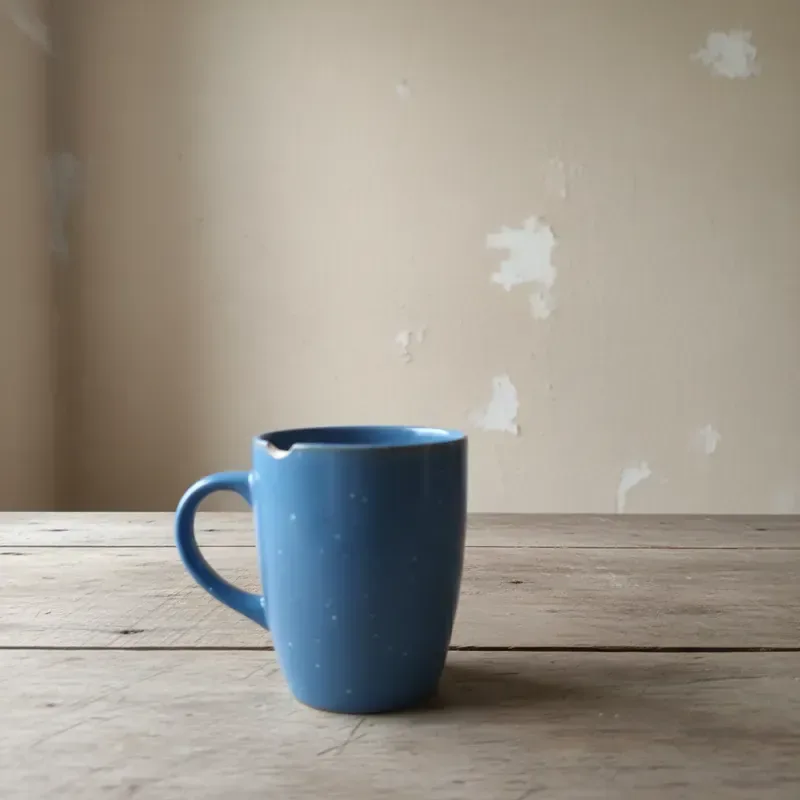
  • Blue ceramic mug with its bare wall background swapped for a bright kitchen counter — AfterBlue ceramic mug with its bare wall background swapped for a bright kitchen counter — Before

    Blue mug moved to a bright kitchen

    “Replace the bare wall and worn table in the background behind the blue mug with a bright, clean kitchen counter in soft morning light. Keep the mug’s color, glaze and handle unchanged.”

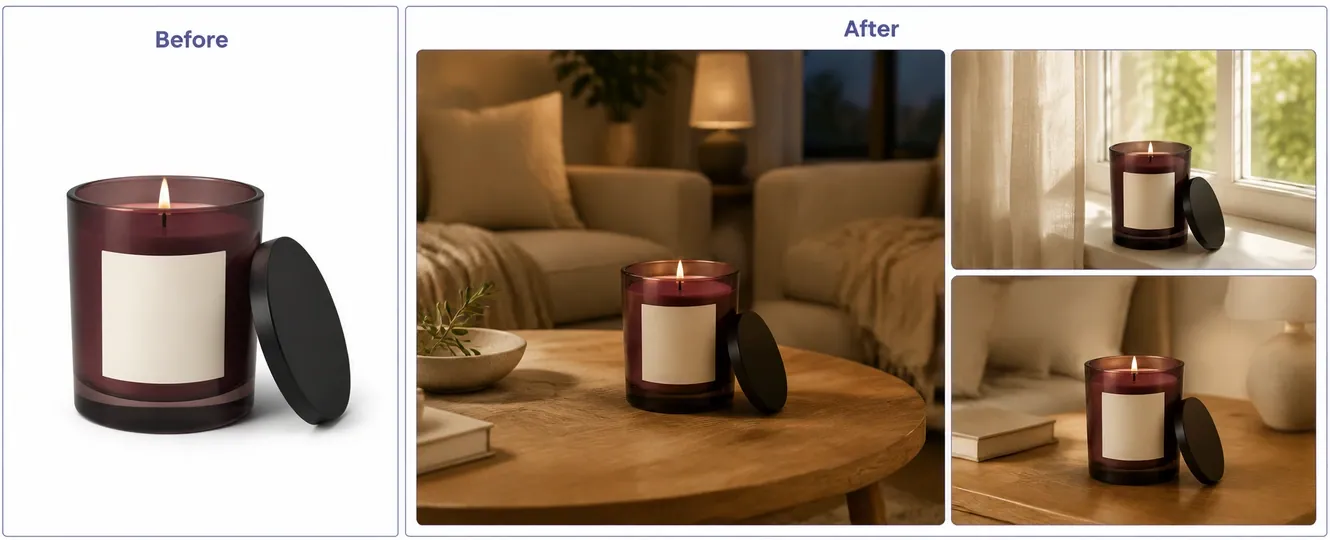
  • Plum glass candle on a white background, next to three versions in a living room and on a windowsill

    Candle from a white catalog shot to cozy scenes

    “Place the plum glass candle with its lid on a round wooden coffee table in a warm, softly lit living room. Keep the jar color, the blank label and the lit flame unchanged.”

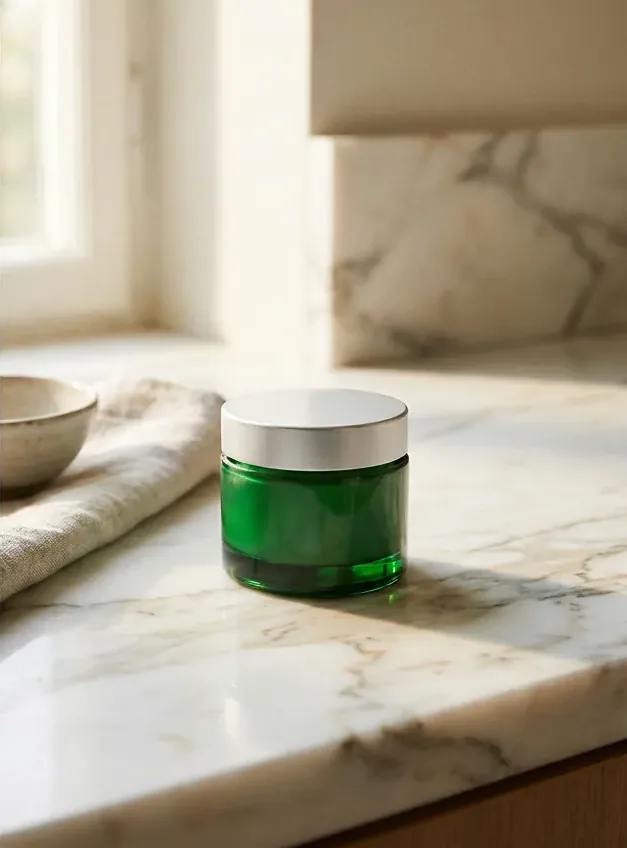
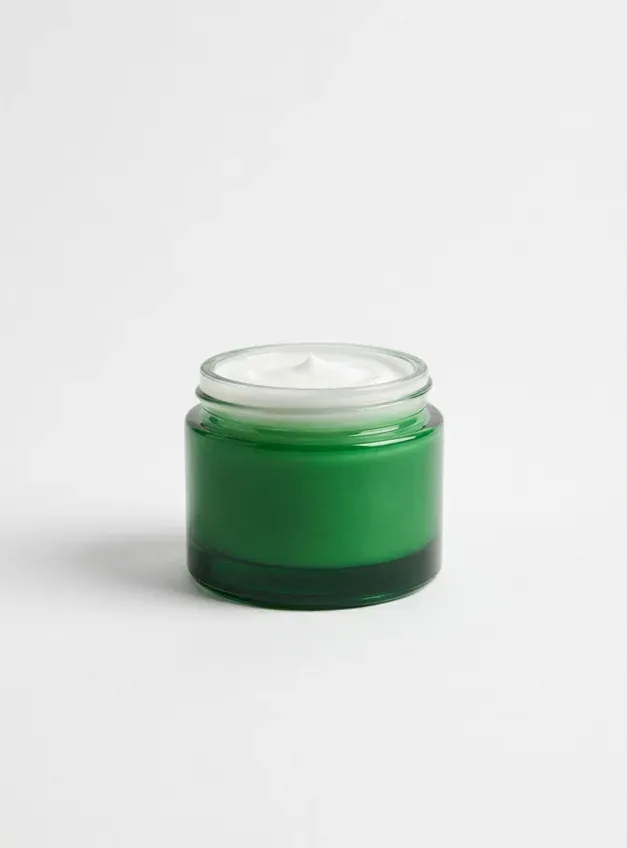
  • Green glass cream jar on a plain white background, then on a marble counter in window light — AfterGreen glass cream jar on a plain white background, then on a marble counter in window light — Before

    Cream jar from white to a marble counter

    “Move the green glass cream jar from the plain white background to a sunlit marble counter by a window, with a linen cloth and a small bowl behind it. Keep the jar’s color and lid unchanged.”

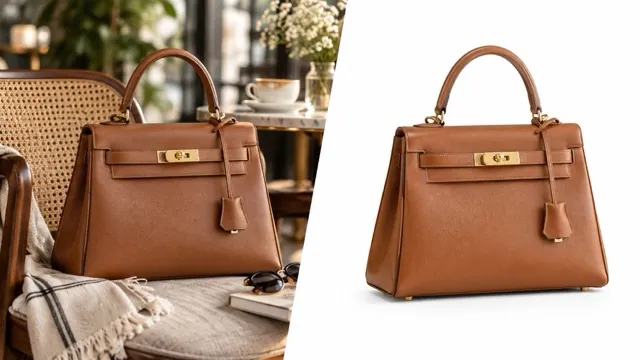
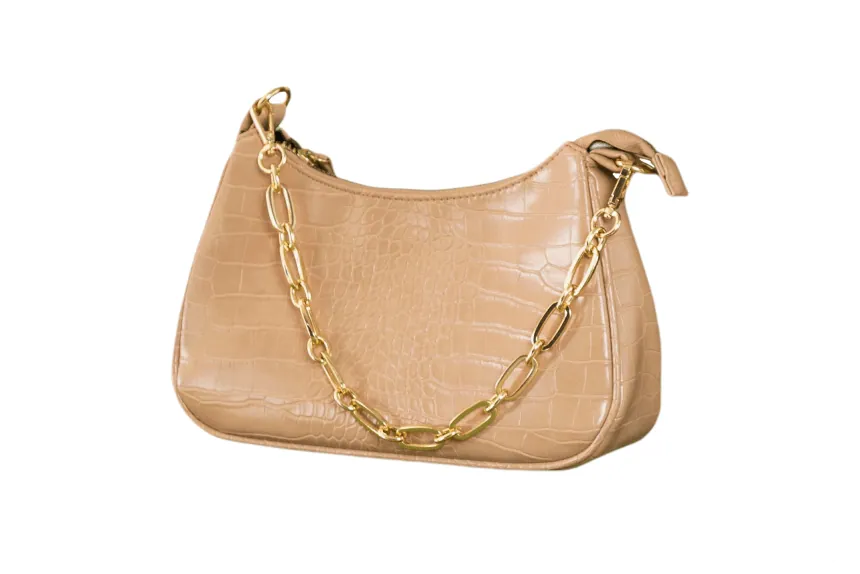
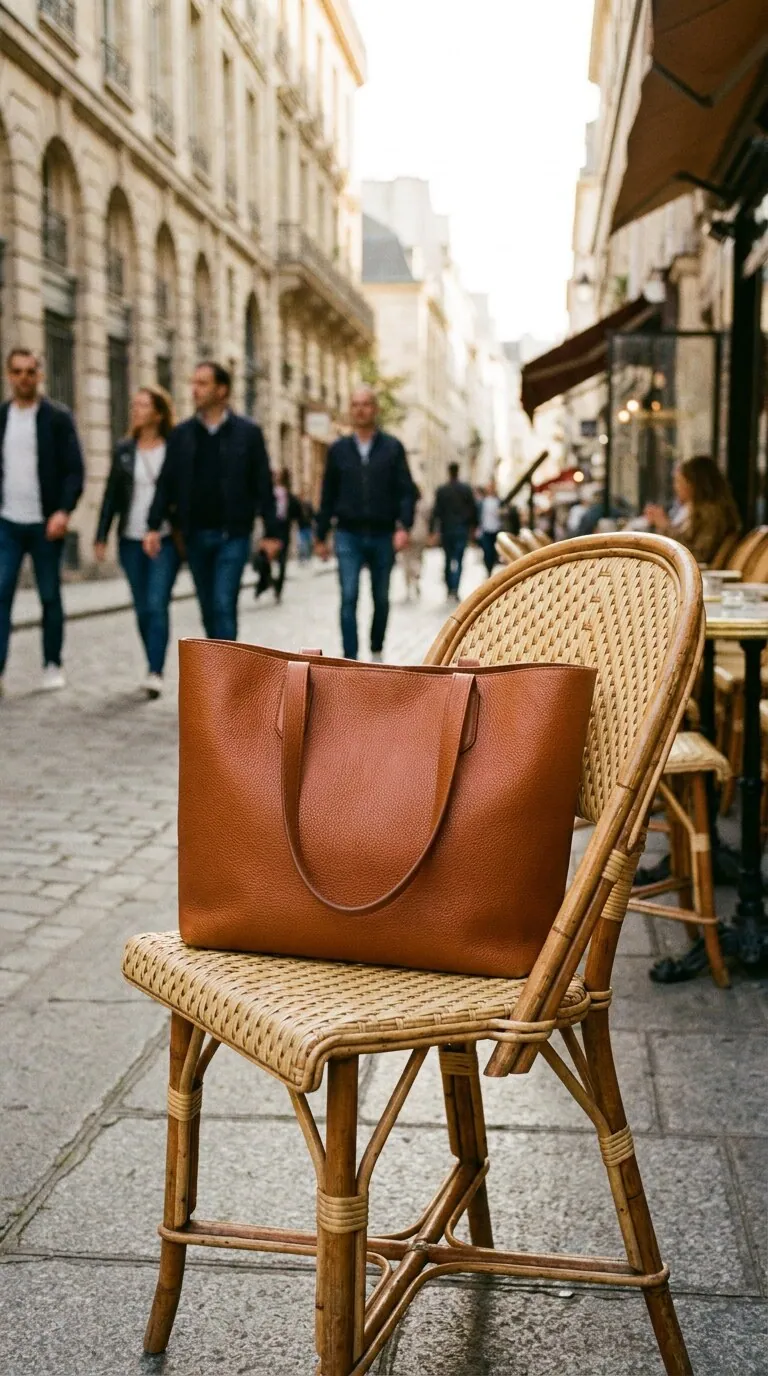
  • Brown handbag shown in a living room and again on a white background

    Leather handbag on a pure white background

    “Remove the room and chair around the brown leather handbag and center it on a pure white background with a faint shadow under the base. Keep the stitching and hardware sharp.”

  • Strawberry cupcake on a café table and on a clean white background

    Cupcake cut out for a menu

    “Take the cupcake off the café table and put it on a clean white background. Keep the strawberries, frosting and paper liner detailed and the colors true.”

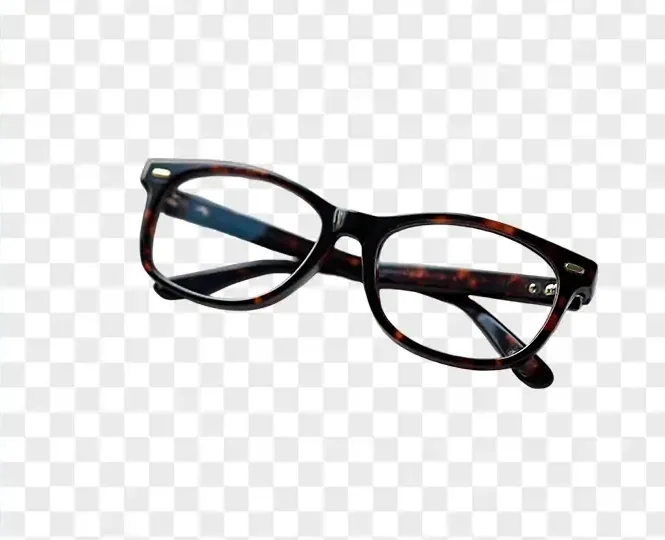
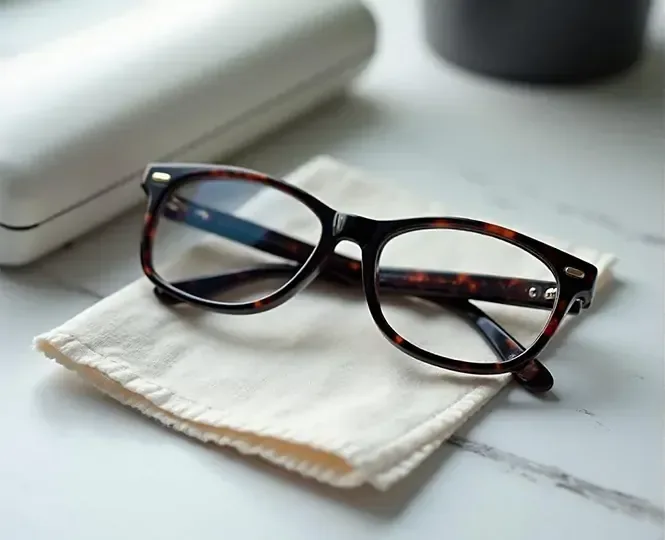
  • Tortoiseshell glasses on a cloth, then on a clean background with the table removed — AfterTortoiseshell glasses on a cloth, then on a clean background with the table removed — Before

    Glasses lifted off a cloth for a clean listing

    “Remove the cloth, table and case under the tortoiseshell glasses and show them on a clean white background. Keep both lenses clear and the frame pattern sharp.”

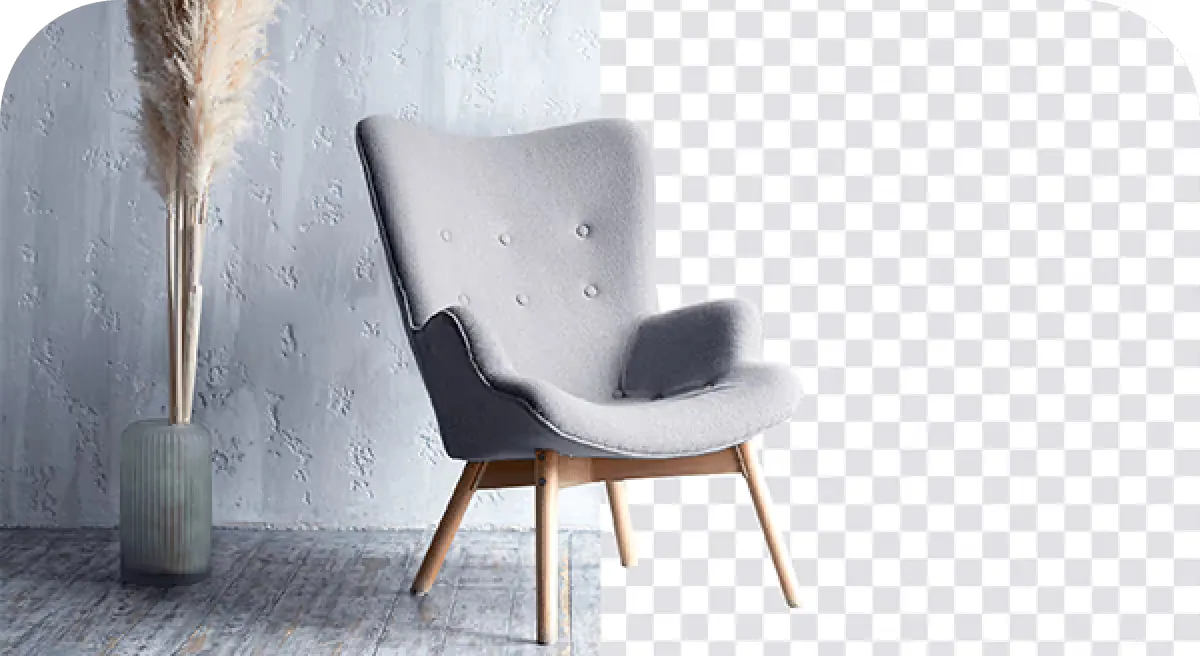
  • Gray lounge chair in a styled room, split with the same chair cut out of its background on a checkerboard

    Lounge chair taken out of a styled corner

    “Remove the textured wall, rug and vase behind the gray lounge chair and place it on a pure white background. Keep the wooden legs and the button tufting crisp.”

Example images are for illustration only. Each prompt is a starting point for a similar edit on your own photo.

How to make a white background for product photos

  1. Step 1

    Shoot or pick the photo

    Any phone shot works if the product is sharp and fully visible. Upload a JPG, PNG or WebP of up to 20 MB straight into the editor at the top of this page.

  2. Step 2

    Choose a white background or a scene

    Keep the ready prompt for a pure white background, or swap in a scene like “marble bathroom shelf”. Mention any label, logo or color that has to stay exactly the same.

  3. Step 3

    Check details, then download

    Zoom in on the edges against the new background, the packaging text and the shadow. If something drifted, ask for a fix in a short follow-up prompt, then save the image for your store.

Product photo background prompts for listings and ads

Nine prompts for products the examples skip: jewelry, apparel, electronics, packaged food and more. Keep the line that protects labels and colors.

  1. 01

    Gold hoops as a matched pair

    Place the gold hoop earrings on a pure white background as a matched pair with a small gap between them and a soft reflection beneath. Keep the warm metal tone and the hinge details sharp.

  2. 02

    Skincare trio from above

    Replace the bathroom towel under the three skincare bottles with a pure white background, keeping the top-down view and their spacing. Add soft shadows to the lower right and keep every cap, pump and label unchanged.

  3. 03

    Linen shirt on a wooden hanger

    Remove the bedroom door behind the linen shirt on its wooden hanger and place it on a pure white background. Keep the hanger, the fabric color, the buttons and the natural creases, with a faint shadow along the hem.

  4. 04

    Bluetooth speaker with a fabric grille

    Remove the bookshelf behind the fabric Bluetooth speaker and set it on a pure white background with a soft contact shadow. Keep the grille texture, the buttons and the small logo exactly as photographed.

  5. 05

    Coffee bag with a printed label

    Remove the kitchen counter behind the kraft coffee bag and stand it upright on a pure white background. Keep the printed label, the roast-date sticker and the valve sharp and unchanged, with a thin shadow at the base.

  6. 06

    Ceramic vase on catalog gray

    Set the ceramic vase on a seamless light gray background (#EDEDED) with a soft shadow falling to the right, to match the rest of a home-decor catalog. Keep the glaze drips and the rim unchanged.

  7. 07

    Olive oil in a kitchen scene

    Place the olive oil bottle on a rustic wooden board with a few olives and a sprig of rosemary, in soft side light from a window in the background. Keep the bottle shape, the label and the cork unchanged.

  8. 08

    Wristwatch with a readable dial

    Remove the desk behind the wristwatch and place it on a pure white background with a faint shadow. Keep the dial numbers, the hands and the steel strap links sharp and exactly as photographed.

  9. 09

    Lip balm on a brand color

    Put the lip balm tube on a flat pastel peach background (#F8D9C8) with a soft shadow, for a brand banner. Keep the cap, the tube color and the printed product name unchanged.

Where a clean product photo background pays off

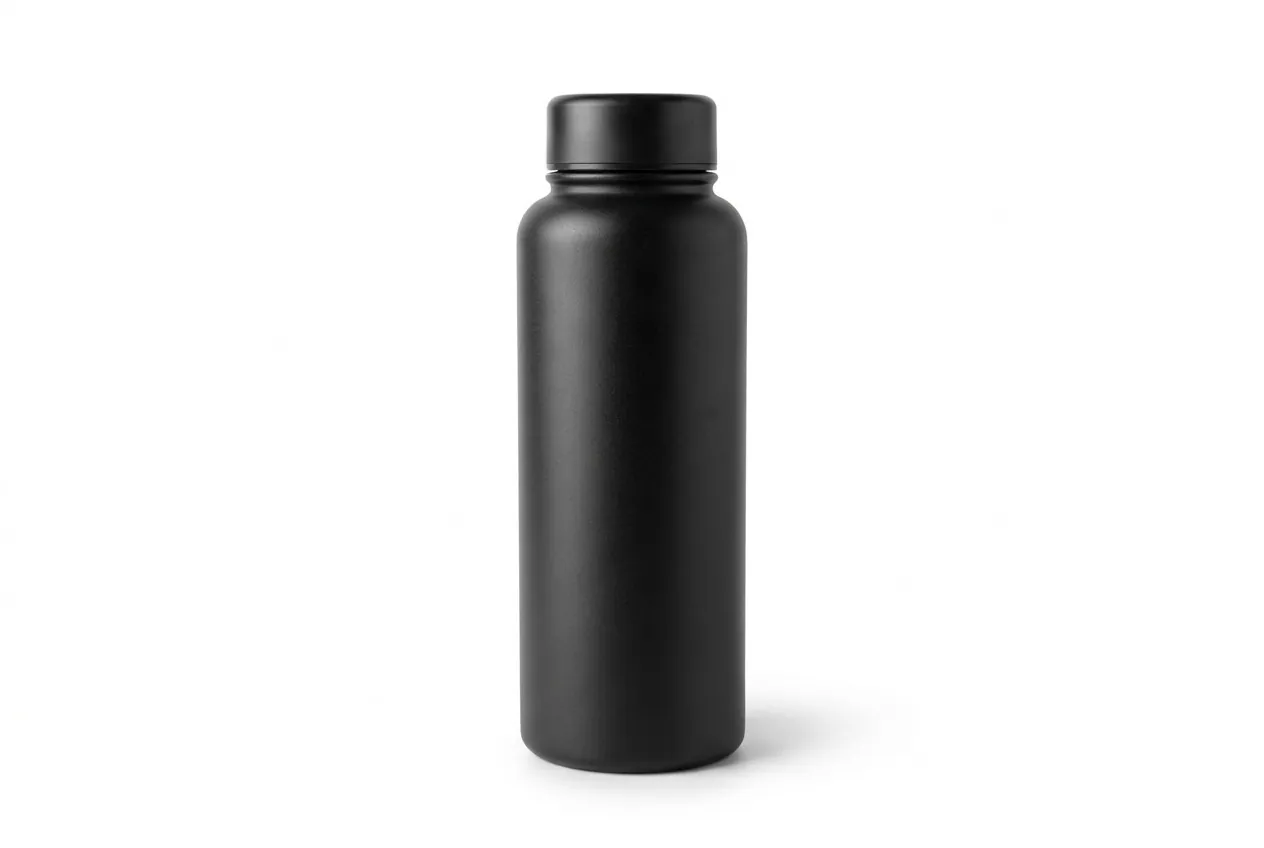
  • Matte black water bottle centered on a pure white background

    Marketplace main images

    Many marketplaces, Amazon included, ask for a main image on a pure white background. Check each platform’s current rules, then prepare the photo here.

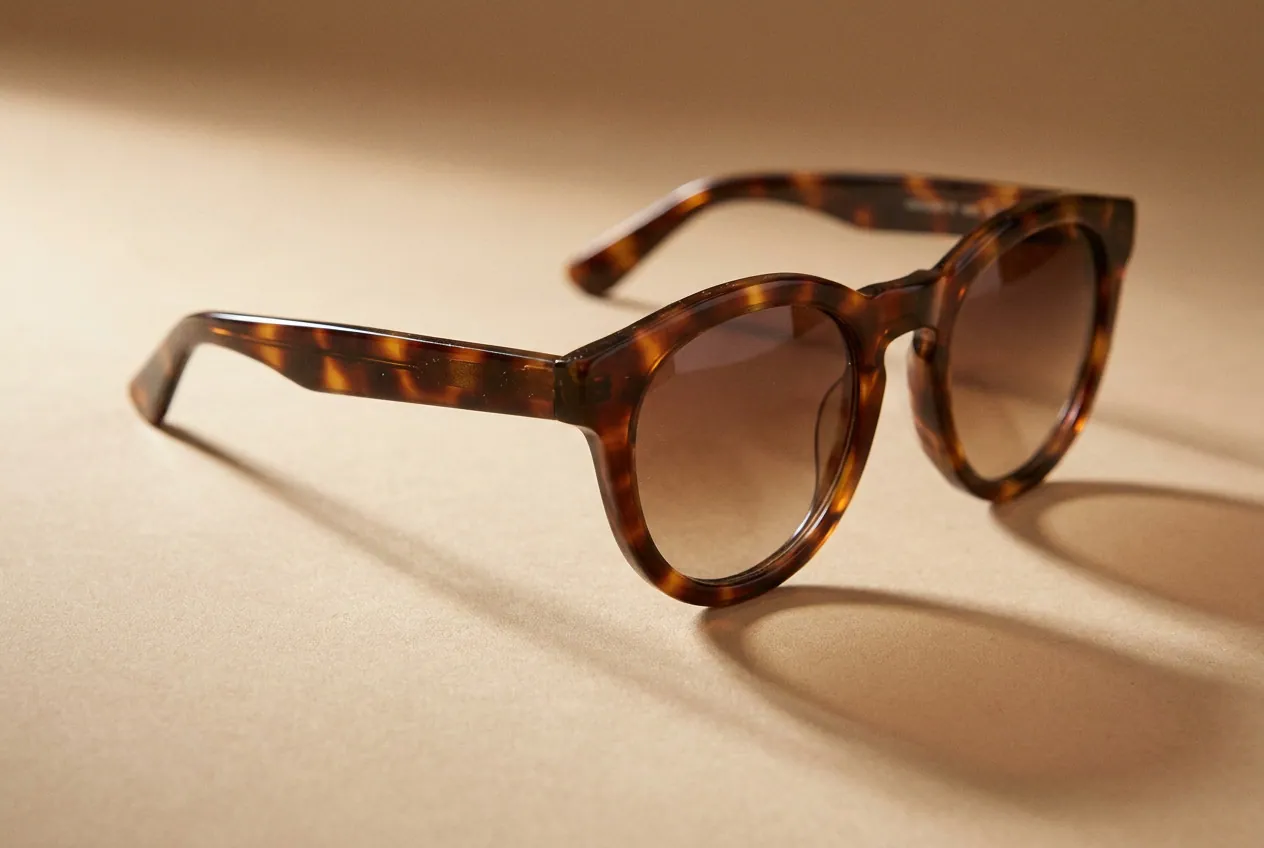
  • Tortoiseshell sunglasses casting a soft shadow on a warm beige background

    Lifestyle shots for ads

    A white background works on search pages; a scene works on social. Put the same item on a kitchen counter, a desk or a picnic blanket for ads and posts.

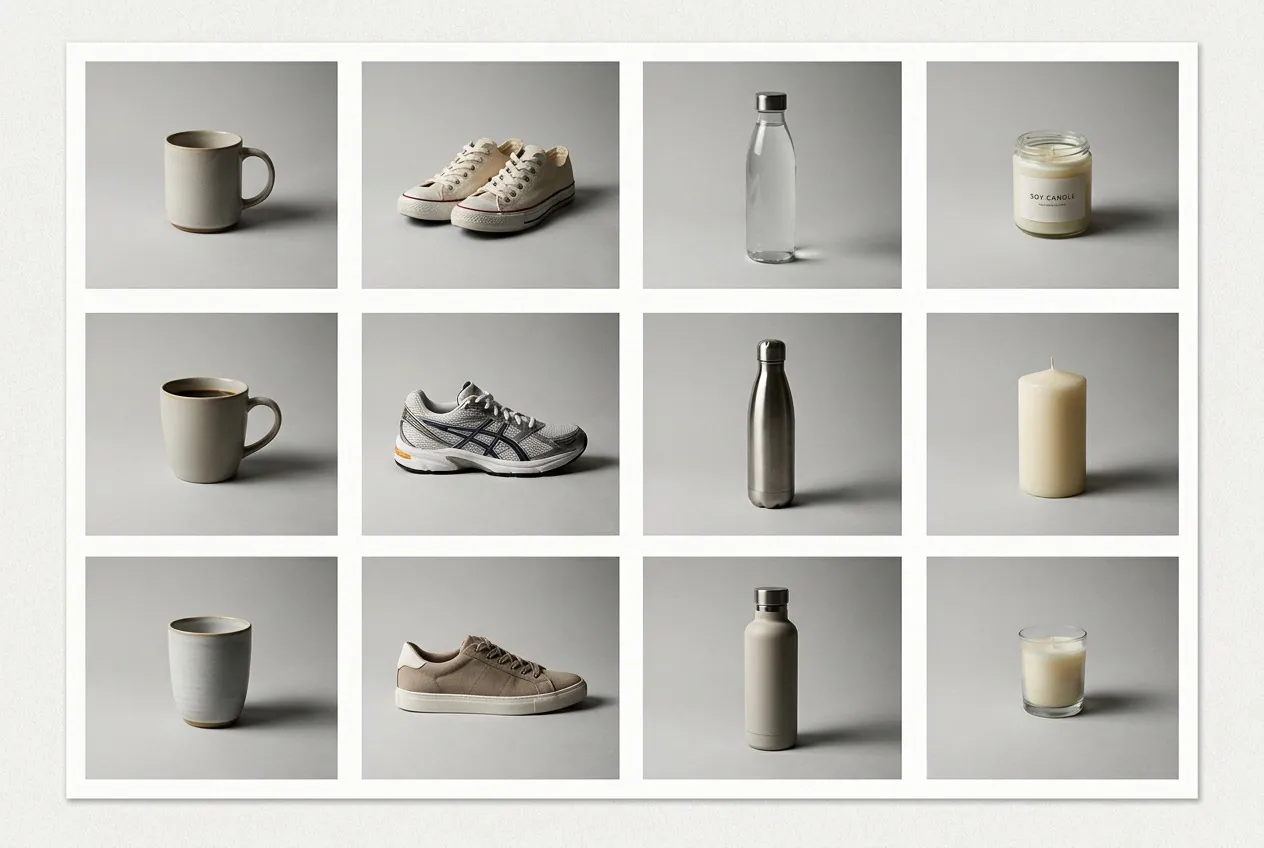
  • Grid of mugs, sneakers, bottles and candles, all on the same light gray background

    A consistent catalog

    Photos shot on different days and tables end up with one shared background for product photos, so category pages look like a single shoot.

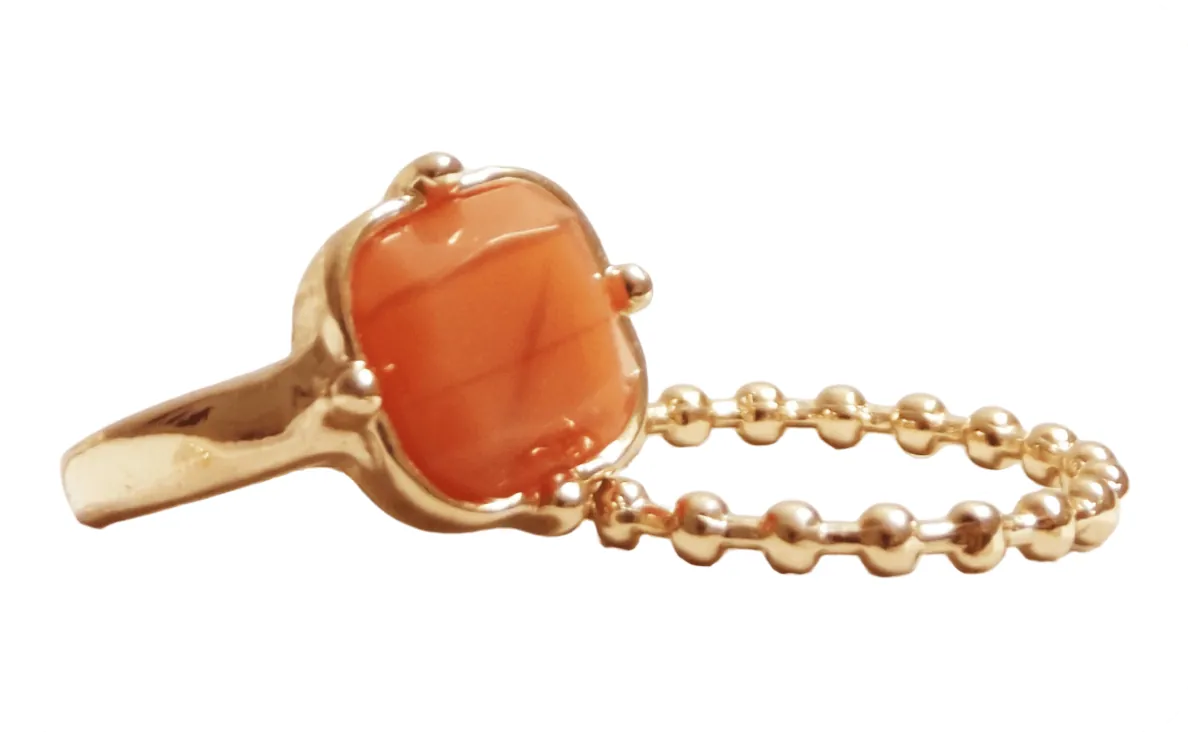
  • Gold ring with an orange stone and a beaded chain on a white background

    Small shops without a studio

    Skip the lightbox, the background paper and hours of retouching. A window, a phone and a short prompt are enough for listing images.

Tips for product photos on any background

  • Shoot in soft daylight next to a window; a harsh flash leaves hot spots the AI has to work around.
  • Let the product fill most of the frame so stitching, print and texture stay readable.
  • Reuse the same background and shadow wording for every item to keep a series consistent.
  • Check packaging text after each edit; generative models can blur or alter small print, so redo any image where it changed.
  • Results are regular images, not transparent PNGs. Ask for a pure white background if you will drop the item onto a template later.

Which model suits product photo backgrounds

Pick by what matters most for the item: consistency, printed text or volume.

  • Nano Banana 2

    Google

    The editor’s default and the safest start for listing images on a white background. It is fast, gives clean everyday results and keeps the same product looking consistent across a series of angles or colorways.

    About Nano Banana 2
  • GPT Image 2

    OpenAI

    Reach for it when the packaging carries text: ingredient labels, brand names, dial numbers. It is the strongest at keeping lettering readable and at following several instructions at once, such as color, spacing and shadow.

    About GPT Image 2
  • Seedream

    ByteDance

    It suits drafting. Try several backgrounds or scene ideas for a new product before you commit, then redo the favorite with your main model if needed.

    About Seedream

White background for product photos: a seller’s guide

What to do before, during and after the edit so the image is ready for a store page, the background mistakes that give an edit away, and one product taken from phone snap to listing.

Shooting the original on a kitchen table

The AI can swap a messy table for a clean background, but it can’t invent detail the camera never caught. Shoot next to a window with the light coming from one side, and hold the phone at the height of the product so the front faces you squarely. Let the item fill most of the frame and wipe off dust and fingerprints first; on a white background, every speck shows.

Watch for colored surfaces. A red tablecloth bounces red light onto a white mug, and that tint can survive the edit. A plain light surface, even a sheet of printer paper, gives the cleanest starting point. Shoot each angle you plan to list as its own photo.

Choosing the background: pure white, off-white, color or a scene

Pure white (#FFFFFF) is the usual choice for main listing images, but each marketplace sets its own rules, so read the current guidelines yourself; EditPic can’t guarantee that any platform will accept an image. White and silver products often look better on an off-white or light gray background, which keeps their edges visible.

Brand-color backgrounds work well for banners, social tiles and seasonal sales: give the exact hex value. Lifestyle scenes, such as a kitchen counter or a bathroom shelf, help shoppers picture the item in use and are popular in ads. Many sellers use white for the first image and one or two scenes for the rest of the gallery.

Keeping labels, colors and shape honest

Generative models redraw the whole picture, so small print, logos and exact colors can drift. Name what has to stay (“keep the label text and the blue cap unchanged”) and zoom in on every result. For text-heavy packaging, GPT Image 2 is the strongest at keeping lettering readable.

Compare the color with the real product in daylight, not just with the original photo. If the shade moved, ask for “the exact color of the original product”. The image should show what a buyer will actually receive: don’t let an edit add parts, hide damage or change the size. Returns and bad reviews cost more than a reshoot.

Building a consistent catalog, one photo at a time

EditPic edits one photo per run, with no batch upload, so consistency comes from discipline. Save one prompt per product family and change only the product name. Keep the same background color, shadow direction (“soft shadow to the lower right”), margin and aspect ratio; 1:1 suits most square listing grids.

Use the same model for the whole set, since each model renders shadows a little differently. Seedream is handy for drafts while you test background ideas. Output is 1K or 2K, so pick 2K for listings and check your platform’s minimum image size first. If the original phone photo is small or soft, run it through AI Image Upscaler or Photo Enhancer before the background edit.

Background mistakes that make product photos look fake

The giveaway is usually the shadow. A product with no shadow on a white background looks pasted on, and one with a hard, dark shadow pointing the wrong way looks like a cutout dropped onto a template. Ask for "a soft contact shadow directly under the base" and keep that wording for the whole range.

The second giveaway is a gray halo or a faint trace of the old table along the edges, which shows most against pure white. Zoom in on every edge and, if needed, ask for "clean edges and no gray halo against the white background". The third is scale: when a lifestyle background puts a mug next to an oversized spoon, shoppers misjudge the size. Keep props in proportion, or leave them out of the first image.

From phone snap to listing: a ceramic mug, start to finish

Shoot the mug by a window on a sheet of white paper, handle to the right, phone level with the rim. Upload it, keep the ready prompt and add "keep the speckled glaze and the handle exactly as they are". Choose 1:1 and 2K in the editor, then press Edit Image.

On the result, check the rim, the inside of the handle and the shadow. If a strip of the paper edge survived, ask for "a seamless pure white background with no paper edge". Save that final prompt in a note. For the second listing image, reuse it but swap the white background for "a pale oak shelf in soft morning light", so the gallery shows the same mug on white first and in a lifestyle scene second.

Product photo background FAQ

  1. Will the white background for product photos meet Amazon’s rules?

    We can’t guarantee compliance with any marketplace. Ask for a pure white background and a centered product, then compare the result with the platform’s current image guidelines, such as size, fill and props, before you upload.

  2. Can I keep the product’s label and logo?

    Yes, name them in the prompt, for example “keep the label text unchanged”. Small print can still shift in generative edits, so zoom in before you publish and run the edit again if anything changed.

  3. Can I use a colored or lifestyle background instead?

    Yes. Replace “pure white” with any color or scene, such as “pale beige background” or “sunlit wooden shelf”. For people or full scene swaps, the Background Changer page has more ideas.

  4. Can I export a transparent PNG for my store?

    No. Each result is a regular image with the background you ask for. A pure white background is the easiest to place on templates and store pages, since most of them already use white.

  5. How much does a product photo background edit cost?

    Signing up lets you try it free once. Later edits use credits, which vary by model and are shown before each edit; paid plans suit sellers who edit whole catalogs.

  6. What is the best background for product photos besides white?

    It depends on where the image goes. A light gray or beige background suits white and metallic items, a brand color fits banners and social tiles, and a simple lifestyle scene works for ads. Keep one choice per channel so your store pages look consistent.

  7. Can I change the product photo background for a whole catalog at once?

    No, there is no batch upload; each photo is edited on its own. Save a single prompt with the same background, shadow and aspect ratio and reuse it for every item. Seedream works well for testing the look first.

  8. What size are the finished product images?

    You choose 1K or 2K output and an aspect ratio of 1:1, 3:4, 4:3, 9:16 or 16:9 in the editor. Square 1:1 at 2K suits most listing grids; compare it with each platform’s current minimum size before you upload.

  9. Do I need a lightbox or a white sweep for a white background?

    No. A window, a plain light surface and a steady phone are enough, because EditPic replaces whatever sits behind the product. A lightbox still helps if you shoot many items a week, since even light means fewer fixes, but you can get a clean white background for product photos without one.

  10. Should a product cast a shadow on a white background?

    Usually a soft one, yes. A faint contact shadow under the base tells shoppers the item is resting on something and stops it from looking cut out. Floating products with no shadow are a style some brands choose on purpose; whichever you pick, use it on every image in the range.

  11. Can I put the same product on several backgrounds?

    Yes, with one edit per background. Start from the same original photo each time rather than from an earlier result, so the product does not drift a little more with every pass. A common set is a white background for the main image, a brand color for banners and one lifestyle scene for social posts.

Give your product photos a clean background

Upload one item, keep the white background prompt and get an image you can list right away.