






New: Nano Banana 2 & GPT Image 2

Try it

Updated 2026-11-16

Remove Background from Photo with AI

Remove background from photo uploads in a few seconds: EditPic keeps your subject and swaps everything behind it for a clean white or solid color. No lasso, no masks, no layers.

Examples: remove the background, keep the subject

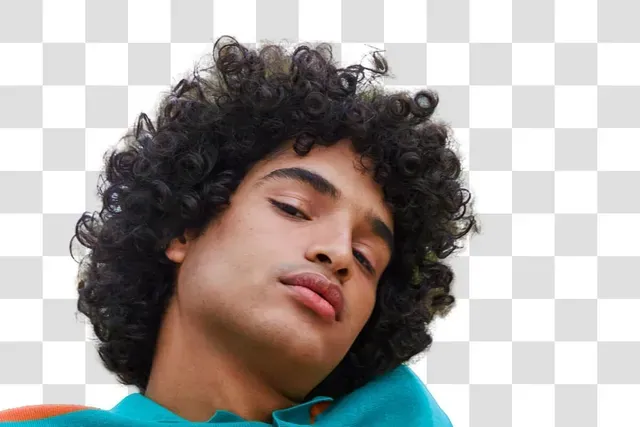
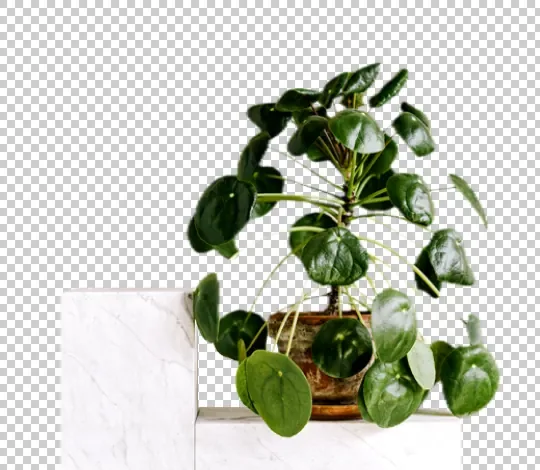
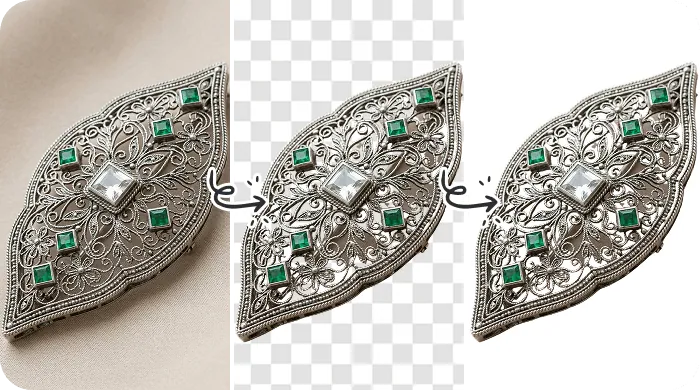
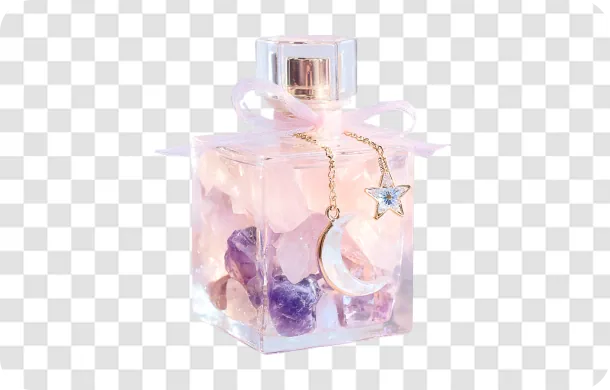
Products, people, pets and furniture lifted off busy backgrounds. Some results show a checkerboard where the old background used to be; when you remove the background in EditPic, the subject comes back on white or on a background color you name. Drag the slider to compare, then try a prompt on your own photo.

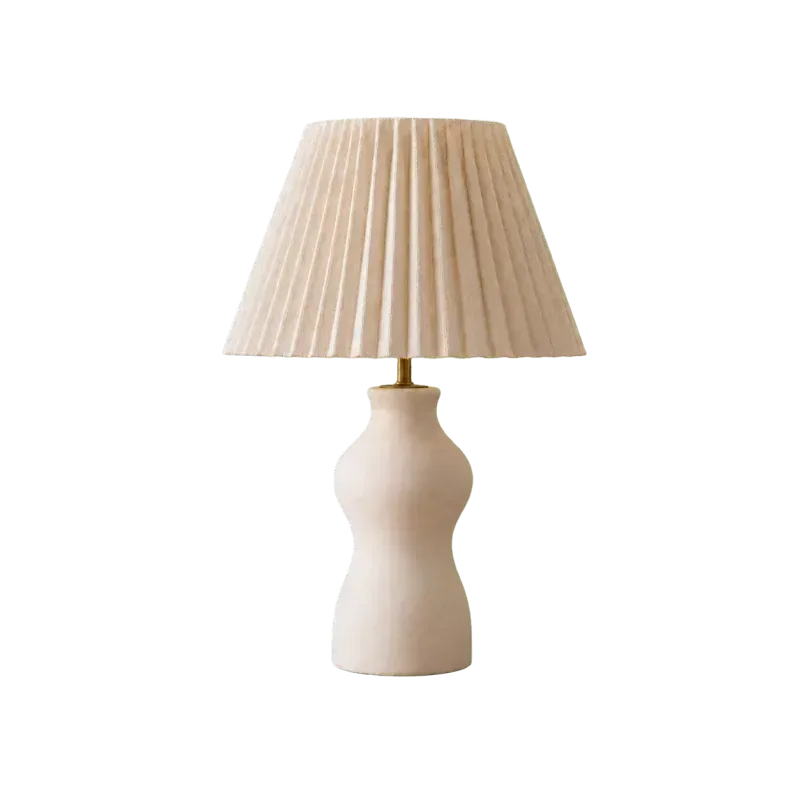
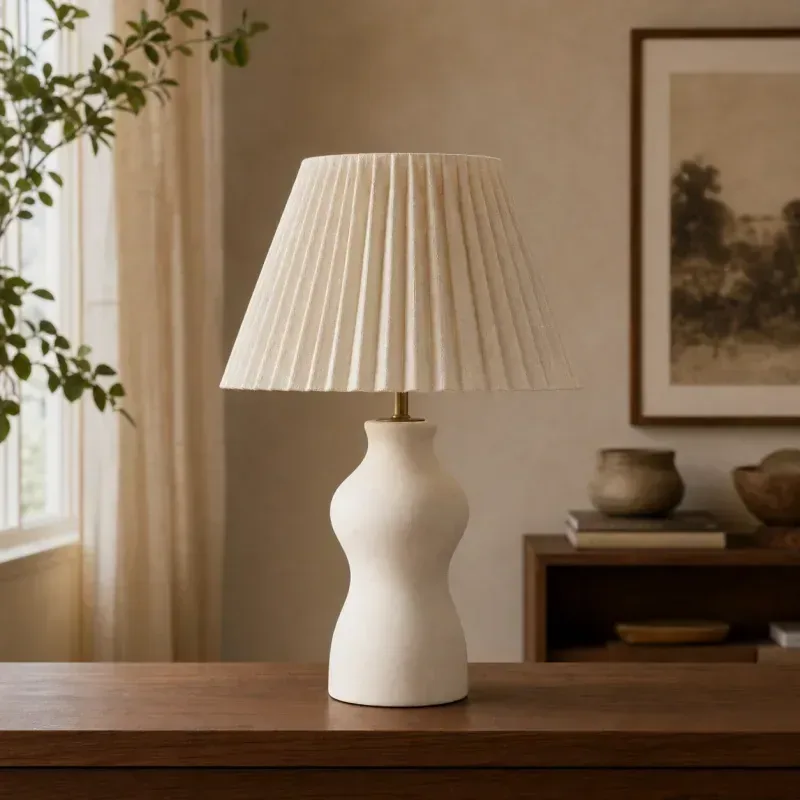
  • Table lamp before and after the room background behind it is removed — AfterTable lamp before and after the room background behind it is removed — Before

    Lamp cut out from a busy room

    “Remove the room background behind the table lamp and place the lamp on a clean white background with soft, natural edges.”

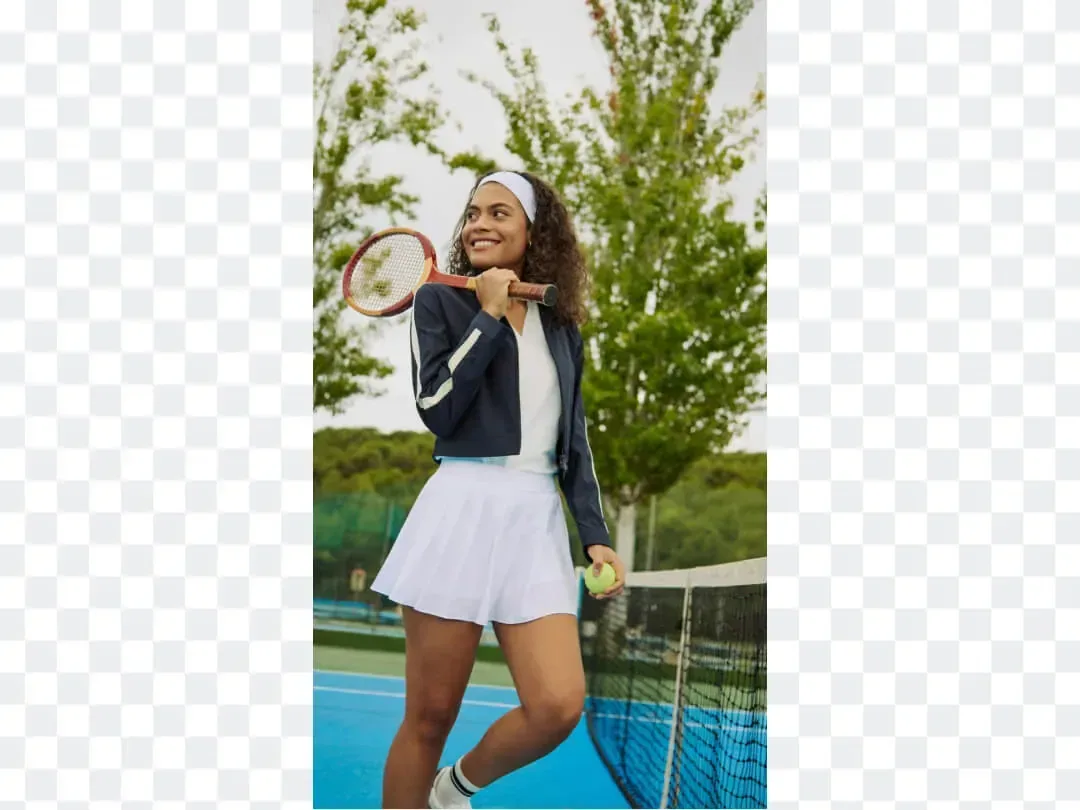
  • Woman with a tennis racket separated from the court background — AfterWoman with a tennis racket separated from the court background — Before

    Person lifted off a busy court

    “Remove the background behind the woman, both the tennis court and the trees. Keep her full figure, the racket and every strand of hair.”

  • Two laughing women waving, shown on a street and then with the street background removed — AfterTwo laughing women waving, shown on a street and then with the street background removed — Before

    Two friends lifted off a sunny street

    “Remove the street and building background behind the two laughing women and put them on a clean white background. Keep their long hair, waving hands and smiles exactly as they are.”

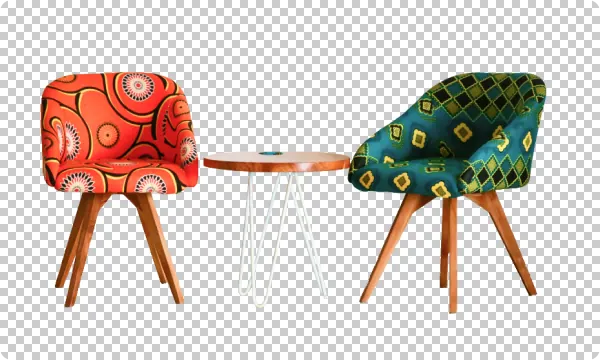
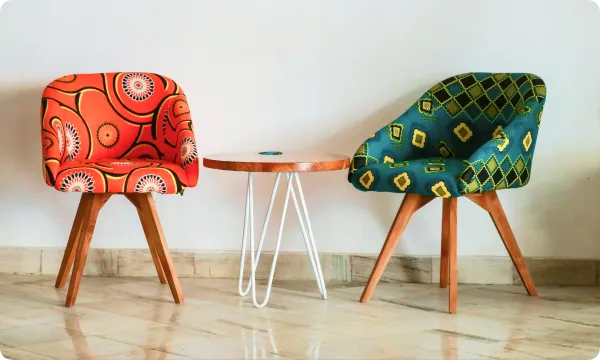
  • Orange and teal patterned chairs with a side table, the wall and floor background removed — AfterOrange and teal patterned chairs with a side table, the wall and floor background removed — Before

    Patterned chairs cut out with their side table

    “Remove the background behind the two patterned chairs and the small side table: the white wall and the tiled floor. Keep the thin metal table legs and the bold fabric patterns intact.”

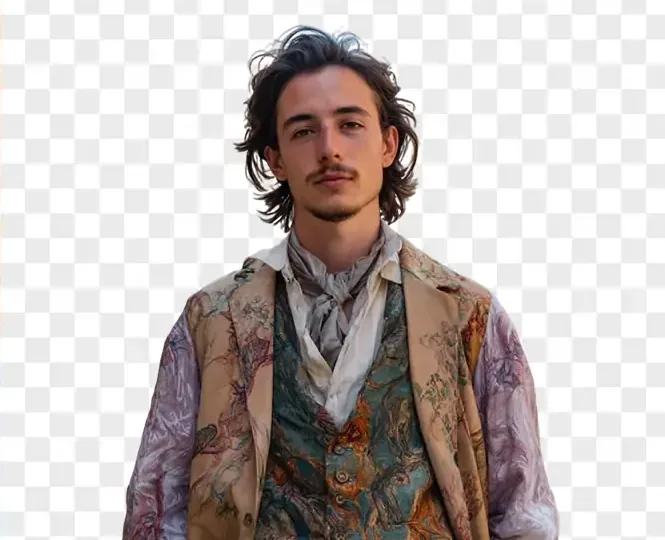
  • Young man in a patterned jacket, city square background removed — AfterYoung man in a patterned jacket, city square background removed — Before

    Street portrait turned into a clean cutout

    “Remove the old town square, columns and passers-by in the background behind the young man. Keep his curly hair, silk scarf and patterned jacket with clean edges.”

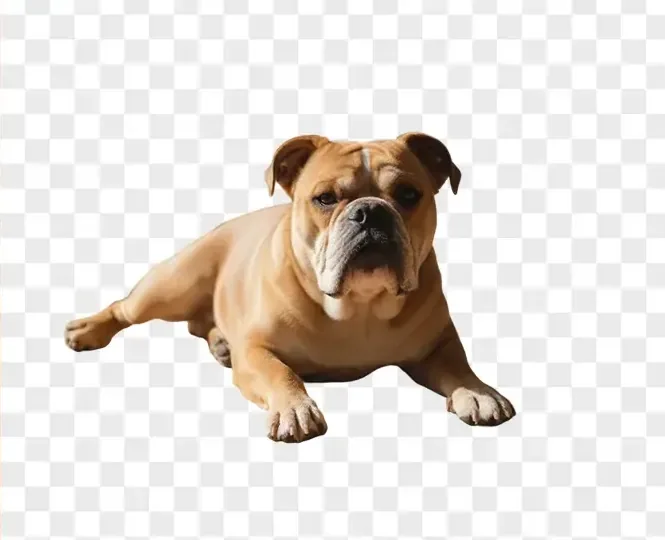
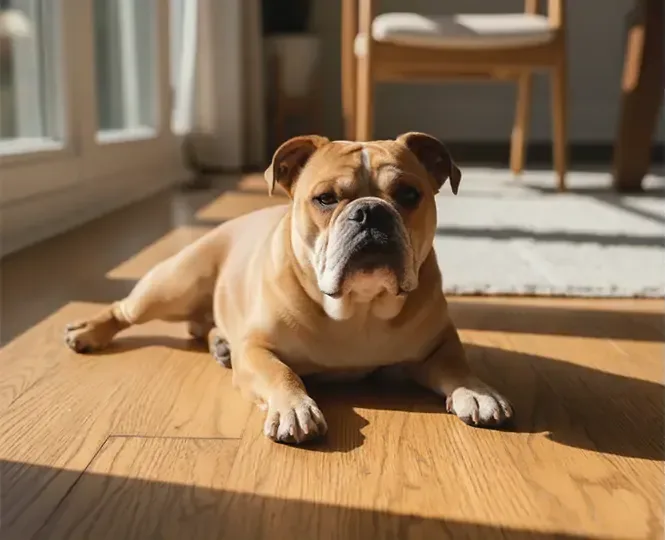
  • Bulldog lying on a sunlit wooden floor, then cut out with the room background removed — AfterBulldog lying on a sunlit wooden floor, then cut out with the room background removed — Before

    Bulldog lifted off a sunny floor

    “Remove the background around the bulldog lying down, including the wooden floor, window and chair. Keep its wrinkles, ears and paws natural, and leave no floor shadow behind.”

  • Green glass vases with dried flowers separated from a beige background — AfterGreen glass vases with dried flowers separated from a beige background — Before

    Glass vases with dried flowers

    “Remove the beige wall and table in the background behind the green glass vases and dried grasses. Keep the thin stems sharp and the see-through glass looking natural.”

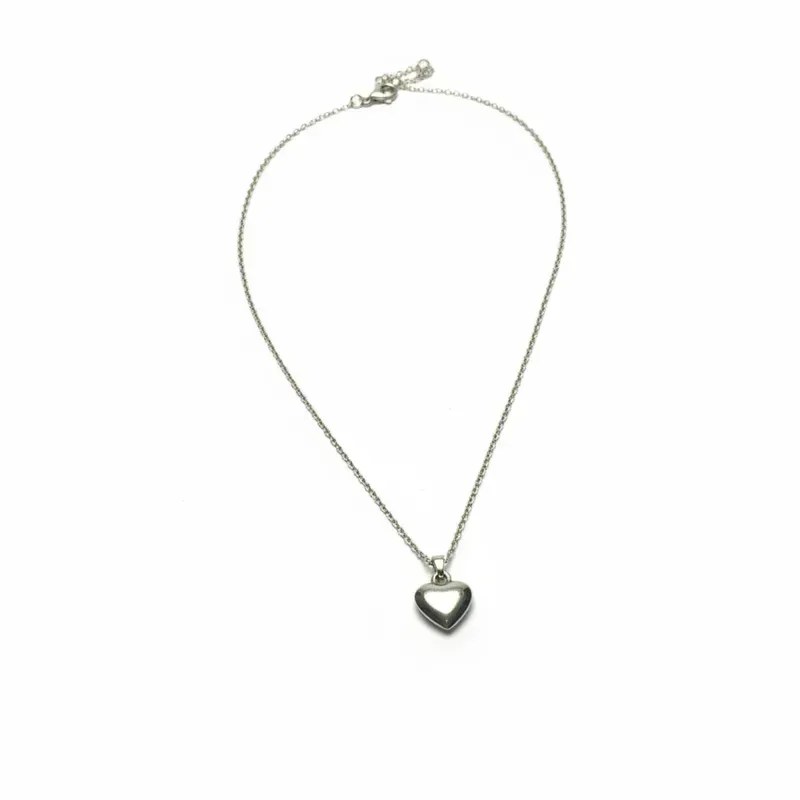
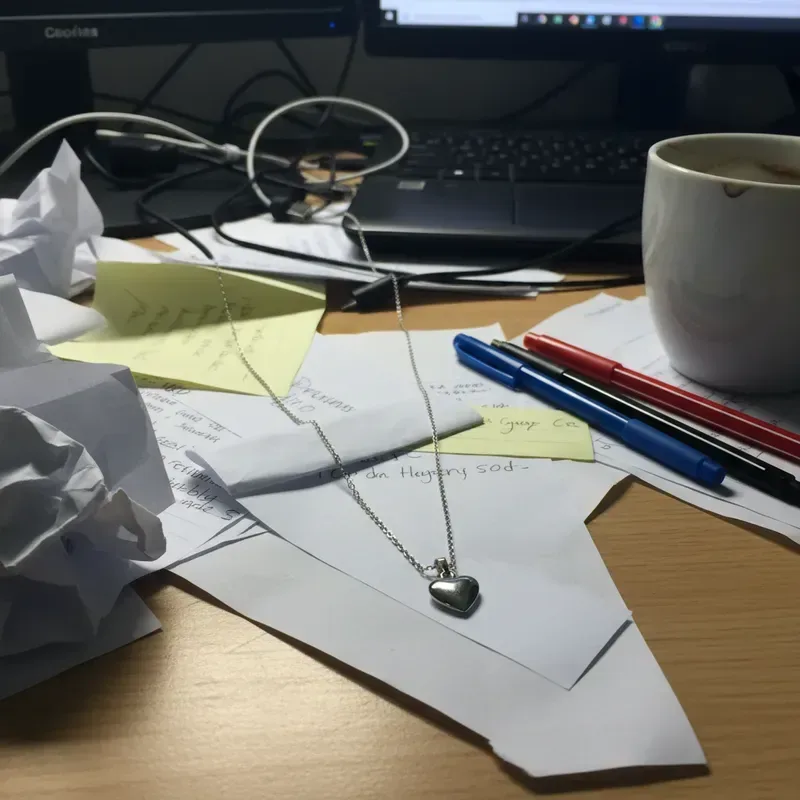
  • Silver necklace isolated on white after removing the desk background — AfterSilver necklace isolated on white after removing the desk background — Before

    Necklace isolated from a messy desk

    “Remove the cluttered desk background and keep only the necklace, centered on a white background with sharp chain details.”

Example images are for illustration only. Each prompt is a starting point for a similar edit on your own photo.

How to remove the background from an image

  1. Step 1

    Upload your photo

    Drop a JPG, PNG or WebP up to 20 MB into the editor above, or click Upload to pick one from your device.

  2. Step 2

    Say what to keep

    The prompt to remove the background is ready. Add details if you need them, such as "keep the shadow", "light gray background" or "keep the pet's fur".

  3. Step 3

    Edit and download

    Press Edit Image to remove the background, compare the result with the original and download it, or refine the new background with one more short prompt.

Remove background from photo: prompt library

Nine ready prompts to remove the background in jobs the examples above don’t cover. Copy one, swap in your own subject and keep the details that matter.

  1. 01

    White sneaker for a resale listing

    Remove the bedroom carpet and bed frame in the background around the white leather sneaker. Place it on a light gray background (#F2F2F2) so the white edges stay visible, with a faint shadow under the sole.

  2. 02

    Badge photo on flat blue

    Remove the open-plan office background behind the person and set them on a flat light blue background. Keep the face, glasses, hair outline and shirt collar exactly as they are, with no glow around the shoulders.

  3. 03

    Tabby cat off a floral sofa

    Remove the floral sofa and cushions behind the gray tabby cat. Keep every whisker, the fluffy tail and the ear tufts, and place the cat on a pure white background without a shadow.

  4. 04

    Road bike with thin spokes

    Remove the background behind the road bike, from the chain-link fence to the street. Keep the thin spokes, brake cables and chain complete, and put the bike on a pure white background with a soft ground shadow.

  5. 05

    Bridal bouquet held in two hands

    Remove the guests and the chapel interior behind the bridal bouquet. Keep the hands holding it, the satin ribbon and the tiny baby’s breath flowers, and place it on a soft cream background.

  6. 06

    Red hatchback on a studio floor

    Remove the background around the red hatchback: the parking lot, other cars and lamp posts. Set it on a seamless light gray studio floor with a soft shadow, and keep the paint and window reflections natural.

  7. 07

    One person kept from a group shot

    Keep only the girl in the yellow dress on the right. Remove the two friends beside her and the garden behind them, place her on a pure white background and keep her full figure from hair to shoes.

  8. 08

    Crocheted toy for a craft shop

    Remove the craft table, scissors and balls of yarn around the crocheted bunny. Keep the stitch texture and the embroidered eyes, and center it on a pure white background with even space on every side.

  9. 09

    Acoustic guitar on its stand

    Remove the living-room background behind the acoustic guitar on its stand. Keep all six strings, the tuning pegs and the thin stand legs, and place it on pure white with a gentle shadow at the base.

When to remove a background

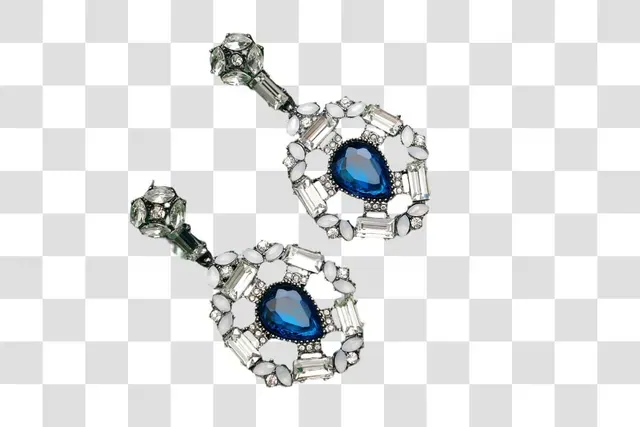
  • Pair of blue-stone drop earrings cut out from their background

    Product listings

    Marketplaces such as Amazon and Etsy favor clean white backgrounds. Shoot jewelry, gadgets or homeware on any table, then remove the background here before you list it.

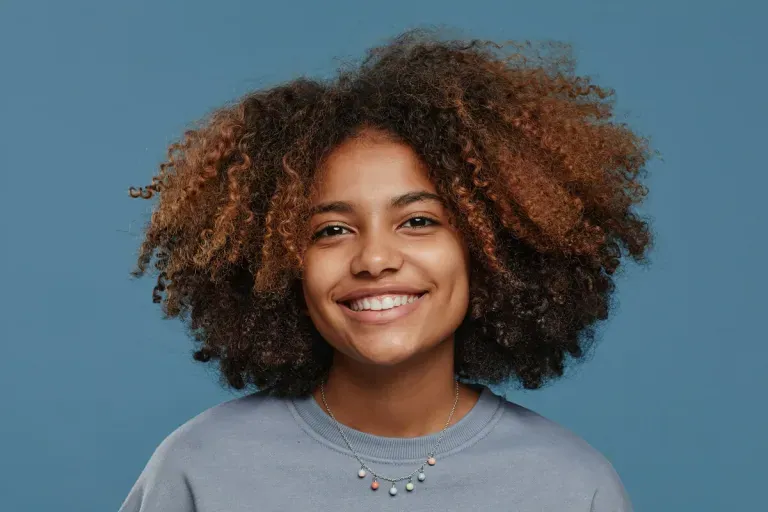
  • Smiling woman with curly hair on a plain blue background

    Profile and team photos

    Turn a casual snapshot into a tidy avatar with a plain background that matches the rest of your team. Stick to photos you have permission to use.

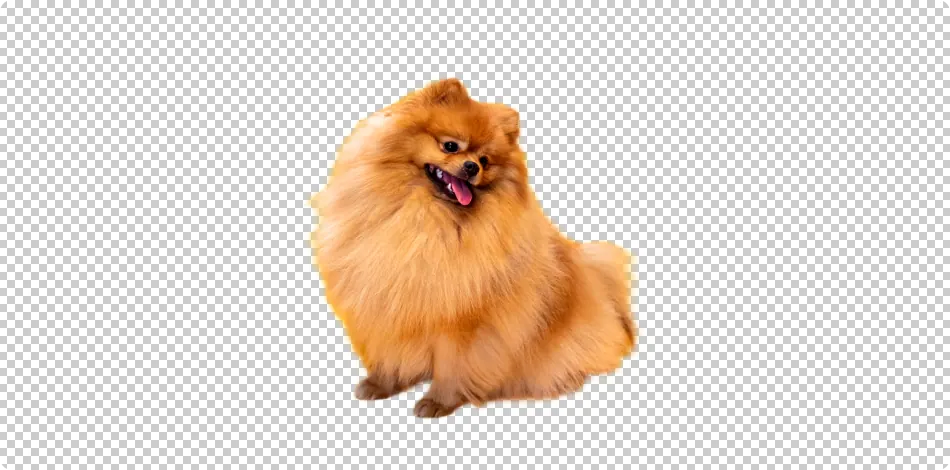
  • Fluffy orange Pomeranian cut out from its background

    Pets, stickers and collages

    Remove the sofa or lawn background from a pet or a favorite object once, then reuse the cutout in stickers, greeting cards, collages, thumbnails and slides.

  • Four scented candles in glass jars, each on the same cream background

    Catalogs and menus

    Give every item in a catalog or menu the same plain background, so a page of candles, dishes or gadgets looks like one shoot.

Tips for a cleaner cutout

  • Start with a photo where the subject is sharp and well lit; blur and heavy shadows make it harder to tell the subject from the background.
  • Before you remove the background, name tricky details in the prompt: hair, fur, glass, lace or thin straps.
  • Say whether to keep or drop the shadow — a soft shadow keeps products from looking pasted onto the new background.
  • Pick the new background in the same prompt, for example "pure white" or "light beige".
  • Need a real scene behind the subject instead? Use the Background Changer.

Which model to use for background removal

Any of the six models can remove the background from a photo. Start with the first pick and switch when a photo needs something extra.

  • Nano Banana 2

    Google

    The default in the editor and the quickest way to a clean white or solid-color result. It also keeps the same product or person looking consistent when you remove backgrounds from a whole series of photos.

    About Nano Banana 2
  • Nano Banana Pro

    Google

    Pick it when you need to remove the background around the hardest edges: flyaway hair, pet fur, lace, glass and see-through packaging. It handles fine texture and lighting most carefully. EditPic currently delivers its results at 1K or 2K.

    About Nano Banana Pro
  • Flux

    Black Forest Labs

    Choose Flux when the subject must stay exactly as shot. It changes only what you describe, so it tends to leave faces, logos and fabric patterns alone, and it keeps the new background steady across a set.

    About Flux

Remove background from photo: the longer guide

What happens when you remove the background from a photo, how to choose the new background, what manual masking still does better, and a worked example from start to finish.

What the AI does to the background of your picture

To remove the background, EditPic doesn’t cut a mask and delete pixels. The model looks at the whole photo, works out which object you mean by "the subject", and redraws the image with that subject kept and the whole background replaced by the color you asked for. That is why the result is a complete, regular image rather than a file with an empty layer.

Two things follow from this. First, when a photo holds several possible subjects, say which one stays: "keep only the dog, remove the person holding the leash". Second, edges are painted rather than traced, so soft hair and fur usually blend well, while very thin straight parts such as wires or chair legs deserve a mention in the prompt.

Picking the right flat background color

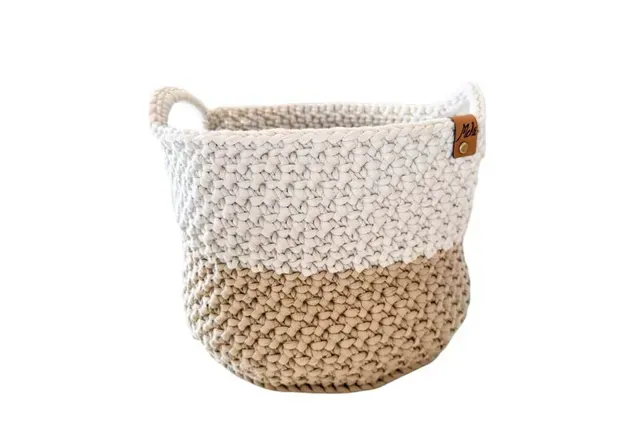
Pure white suits most listings and documents, but it is not always the best choice. A white mug, a silver laptop or a blond child on white loses its outline, so ask for a light gray background such as #F2F2F2 or a pale beige instead. Dark subjects, on the other hand, read well on a white background.

Think about where the image will end up. For slides and websites with a colored band, name that exact hex value so the cutout sits on the page without a visible box. For a set of images, keep the same background color and shadow wording in every prompt. If you plan to cut the subject out again in another program, a flat color that contrasts strongly with the subject makes that job easier.

When the cutout comes back wrong

Leftover pieces are the most common problem when you remove the background from a busy room: a sliver of door frame, a table corner or a shadow from the old background. Name them in a follow-up prompt, for example "also remove the table edge at the bottom left".

A colored fringe around hair usually comes from a strong wall color behind it. Ask for "no green tint along the hair" and the model repaints the edge. Missing parts, such as a strap, a tail or the tip of a shoe, need the opposite instruction: "keep the full strap". If the face or the product itself starts to change, add "keep the subject exactly as in the original" and try Flux, which edits more narrowly.

Using the cutout with other EditPic tools

A clean cutout is often one step in a longer job. If a stray object overlaps the subject, take it out first with Object Remover, so the background removal has less to guess. Dark or noisy phone shots come out cleaner after a pass through Photo Enhancer. When plain white is not enough and you want a real setting, move the subject with Background Changer instead. For store listings, Product Photo Background has a ready prompt that centers the item with even margins.

Before you use the image, pick the aspect ratio that fits its destination in the editor (1:1 for square listings, 9:16 for stories) and choose 1K or 2K output. Zoom in on the edges at full size before you publish.

Removing a background by hand versus with a prompt

In a desktop editor you remove the background by tracing the subject with a pen or lasso tool, refining the mask edge and then deleting or filling everything else. On a box with straight sides that takes a few minutes. On curly hair, fur or a lace sleeve it can take an hour, and the edge still needs a cleanup pass.

In EditPic you write one sentence instead, and the model repaints the frame with the new background already in place. The trade-off is control. A hand-drawn mask stays exactly where you put it, while a generated result can shift a small detail, so check the edges at full size. For one hero image either route works; for a long run of listings, reusing one prompt is far quicker than redrawing a mask for every photo.

Walkthrough: remove the background from a pet photo for a sticker

Say your dog is curled up on a patterned sofa and you want a sticker for the family chat. Upload the sharpest frame you have, ideally one where both ears and the tail are fully in view, and write: "Remove the sofa background behind the dog, keep every tuft of fur and place it on pure white with no shadow."

Then look for leftovers. The sofa pattern likes to survive in the gap between the legs or under the chin, and a follow-up such as "also remove the background showing between the front legs" clears it. A flat white background makes the next step easy, because many sticker and design apps can drop white with a magic-wand style tool. Choose 1:1 in the editor for a square sticker, and 2K if it is going onto a printed mug or card.

Background removal FAQ

  1. Can I remove background from photo files for free?

    Yes, you can try it free once after you sign up. After that each edit uses credits; the amount depends on the model and is shown before you remove the background, and paid plans add credits for regular use.

  2. Do I get a transparent PNG?

    Not yet. When you remove the background, the result comes back as a regular image on the color you ask for, such as pure white or a solid color. Ask for plain white if you plan to mask it later.

  3. Does it work with hair, fur and fine edges?

    Yes, in most photos. When you remove the background around hair or fur, mention the detail in your prompt ("keep every strand of hair") and use a sharp, well-lit original for the best edges.

  4. Which photos can I upload?

    JPG, PNG and WebP images up to 20 MB. Phone photos, product shots and screenshots all work.

  5. Will the AI change my subject?

    It aims to remove the background and keep the subject as it is. Generative edits can shift small details, so compare before and after and ask it to "keep everything else unchanged" when it matters.

  6. How do I remove the background from an image with several people or objects?

    Say which one stays. "Keep only the woman in the red coat" or "keep the two mugs, remove the plate" tells the model what to protect. Everything you don’t name is treated as background, so check that small items you wanted, like a bag or a leash, are still there.

  7. Can I remove background image files in bulk?

    Not at the moment. EditPic has no batch upload, so each photo is a separate edit. To keep a series consistent, reuse exactly the same prompt, background color and aspect ratio for every image, and stick to one model for the whole set.

  8. Why is a bit of the old background still visible?

    Parts that touch the subject, like a chair leg behind a person or a shadow on the floor, can read as part of it. Point at the leftover in a follow-up prompt ("also remove the gray shadow under the shoes") and run the edit again from the result or the original.

  9. How do I remove the background from a photo on my phone?

    There is no app; EditPic runs in the browser. Open this page on your phone, tap Upload, choose the picture from your camera roll and keep the ready prompt. When the new background looks right, save the image and zoom in on the edges before you post it.

  10. Is AI or Photoshop the better way to remove a background?

    It depends on the photo. AI is quicker on hair, fur and busy rooms, and it hands back a finished white or colored background in one step. A hand-drawn mask keeps every pixel of the subject untouched and can give you transparency, which EditPic does not export. Many people use AI for everyday images and keep manual masking for the rare one that needs it.

  11. Can I use it to whiten the background of a passport photo?

    Not for a US passport. The State Department rejects photos changed with software or AI, including a background that was edited to white, so retake that photo instead. For a work badge, club card or profile picture where edits are allowed, ask for a plain off-white background and check the issuer’s rules first.

Remove a background now

Upload a photo, keep the prompt as it is and get a clean new background in seconds.