








New: Nano Banana 2 & GPT Image 2

Try it

Updated 2026-11-16

Model by ByteDance

Seedream AI Photo Editor for Drafts, Variations and Product Shots

Seedream is ByteDance's family of image models for creating and editing pictures; recent releases include Seedream 4.5 and Seedream 5.0 in Lite and Pro versions. In EditPic, Seedream is the model we suggest for drafts, variations and product-shot ideas, when you want to explore before settling on a final look. Upload a photo, describe the change and run it with Seedream, which this page already has selected.

Seedream at a glance

DeveloperByteDance (the ByteDance Seed team)
Model familySeedream image models; recent versions include Seedream 4.5, Seedream 5.0 Lite and Seedream 5.0 Pro
Best at in EditPicDrafts, side-by-side variations, product-photo edits and testing many ideas
Input in EditPicOne JPG, PNG or WebP photo up to 20 MB with a written description of the edit
Output in EditPicSeedream outputs 2K as a regular image (no 1K option); transparent PNG export is not offered
Aspect ratiosEditPic gives five (1:1, 3:4, 4:3, 9:16, 16:9); the model’s API lists 1:1, 4:3, 3:4, 16:9, 9:16, 3:2, 2:3 and 21:9
Reference images per request (model)Up to 14 per request for Seedream 4.5 and 5.0 Lite, up to 10 for 5.0 Pro; EditPic uses the single photo you upload
Text in imagesByteDance cites better typography and dense text for Seedream 4.5, and more than ten languages for Seedream 5.0 Pro
CreditsDepends on the model; a Seedream edit shows its credit cost in the editor first

Model facts are taken from ByteDance Seed’s Seedream 4.5, 5.0 Lite and 5.0 Pro pages and from the API documentation we checked in November 2026. EditPic adds its own limits: one photo up to 20 MB, 2K output for Seedream and five aspect ratios. Seedream is a trademark of ByteDance; EditPic is not affiliated with ByteDance.

Seedream examples: product drafts, swaps and variations

Translated packaging labels, an added lamp, a swapped vehicle, a material study, three takes on one idea and a few clean hero shots. The second and third cards are sliders; all images are third-party Seedream showcase examples, and each prompt loads into the editor so you can run it with Seedream on your own photo.

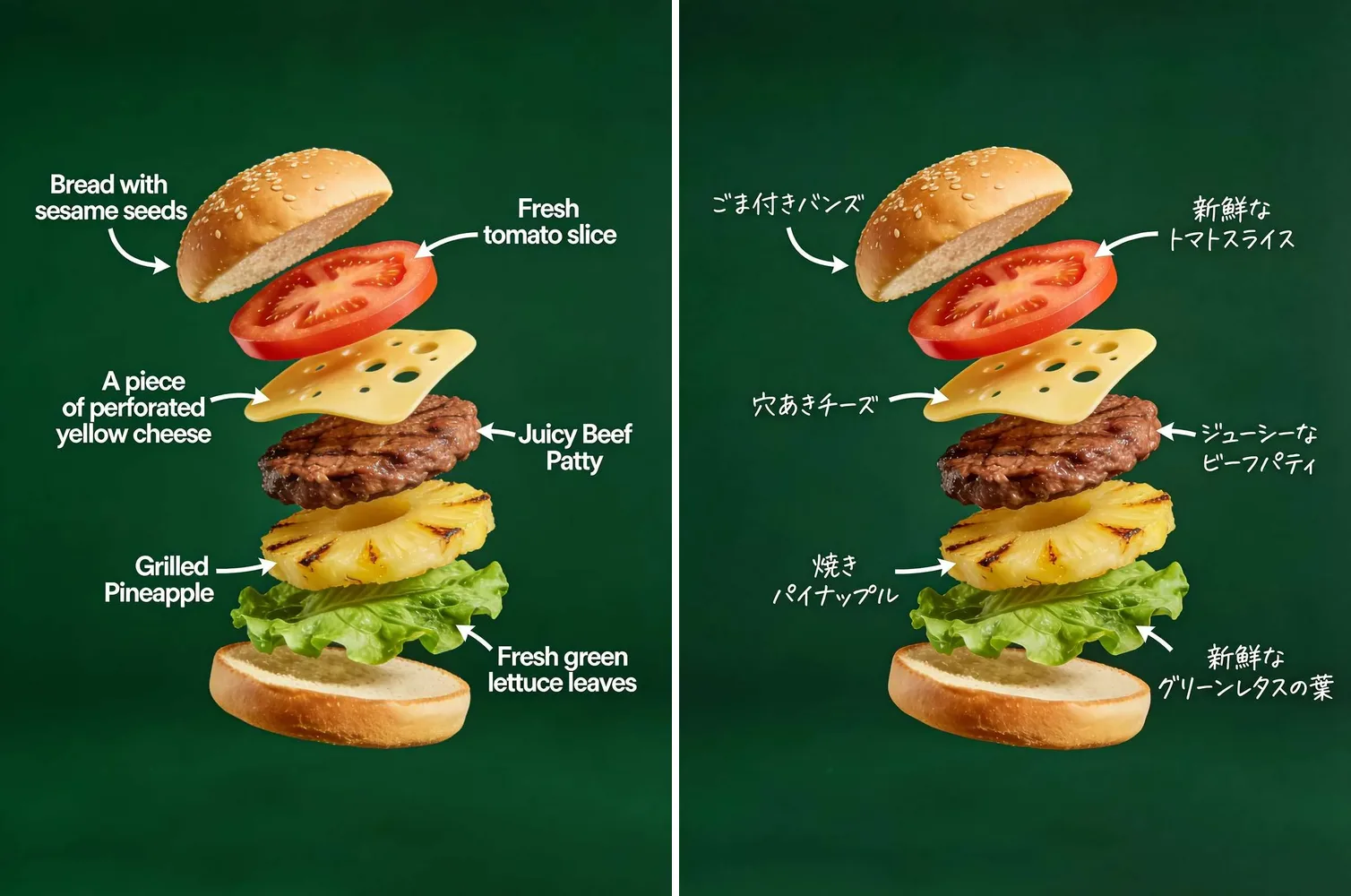
  • Seedream label example: exploded burger diagram with English ingredient labels next to the same diagram in Japanese

    Localize product labels

    “Translate the callout labels on this burger diagram from English into Japanese. Keep every arrow, the order of the ingredient layers and the dark green background unchanged.”

  • Sunlit living room with a beige sofa, before and after a floor lamp was added beside it — AfterSunlit living room with a beige sofa, before and after a floor lamp was added beside it — Before

    Add a lamp to a room photo

    “Add a tall floor lamp with a linen drum shade to the right of the sofa, switched on with a warm glow. Keep the sofa, the cushions, the round coffee table and the wall art exactly where they are.”

  • Woman and golden retriever by a lake, with a bicycle in the original and a mint scooter after the edit — AfterWoman and golden retriever by a lake, with a bicycle in the original and a mint scooter after the edit — Before

    Swap one object for another

    “Replace the white bicycle with a mint-green vintage scooter parked in the same spot. Keep the woman, the golden retriever, the stone wall and the lake view unchanged.”

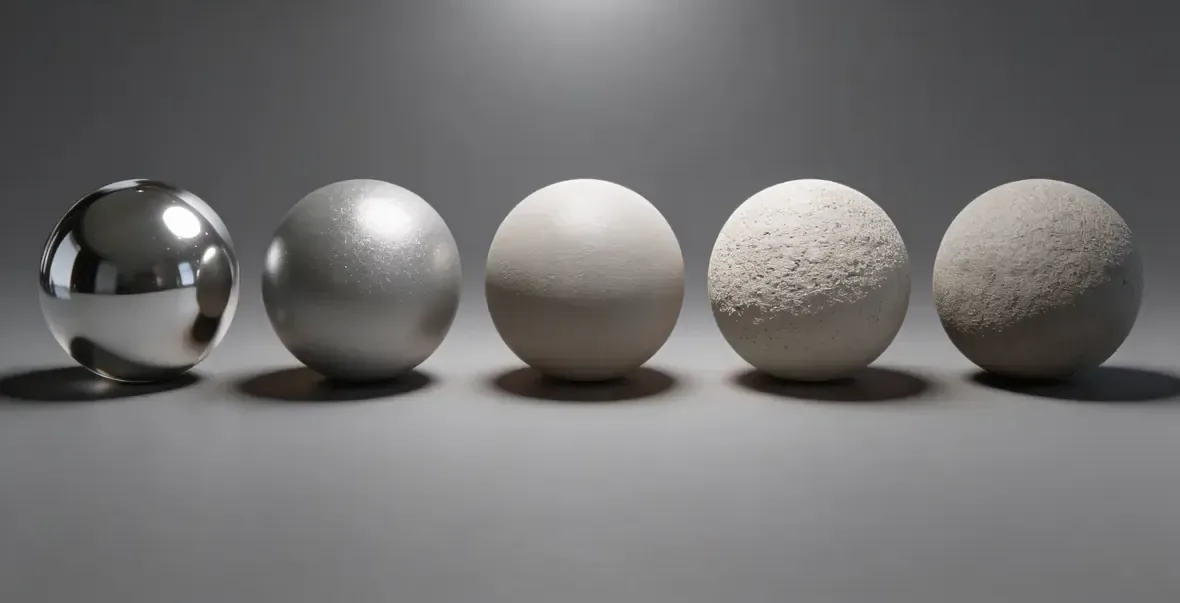
  • Seedream material study: five spheres in a row, from mirror chrome to rough stone, on a gray studio background

    Material study in one draft

    “Turn the ball in this photo into a row of five versions with different finishes: polished chrome, brushed steel, matte ceramic, rough plaster and raw stone, on a gray studio floor under soft overhead light.”

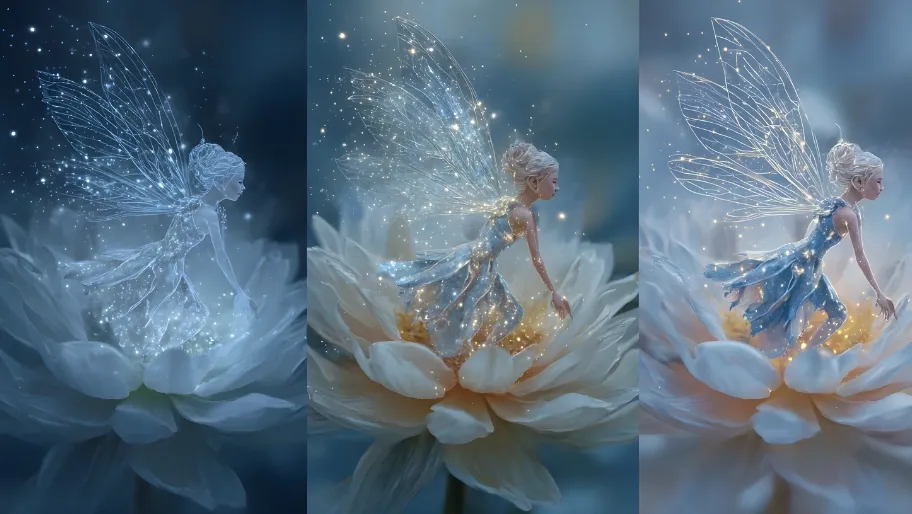
  • Seedream variations: three versions of a winged fairy on a white water lily, in frosted, golden and pale blue styles

    Three takes on one idea

    “Show three versions of this flower scene side by side: a fairy made of frosted glass, one glowing with gold sparkles and one in pale blue silk, each standing on the same white water lily.”

  • Aerial view of a city billboard showing a gradient ad that reads hello. above a street corner

    Billboard mockup

    “Replace the ad on this billboard with a blue-to-violet gradient and the single word 'hello.' in heavy black lowercase letters. Keep the rooftops, the palm trees and the afternoon shadows.”

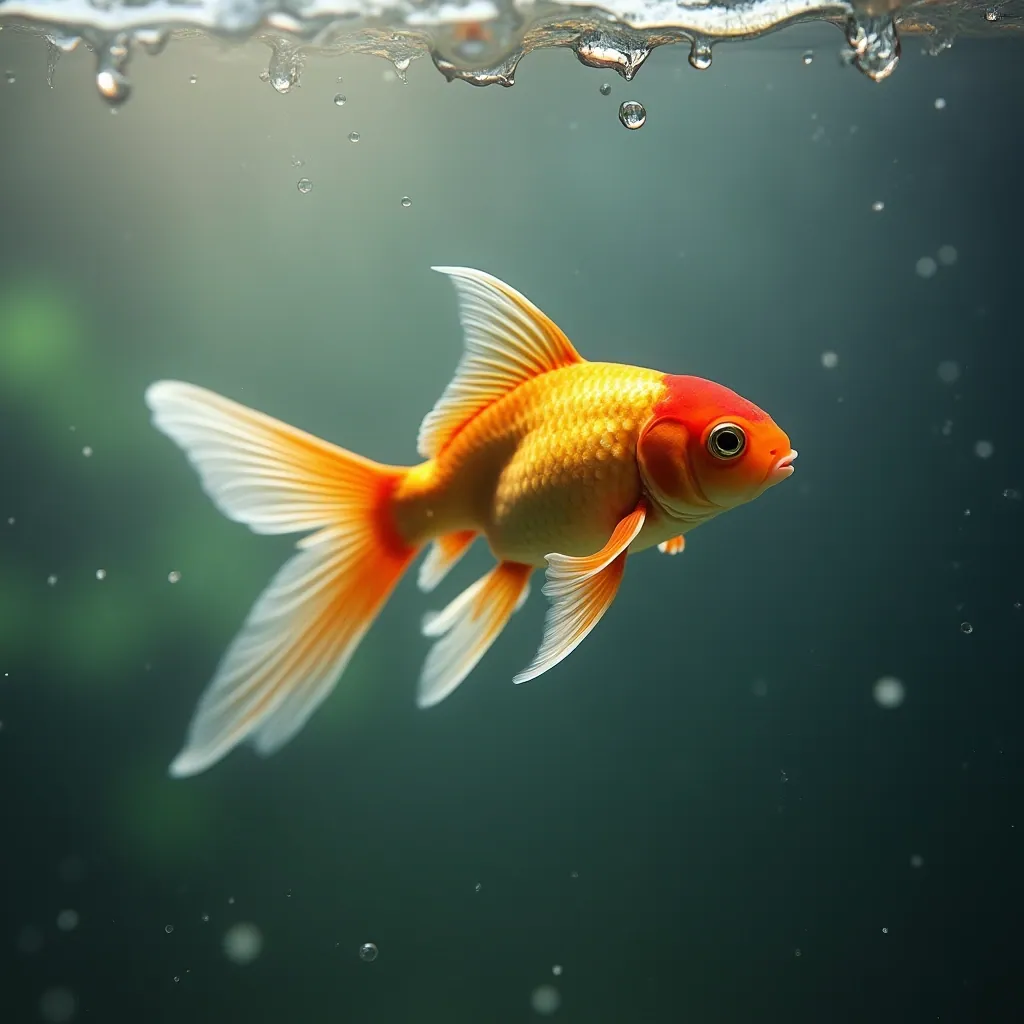
  • Orange goldfish with long flowing fins swimming just below a rippling water surface

    Clean hero shot of a pet

    “Turn this goldfish photo into a studio-style shot: deep green water, light rippling at the surface, a few small bubbles and a soft blur behind the fish.”

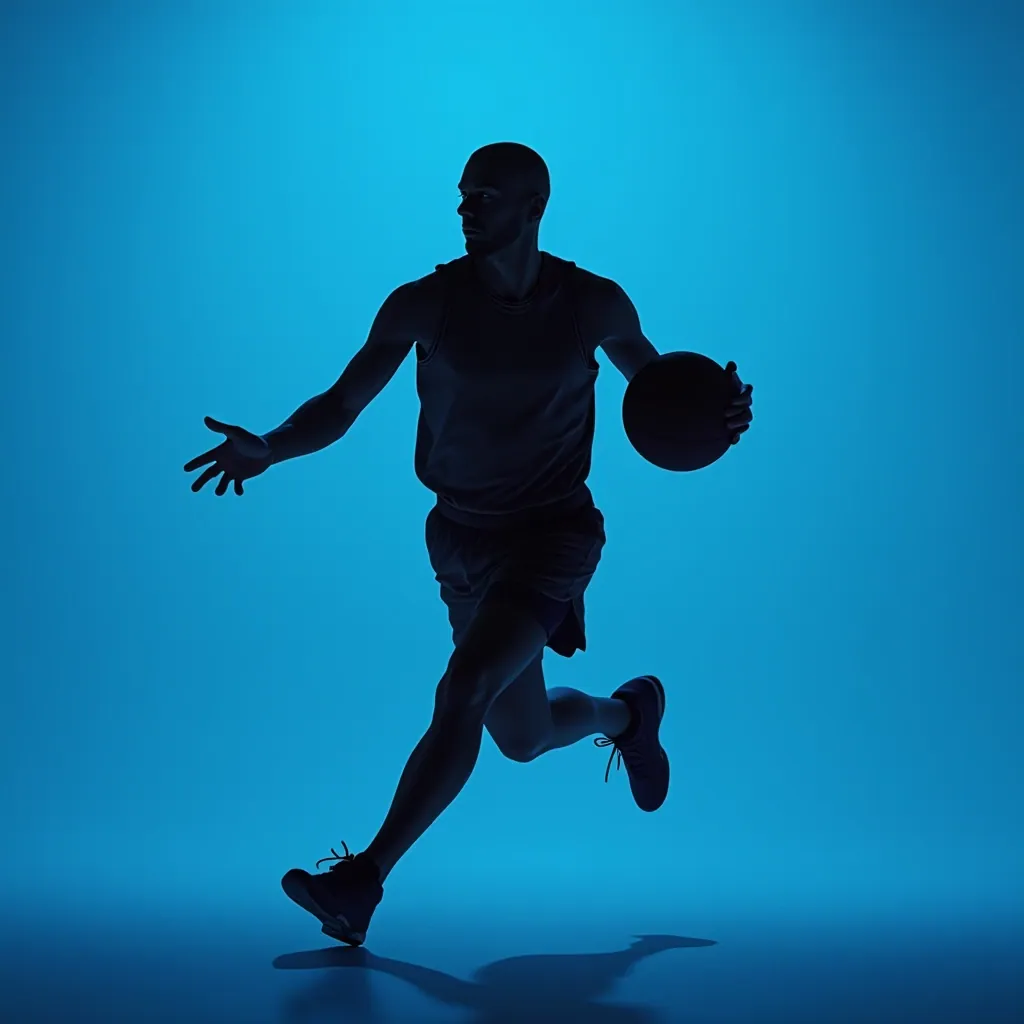
  • Silhouette of a basketball player dribbling in front of a bright blue studio wall

    Silhouette for a sports campaign

    “Make this player a dark silhouette mid-dribble against a bright cyan studio backdrop, with a soft reflection on the floor and empty space on the right for a slogan.”

Example images are for illustration only. Each prompt is a starting point for a similar edit on your own photo.

What Seedream does well

  • Holds on to your photo

    ByteDance says Seedream 4.5 keeps the reference image’s facial features, lighting and color tone during edits, so a draft still looks like the picture you started from.

  • Reads short instructions

    For Seedream 5.0 Lite, ByteDance describes inferring what you mean even from brief, loosely worded prompts, which suits a quick first pass before you refine the wording.

  • Steady outside the edit

    ByteDance also reports that Seedream 5.0 Lite keeps the untouched parts of the frame more stable during local edits, useful when you only want one object added, removed or swapped.

  • Labels and layouts

    Typography and dense text were a focus for Seedream 4.5, and Seedream 5.0 Pro is described as rendering Chinese, English and other common languages, handy for packaging and poster drafts.

  • Built for many tries

    In EditPic, Seedream is the model we point to for exploration: run one idea several ways, compare, and keep only the direction worth finishing.

  • Style from a single reference

    ByteDance says Seedream 5.0 Lite can carry a style over from one reference image. EditPic takes one photo per edit, so describe the target style in words, or place a style sample beside your photo in one image and tell Seedream which half is which.

Seedream prompts for drafts and product shots

Nine Seedream starting points for exploring ideas. Run one, change a single detail, and run it again to compare.

  1. 01

    Marketplace white background

    Put this product on a pure white background with a soft contact shadow underneath, centered, with even studio light and no props.

  2. 02

    Autumn seasonal backdrop

    Place the product on a rustic wooden board surrounded by dry maple leaves, small pumpkins and warm late-afternoon light. Keep the product sharp and unchanged.

  3. 03

    Mug in a morning scene

    Set this mug on a café counter with steam rising, a croissant on a plate beside it and a blurred window behind. Keep the mug’s print and color exactly the same.

  4. 04

    New colorway

    Change the sneaker’s upper to forest green and keep the white sole, the laces, the stitching and the background exactly as they are.

  5. 05

    Flat-lay arrangement

    Turn this photo into a top-down flat lay on beige linen: the product in the center, a sprig of eucalyptus, two smooth stones and a folded cotton napkin around it.

  6. 06

    Scandinavian room restyle

    Restyle this room in a Scandinavian look: pale wood floor, white walls, a light gray sofa, a wool throw and one large plant. Keep the windows and the room layout.

  7. 07

    Quick watercolor sketch

    Redraw this street photo as a loose watercolor sketch with ink outlines, soft washes of color and plenty of white paper showing through.

  8. 08

    Poster draft with a headline

    Turn this beach photo into a summer poster draft with the headline 'SALT & SUN' in bold white letters across the sky and a thin line of small text near the bottom.

  9. 09

    Holiday gift version

    Wrap this product box in red paper with a gold ribbon and bow, and place it on a snowy windowsill with fairy lights blurred in the background.

Jobs Seedream suits

  • Product photo drafts

    Try a product on marble, on linen, outdoors and in a gift setting with Seedream before you pick the scene for the final listing image.

    Product Photo Background
  • A catalog, one photo at a time

    EditPic edits one photo per run, so keep one Seedream prompt and reuse it for each product to get a matching look. For plain cut-outs, the background remover is set up for that.

    Background Remover
  • Room and scene mockups

    Add a lamp, swap a bike for a scooter or restyle a corner of a room with Seedream to see whether an idea works before you spend more effort on it.

    Image to Image
  • Style explorations

    Test watercolor, oil paint or poster looks on the same photo with Seedream and compare the results side by side.

    Photo to Painting
  • Localized versions

    Draft a packaging shot or a diagram in a second language with Seedream, then have a native speaker check the wording before it goes out.

When to move from Seedream to another model

Seedream is the exploring model. Once you know where you are going, one of these may finish the job better, and the editor lets you switch at any point.

  • GPT Image 2

    OpenAI

    Final artwork where the lettering must be letter-perfect, or a prompt with a long list of exact changes.

    About GPT Image 2
  • Nano Banana Pro

    Google

    The finished hero image, when fine texture, accurate lighting and a complex scene matter most.

    About Nano Banana Pro
  • Nano Banana 2

    Google

    A series where the same person or product has to look identical from picture to picture.

    About Nano Banana 2
  • Flux

    Black Forest Labs

    Edits that must stay strictly inside the area you describe, with one steady style across a whole set.

    About Flux

Compare all AI models

Tips for Seedream

  • Seedream renders at 2K in EditPic, so every draft is already full size: explore freely, then keep the version you like as the final file.
  • Keep one base Seedream prompt and change only one thing per run (light, surface or props) so you can tell what made the difference.
  • For a catalog, reuse the same wording, aspect ratio and lighting description for every product so the set looks like it belongs together.
  • A short prompt is fine for a first Seedream pass; add “keep the product’s shape and label unchanged” once you see what you like.
  • Choose the frame for the channel: 1:1 for marketplaces, 4:3 for listings, 9:16 for stories.
  • When a draft needs letter-perfect text, finish it with GPT Image 2; when it needs maximum detail, finish it with Nano Banana Pro.

Working with Seedream

How to use Seedream as a drafting model, and where to hand over to another one.

A draft-first Seedream workflow

Start with a loose Seedream prompt and look at the result as a sketch, not a final. Note what works (the angle, the surface, the mood) and what does not, then tighten only that part of the prompt. Three or four rounds like this usually show which direction deserves the final render, and since Seedream already outputs 2K in EditPic, a draft you like can be that final file. Because Seedream is our suggested model for this stage, the expensive decisions happen after you already know what you want.

Editing a product set with Seedream, one photo at a time

EditPic has no batch upload, so a catalog is edited photo by photo. Write the Seedream prompt once, including surface, light direction, shadow and ratio, and paste it unchanged for every product. Shoot the originals at a similar angle and distance if you can. When a single item comes back off-style, fix it with a short follow-up instead of rewriting the shared prompt, so the rest of the set stays consistent.

Seedream limits ByteDance itself mentions

ByteDance describes Seedream 5.0 Lite as a relatively small model with room to improve in structural stability, realism and aesthetics, and says Seedream 5.0 Pro can still improve on very fine text and pixel-level editing consistency. In practice: check small print, hands and thin structures such as chair legs or bicycle spokes before you use a draft, and move to another model when the final image has to be flawless.

A Seedream walkthrough: choosing a backdrop for a new candle

Say you are launching a soy candle and have not decided how the listing should look. Photograph the candle once on a plain table. With Seedream selected, run four short prompts on that same photo: a marble bathroom shelf, a linen-covered nightstand at dusk, a sunny windowsill with dried flowers, and a pure white background with a soft shadow. Keep one closing line in all four: keep the jar, the label and the wick exactly as they are. Lay the four Seedream drafts side by side and pick the direction that suits your brand. Because Seedream outputs 2K in EditPic, the winning draft can go straight onto the listing, or you can refine it with one more prompt.

What ByteDance’s own Seedream tools add

ByteDance describes Seedream 5.0 Pro with editing tools beyond a text prompt: point and lasso selection, color and material replacement, sketch rendering, layer separation and multi-image fusion. Those are capabilities ByteDance describes for the model; EditPic has no selection or layer tools. In EditPic every Seedream edit is driven by your written description and one uploaded photo, so you point at things in words: “the lamp on the right”, “the sofa cushions”, “the sky above the roofline”. A material swap works the same way, for example “change the table from oak to white marble”. Name the object, its position and the new material, then add what must stay.

Common Seedream mistakes

The most common mistake is treating the first Seedream result as the final one; Seedream is the exploring model, so plan three or four rounds. The second is changing several things between runs, which makes it impossible to tell which change helped. The third is skipping a close look at the draft you pick, even though ByteDance itself lists structural stability as an area to improve. The fourth is expecting a batch run: EditPic edits one photo at a time, so a catalog means one Seedream edit per product, each with the same wording.

Seedream FAQ

  1. Is Seedream free to use in EditPic?

    Signing up is free. Every Seedream edit uses credits, and the editor shows how many before you run it. Whether new accounts get bonus credits depends on the current offer; paid plans add more credits.

  2. Which Seedream version does EditPic use?

    EditPic offers Seedream as one model choice and does not promise a specific version. This page describes the family, including Seedream 4.5, 5.0 Lite and 5.0 Pro, based on ByteDance’s published information.

  3. Seedream vs Nano Banana 2: which should I choose?

    Use Seedream while you are exploring: drafts, variations and product-shot ideas. Use Nano Banana 2 when the same person or product must stay consistent across a series, or for a quick everyday fix you want to keep.

  4. Can Seedream add text to an image?

    Yes. ByteDance highlights typography for Seedream 4.5 and multilingual text for Seedream 5.0 Pro, and also says fine text can still improve. For a headline or a label, check the spelling; for letter-perfect copy, GPT Image 2 is the safer choice.

  5. What is the maximum resolution of Seedream?

    Through the API, Seedream 4.5 and 5.0 Lite go up to 4K and Seedream 5.0 Pro up to 2K. In EditPic, Seedream outputs 2K; most other models let you choose 1K or 2K.

  6. Can I run Seedream on many product photos at once?

    Not in one go: EditPic has no batch upload, so you edit one photo per Seedream run. Reusing the same prompt, ratio and lighting description for each product gives the set a consistent look.

  7. How do I use Seedream online?

    Open the editor on this page, upload a JPG, PNG or WebP photo up to 20 MB, select Seedream, pick an aspect ratio (Seedream outputs 2K), describe the change and press Edit Image.

  8. Is Seedream good for product photos?

    Yes, especially while you are still choosing a look. Run the same product photo through several Seedream prompts, one backdrop each, and compare them. EditPic edits one photo per run, so reuse the same wording for every product in a catalog.

  9. Does Seedream keep faces and details from my photo?

    ByteDance says Seedream 4.5 preserves the reference image’s facial features, lighting and color tone during edits. Still, check the draft you keep closely: ByteDance also notes that Seedream 5.0 Pro can improve on pixel-level editing consistency.

  10. Can I choose 1K with Seedream?

    No. In EditPic, Seedream has a single 2K output setting, in any of the five ratios. Every draft is therefore already full size, so the one you like can be the final file.

  11. Seedream or GPT Image 2 for text in images?

    Both can write text: ByteDance highlights typography for Seedream 4.5 and multilingual rendering for Seedream 5.0 Pro. In EditPic, lay out the idea with Seedream while you explore, then finish with GPT Image 2 when the copy must be letter-perfect or the prompt lists many exact changes.

Start a Seedream draft

Upload a product or scene photo, describe a first idea and compare a few versions. Seedream is already selected in the editor.