






New: Nano Banana 2 & GPT Image 2

Try it

Updated 2026-11-16

Remove Person from Photo with AI

Remove person from photo backgrounds without a clone stamp: point to the stranger, tourist or passer-by in plain words and EditPic rebuilds the wall, sand or street behind them. Only edit photos you have the right to change.

Remove person from photo examples

Eight AI remove person from photo edits, from a lit-up landmark and a city selfie to a festival, a shoe shop, a beach and a team lineup. Slide to compare and reuse the prompt on your own shot.

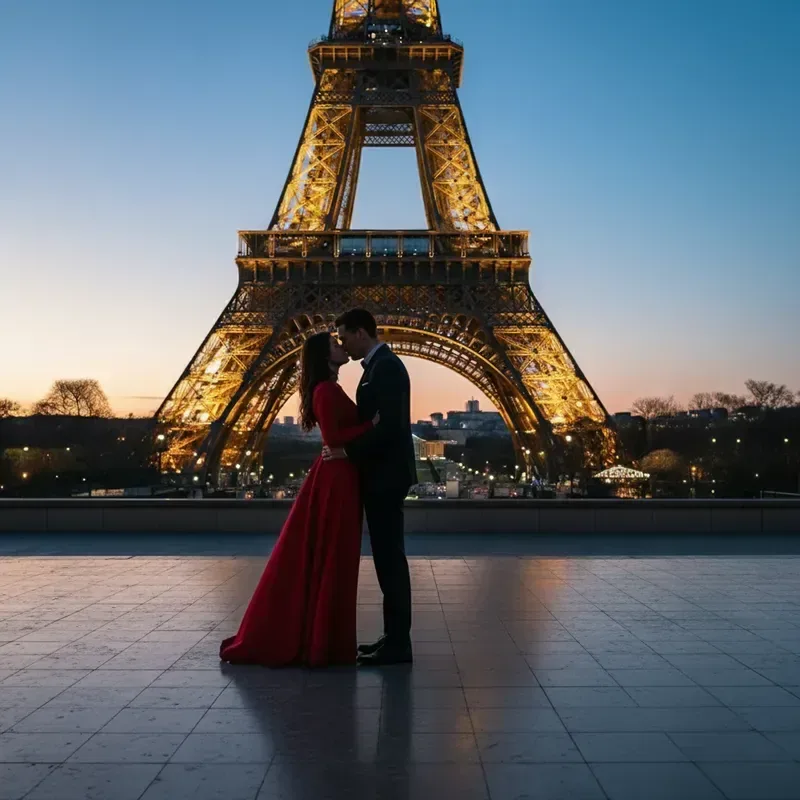
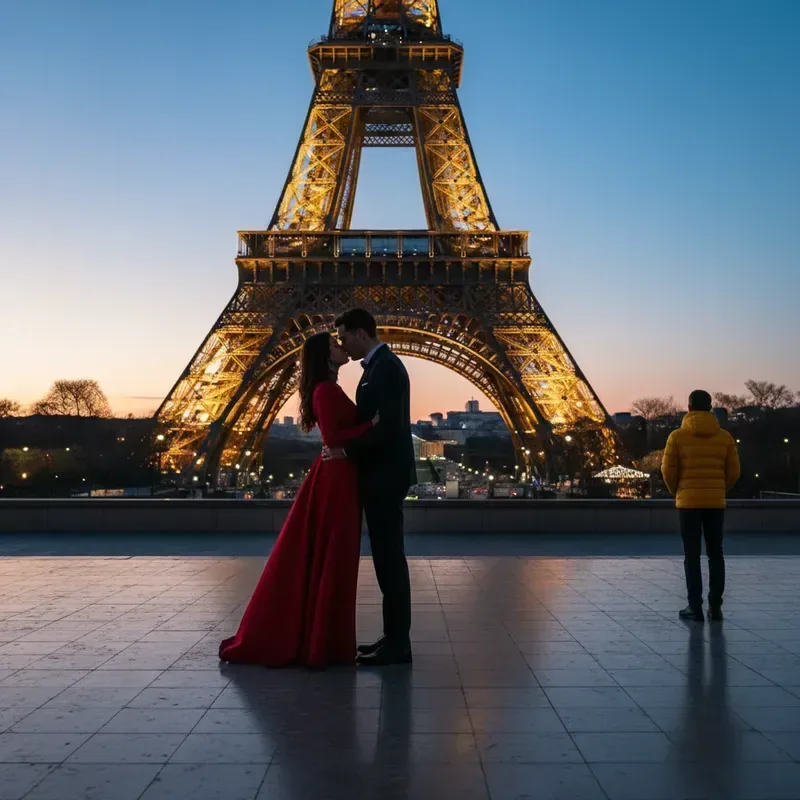
  • Couple at the Eiffel Tower with a stranger on the right, before and after that person is removed — AfterCouple at the Eiffel Tower with a stranger on the right, before and after that person is removed — Before

    Stranger cleared from a landmark shot

    “Remove the person in the yellow jacket on the right. Rebuild the paving and the lit tower behind him, and keep the couple exactly as they are.”

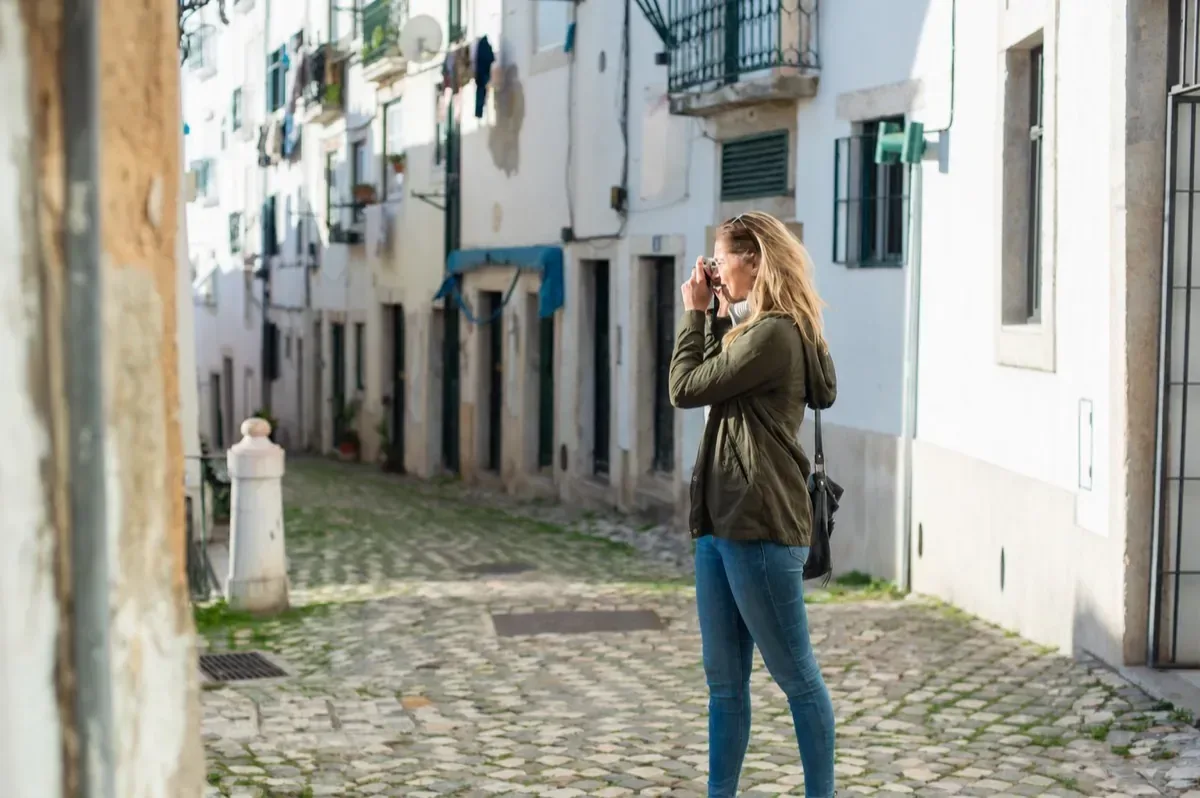
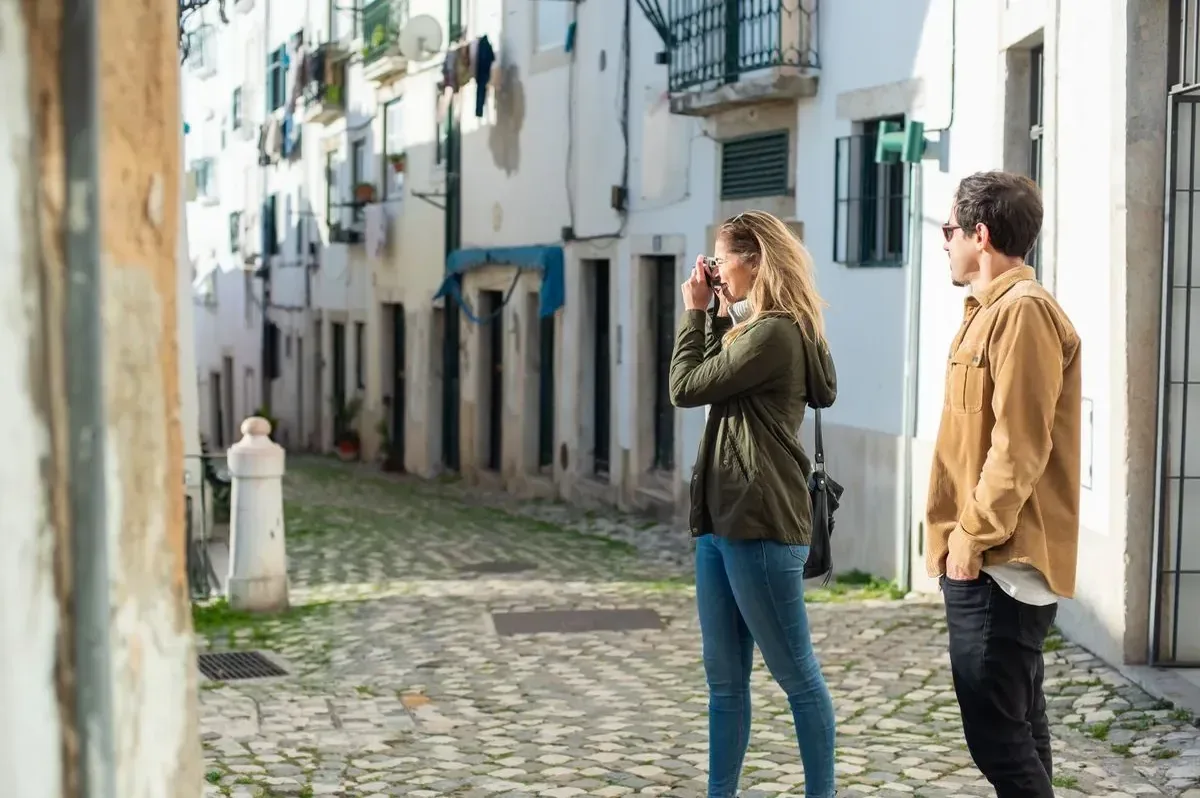
  • Woman taking a photo in a narrow street, with and without the person beside her — AfterWoman taking a photo in a narrow street, with and without the person beside her — Before

    Bystander taken out of a street photo

    “Remove the person in the tan jacket standing beside the woman. Fill in the white wall, the doorways and the cobblestones behind him.”

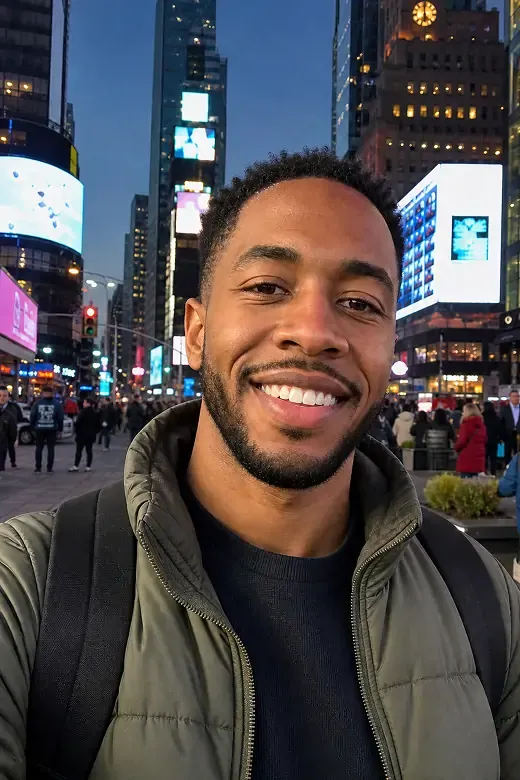
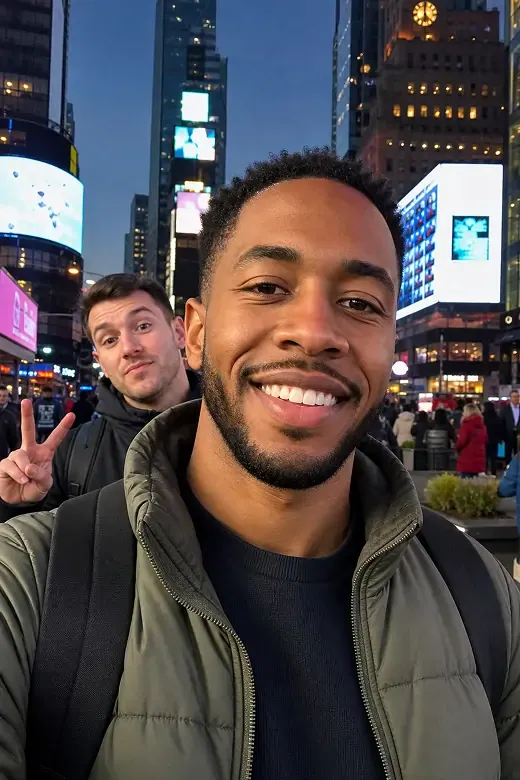
  • Selfie in a busy square at dusk, before and after the photobomber behind him is removed — AfterSelfie in a busy square at dusk, before and after the photobomber behind him is removed — Before

    Photobomber cut from a city selfie

    “Remove the person making a peace sign behind my left shoulder. Fill in the crowd, street lights and glowing screens behind him, and keep my face and jacket unchanged.”

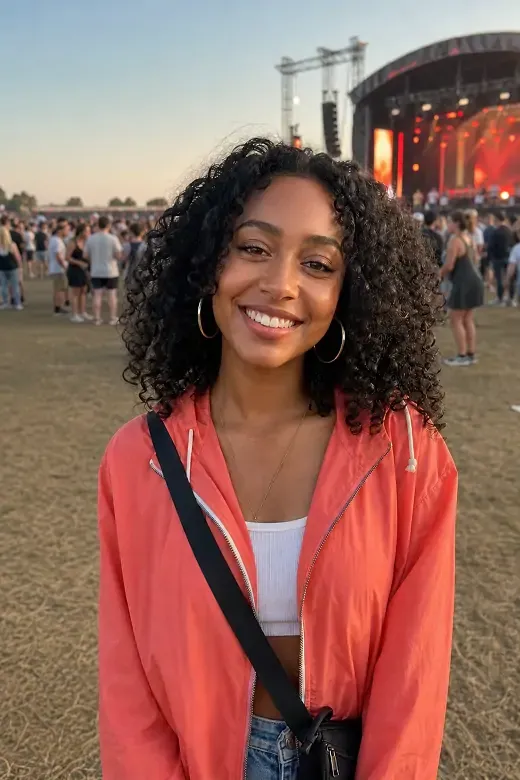
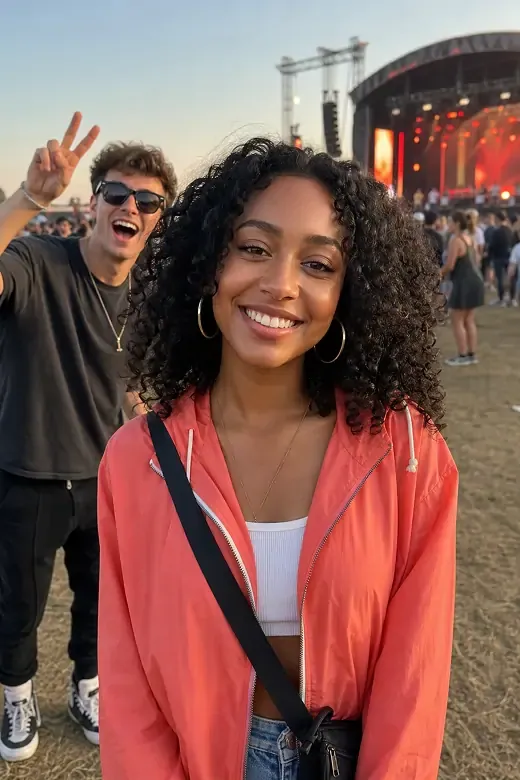
  • Woman at an outdoor music festival, before and after the person waving behind her is removed — AfterWoman at an outdoor music festival, before and after the person waving behind her is removed — Before

    Festival snap without the stranger

    “Remove the person in sunglasses waving behind her on the left. Continue the crowd, the trampled grass and the stage lights, and keep the woman in the coral jacket as she is.”

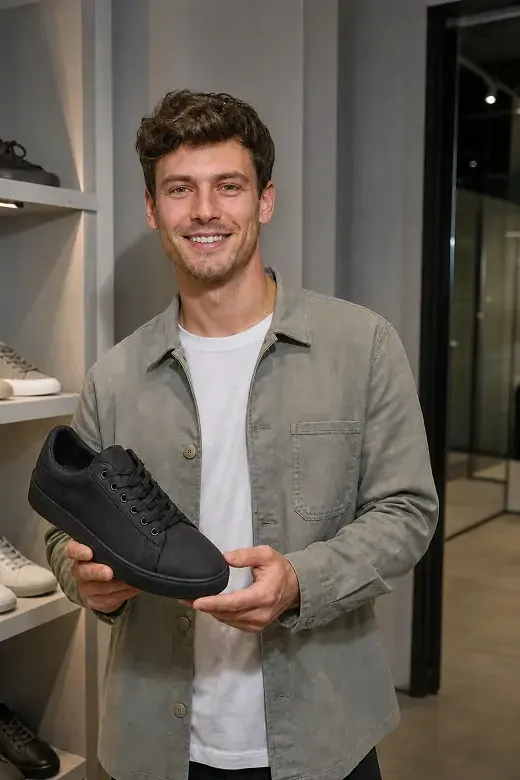
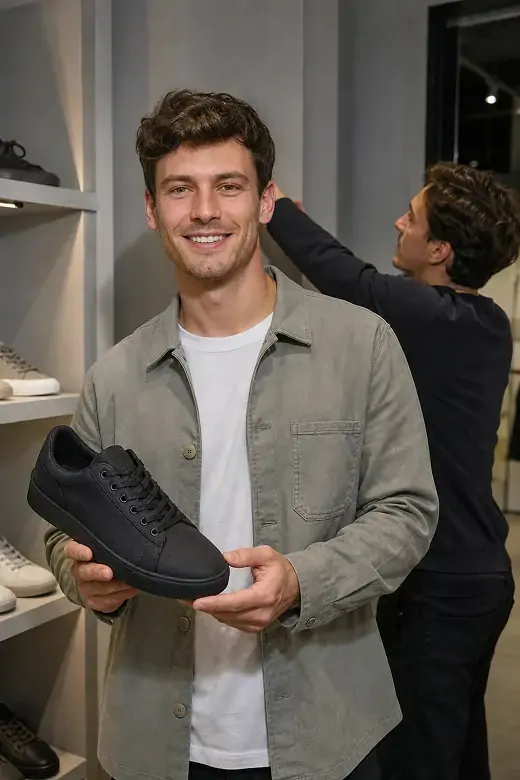
  • Man holding a black sneaker in a shop, with and without the person adjusting his collar — AfterMan holding a black sneaker in a shop, with and without the person adjusting his collar — Before

    Shop portrait without the person fixing his collar

    “Remove the person behind him who is fixing his collar. Rebuild the shelves and the doorway, and keep the man, the black sneaker and his hands unchanged.”

  • Woman in a yellow sundress on a pebble beach, before and after the two people walking behind her are removed — AfterWoman in a yellow sundress on a pebble beach, before and after the two people walking behind her are removed — Before

    Beach shot with the walkers gone

    “Remove the two people walking along the shore behind her. Continue the pebbles, the water's edge and the rocky cliff, and keep the woman in the yellow dress unchanged.”

  • Woman in a flower garden, before and after the person behind her is removed — AfterWoman in a flower garden, before and after the person behind her is removed — Before

    Garden portrait without the passer-by

    “Remove the person in the blue shirt behind her on the right. Continue the hedges, flowers and lawn so the garden looks untouched.”

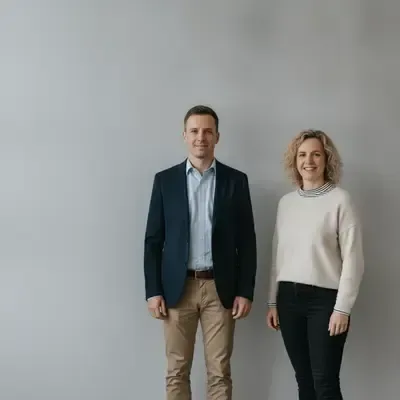
  • Three colleagues against a gray wall, then the same photo with one person removed — AfterThree colleagues against a gray wall, then the same photo with one person removed — Before

    Group shot trimmed from three people to two

    “Remove the person in the green blouse on the left. Keep the other two people, their shadows and the plain gray wall as they are.”

Example images are for illustration only. Each prompt is a starting point for a similar edit on your own photo.

Clear an unwanted person in three steps

  1. Step 1

    Upload the shot

    Choose the photo with the unwanted person: JPG, PNG or WebP, up to 20 MB. Only use pictures you took yourself or have permission to edit.

  2. Step 2

    Point out which person should go

    Describe the person by position and clothing, such as "the man in the red cap on the left", and say what belongs behind them: sand, wall or empty street.

  3. Step 3

    Check the gap

    Click Edit Image and look closely where the person stood. If a shadow, reflection or bag is left behind, add a short follow-up prompt and run it again.

Remove person from photo prompts to copy

Nine prompts to remove people from photos in situations the examples above do not cover. Swap in the clothing colors and positions from your own shot, then send one to the editor.

  1. 01

    Visitors cleared from a museum gallery

    Remove the two people standing in front of the large painting on the right. Continue the parquet floor and the pale wall below the frame, and keep my friend in the black coat on the left unchanged.

  2. 02

    Hikers taken off a waterfall footbridge

    Remove the group of hikers crossing the wooden footbridge behind me. Continue the railings, the white spray of the waterfall and the mossy rocks, and keep my face, backpack and raised hand as they are.

  3. 03

    Skiers removed from behind a child

    Remove the three skiers crossing the slope behind the child in the red helmet. Fill in smooth groomed snow and the pine trees along the edge, and keep the child, the skis and the poles unchanged.

  4. 04

    Stray arm taken out of a birthday table shot

    Remove the adult arm and shoulder reaching in from the left edge of the frame. Continue the tablecloth, the cake plate and the balloons behind it, and keep the birthday girl and her candles unchanged.

  5. 05

    Your own reflection gone from a hallway mirror

    Remove my reflection holding the camera in the hallway mirror. Show what the mirror would reflect instead: the empty corridor, the white door and the coat hooks. Keep the mirror frame and the console table unchanged.

  6. 06

    Referee cleared from a youth football shot

    Remove the referee in the black shirt standing behind my son at the penalty spot. Continue the goal net, the white posts and the grass, and keep the ball and my son’s kicking leg unchanged.

  7. 07

    Guest with a phone cleared from the wedding aisle

    Remove the person leaning into the aisle with a phone held up behind the bride. Continue the rows of white chairs, the flower arrangements and the arch, and keep the bride and her father unchanged.

  8. 08

    Station hall emptied for an architecture shot

    Remove the three people walking across the station hall. Continue the polished stone floor, the long benches and the light falling from the arched windows, so the hall looks empty and symmetrical.

  9. 09

    Stranger removed from an autumn park bench

    Remove the person sitting at the far end of the park bench. Continue the wooden slats and the fallen orange leaves on the path, and keep the woman reading a book on the left exactly as she is.

Photos where an extra person spoils the shot

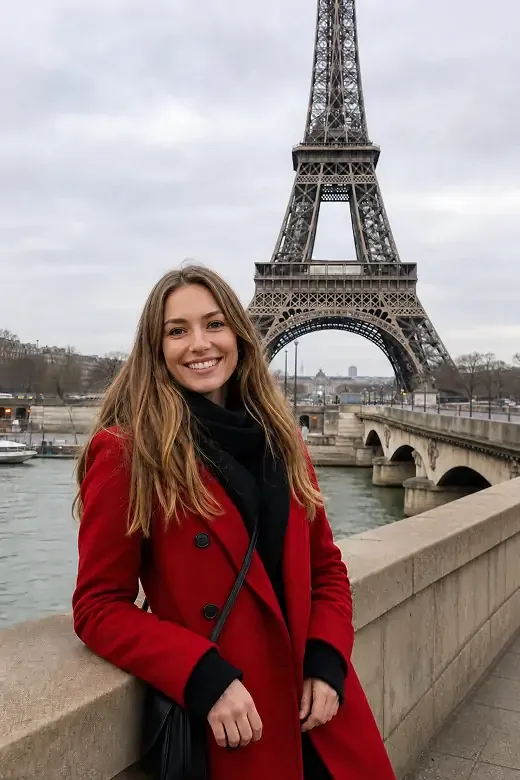
  • Woman in a red coat by the river with the Eiffel Tower behind her and no other people nearby

    Busy landmarks

    Monuments and viewpoints are rarely empty. Remove the people walking through the frame and keep your travel memory the way you saw it.

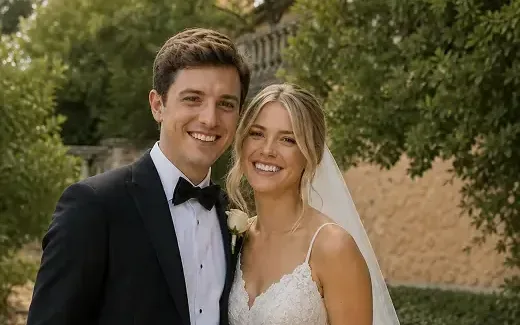
  • Bride and groom smiling in a garden with no guests behind them

    Weddings and events

    A guest crossing the dance floor or a photographer in the aisle can be taken out, so the people who matter stay the focus.

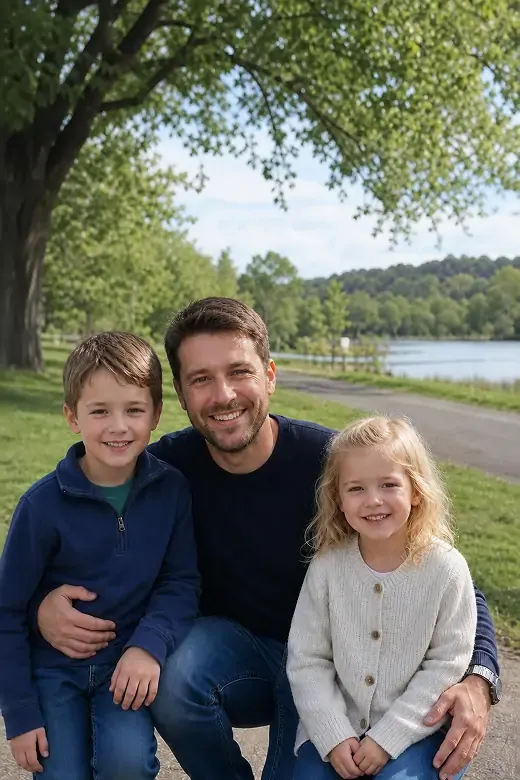
  • Father with his son and daughter in a park by a lake, the path behind them empty

    Family days out

    Joggers and dog walkers drift along the path just as you snap the family in the park. Remove the people on the path so the ones you came with fill the frame.

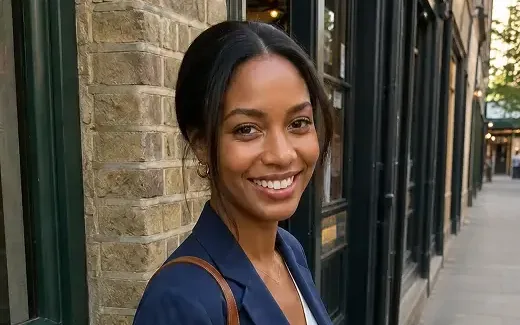
  • Smiling woman in a navy blazer beside a brick wall, the sidewalk behind her clear of people

    City streets and sidewalks

    A person always walks past the moment you take a street portrait. Remove that person, and the sidewalk, shop fronts and brick walls stay exactly as they were.

Tips to remove people from photos cleanly

  • Describe people by clothing color and position; the AI has no way of knowing names or relationships.
  • Mention shadows and reflections too, or the person’s silhouette may stay on the ground or in a window.
  • In crowded scenes, remove one or two people per pass and repeat, rather than everything at once.
  • Small figures in the background disappear most cleanly; a person standing in front of your subject leaves a large area the AI has to invent.
  • Edit only photos you own or may edit, and never use a removal to mislead, for example in news, evidence or official documents.
  • Want to clear bins, cars or wires instead? The Object Remover is built for things, not people.

Best AI models to remove a person from a photo

All six models can remove a person from a photo. These three suit the job best, in this order.

  • Nano Banana 2

    Google

    The editor’s default, fast and reliable for everyday removals such as a stranger on a beach or a passer-by on a pavement. It keeps the same person consistent across a series, handy when you clean up several shots from one trip.

    About Nano Banana 2
  • Nano Banana Pro

    Google

    Worth choosing when the person stood in a demanding scene: a crowd, a tiled square, stained glass or evening light. It handles fine texture and accurate lighting best. In EditPic it outputs 1K or 2K.

    About Nano Banana Pro
  • Flux

    Black Forest Labs

    Pick Flux when the rest of the frame must stay put, for example a wedding portrait you have already retouched. It is built for precise control, so it tends to change only the person you describe and leave the surroundings alone.

    About Flux

Remove person from photo: a practical guide

What happens behind the person, how to pick a photo that cleans up well, what to check before you share the result, how to remove people from a crowd in rounds, and how to take one person out of a group shot.

What the AI paints where the person stood

When you remove a person, the AI does not uncover what was really behind them; the camera never recorded it. It studies the edges of the gap, continues the lines and textures it can see, and invents the rest so it fits. A lawn or a sky is easy to continue. A doorway, a shop front or a second person half hidden behind the one you remove has to be guessed.

That is why the result is a believable picture rather than a record. It works well for a holiday print or a profile photo, and it is also the reason a cleaned photo should never be offered as proof of what a place looked like.

Picking a shot that cleans up well

Before you remove a person, start from the original file, not a screenshot or a copy saved from a chat app, because compression smears the textures the AI needs to continue. Within the 20 MB limit, more pixels give it more to work with.

The person’s size and position matter more than anything else. A small figure in the distance leaves a small gap with plenty of context around it. A person standing right in front of your subject leaves a large hole and hides part of the subject, so the AI has to redraw both. If you have several frames from the same moment, upload the one where the stranger overlaps least. If you plan to crop, crop first, so the AI spends its effort on the part you keep.

When a trace of the person stays behind

The most common leftovers are a shadow on the ground, a reflection in a window or puddle, and things that belonged to the person: a bag, a stroller, a dog lead. Name them in a follow-up prompt, for example "also remove the long shadow on the paving to the left".

Other failures come from the fill itself. Railings, tiles and window frames can bend where the person stood; say "keep the railing straight and evenly spaced". In crowds the AI may repeat a face or a coat, so remove fewer people per pass. If your subject’s hair or hand changed, run the edit again from the original and add "keep the woman in the dress exactly as she is".

Checks before you print or post

Look at the result at full size, not as a thumbnail. Follow every line that crosses the gap, check the ground for a doubled shadow, and compare skin tones and outlines on every person who stayed. Flip between the original and the edit; a patch that is slightly too smooth is easiest to spot that way.

The editor returns 1K or 2K images, which is plenty for screens and small prints; for a large print, order a small proof first. Keep the untouched original, share removals only from photos you have the right to edit, and never pass an edited picture off as evidence or news.

Walkthrough: a busy landmark, cleared in rounds

Picture a photo of your partner on a famous bridge with about a dozen people behind them. Asking the AI to remove people all at once usually gives a smeared crowd, so work in rounds. Round one: remove the person or two nearest the camera, because they hide the most background. Round two: run the next prompt on that result and remove the people at the railing on the left. Round three: clear the walkers in the far distance.

After each round, check the bridge railing, the paving lines and the light before you go on. If a round goes wrong, go back to the previous result instead of the original. Leaving a few tiny figures far away often looks more natural than an empty landmark at midday.

Taking one person out of a group photo

Removing a person from the middle of a lineup leaves a gap the size of a person between two friends. The AI fills it with the wall, hedge or sky behind them, so the group can look oddly spaced. Remove the person at one end of the row whenever you can; the frame then just looks a little wider on that side.

If the person you remove had an arm around a friend, mention it: "remove the man on the left and rebuild the shoulder of the woman next to him". Check hands and sleeves on everyone left in the picture. Group photos are shared with everyone in them, so it is kind to ask first before you remove people from a photo others care about.

Removing people from photos: FAQ

  1. Can I remove person from photo online free?

    Yes, you can try it free once after you sign up and remove a person right in the browser. From then on, each edit uses credits: the number depends on the model and is shown before you start. Paid plans add credits for regular editing.

  2. How well does AI remove person from photo backgrounds?

    Very well on lawns, sand, walls, sky and paving, where the pattern is easy to continue. Detailed areas such as crowds, signs or tiled floors may need a second pass, so zoom in before you download.

  3. Can I remove several people at once?

    Yes. List each person in one prompt, for example "remove the two people on the left and the cyclist behind them". In a dense crowd, removing a few at a time gives a more believable background.

  4. What if the person overlaps my subject?

    When you remove a person who overlaps your subject, the AI has to redraw the hidden part of it, such as an arm or the edge of a dress. It often works, but check hands, hair and outlines, and add "keep the woman in the dress unchanged" if needed.

  5. Is it okay to remove a person from any photo?

    Use photos you took or have the right to edit, and respect the people in them. Do not use removals to deceive, such as altering news images, evidence or documents that others rely on.

  6. Why is a shadow or reflection still there after the person is gone?

    The prompt named the person, so the AI took out the figure and kept anything it read as part of the scene. Shadows on pavement and reflections in shop windows or puddles count as scenery unless you mention them. Add "and their shadow on the ground" to the same prompt, or send it as a follow-up.

  7. Can AI remove person from photo scans of old prints?

    Yes. Scan or photograph the print flat and in even light, then describe the person as usual. Ask the AI to "match the film grain and the faded colors" so the filled patch does not look newer than the rest. Scratches and fading are a separate job for the Old Photo Restorer.

  8. Will the photo be smaller after the person is removed?

    The result comes back at 1K or 2K, in one of five aspect ratios: 1:1, 3:4, 4:3, 9:16 or 16:9. Pick the ratio closest to your original so the AI does not have to extend or trim the scene. For a print, check that this size suits the paper you have in mind.

  9. Can I remove people from photos taken at night or indoors?

    Yes, though low light makes the job harder. Noise and soft focus hide the texture the AI needs to continue, and mixed lamps can tint the patch. Describe the light ("warm lamp light from the left") as well as the person, and run the original through Photo Enhancer first if it is very grainy.

  10. Will anyone be able to tell a person was removed?

    On a lawn, a beach or a plain wall, usually not at normal viewing size. Signs that give it away are a doubled shadow, a bent railing, a repeated face in the crowd or a patch that is smoother than the rest. Check those at full size, and remember the people who were there that day know what the scene looked like.

  11. Can I remove an ex from an old photo?

    If the photo is yours to edit, yes. Describe the person by position and clothing as you would a stranger, and mention anything they were touching, such as an arm around your shoulder, so the AI rebuilds your side of the picture. Keep the untouched original somewhere safe in case you or your family ever want it back.

Remove the person who spoiled the shot

Upload the shot, describe the person who should go and get a clean version of the scene to compare with the original.