

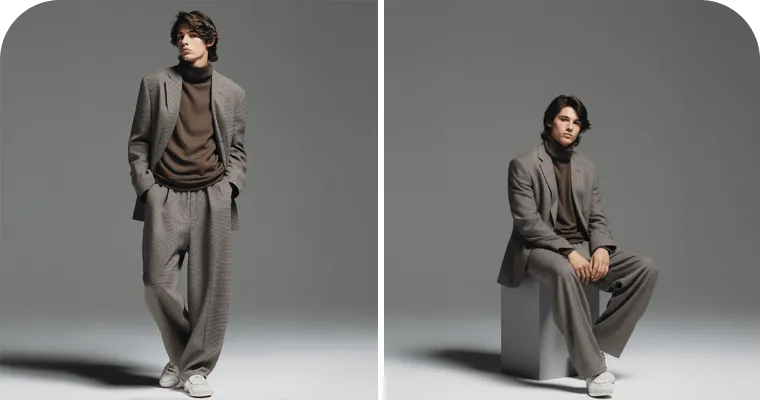

New: Nano Banana 2 & GPT Image 2

Try it

Updated 2026-11-16

Model by Google

Nano Banana AI Photo Editor for Natural, Realistic Edits

Nano Banana is Google's original image model from the Gemini 2.5 Flash Image release, built to change part of a photo from a plain-language request. Nano Banana shines on everyday jobs such as a new background, a different outfit or a stray object gone, and the result still looks like a real photo. The EditPic editor below opens on Nano Banana 2; choose Nano Banana from the model menu and describe your edit.

Nano Banana at a glance

DeveloperGoogle
Model familyGemini 2.5 Flash Image, the first “Nano Banana” model (announced August 2025)
Best atNatural, realistic changes: new backgrounds, outfit swaps, object removal
Input images (model)Up to 10 per request; in EditPic you edit one uploaded photo at a time
Aspect ratios (model)auto, 1:1, 3:2, 2:3, 4:3, 3:4, 5:4, 4:5, 16:9, 9:16 and 21:9
Input in EditPicOne JPG, PNG or WebP photo up to 20 MB, plus a text prompt
Output in EditPic1K (no 2K option for this model) at 1:1, 3:4, 4:3, 9:16 or 16:9, as a regular image (no transparency)
Provenance (model)Google adds an invisible SynthID watermark to images the model creates or edits
CreditsSet per model; the editor shows what a Nano Banana edit costs before it runs

Rows marked “model” describe Nano Banana itself, based on Google’s announcement and the API reference, checked in November 2026; the input, output and credit rows are what the EditPic editor offers for Nano Banana today. Nano Banana is a trademark of Google; EditPic is not affiliated with Google.

Nano Banana before and after: eight everyday edits

Clutter removed, light changed, an old portrait repaired, an outfit swapped and an empty room furnished. The cat card is a slider; the rest show the original on the left and the result on the right. Click any card to send its prompt to the editor, then pick Nano Banana in the model menu.

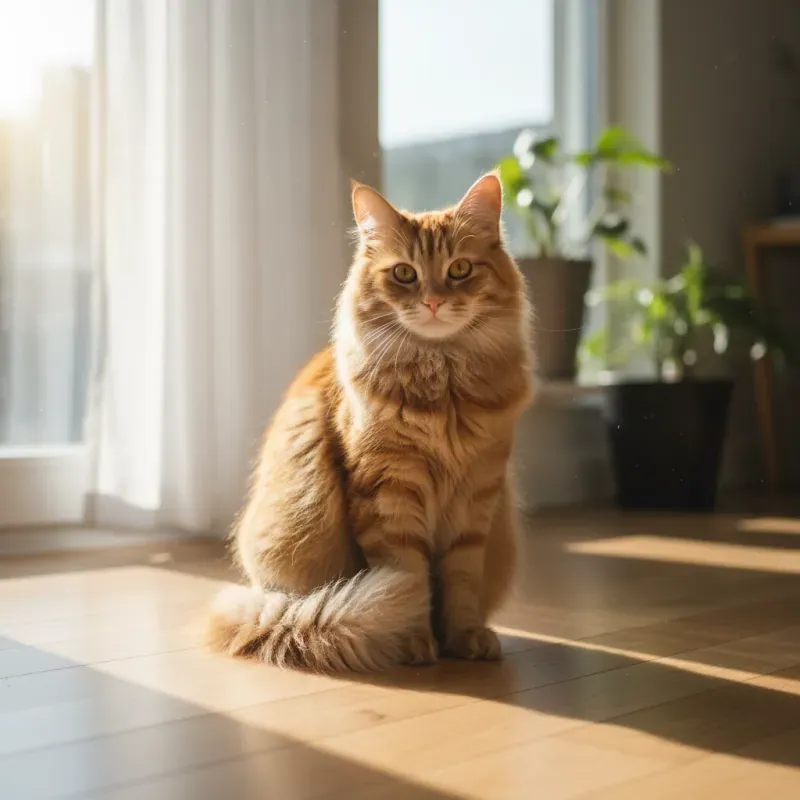
  • Fluffy ginger cat sitting in a sunny room, before and after a navy wizard hat is added — AfterFluffy ginger cat sitting in a sunny room, before and after a navy wizard hat is added — Before

    A starry wizard hat for a ginger cat

    “Put a small navy wizard hat with white stars on the cat's head, tilted a little to one side. Keep the fur, the window light and the wooden floor unchanged, and let the hat cast a soft shadow.”

  • Nano Banana removal example: two red-striped beach loungers by a turquoise sea, with and then without the umbrella

    Beach umbrella removed, loungers kept

    “Remove the red-and-white umbrella and its pole. Fill the space with the palm fronds, blue sky and sea that would be behind it, and leave both striped loungers exactly as they are.”

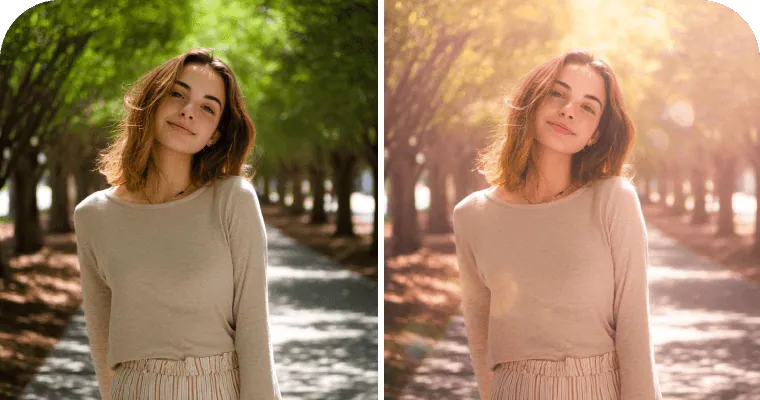
  • Young woman on a tree-lined path, first in plain daylight and then in warm golden light

    Flat daylight turned into golden hour

    “Relight this portrait as late golden hour: warm sun behind her through the trees, a soft rim of light on her hair and a light haze over the path. Keep her face, sweater and pose as they are.”

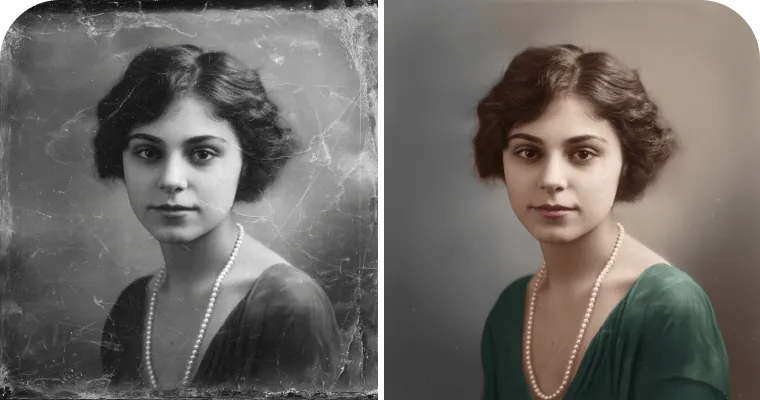
  • Nano Banana restoration example: damaged black-and-white portrait of a young woman beside the repaired, colorized version

    Cracked studio portrait restored in color

    “Repair the cracks, dust and stains on this old portrait and sharpen her face gently. Add natural color: dark brown hair, warm skin, a deep green dress and cream pearls.”

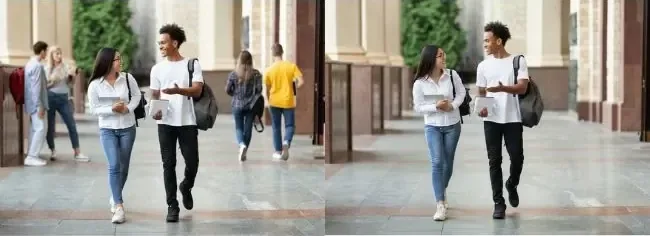
  • Two students walking under a colonnade, first with other people around them, then on their own

    Passers-by cleared from a colonnade

    “Remove everyone except the two students walking in front. Rebuild the stone columns and the polished floor behind the people you take out, matching the soft daylight.”

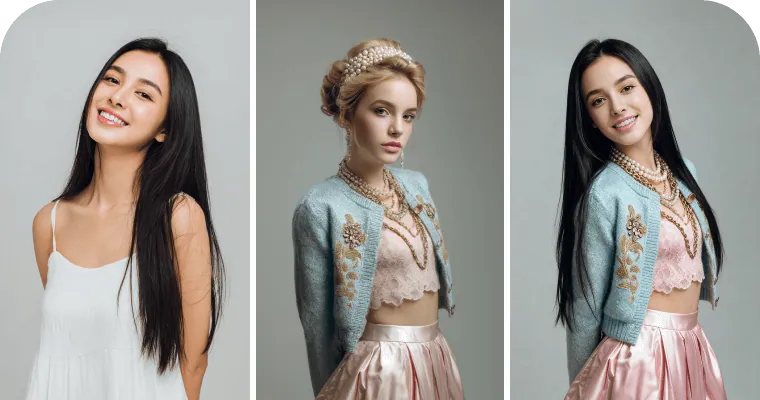
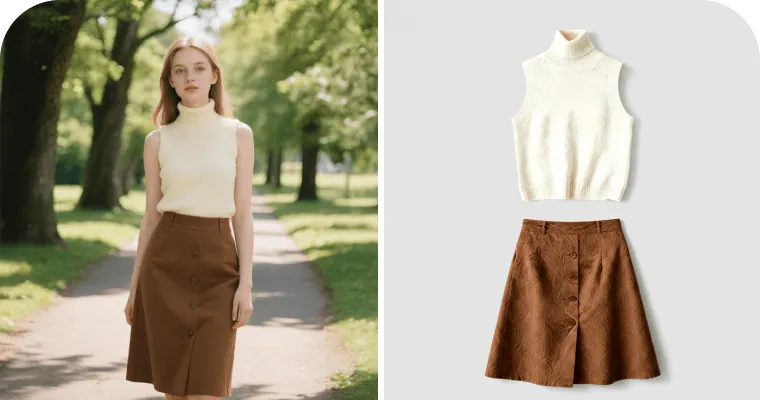
  • Smiling woman in a white top, a styled outfit reference and the same woman wearing that outfit

    Outfit swap described in words

    “Dress her in a pale blue embroidered cardigan over a lace top, a pink satin skirt and layered pearl necklaces. Keep her long black hair, her smile and the plain gray studio background.”

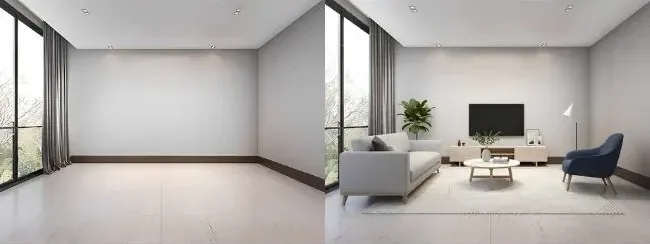
  • Nano Banana staging example: bare living room with tall windows, then the same room with a sofa, rug, TV unit and armchair

    Empty room staged for a listing

    “Furnish this empty living room: a light gray sofa on the left, a round coffee table on a pale rug, a low TV unit with a plant and a navy armchair. Keep the walls, windows and ceiling lights unchanged.”

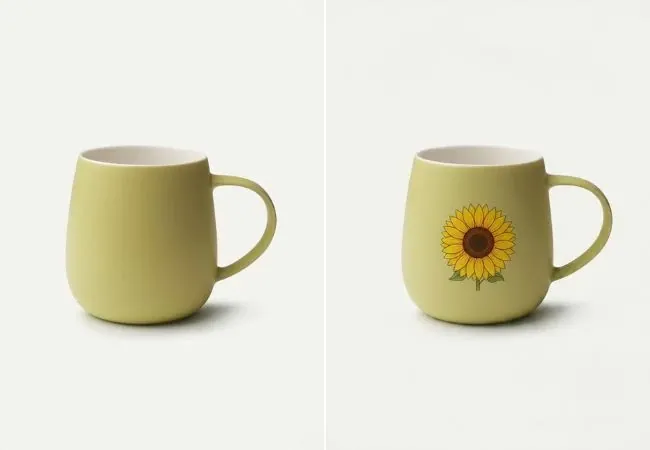
  • Olive-green ceramic mug shown plain and with a sunflower printed on the side

    Sunflower print on a plain mug

    “Print a single sunflower illustration on the front of this mug, following its curve. Keep the olive glaze, the handle and the soft shadow on the white background.”

Example images are for illustration only. Each prompt is a starting point for a similar edit on your own photo.

What Nano Banana does well

  • Changes that stay photographic

    New elements in a Nano Banana edit pick up the grain, color and shadows of the shot around them, so an added hat or a swapped sky does not look pasted on.

  • Edits from plain sentences

    Google built Nano Banana for targeted, local changes described in natural language. “Remove the umbrella” or “make it golden hour” is usually enough.

  • Faces and pets stay recognizable

    Google designed Nano Banana to keep a character's look steady across prompts and edits, which helps when you restyle a portrait or dress up a pet.

  • Clean fills after removal

    When a person or object goes, Nano Banana rebuilds what was behind it, such as columns, floor tiles or a stretch of sea.

  • Everyday knowledge built in

    Nano Banana draws on Gemini’s world knowledge, so requests like “furnish this as a Scandinavian living room” or “color it like a 1920s photo” make sense to it.

  • Blends several pictures

    Google’s announcement lists blending several input images as a core Nano Banana skill. EditPic takes one upload per edit, so place the pieces side by side in a single image first, the way the furniture example in the gallery below was built.

Nano Banana prompts to copy

Ten ready prompts for jobs not shown above. Swap in your own details, keep the “keep … unchanged” part, and Nano Banana will know what to leave alone.

  1. 01

    Blur a busy background

    Blur the background softly, like a portrait lens at f/1.8. Keep the person sharp from hair to shoulders and do not change their face or clothes.

  2. 02

    Remove a stain from clothing

    Remove the coffee stain from the white shirt and restore the fabric folds around it. Leave everything else in the photo as it is.

  3. 03

    Swap a gray sky for sunset

    Replace the flat gray sky with a soft orange sunset and warm the light on the buildings to match. Keep the street, people and cars unchanged.

  4. 04

    Change the season

    Turn this summer park into a snowy winter scene: snow on the grass and branches, a pale sky and cool light. Keep the bench and the path where they are.

  5. 05

    Put a product on a marble counter

    Place this bottle on a white marble bathroom counter with a folded towel and soft morning light from the left. Keep the bottle shape and its label exactly the same.

  6. 06

    Tidy a desk

    Remove the cables, sticky notes and empty cups from the desk. Keep the laptop, lamp and plant exactly where they are.

  7. 07

    Add a pet to the sofa

    Add a sleeping tabby cat curled up on the left cushion of the sofa, lit by the same window light. Do not move anything else.

  8. 08

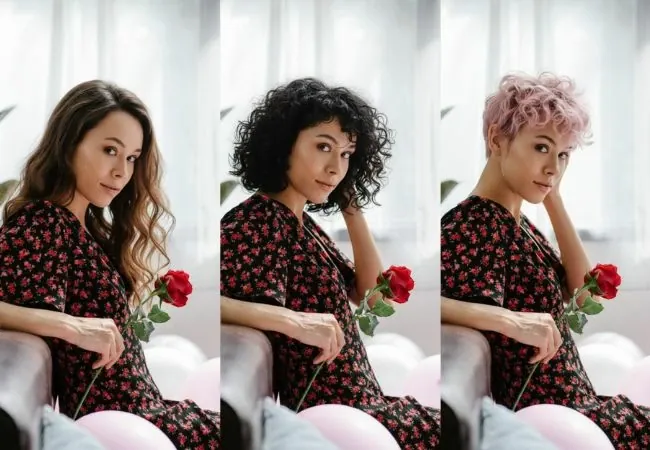
    Try a new hair color

    Change her hair to a warm copper red with natural highlights. Keep the haircut, face and background unchanged.

  9. 09

    Turn a selfie into a studio portrait

    Replace the background with a plain warm-gray studio backdrop and soften the light on the face. Keep the person's features, expression and clothes the same.

  10. 10

    Make a pet portrait festive

    Give the dog a small red knitted scarf and add soft string lights behind it. Keep its fur color, face and pose.

Jobs where Nano Banana is a good pick

  • Backgrounds for everyday photos

    Move a portrait, pet or product shot to a beach, studio wall or city street while the subject keeps its edges and light. One plain sentence is usually all Nano Banana needs for this kind of swap.

    Background Changer
  • Removing tourists and clutter

    Clear passers-by, bins or cables from travel and street photos and let Nano Banana fill the space convincingly.

    Remove People
  • Trying on outfits

    Describe a jacket, dress or color and let Nano Banana show it on the same person before you buy, shoot or post.

    AI Clothes Changer
  • Reviving family photos

    Fix cracks and fading on scanned prints with Nano Banana, then add natural color in a follow-up edit.

    Old Photo Restorer
  • Listing and product images

    Stage a room for a rental listing or place a product on a cleaner surface without booking a shoot.

    Product Photo Background

Jobs where Nano Banana is not the first choice

Nano Banana covers most everyday edits. These are the cases where a sibling model in the same editor is worth switching to.

  • Nano Banana 2

    Google

    Choose Nano Banana 2, the editor's default, for faster everyday edits and for a series in which the same person or product has to look identical from image to image.

    About Nano Banana 2
  • Nano Banana Pro

    Google

    Switch to Nano Banana Pro for the hardest jobs: fine skin and fabric texture, tricky lighting and busy scenes. The model itself reaches 4K, although EditPic currently outputs 1K or 2K.

    About Nano Banana Pro
  • GPT Image 2

    OpenAI

    Pick GPT Image 2 when the result needs readable words, such as a sign, label or poster, or when one prompt lists several changes at once.

    About GPT Image 2
  • Flux

    Black Forest Labs

    Use Flux when only one precise area may change and everything else must stay put, or when a set of images needs one consistent style.

    About Flux

Compare all AI models

Tips for better Nano Banana edits

  • Say what stays as well as what changes. A closing line such as “keep the face, clothes and background unchanged” protects the parts you like.
  • Give Nano Banana one change per run. Removing a person, then relighting, then adding a prop in three short steps gives cleaner results than one long request.
  • Point to things by position and color: “the man in the yellow T-shirt on the right” is easier for Nano Banana to find than “the man in the back”.
  • Describe light in photographers’ terms (golden hour, overcast, window light from the left) so new elements match the scene.
  • Start from the sharpest, largest photo you have; small or heavily compressed uploads give Nano Banana less detail to keep.
  • Only edit photos you have the right to change, and never use Nano Banana to misrepresent real people.

How to get natural results from Nano Banana

Where the original Nano Banana fits today, how to brief it, and how to keep its edits honest.

The original Nano Banana, in short

Google introduced Nano Banana in August 2025 as Gemini 2.5 Flash Image. The announcement focused on four things: blending several input images, keeping a character’s look consistent, making targeted local edits from natural language, and drawing on Gemini’s world knowledge. Google has since added Nano Banana 2 and Nano Banana Pro, and its developer docs now call this one the legacy model of the series. In practice Nano Banana remains a steady choice for the edits most people make every week: a cleaner background, a removed distraction, a different jacket or warmer light. In EditPic it sits next to Nano Banana 2 and Nano Banana Pro, so you can run the same prompt on two models and keep the result you prefer.

Write a Nano Banana prompt like a note to a retoucher

Nano Banana responds best to short, concrete instructions. Name the object, say where it is, say what should replace it, and finish with what must stay. For example: “Remove the man in the yellow shirt on the right, rebuild the columns behind him, keep the two students in front unchanged.” Avoid vague words such as “improve” or “make it nicer”, which leave the model guessing. If you want a mood, translate it into visible things: light direction, time of day, colors, materials. When the first result is close but not right, do not rewrite everything; add one short follow-up, such as “make the shadow under the hat softer”.

Break bigger Nano Banana jobs into steps

A single Nano Banana prompt that removes two people, changes the sky, adds a dog and recolors a car asks for too much at once, and small mistakes pile up. Split the job instead. Clear the distractions first and check the fill, then change the light, and add new objects last, once the scene is settled. Each step uses credits, but each result is easier to judge, and you can go back to an earlier version when one step goes wrong. This order also keeps faces stable, because the person is touched as few times as possible.

Watermarks, rights and honest edits

Google states that every image created or edited with this model carries an invisible SynthID digital watermark that identifies it as AI-generated. You will not see it in the picture, but it means a Nano Banana result should not be passed off as an untouched photograph. Edit pictures you own or have permission to use, ask before changing photos of other people, and avoid edits that could mislead, such as altered documents or invented events. Within those limits Nano Banana is a quick way to fix holiday snaps, prepare listing photos and try ideas before a real shoot.

A Nano Banana walkthrough: a travel photo without the crowd

Take a holiday shot of a stone archway with a dozen tourists in it. Open the editor, switch the model menu to Nano Banana and pick the aspect ratio closest to your photo. In the first run, ask Nano Banana to remove everyone except your partner in the red coat and to rebuild the paving and the arch behind them. Check the fill at full size, especially where people overlapped the columns. In a second run, warm the light to late afternoon. Leave additions such as birds or a lamp for a third run, once the scene is clean. Nano Banana saves each result at 1K, which suits sharing and social posts; for a larger file, rerun the finished prompt with Nano Banana 2 at 2K.

Nano Banana outputs 1K: when that is enough

In EditPic, Nano Banana results come back at 1K in any of the five ratios, and this model has no 2K option. For most everyday uses that is fine: phone screens, messaging apps, social feeds, marketplace thumbnails and quick previews for a client. It is less suited to large prints, wide banners or tight crops of a small area of the frame. If you already know the result needs more pixels, start the edit with Nano Banana 2 or Nano Banana Pro, which both offer 1K or 2K in EditPic. If you only find out later, rerun the same prompt on the original photo with one of those models.

Nano Banana FAQ

  1. Is Nano Banana free to use?

    Creating an EditPic account is free. Each Nano Banana edit spends credits, and the editor shows the cost before you run it. Whether a new account starts with bonus credits depends on the current offer; paid plans add more credits if you edit often.

  2. What is the difference between Nano Banana and Nano Banana 2?

    Nano Banana is the first model in Google’s series (Gemini 2.5 Flash Image). Nano Banana 2 is the newer, faster model and the default in EditPic, and it is the better pick when one person or product must stay identical across a series. Nano Banana remains a reliable choice for single, natural-looking edits.

  3. Nano Banana vs Nano Banana Pro: which should I use?

    Use Nano Banana for everyday photos where a believable result matters more than the finest detail. Choose Nano Banana Pro for demanding work such as rich textures, difficult lighting or crowded scenes. Pro supports up to 4K as a model; in EditPic, Pro outputs 1K or 2K and Nano Banana outputs 1K.

  4. What resolution and sizes does Nano Banana support in EditPic?

    The editor saves Nano Banana results at 1K (this model has no 2K option) in five ratios: 1:1, 3:4, 4:3, 9:16 and 16:9. The model itself accepts more shapes, such as 3:2, 5:4 and 21:9, but those extra ratios are not offered in EditPic today.

  5. Can Nano Banana edit text in a photo?

    Nano Banana can try short word swaps on simple signs, but lettering is not its strength and results vary. For posters, labels or anything with several lines of text, run the edit with GPT Image 2, the model EditPic recommends for readable words in images.

  6. How do I use Nano Banana online?

    Open the editor at the top of this page, choose Nano Banana in the model menu, upload a JPG, PNG or WebP photo of up to 20 MB, describe the change in a sentence or two, pick a ratio (Nano Banana outputs 1K), and run the edit. Download the result or refine it with a follow-up prompt.

  7. Does Nano Banana keep faces the same?

    Google designed Nano Banana to keep a character consistent across edits, and in most portrait edits the face stays recognizable. Say so in the prompt as well, for example “keep her face and expression unchanged”, and avoid stacking many changes on one person in a single run.

  8. Do Nano Banana images have a watermark?

    Google says all images created or edited with this model include an invisible SynthID digital watermark. It does not show in the picture, but it marks the image as AI-made, so share Nano Banana results openly as edited images.

  9. Why does the editor open on Nano Banana 2 instead of Nano Banana?

    Nano Banana 2 is the default model across EditPic, so every editor starts there, including the one on this page. To use the original model, open the model menu and choose Nano Banana before you run the edit; the result will be 1K.

  10. Can Nano Banana combine two photos into one?

    Google lists multi-image blending among Nano Banana’s skills, and the model accepts up to 10 input images through the API. EditPic takes one upload per edit, so place both pictures side by side in one image, say which side is which, and describe how they should come together.

  11. Is Nano Banana still worth using now that Nano Banana 2 exists?

    Yes, for single, natural-looking edits. Google’s developer docs call it the legacy model of the series, but it remains a dependable choice for a new background, an outfit swap or removing a distraction. If you are unsure, run the same prompt on Nano Banana and Nano Banana 2 and keep the result you prefer.

  12. Can Nano Banana colorize black-and-white photos?

    Yes. Google’s own examples for Nano Banana include coloring a black-and-white photo, and the restored portrait above shows the idea. Repair cracks and dust first, then add color in a second run, naming the hair, skin and clothing colors you know or want.

Try Nano Banana on your own photo

Upload a picture, describe one change in plain words and see how naturally Nano Banana blends it in.