New: Nano Banana 2 & GPT Image 2

Try it

Updated 2026-11-16

Unblur Image AI: Turn Blurry Shots Sharp

Unblur image AI for photos that came out soft: missed focus, shaky hands or a subject that moved. EditPic redraws edges and textures so faces, fur and lettering look crisp again, then you compare and download.

Unblur image AI examples

Eight blurry shots brought back into focus, from a smiling close-up and a jungle parrot to a family portrait. Slide to compare, then send the prompt to the editor and unblur your image the same way.

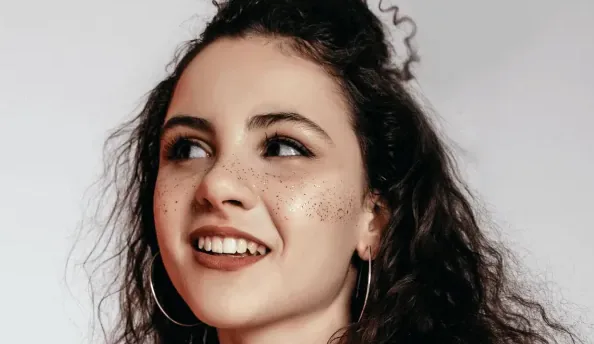
  • Smiling woman with curly hair and freckles, completely blurred before and sharp after — AfterSmiling woman with curly hair and freckles, completely blurred before and sharp after — Before

    Heavily blurred smile brought back to life

    “Unblur this portrait: bring back sharp eyes, freckles and the curls framing her face, and keep her wide smile, the hoop earring and the plain light background.”

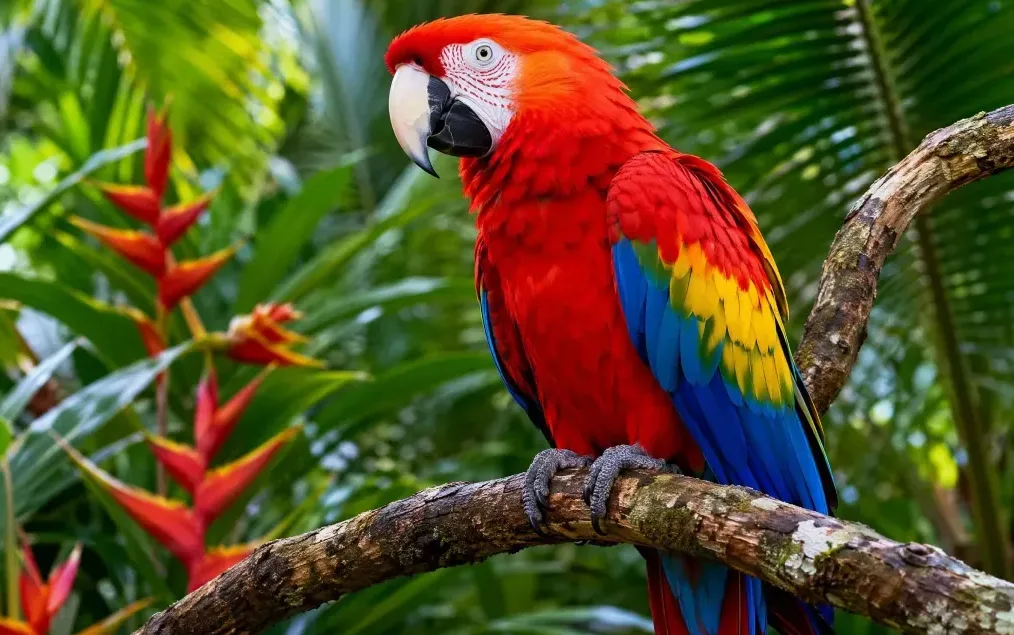
  • Scarlet macaw perched on a branch among tropical leaves, blurry before and sharp after — AfterScarlet macaw perched on a branch among tropical leaves, blurry before and sharp after — Before

    Scarlet macaw refocused against the jungle

    “Unblur this parrot photo: sharpen the feathers, the beak and the eye, define the branch and the red heliconia flowers, and keep the green jungle soft in the background.”

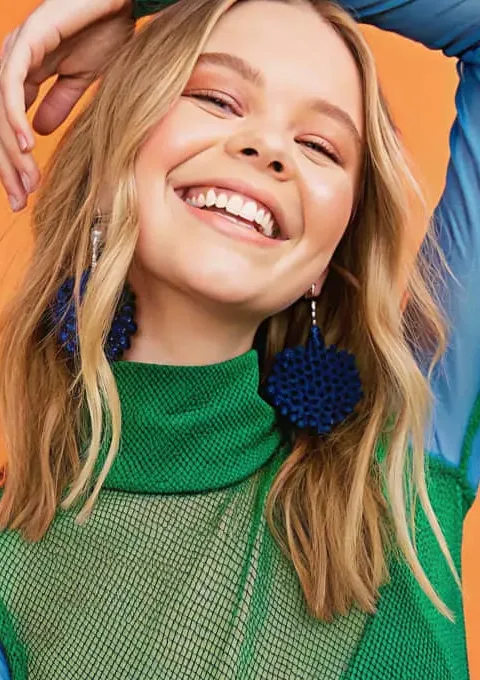
  • Laughing young woman in a green mesh top against an orange wall, blurry before and sharp after — AfterLaughing young woman in a green mesh top against an orange wall, blurry before and sharp after — Before

    Laughing portrait with mesh and earrings in focus

    “Fix the focus on this laughing portrait: sharpen her eyes, teeth and hair, make the mesh top and the beaded earrings crisp, and keep the orange wall and the blue sleeves.”

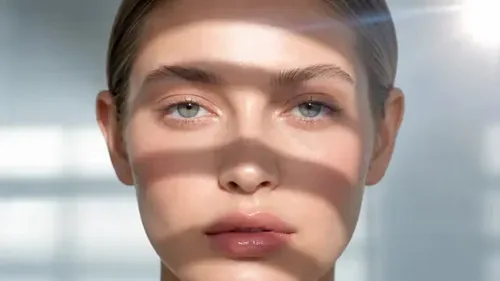
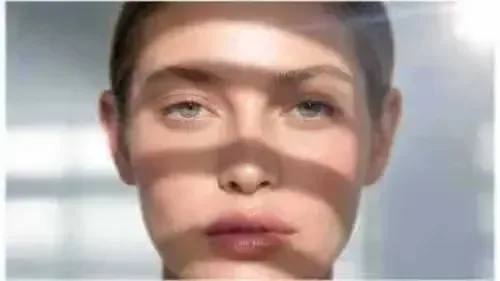
  • Woman with window shadows on her face, blurry before and sharp after — AfterWoman with window shadows on her face, blurry before and sharp after — Before

    Soft-focus portrait made crisp

    “Unblur this portrait so the eyes, brows and lips are sharp. Keep the striped window shadows across her face and the soft background.”

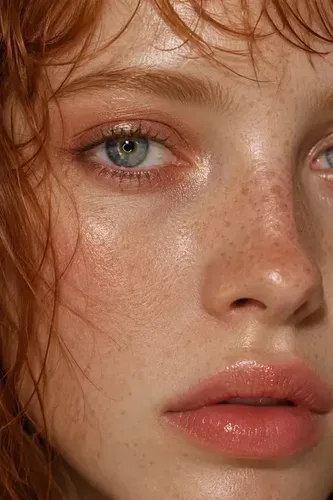
  • Close-up of a red-haired woman with freckles, before and after unblurring — AfterClose-up of a red-haired woman with freckles, before and after unblurring — Before

    Freckles and lashes brought back

    “Remove the focus blur from this close-up. Sharpen the eyelashes, freckles and wet strands of hair without smoothing the skin.”

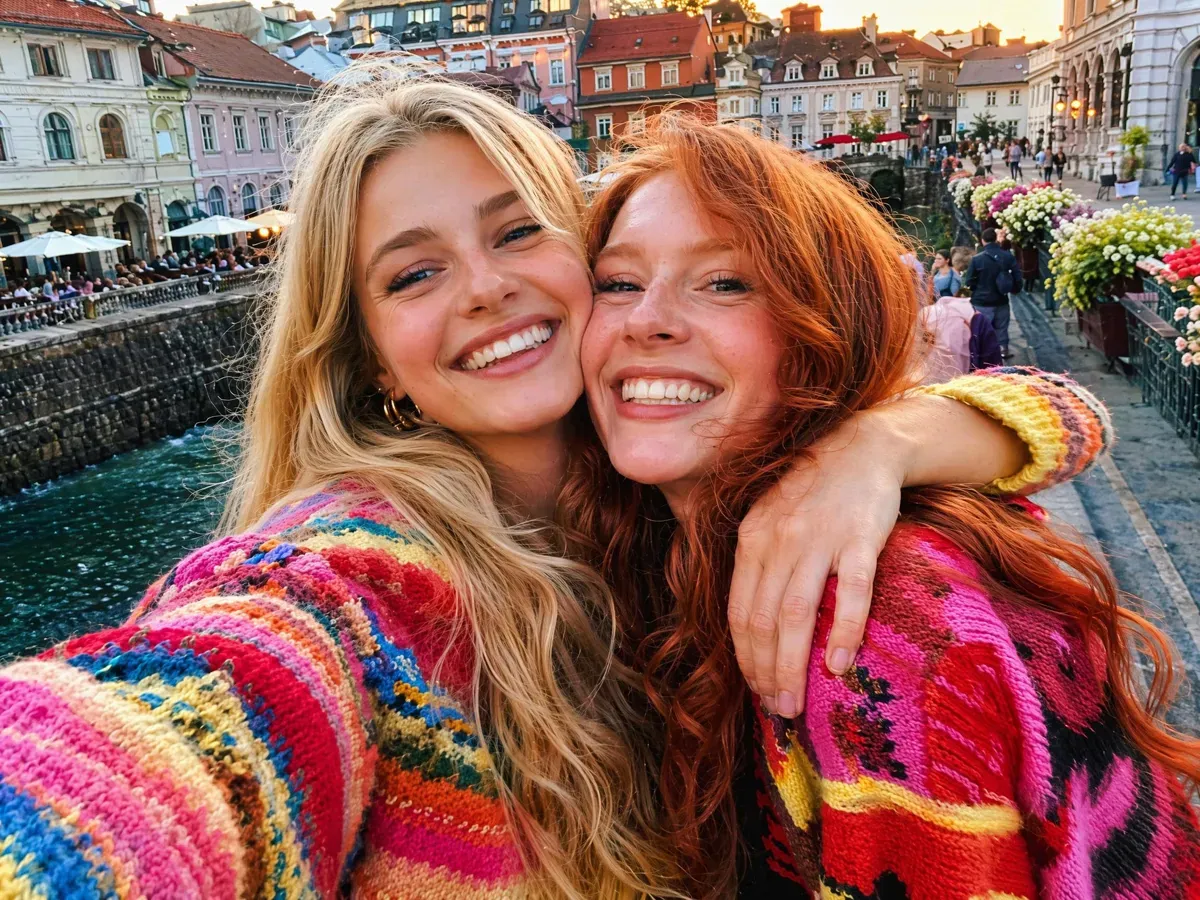
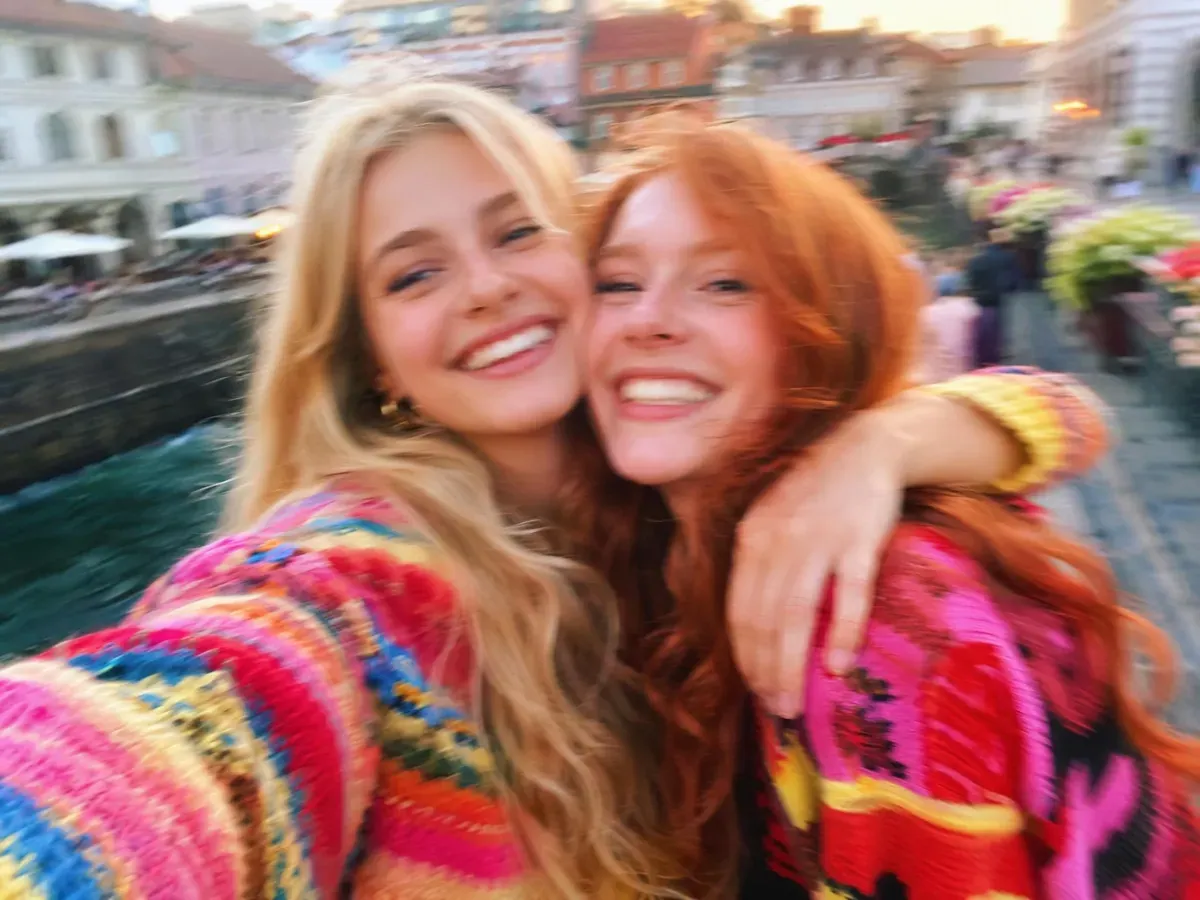
  • Two friends hugging for a selfie by a canal in a colorful town, shaky blur before and sharp after — AfterTwo friends hugging for a selfie by a canal in a colorful town, shaky blur before and sharp after — Before

    Shaky travel selfie of two friends

    “Remove the shake blur from this selfie: sharpen both faces, the knitted sweater and the canal-side houses, and keep the bright colors and the hug.”

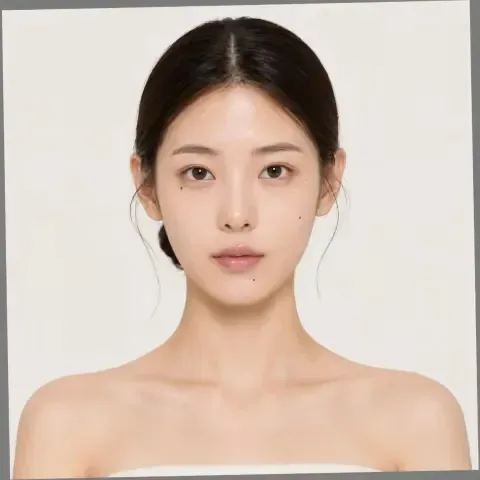
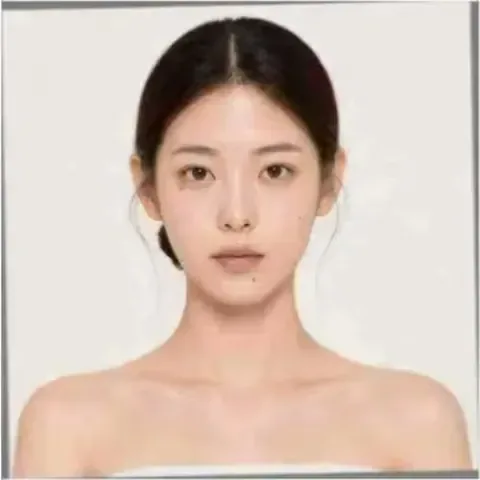
  • Front-facing portrait of a woman, blurred out of focus before and sharp after — AfterFront-facing portrait of a woman, blurred out of focus before and sharp after — Before

    Front-facing portrait refocused

    “Fix the out-of-focus face: define the eyes, eyebrows and hairline, and keep the plain backdrop and her natural skin tone.”

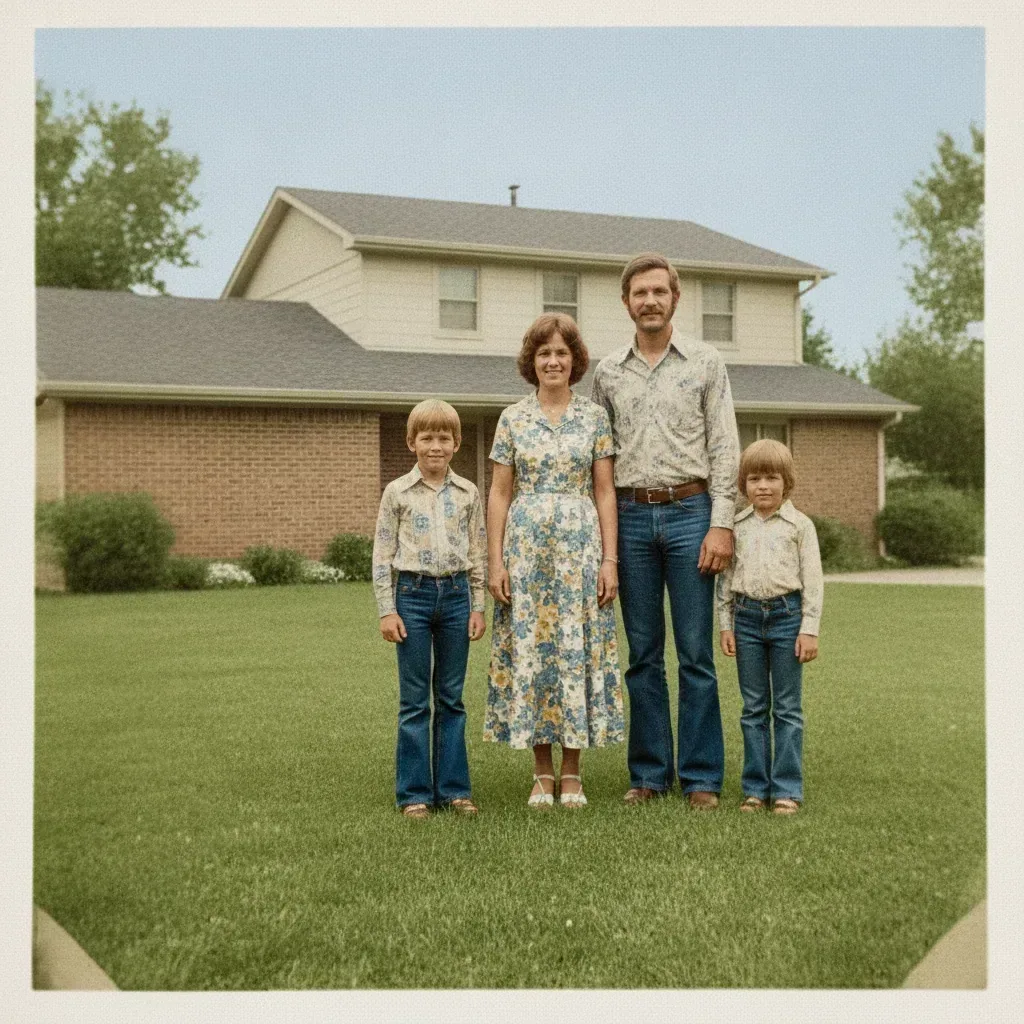
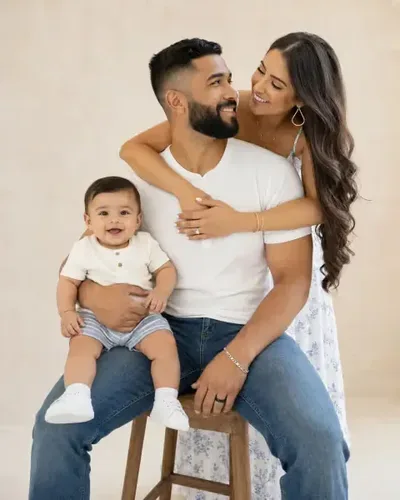
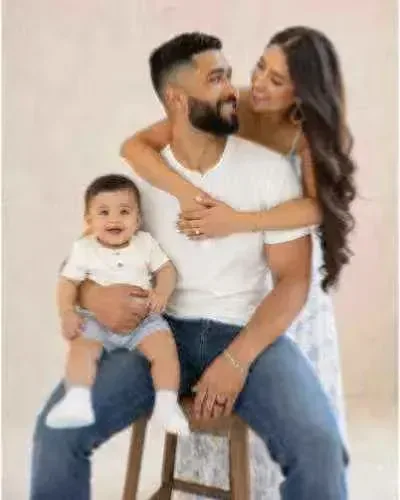
  • Family of three posing in a studio, blurry before and sharp after — AfterFamily of three posing in a studio, blurry before and sharp after — Before

    Family photo with every face clear

    “Sharpen all three faces in this family photo, clean up the shirt and denim texture, and keep the warm studio light.”

Example images are for illustration only. Each prompt is a starting point for a similar edit on your own photo.

Unblur image online in three steps

  1. Step 1

    Add the blurry photo

    Choose the blurry shot from your phone or computer: JPG, PNG or WebP, 20 MB at most. The larger the original, the more real detail the AI can build on.

  2. Step 2

    Say what must be sharp

    The ready prompt covers general blur. To unblur the image where it matters most, name that part, such as "the child's face", "the dog's eyes" or "the handwriting on the note".

  3. Step 3

    Zoom in before saving

    Unblur the image, then zoom in on eyes and letters to make sure they look right. Download it, or ask for a gentler or stronger pass.

Unblur image AI prompts by type of blur

Choose the prompt that matches how your photo got blurry, send it to the editor, swap in your own subject and unblur your image.

  1. 01

    Dog sprinting along the beach

    Remove the motion blur from this dog running along the beach. Sharpen the ears, paws and wet fur, keep the sand spray and the sea behind it slightly soft, and keep the pose exactly the same.

  2. 02

    Whiteboard shot from the back of the room

    Unblur the handwriting on this whiteboard photographed from the back of a classroom. Make each line of the notes and the diagram arrows readable, keep the marker colors, and do not invent words that are not visible.

  3. 03

    Portrait taken through a smudged lens

    Clear the hazy glow from this portrait taken with a smudged phone lens. Restore contrast and clean edges on her face and hair, remove the soft halo around the lights, and keep her expression.

  4. 04

    Child blowing out candles in dim light

    Fix the blur in this dim birthday photo of a child blowing out candles. Sharpen her face, the flames and the cake decorations, and keep the warm candlelight and the dark room around her.

  5. 05

    Young footballer caught mid-kick

    Remove the motion blur from this youth football photo taken mid-kick. Make the player’s face, boots and the ball sharp, keep the grass and the crowd softly blurred, and keep the action pose unchanged.

  6. 06

    Macro flower with the focus behind it

    This macro shot of a daisy is focused on the leaves behind it. Move the sharpness onto the white petals and the yellow center, and let those leaves fall softly out of focus instead.

  7. 07

    Street seen through a rainy bus window

    Unblur this street photo taken through a rain-streaked bus window. Clear the smeared streaks so the buildings and the cyclist look sharp, and keep the grey, rainy light of the scene.

  8. 08

    Soft back row in a group photo

    Sharpen the back row of this group photo, where the faces are out of focus. Match their clarity to the front row, keep every person’s features and expression, and leave the front row unchanged.

  9. 09

    Recipe page photographed at an angle

    Unblur the text on this angled phone photo of a printed recipe page. Make the ingredient list and the steps readable, keep the page curve and the paper color, and do not rewrite any words.

  10. 10

    Handheld city skyline at night

    Remove the camera shake from this handheld night photo of a city skyline. Turn the doubled light trails back into single sharp lights, keep the building outlines straight, and keep the deep blue sky.

When to use an unblur image AI

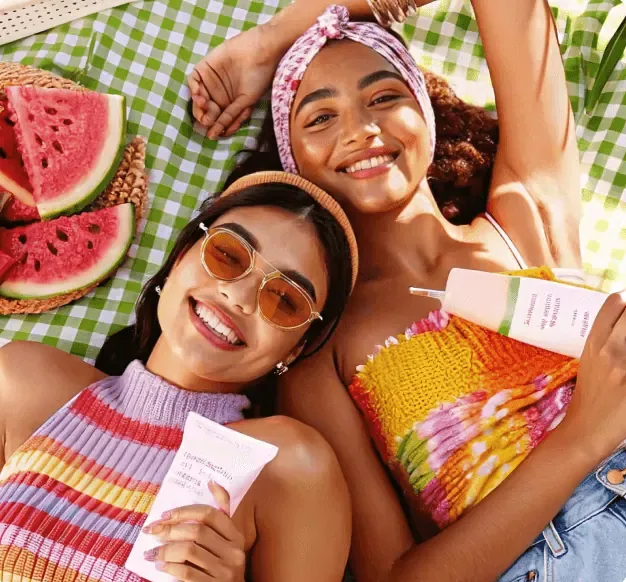
  • Three friends lying on a checked picnic blanket next to watermelon, smiling at the camera

    Shaky handheld shots

    In low light a phone picks a slow shutter, so a small hand movement blurs the whole frame. Unblur the image and those streaks pull back into crisp edges.

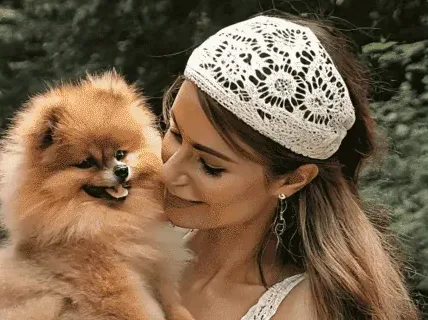
  • Woman in a crochet cap kissing a fluffy Pomeranian

    Missed focus on people and pets

    The camera locked on the background instead of the face. Unblur the image so eyes, hair and fur become the sharp part of the moment you wanted.

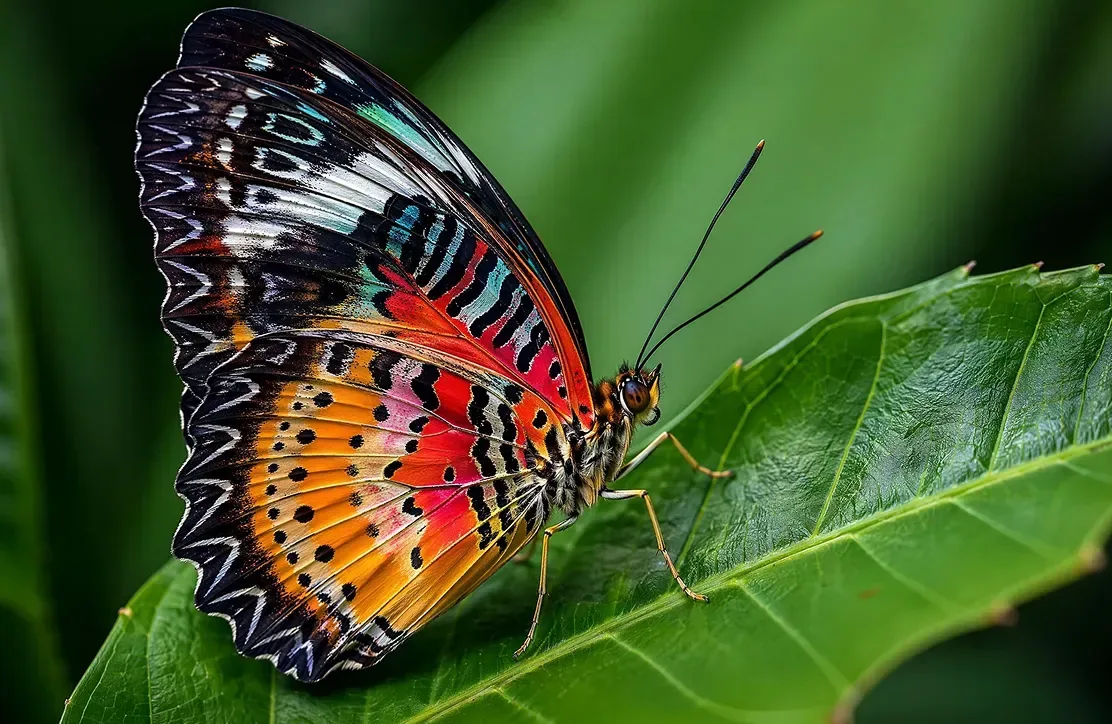
  • Orange and black butterfly resting on a bright green leaf

    Wildlife and fast movers

    A butterfly that would not sit still, a bird taking off or a kid on a swing all end up blurred. Bring back crisp wings, feathers and outlines while the background stays natural.

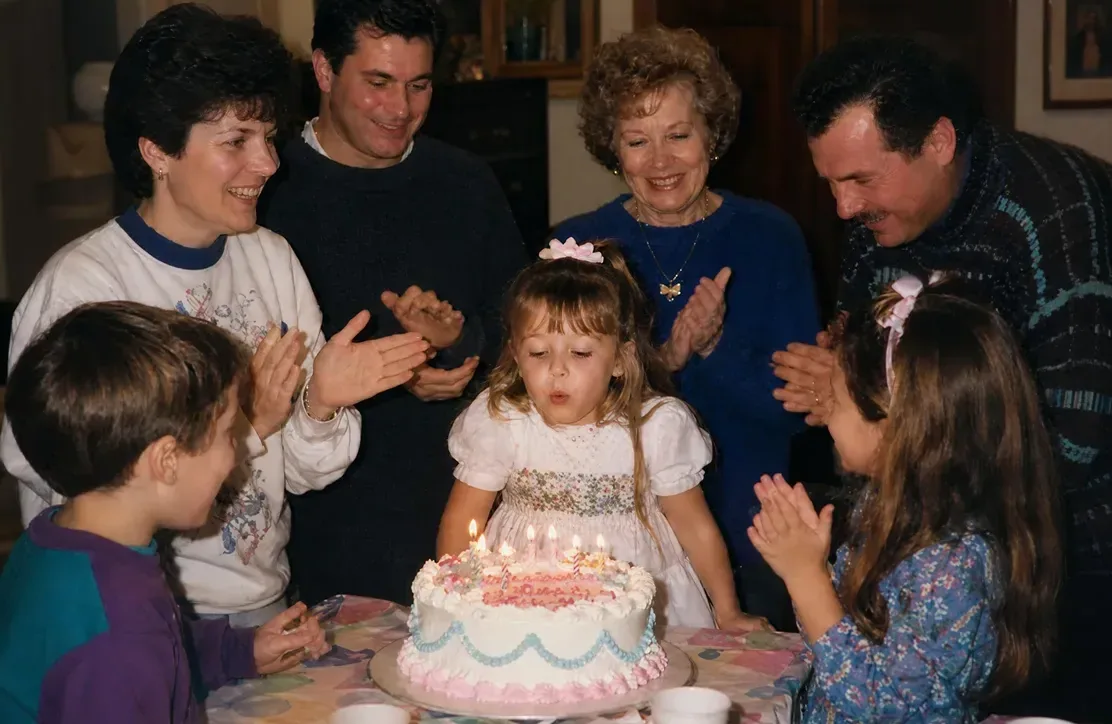
  • Family gathered around a birthday cake, clapping for a little girl

    Early digital photos

    First-generation phone cameras and small compacts produced blurry, low-detail party and holiday shots. Unblur images like these to give the memories cleaner faces before printing or sharing.

Tips to unblur an image well

  • Unblur the image from the original file, not a screenshot or a forwarded copy; every re-save throws away detail.
  • Before you unblur an image, say what kind of blur it is: "motion blur from a moving car" and "out-of-focus portrait" call for different fixes.
  • For text, put the exact words in the prompt only when you are sure of them, and check every name and number afterwards.
  • If the background blur was intentional, add "keep the soft background" so a portrait keeps its depth.
  • Please unblur images only when they are your own or ones you may edit. It is not meant for revealing anything someone blurred on purpose, such as paywalled answers, censored faces or private details.

Which model to unblur images with

The first pick covers most photos; switch for blurry text or for very fine texture.

  • Nano Banana 2

    Google

    The editor’s default and the best start when you unblur images of people, pets and travel shots. It is fast and keeps the same person recognizable, which matters when it redraws eyes and hair from very little information.

    About Nano Banana 2
  • GPT Image 2

    OpenAI

    The pick for blurry text: notes, menus, signs and printed pages. Of the six it is the strongest at producing readable lettering and at following several instructions at once, but check every name and number.

    About GPT Image 2
  • Nano Banana Pro

    Google

    Use it to unblur an image whose fine texture has to come back cleanly, such as fur, feathers, lace or single strands of hair, and for busy scenes with many people where the lighting needs to stay accurate.

    About Nano Banana Pro

Unblur image AI, explained in depth

Why the type of blur matters, how far the AI can go, how to treat text, how to check the result and when to unblur an image instead of sharpening it by hand.

Shake, motion and focus blur need different words

Three kinds of blur look alike at a glance but leave different traces. Camera shake smears the whole frame in one direction, so even the background shows double edges. Subject motion blurs only what moved, such as a running dog or a waving hand, while the rest stays crisp. Missed focus has no direction at all: one plane is sharp, often the wrong one, and the subject is soft.

Name the kind in your prompt. “Remove the camera shake” tells the model to collapse streaks into a single edge; “move the focus onto her face” tells it what should be sharp and what may stay soft. A generic “unblur” leaves it guessing.
How much blur the AI can work with

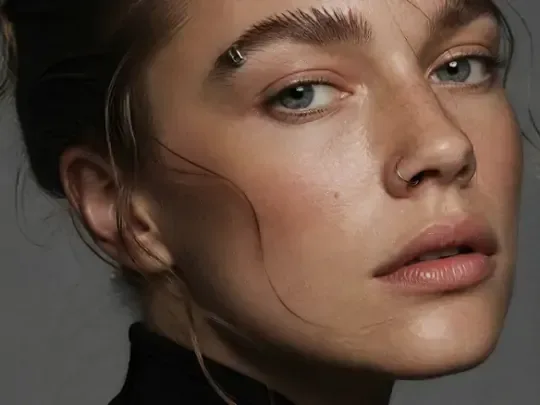
Before you unblur an image, try a quick test: zoom out until the photo is thumbnail size. If you can still tell where the eyes, the nose and the outline of the head are, the model has enough structure to rebuild a convincing sharp version. If the subject is only a colored smudge at that size, the result may look crisp but show a different face, animal or object.

Larger originals help, because more pixels keep more of that structure. So does a gentle first pass: ask for “moderate sharpening”, look at it, then ask for more. When nothing works, the photo may simply hold too little, and a reshoot or another frame from the same burst is the honest answer.

Unblurring text without inventing words

Text is the hardest case, because the model knows what letters look like and will happily produce some, readable or not. Work on your own documents and photos only, and treat the result as a reading aid rather than a copy of the original.

Crop the photo to the text area before you upload, so the letters fill more of the frame. Switch to GPT Image 2, which renders lettering most reliably. If you know the exact words, write them in the prompt; if you don’t, ask it not to change characters it cannot read. Afterwards, check every name, date, price and number against the original or another source.

Checking the unblurred version

View the result at 100 percent and look for four signs of a bad unblur. Doubled edges mean the shake was only partly removed. Bright rims around hair or roofs mean it was over-sharpened. Plastic-looking skin or glassy eyes mean the face was redrawn too freely. Crisp detail in a background that was meant to be soft means the depth of the photo was lost.

Answer each with a matching line: “remove the remaining double edges”, “softer finish, no bright rims”, “keep real skin detail”, “keep the background blur”. If the result looks good but small, run the AI Image Upscaler afterwards; if the photo is also dark or grainy, the Photo Enhancer handles that part.

Before you unblur an image: a quick checklist

Run through four checks before you unblur the image for the first time. Find the original: a photo sent through a chat app or saved from social media has been compressed, and compression blocks look like blur to the AI but cannot be undone the same way. Decide what must be sharp, because one clear subject gives a better result than “everything”. Look at the background: if the blur behind the subject is a pleasant bokeh, say that it stays. And note anything that must not change, like a name tag or a logo.

With those four answers, the prompt almost writes itself: “remove the motion blur from the boy’s face and hands, keep the soft park background, keep his T-shirt print as it is.”

Unblur image AI vs. a sharpening slider

Most photo apps have a sharpen or clarity slider. It raises contrast along edges that already exist, which helps a photo that is almost sharp and does little for one that is truly blurred: push it far and you get halos, grain and doubled outlines, while the smear stays. Fixing blur by hand in desktop software takes skill, a good estimate of the blur direction and a lot of trial and error.

The unblur image AI works differently. It reads the shapes that survived and draws new, clean edges and texture where the smear was. That is why it can rescue a shaky shot a slider cannot, and also why it can get small details wrong. Keep the slider for a final touch and leave the blur itself to the AI.

Unblur image FAQ

  1. How does an unblur image AI work?

    It reads the shapes, edges and textures that survived the blur and redraws a sharp version. The new detail is predicted rather than recovered, so it looks natural but may differ slightly from reality in faces, small text or patterns.

  2. Can I unblur image online for free?

    Sign up and you can try it free once in your browser, with nothing to install. After that, each edit uses credits; the amount depends on the model and is shown before you start, and paid plans add credits for frequent use.

  3. Can it unblur text in image files?

    Yes, for mildly soft text in your own photos, such as a menu, a sign or handwritten notes. Small or heavily blurred letters may be guessed wrong, so compare with the original and double-check names and numbers.

  4. Will it reveal something that was blurred on purpose?

    No. Deliberate blur or pixelation removes the information, and the AI would only invent something that looks plausible. Please do not use it on paywalls, censored faces, redacted documents or anyone's private details.

  5. What if my photo is extremely blurry?

    Very strong blur may leave too little to work with, and the result can look sharp but wrong. Try a lighter pass first, use the Photo Enhancer for overall quality, or Restore Old Photos for damaged prints.

  6. Can unblur image AI fix motion blur from a moving subject?

    Yes, when the subject still has a recognizable shape. Say what moved, such as “the dog running” or “her waving hand”, so the model sharpens that part and keeps the still background as it is. Very long streaks leave less to work with.

  7. Should I unblur, enhance or upscale my photo?

    Unblur the image when edges are smeared or out of focus. Use the Photo Enhancer when the photo is sharp enough but dark, noisy or dull, and the AI Image Upscaler when it is clean but too small. For a photo with several problems, unblur first, then enhance, then upscale.

  8. Why does the face look slightly different after unblurring?

    A blurred face holds little detail, so the AI draws eyes, lips and hair it cannot see clearly. Add “keep the face shape, eye shape and expression unchanged”, start from the original file and compare side by side; if it still drifts, the blur may be too strong.

  9. Can I unblur an image taken at night?

    Often, yes. Night shots blur because the shutter stays open longer, so the fix is usually camera shake plus noise. Ask the AI to “remove the shake and keep the dark mood”, and expect some invented texture in the blackest areas. If the photo is mostly dark rather than blurry, the Photo Enhancer is the better first step.

  10. Can I unblur an image grabbed from a video?

    Yes. Pause on the clearest frame, take a screenshot or export that frame, and upload it. Video stills are usually soft from motion and compression together, so name both: “remove the motion blur and the blocky compression”. A frame from a high-resolution video gives the AI far more to work with than one from a small clip.

  11. Can unblur image AI fix a photo that is blurry all over?

    If the whole frame is blurred evenly, it was most likely camera shake or a lens that never found focus. Both can improve when the main shapes are still visible. Say which kind it is, start with a moderate pass, and keep the result only if faces and objects still match the original.

  12. How do I unblur a photo of a document or a receipt?

    If the paper is at hand, lay it flat in even light and take a new photo; otherwise trim the picture down to the printed lines. Pick GPT Image 2 and ask it to make the existing words readable without rewriting them. Treat the result as a reading aid and check totals, dates and names against the paper itself.

Rescue a blurry photo

Upload the soft shot, let the unblur image AI redraw the detail and compare the sharper version with your original.