New: Nano Banana 2 & GPT Image 2

Try it

Updated 2026-11-16

Add Person to Photo with AI

Add person to photo scenes by describing who should join: their age, clothes, pose and where they stand. EditPic places the new person into your upload with matching light and shadows. Each person is generated from your words, not copied from another photo.

Add a person to a photo: examples

Eight scenes where one more person joined the shot: a studio family, a wedding, a snowmobile, a backyard, a team, a graduation and a garden. Each comes with a written description of the person you can adapt; the editor needs only your photo and your words, no second picture.

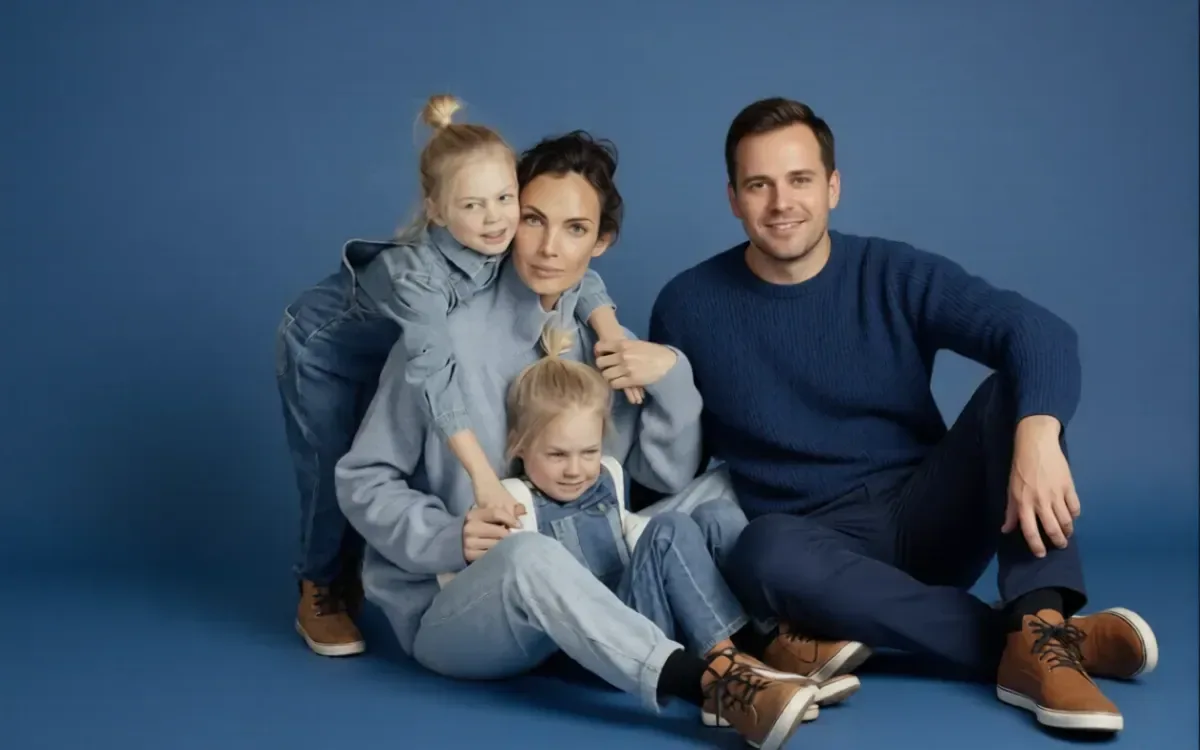
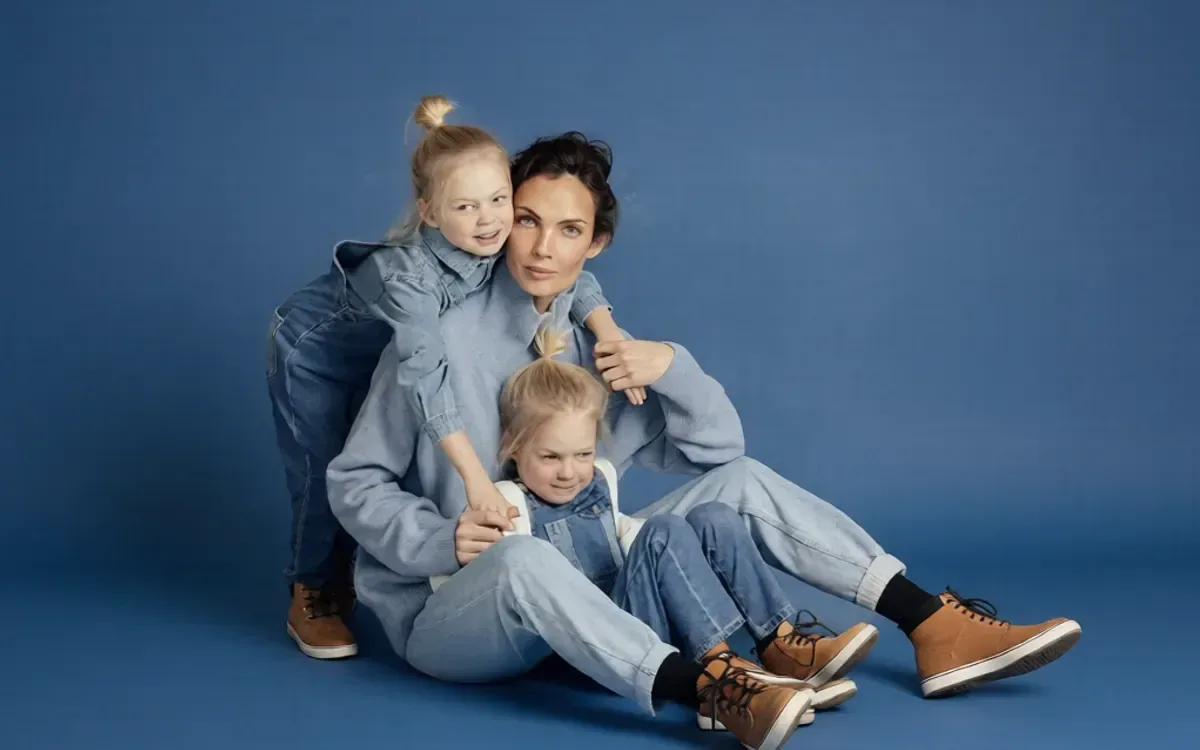
  • Mother and two daughters on a blue studio backdrop, then the same shot with their father sitting beside them — AfterMother and two daughters on a blue studio backdrop, then the same shot with their father sitting beside them — Before

    Dad joins a studio family portrait

    “Add a man in his 30s with short dark hair, a navy cable-knit sweater, dark jeans and brown boots, sitting on the floor to the right of the mother with one knee up. Match the blue backdrop and soft studio light.”

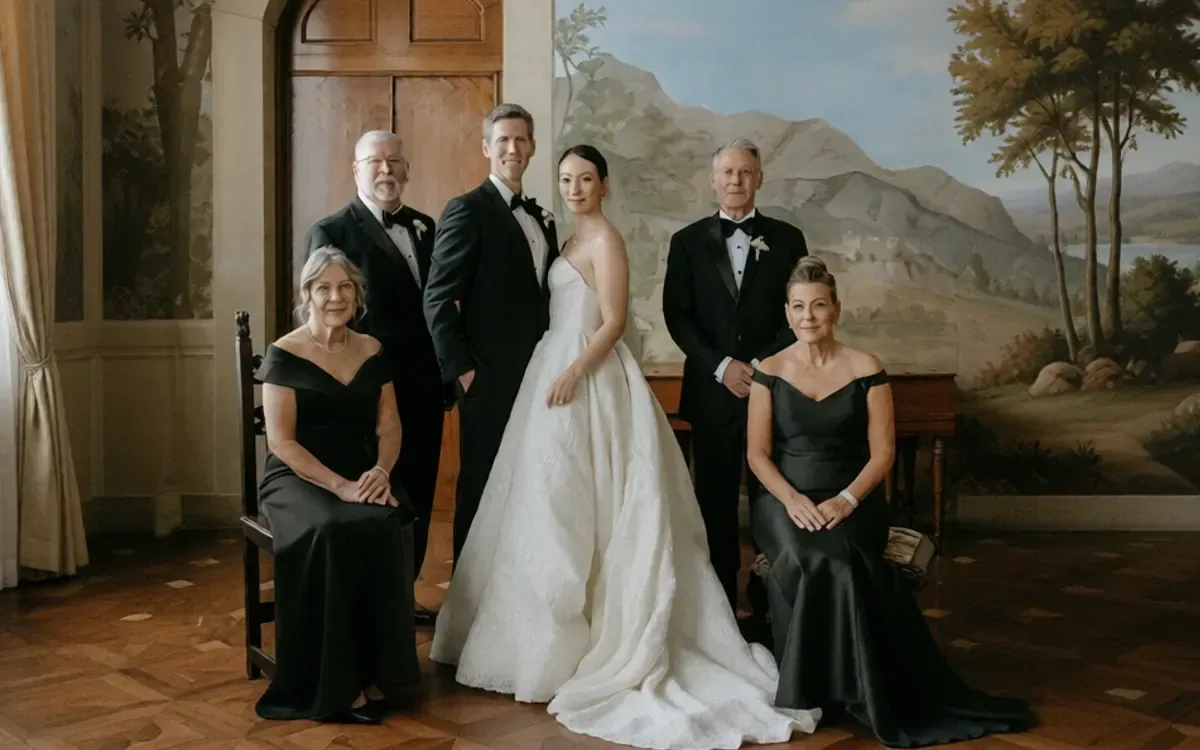
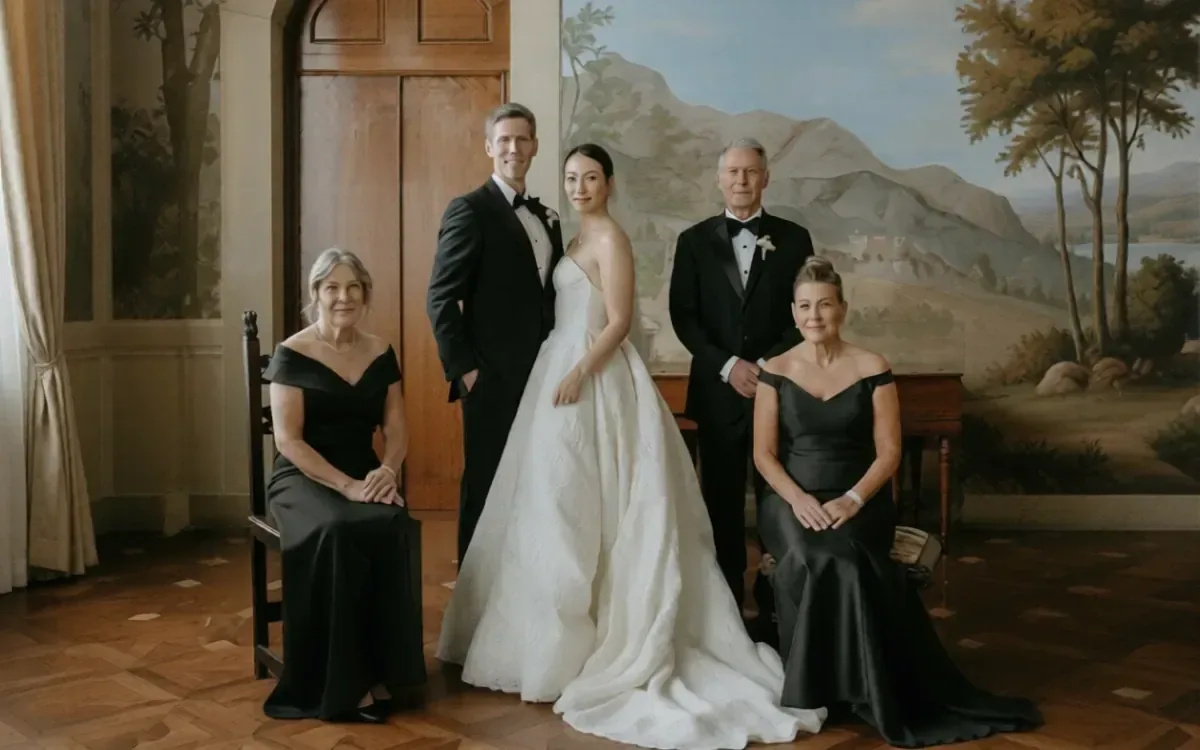
  • Formal wedding family portrait, before and after an older person in a tuxedo is added on the left — AfterFormal wedding family portrait, before and after an older person in a tuxedo is added on the left — Before

    Grandfather added to a wedding portrait

    “Add a grey-haired man in his 60s in a black tuxedo and bow tie, standing behind the seated woman on the left. Keep the painted backdrop, the warm room light and all the other people unchanged.”

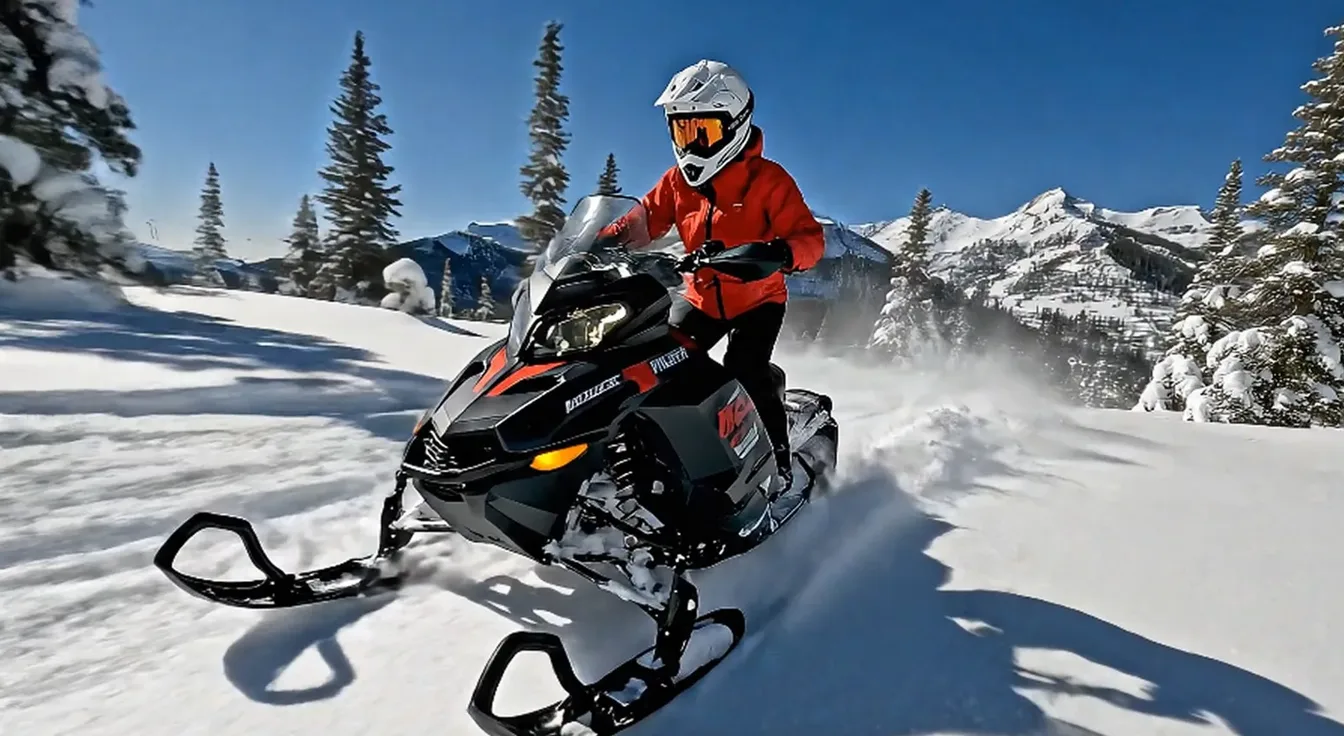
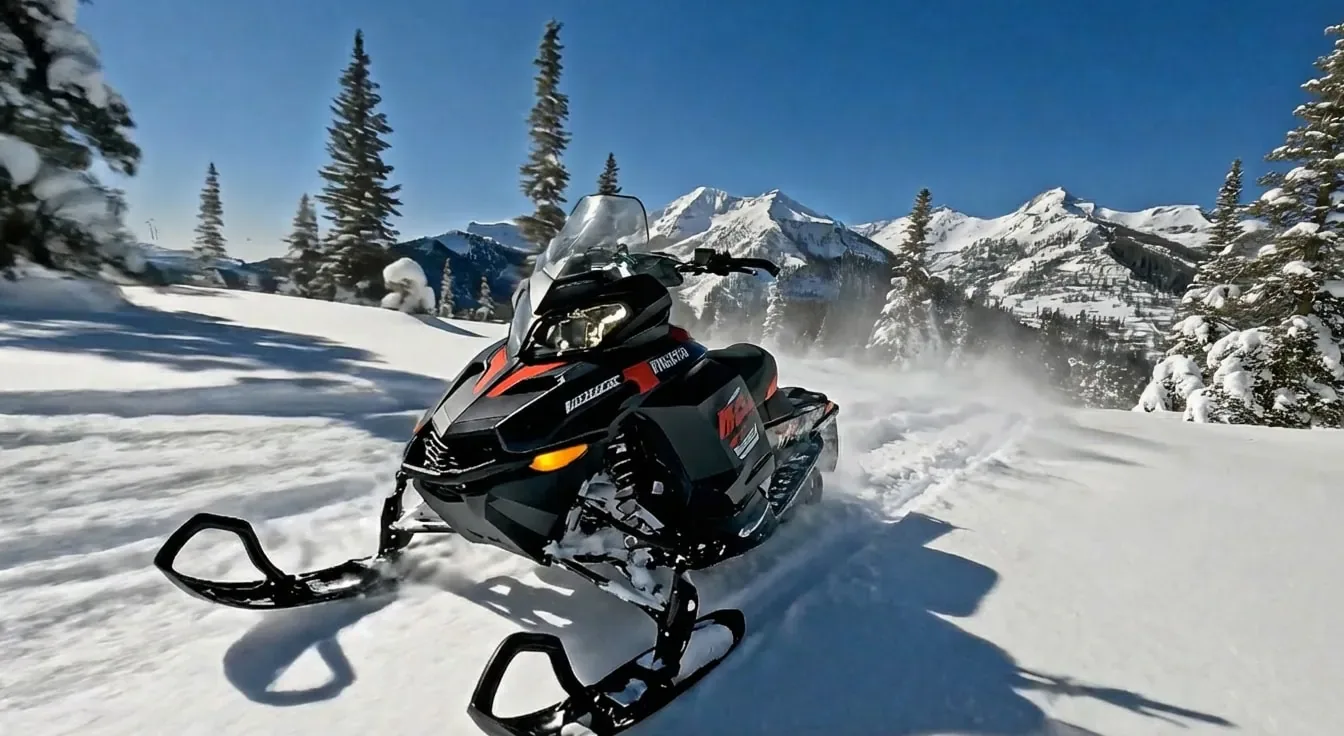
  • Snowmobile carving through fresh powder, first empty and then with a person in a red jacket riding it — AfterSnowmobile carving through fresh powder, first empty and then with a person in a red jacket riding it — Before

    A rider back on the snowmobile

    “Add a rider in a red jacket, black trousers, white helmet and orange goggles, standing on the snowmobile with both hands on the handlebars and leaning into the turn. Match the bright sun and the snow spray.”

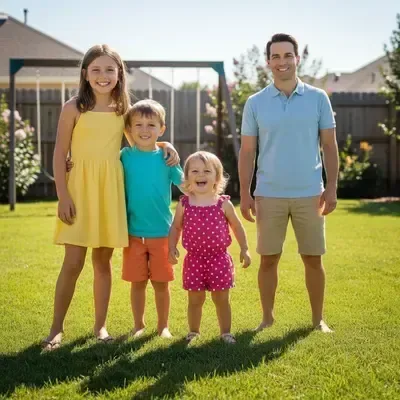
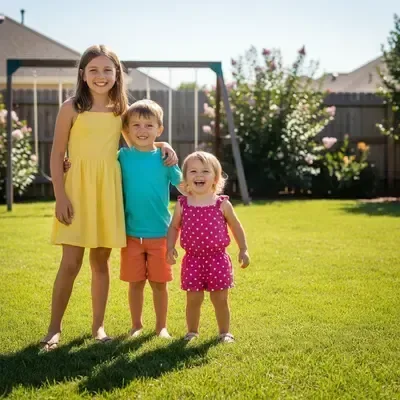
  • Three children in a backyard, then the same scene with an adult person added beside them — AfterThree children in a backyard, then the same scene with an adult person added beside them — Before

    A dad joins the kids in the backyard

    “Add a smiling man in his 30s in a light blue polo shirt and khaki shorts, standing barefoot on the grass to the right of the three children. Match the low evening sun and long shadows.”

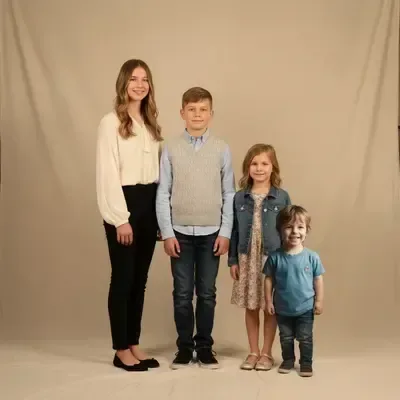
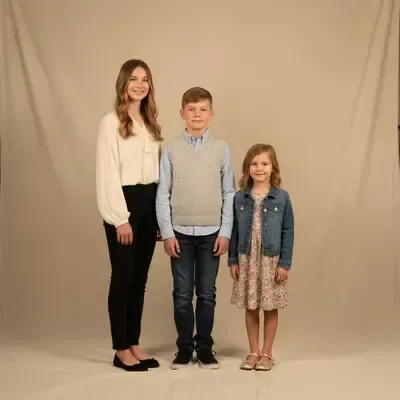
  • Three siblings on a studio backdrop with a younger boy added on the right — AfterThree siblings on a studio backdrop with a younger boy added on the right — Before

    Youngest brother added to a studio portrait

    “Add a boy of about four in a blue T-shirt and jeans at the right end, on the same beige backdrop. Keep the soft studio light and size him next to his siblings.”

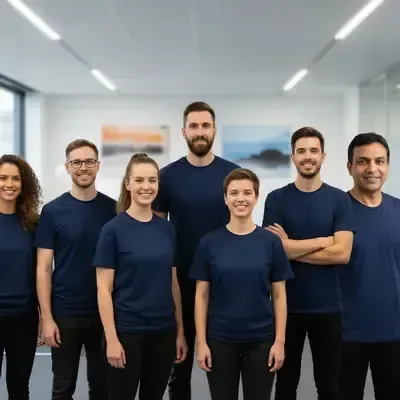
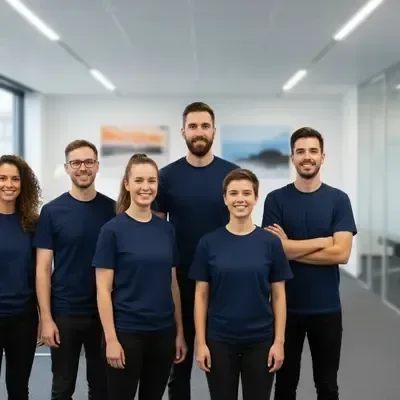
  • Office team in navy T-shirts with one extra person added at the right — AfterOffice team in navy T-shirts with one extra person added at the right — Before

    One more person in a team shot

    “Add a middle-aged man with short black hair in the same navy T-shirt at the far right of the team, at the same height as the other people and in the same office lighting.”

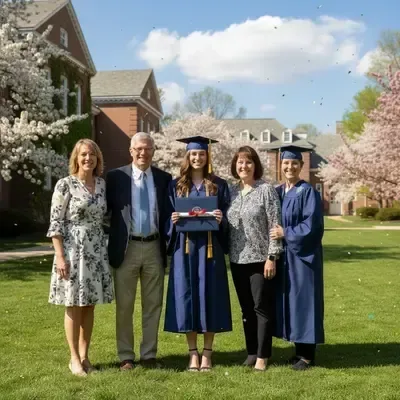
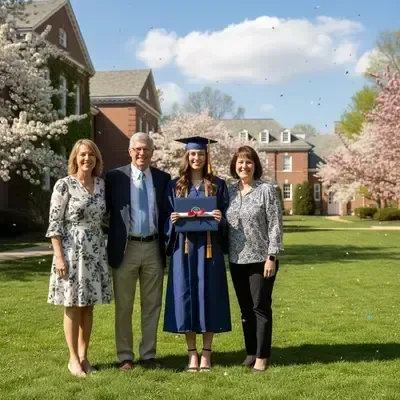
  • Family graduation photo on a campus lawn with a person in a gown added on the right — AfterFamily graduation photo on a campus lawn with a person in a gown added on the right — Before

    A second graduate on the campus lawn

    “Add a smiling woman in a navy graduation gown and cap at the right end of the family, as if she graduated the same day. Keep the spring sunlight and the campus lawn.”

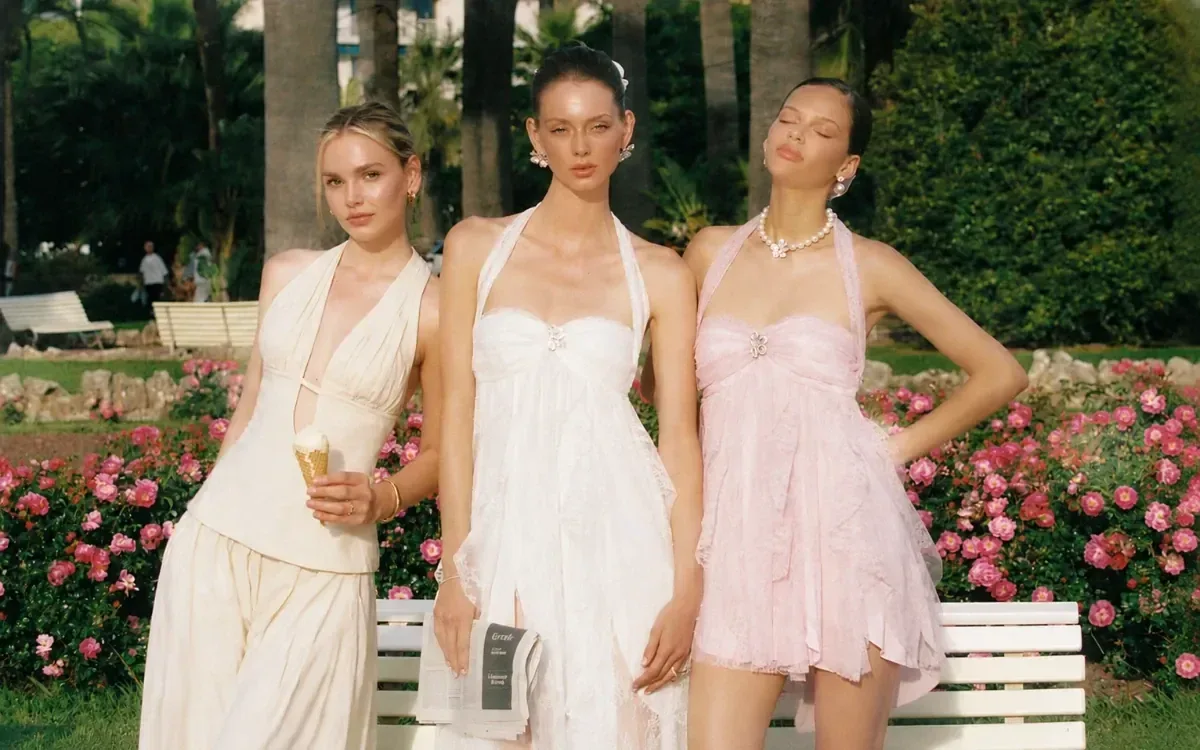
  • Two women in summer dresses by a rose garden, then with a third person in cream added on the left — AfterTwo women in summer dresses by a rose garden, then with a third person in cream added on the left — Before

    A third friend in the rose garden

    “Add a young woman with blonde hair in a cream halter top and wide cream trousers, holding an ice-cream cone, at the left of the two friends in front of the roses. Match the warm afternoon sun.”

Example images are for illustration only. Each prompt is a starting point for a similar edit on your own photo.

How to add a person to a photo

  1. Step 1

    Upload the scene

    Upload the photo that is missing a person, as a JPG, PNG or WebP of up to 20 MB. Use a picture you took yourself or have permission to edit.

  2. Step 2

    Describe the new person

    Write who you want to add and where: age, hair, clothes, pose and position — for example “a woman in a red coat on the far left, holding the child’s hand”.

  3. Step 3

    Edit and review

    Press Edit Image and check scale, light and shadows. If the person looks too big or pasted on, ask for a smaller, better-matched version in a follow-up prompt.

Add person to photo prompts for new scenes

Nine ways to add a person to photos beyond the family group: scale figures, mock-ups, stories and lifestyle scenes. Adjust each person’s age, clothes and position to suit your picture.

  1. 01

    A hiker on the ridge for scale

    Add a hiker in a yellow rain jacket and a gray backpack walking away from the camera along the ridge path, small in the frame, to show how big the mountains are. Match the overcast light.

  2. 02

    A barista behind your café counter

    Add a barista in her 20s with a dark green apron and tied-back hair behind the counter, pouring milk into a cup beside the espresso machine. Keep the counter, the menu board and the warm lamps unchanged.

  3. 03

    A reader on the window seat

    Add a woman in her 30s in a gray knit sweater sitting on the window seat with her legs tucked up, reading a paperback. Light her from the window on the left and keep the cushions and plants as they are.

  4. 04

    A silhouette at the end of the pier

    Add the dark silhouette of a person standing at the end of the pier with both arms raised toward the sunset. Keep the figure black against the orange sky and add a faint reflection on the water.

  5. 05

    A child on the empty swing

    Add a girl of about six in a yellow raincoat and red boots on the empty swing, mid-swing with her feet up and her hair flying back. Match the gray afternoon light and the wet playground.

  6. 06

    An older couple on the park bench

    Add an elderly couple sitting close together on the bench under the cherry tree, the man in a flat cap and tweed jacket, the woman in a lilac coat, both looking up at the blossom.

  7. 07

    A cyclist on the coast road

    Add a cyclist in a black and white jersey and helmet riding along the coast road toward the camera, small in the frame and leaning slightly into the bend. Match the morning sun and keep the sea unchanged.

  8. 08

    Two coworkers at a meeting table

    Add two coworkers at the long wooden table: a man in a white shirt pointing at the laptop and a woman with curly hair taking notes beside him. Match the soft daylight in the room.

  9. 09

    A street musician on the steps

    Add a street musician in his 50s with a gray beard and a denim jacket, sitting on the stone steps and playing an acoustic guitar, with the open case at his feet. Match the late-afternoon shadows.

When to add a person to a picture

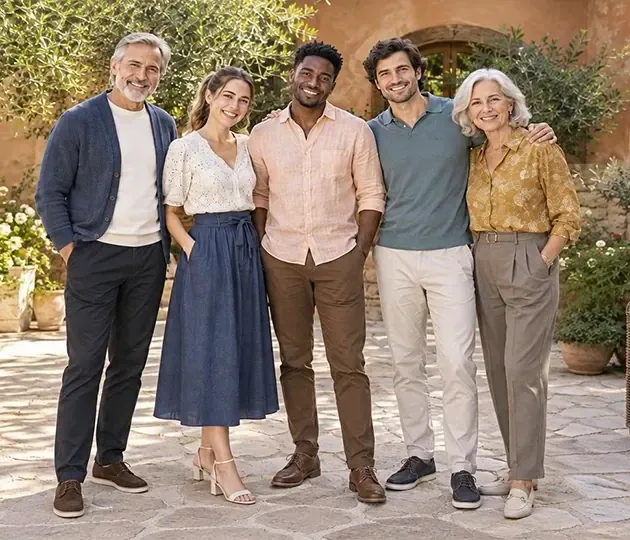
  • Five adults of different ages standing together in a sunny garden courtyard

    The family photographer

    The person holding the camera is usually missing from the holiday shots. Describe them and add a person who looks similar so the group feels complete — drawn from your words, not their real face.

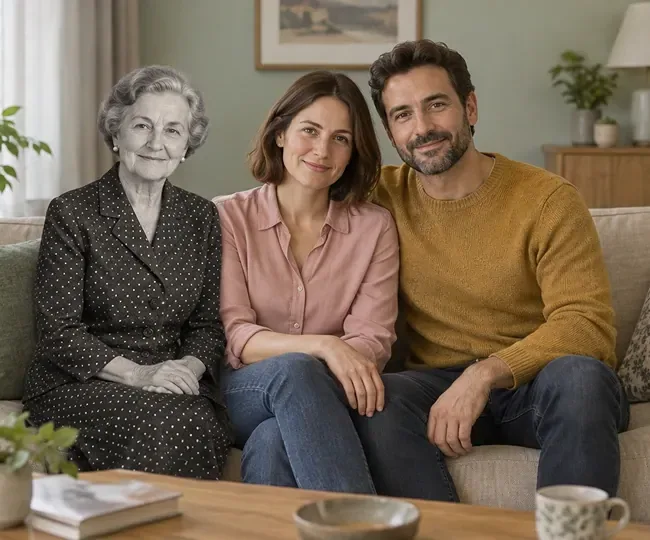
  • Grandmother in a dotted dress sitting on a sofa beside a smiling couple

    Remembering a loved one

    Add a person who resembles a relative who could not be at a reunion or wedding, as a private keepsake. Treat it as a tribute, not as a record of the day.

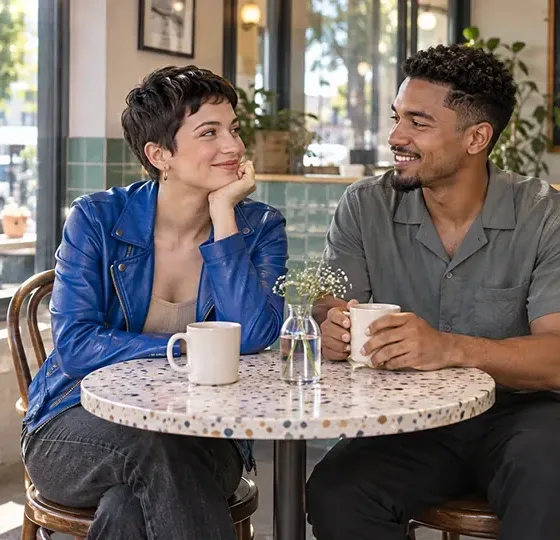
  • Two friends chatting over coffee at a round café table

    Mock-ups and layouts

    Designers and marketers place stand-in people into a scene to test a poster, an ad or a landing page layout before booking a real shoot with real people.

  • Hiker in a red jacket at a stone lookout above a mountain lake

    Stories and creative posts

    Place characters into a scene for a short story, a storyboard or a social post, with clothes and poses that suit the setting and the people already in it.

Tips to add a person naturally

  • Before you add a person, say exactly where they go: “far right”, “between the two kids”, “sitting on the bench”. Vague placement leads to odd overlaps with the people already there.
  • Give a size cue such as “about the father’s height” or “a toddler”, so the new person matches the scale of the group.
  • Mention the light — “evening sun from the left”, “soft studio light”. Matching shadows is what makes an added person believable.
  • Pick clothes that fit the occasion and season; a winter coat on a person in a beach photo gives the edit away at once.
  • Only edit photos you have permission to use, and never present an added person as someone who was really there.

Which model to use to add a person to a photo

All six models can add a person from a description. These three cover most scenes; start with the first and switch if the light or the details are off.

  • Nano Banana 2

    Google

    The editor’s default and a good first try for most group shots. It is quick and keeps the same person consistent across a series, which helps when you place one described person into a few photos from the same day.

    About Nano Banana 2
  • Nano Banana Pro

    Google

    Use Pro when light is what gives an added person away: backlit sunsets, candlelit rooms, a busy street with mixed shadows. It is strongest at accurate lighting and fine texture such as hair and knitwear. EditPic outputs 1K or 2K.

    About Nano Banana Pro
  • GPT Image 2

    OpenAI

    Good for long descriptions with many details at once: age, hair, outfit, a held object, a pose and an exact spot in the frame. Following several instructions about one person in one prompt is what GPT Image 2 does best.

    About GPT Image 2

Add a person to a photo: making it believable

How the editor builds a person from your words, what makes the result look real when you add a person to a photo, and how to use it fairly.

Building a person from words alone

The editor takes one photo and your text. There is no slot for a second picture, so when you add a person, they are invented from the description and will not be anyone’s exact likeness. That shapes how you write the prompt.

Work from the outside in: who the person is (age range, build, hair), where they stand in the frame, what they are doing, what they wear, and finally the light that falls on them. Concrete details beat adjectives; "a navy wool coat buttoned to the collar" helps more than "smart". If you want the person to resemble a relative, describe visible features only, and accept that the result is a stand-in, not a portrait.
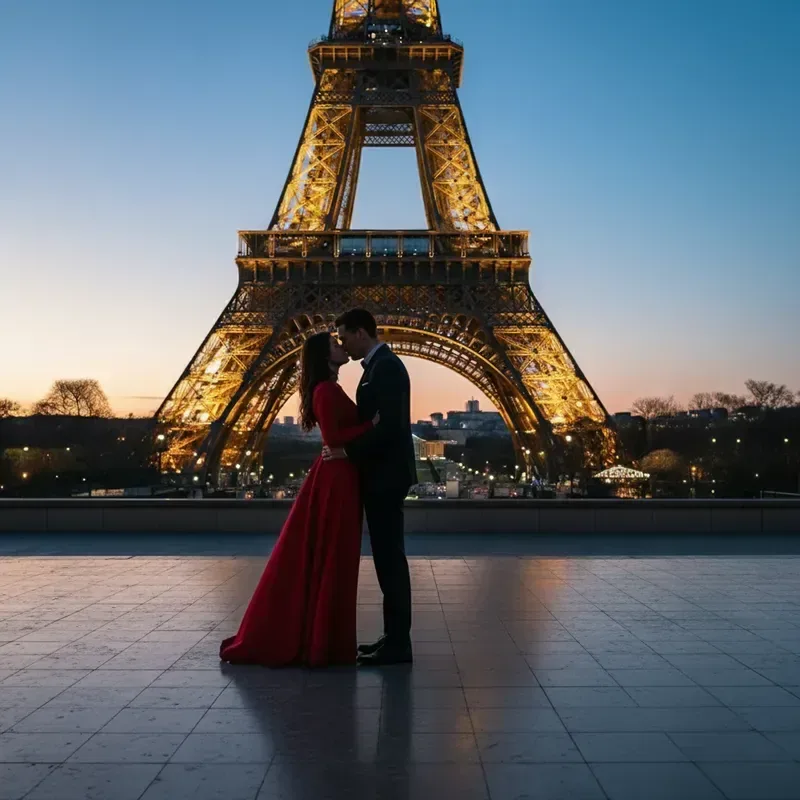
Matching scale, light and focus to the people already there

Most failed attempts to add a person are a size or light problem, not a face problem. Give the AI a reference that is already in the photo: "the same height as the man on the left", "standing level with the bench". Keep the new person’s feet on the same ground as the other people.

Then match the light. Say where it comes from and how hard it is: low sun from the right, flat overcast light, a warm lamp behind. Mention the shadow the person should cast. Finally, think about focus. In a shot with a blurred background, a person added far behind the subject should be soft too, so ask for "slightly out of focus, like the background".

Spotting and fixing the giveaways

After you add a person, zoom in on hands, feet and the edges of hair. Extra or merged fingers, feet that hover above the ground and a bright halo around the head are the usual signs. Name the problem in a follow-up: "put his feet flat on the grass and add a shadow under them".

Check the people who were already there, too. Faces next to the new person can shift slightly; if that happens, go back to the original and add "keep the existing people exactly as they are". A person who looks too crisp next to a grainy photo can be fixed by asking for them to "match the grain and sharpness of the photo".

Using added people fairly

It is fine to add people for keepsakes, mock-ups, storyboards and scale figures in landscapes. Added people should not be used to make it look as if a person attended an event, met someone or was somewhere they never went. If you share a keepsake that includes an added relative, say so in the caption.

Only edit photos you took or have permission to use, and do not add identifiable real people without their consent. If a scene needs one person taken out and another added, do the removal first with Remove People from Photo, then add the new person to the cleaned result.

Before you add a person: a quick photo checklist

Look for free space first. The new person needs somewhere to stand or sit that is not already filled by people, furniture or the edge of the frame; it is easier to add a person at one end of a row than to squeeze them between two people. Next, find a size reference, such as a door, a bench or another adult, that you can name in the prompt.

Check the light on the existing people: which cheek is brighter, how long the shadows are, whether the light is warm or cool. Note the camera height too, since a photo taken from above shows the tops of heads. Then pick the clothes, the pose and the spot for the new person before you write a single word, and keep the untouched original to come back to.

Walkthrough: adding a cousin to a reunion photo

Take a reunion group of eight people on a terrace in afternoon sun, with a gap at the left where one cousin should have stood. Write the prompt in the same order every time you add a person: who, where, pose, clothes, light. For example: “add a woman in her 30s with a dark bob, standing at the far left next to the man in the green shirt, one arm around his shoulder, wearing a white linen dress, lit by the sun from the right like the others”.

Check the result at full size. Her head should sit at roughly the same height as the other adults, her shadow should fall the same way, and the arm around the shoulder should meet it cleanly. If the arm looks odd, try again without the touch and let the person simply stand close. Share it as a keepsake and say she was added later.

Add person to photo FAQ

  1. Can I add person to photo online free?

    You can sign up and try it free once, right in your browser. After that, each edit uses credits; the editor shows how many for the model you picked before you run it, and paid plans add credits if you add people to photos regularly.

  2. Can I upload a second photo of the person I want to add?

    Not at the moment. Our AI add person to photo editor takes one photo plus your written description, so the new person is generated from that text and will not be an exact likeness of a real individual. Describe hair, age and clothing closely for a nearer match.

  3. Will the people already in the photo change?

    When you add a person, the editor aims to keep the other people as they are. Generative edits can slightly alter nearby faces, hands or background, so compare with the original and add “keep the existing people unchanged” to your prompt.

  4. Is it okay to add a person to a photo?

    For personal keepsakes, mock-ups and creative work, yes — as long as you have the right to edit the photo. Don’t use it to fake events, mislead people about who was present, or place a real person in a scene without their consent.

  5. Which photos work best?

    Clear, well-lit photos with some free space where the new person can stand. Outdoor group shots and studio portraits are easy places to add a person; very crowded scenes or tight crops leave little room for a natural addition.

  6. How do I make an added person look like part of the photo?

    Match three things whenever you add a person: scale, light and focus. Compare the new person with someone already in the frame, say where the light comes from, ask for a shadow on the ground, and keep them as sharp or as soft as the people around them. Those cues matter more than the face.

  7. Can I add a person to a photo far away or facing away from the camera?

    Yes, and it is often the most convincing way to add a person. A small person on a path, a silhouette or someone seen from behind needs less facial detail, so there is less to get wrong. Write "small in the frame" or "seen from behind" in your prompt.

  8. Can I add a celebrity or a specific real person by name?

    Please don’t. The editor works from one photo and a written description, with no reference photo of anyone, and putting a recognizable real person into a scene they were never in can mislead others and infringe their rights. Describe a fictional person by age, hair and clothing instead.

  9. Can I add people to a group photo one at a time?

    Yes, and it usually works better than asking for several at once. Add a person, download the result, then upload that version and add the next one. Name the people who are already there in each prompt, such as “keep all six people unchanged”, so earlier additions stay put.

  10. Can I add a person to an old or black-and-white photo?

    You can. Ask for the new person to match the photo: “black-and-white, the same film grain and soft focus, 1970s clothing”. Old prints often have scratches or faded areas, so consider Restore Old Photos first and add the person to the repaired version.

  11. What should I write to add a child or a baby to a photo?

    Give an age and a size cue, because small people are easy to get wrong: “a girl of about three, reaching the mother’s hip, sitting on her lap”. Mention what the child is holding or looking at, and check hands and feet closely in the result.

Add a person to your photo

Upload the photo, add a person by describing who should join and where, then check the result against the original.