How to Remove a Person from a Photo
How to remove a person from a photo with AI: four steps, copyable prompts, fixes for shadows, reflections and overlaps, plus phone and desktop options.
Updated 2026-11-16
Here is how to remove a person from a photo in a minute or two: upload the picture, describe exactly which person should go and what belongs in their place, let the AI rebuild the background, then check edges, shadows and reflections before you download. You don't need to paint a mask or clone pixels by hand. You do need a precise description of the person, and you should only edit photos you have the right to edit.
Before you remove a person from a photo: a quick checklist
Two minutes of preparation saves most retries. Run through these before you upload:
- Rights and consent. It is your photo, or you have the right to edit it. If the person you are taking out is a friend or relative, ask them first.
- The original file. Use the camera original, not a screenshot or a copy squeezed by a messaging app. Compression blurs exactly the area the AI has to rebuild.
- What goes in the gap. Decide before you type: sand, a shop window, an empty bench. A prompt that names the fill beats one that only names the person.
- Every trace of the person. Look for a shadow on the ground, a reflection in glass or water, or a hand resting on another person's shoulder.
- Where the photo will be used. A phone post forgives small flaws; a framed print does not, so plan for 2K output and a close check.
- A backup. Keep the untouched original. You will want it for the side-by-side check, and to start over if a result drifts.
How to remove a person from a photo in four steps
1. Start with the best copy of the photo
Use the sharpest, largest version you have; EditPic accepts JPG, PNG and WebP up to 20 MB. Small people at the edge of the frame or in front of something simple, such as sky, sand, grass or a plain wall, disappear most cleanly. A person filling a third of the frame in front of a detailed building is still possible, but plan on refining.
2. Describe the person the way a stranger would spot them
The AI can't read your intent, so "the stranger" is too vague. Describe the person's position, clothing and action, then say what should replace them and what must stay the same:
Remove the man in the red jacket walking on the left side of the photo. Fill the space with the street and storefront behind him so it looks untouched. Keep everyone else and the rest of the photo exactly the same.
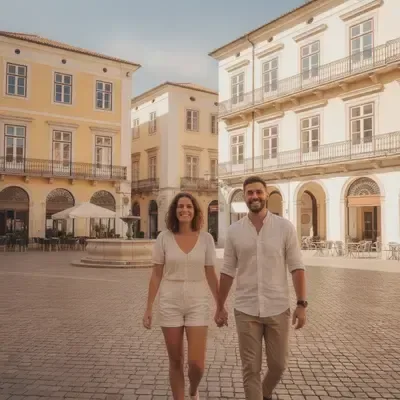

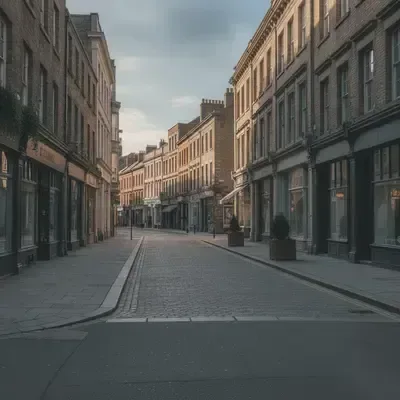
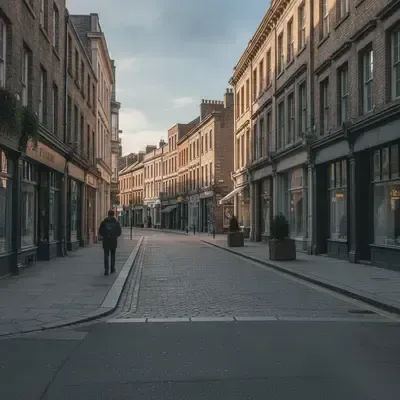
3. Choose a model and run the edit
Open the person remover, paste the prompt and press Edit Image. Nano Banana is a dependable choice for natural-looking removals, Nano Banana Pro is worth its extra credits for large and detailed photos, and Flux suits edits that should touch only what you describe; the model section further down covers all six. Each edit uses credits, and the amount depends on the model.
4. Zoom in, then refine with one short prompt
Look at the spot where the person stood, at full size. Lines should continue (horizons, railings, curbs, tiles), no shadow should float on the ground, and no other person's face or hands should have changed. Fix one thing per follow-up: "remove the leftover shadow on the sand" works better than repeating the whole request.
Copyable prompts for common situations
Each prompt below follows the same pattern: who the person is, what replaces them, and what must not change. Swap in the details of your own photo.
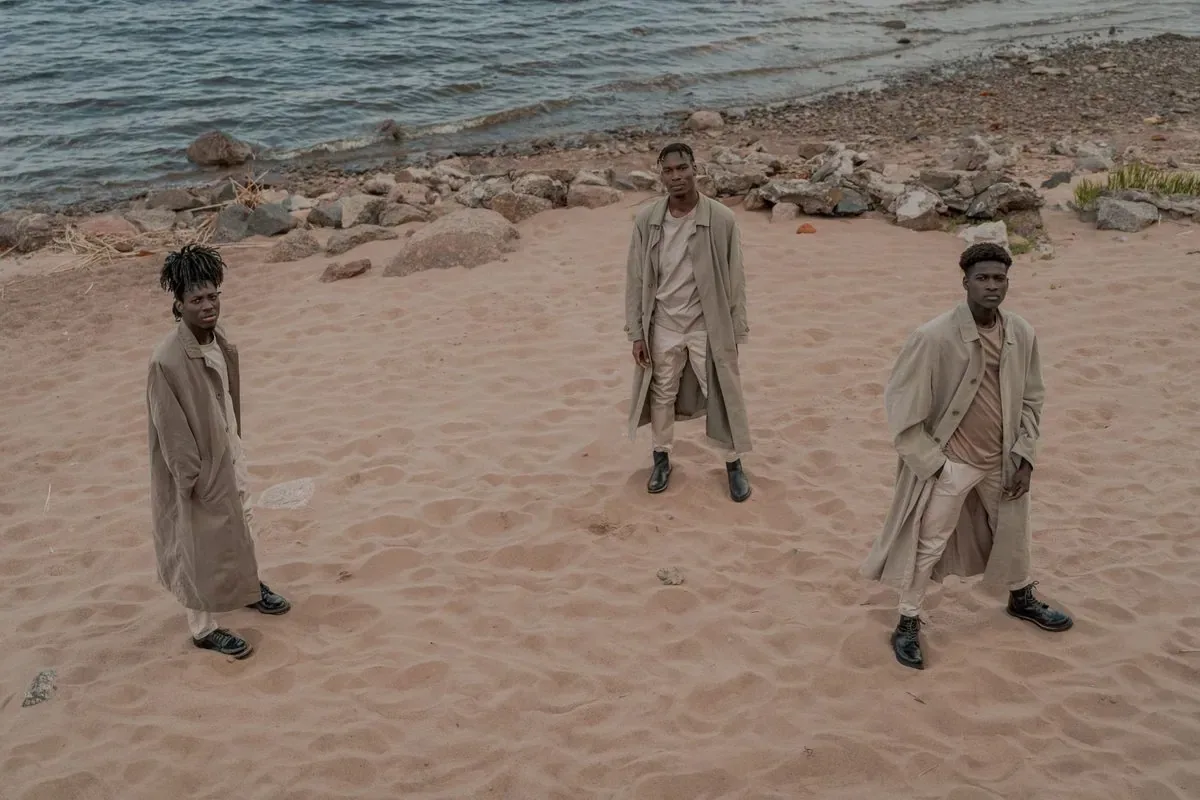
A photobomber in a travel shot
Remove the woman in the white hat standing behind us on the right. Rebuild the beach and the sea where she was. Keep the two of us unchanged.
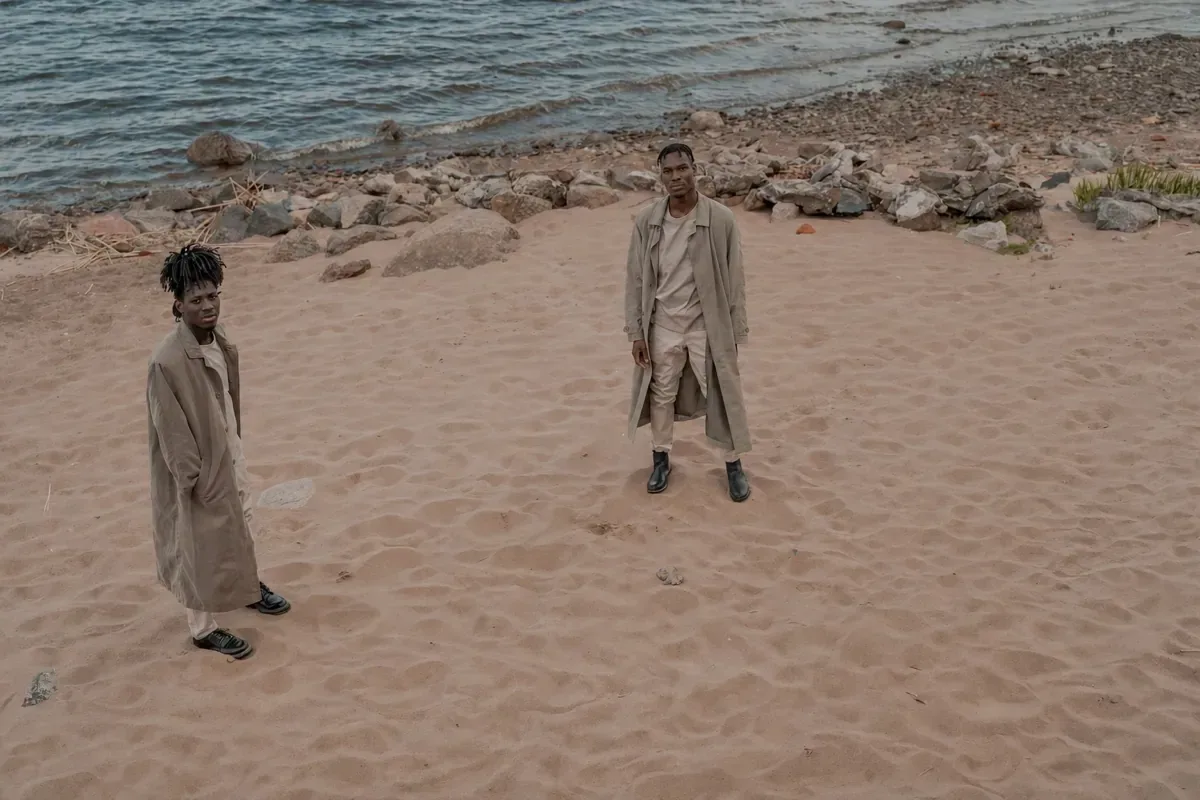
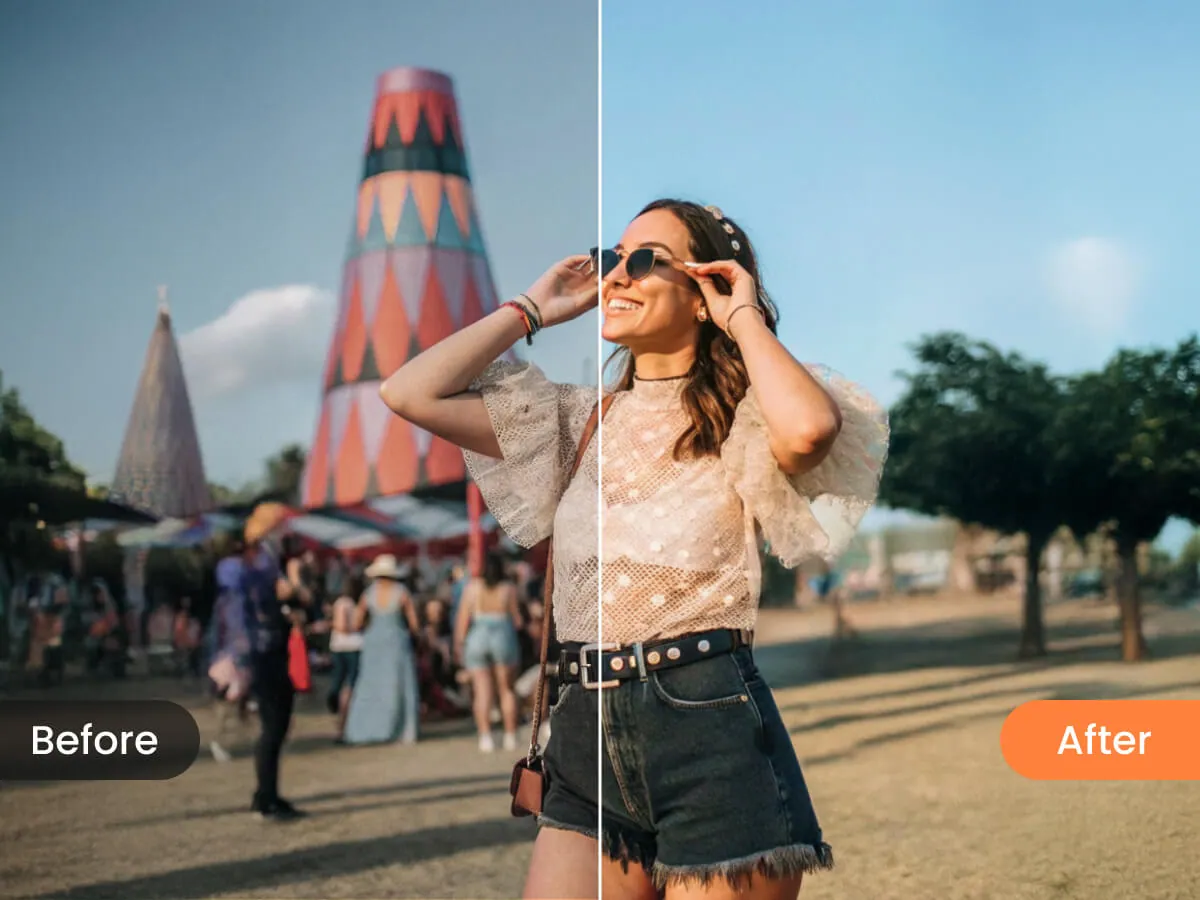
A crowd behind a portrait
Remove all the people in the background behind the girl in the yellow dress and show the empty square and fountain instead. Keep her pose, face and dress exactly as they are.
A person cut off at the edge of the frame
Remove the partly visible person at the left edge of the photo and continue the brick wall in their place.
A hiker in a landscape
Remove the hiker on the trail in the middle distance. Continue the trail and the grass naturally where he was standing.
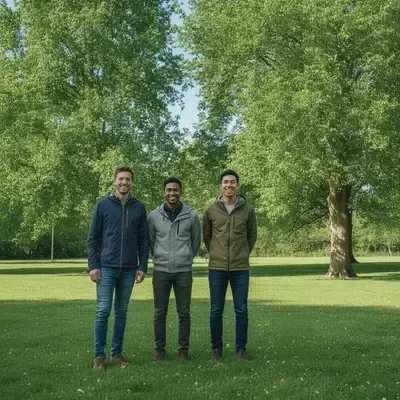
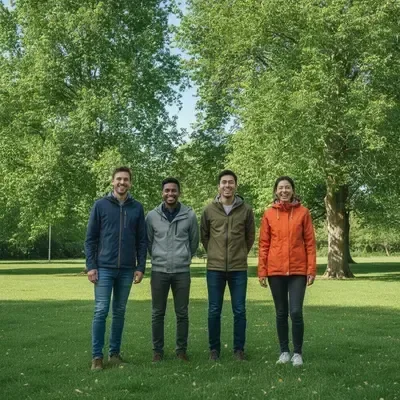
One person out of a group photo (with their consent)
Remove the man on the far right of the group. Close the gap naturally and keep the other four people's faces, hands and clothes unchanged.
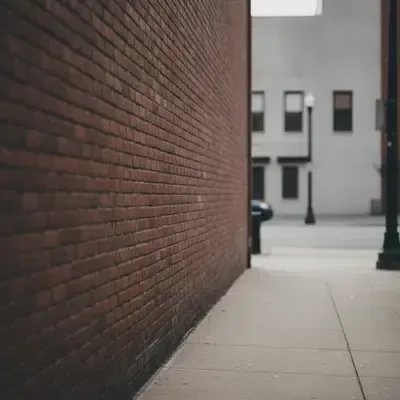
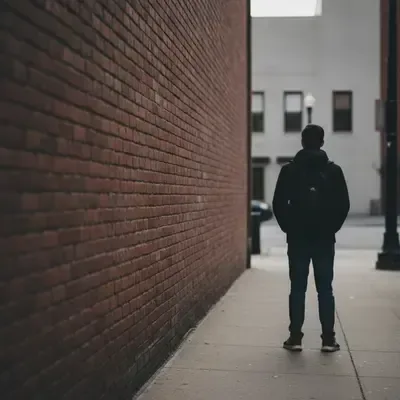
Worked example: removing a person from a busy travel photo
Here is a typical run from upload to download, so you know what to expect when you remove a person from a photo yourself.
The photo: two friends at a fountain, with a person in a yellow raincoat crossing behind them on the right. The first prompt names the person and the fill:
Remove the person in the yellow raincoat walking behind us on the right. Continue the fountain and the paving stones. Keep both of us unchanged.
The first result usually gets the big part right. Then you zoom in. Perhaps a pale yellow trace of the person is left in the fountain water, so the second prompt handles only that: "remove the yellow reflection in the water on the right". If a paving line now bends where the person stood, a third short prompt straightens it, or you rerun the request on Nano Banana Pro, which copes better with detailed patterns.
Three short passes, each fixing one problem, usually beat one long prompt that asks for everything at once. Each pass uses credits, so stop as soon as the photo holds up at full size.
Common problems after removing a person, and how to fix them
Most failed attempts to remove a person from a photo come down to one of five problems.
Leftover shadows
A person standing in sunlight casts a shadow the AI may treat as part of the ground. Mention it up front ("remove the man and his shadow on the pavement"), or clean it up afterwards with "remove the dark shadow where the man was standing".
Reflections in glass, mirrors and water
A reflection is a second copy of the person, and it is easy to miss. Name it: "also remove his reflection in the shop window" or "in the lake". Check sunglasses, car doors and polished floors too.
Overlapping people
When the person you want gone has an arm around your subject or stands half behind them, the AI must invent what was hidden. Tell it what to show: "remove the arm on her shoulder and show her full blue sweater". Compare faces and hands carefully, because this is where results drift most.
Repeating patterns
Tiles, brick, fences, railings and striped awnings expose mistakes, since the eye expects the pattern to carry on. Describe it: "continue the white picket fence with evenly spaced posts". If it still bends, try Nano Banana Pro, or crop so less of the pattern needs rebuilding.
The rest of the photo shifted
Generative editors redraw the picture, so small details elsewhere can move. Add "keep everything else unchanged", keep prompts short, and compare before and after, starting with the faces of the people you kept.
Which EditPic model to use to remove people from photos
All six models can remove a person from a photo. They differ in how they handle the hard parts, so match the model to the scene:
- Nano Banana 2, the editor's default, is quick and keeps the people you keep looking like themselves, which helps when you clean up a whole set of shots from the same day.
- Nano Banana is the dependable all-rounder when one or two people wander through an ordinary street or beach scene and you want an untouched look.
- Nano Banana Pro earns its extra credits when the gap is big and the scene is detailed: carved stonework, crowds of people, reflections, mixed light. In EditPic it outputs 1K or 2K.
- Flux suits edits that must touch nothing except the person you name, such as a family portrait where the other people's faces and clothes cannot move.
- Seedream works well for trying several wordings as drafts before you run the final edit on a model built for detail.
- GPT Image 2 helps when the area behind the person holds signs, shop names or a menu that must stay readable after the fill.
If the first result shifts a face or bends a railing, try another model before you rewrite the prompt. The same sentence often lands differently on a different model.
Final check before you share or print
After you remove a person from a photo, open the original next to the result, zoom to 100% and go through this list:
- Lines. Horizons, kerbs, railings, tiles and window frames run straight through the spot where the person stood.
- Ground. No floating shadow, footprint-shaped smudge or doubled pebbles where the person's feet were.
- Reflections. Windows, water, mirrors, car paint and sunglasses no longer show the person.
- The people you kept. Faces, hands, hair and jewelry match the original. Count fingers and earrings.
- Edges. Nothing smeared around the remaining people, especially hair against the sky.
- Repeats. No patch of crowd, foliage or tiles that appears twice.
- Light. The filled area has the same brightness, color and grain as its surroundings.
- Size. The download is large enough for its use. EditPic exports 1K or 2K, so for a big print run it on Nano Banana Pro at 2K and inspect the detail.
Other ways to remove a person from a photo
Method | Good at | Watch out for |
|---|---|---|
Phone gallery erasers (Apple Photos Clean Up, Google Photos Magic Eraser, Samsung Object Eraser) | Quick taps or brush strokes on small distractions, already on the phone | Device and OS requirements; large people and busy backgrounds are harder |
Desktop editors (Photoshop Remove tool, Content-Aware Fill, Generative Fill; GIMP Heal and Clone) | Pixel-level control for print work and careful retouching | Takes time to learn; manual work on complex scenes |
Prompt-based AI editors such as EditPic | Several people at once, described in words, no masking | Every result needs checking; each edit uses credits |
No single method is the best way to remove a person from a photo every time. If you searched for a way to remove person from photo free of charge, start with your phone's gallery eraser or GIMP. For one small person in the distance, the phone is often enough. For a print you will frame, a desktop editor gives the most control. For a crowded scene you want cleared quickly, a prompt is usually faster than brushing over each person.
When not to remove a person from a photo
Clean up your own travel, family and event photos as much as you like, and ask before you take a friend or relative out of a shared picture. Don't edit ID or passport photos (the US passport photo requirements forbid any digital change), news images, evidence, or pictures you don't have the right to edit, and don't use an edit to mislead anyone about which people were there.
Frequently asked questions
How do I remove a person from a photo without Photoshop?
Use a prompt-based AI editor or the eraser in your phone gallery. In EditPic, upload the photo, describe the person by position and clothing, ask for the background behind them to be filled in, press Edit Image and check the result at full size.
Can I remove a person from a photo for free?
Often, yes: many phone gallery apps include an eraser on supported devices, and GIMP is free on desktop. EditPic is free to sign up for, but each AI edit uses credits, so it is not an unlimited free tool.
Why is there still a shadow or outline where the person was?
The AI may read the person's shadow or reflection as part of the scene. Name it in the prompt, for example "remove the man and his shadow on the pavement", or follow up with a short prompt that asks only for the leftover shadow to go.
Can I remove a person from a photo if they are touching or standing behind me?
Yes, but it is the hardest case, because the AI has to invent the part of you that was hidden. Say what should appear there, such as "show her full blue sweater", expect a refinement or two, and check faces and hands closely.
Will removing a person change the rest of my photo?
It can. Generative editors redraw the image, so small details elsewhere may shift. Add "keep everything else unchanged" to the prompt, keep requests short and compare before and after, starting with faces.
Is it okay to remove people from photos?
For your own travel, family and event photos, yes. Use photos you have the right to edit, ask people before you take them out of a shared group picture, and do not edit ID or passport photos, news images or evidence, or use an edit to mislead anyone about what happened.
Which AI model is best to remove a person from a photo?
No single model wins every time. In EditPic, Nano Banana is a dependable pick for natural removals, Nano Banana Pro handles large gaps in detailed scenes, Flux leaves everything you did not mention alone, and Seedream is a good way to try a few versions of your wording before the final run.
How do I remove one person from a group photo and close the gap?
Name their position, such as "the man on the far right", and ask for the gap to close naturally while the other people stay unchanged. If the people next to them overlap, say what should appear, like a full sleeve. Check hands and shoulders at full size, and ask the person first.
Can I remove a person from a photo on my phone?
Yes. Besides gallery erasers on supported phones, EditPic works in a mobile browser with nothing to install: upload from your camera roll, type the prompt and download the result. Zoom in on the phone before you share it, because small leftovers are easy to miss at screen size.
What is the best way to remove a person from a photo?
It depends on the size of the person and what stands behind them. A small, distant person against sky, sand or grass comes out cleanly with a phone eraser or one short prompt. A large person in front of detailed buildings, or one who overlaps your subject, needs a prompt that names the fill, a model built for detail and a refinement or two.
How do I remove a person from a photo taken at night or in low light?
Dark photos carry noise and mixed light, so a filled patch can look too smooth. Ask for the gap to match "the grain and the warm street lighting in the rest of the photo", try Nano Banana Pro for mixed light, and check the darkest areas at full size, where blotches show first.
Remove People